
Accept payments in your VTEX store in seconds!
How to connect Wompi to your VTEX store
Before you start, it's important to know the two ways you can integrate Wompi into your VTEX store. Choosing the right option depends on the payment experience you want to offer and the payment methods you need to enable.
Native connectors
Native connectors are those in which the entire payment experience happens inside the VTEX checkout: the buyer pays without leaving your store and without redirects to external pages.
They are configured individually for each payment method, and once installed, each method appears directly as an option in the VTEX checkout. Today, with native connectors you can offer:
- PSE — transfer from the buyer's preferred bank
- Credit and debit cards (full payment or installments)
- Nequi — digital wallet
- Bancolombia Button
- Cash in Correspondents — in-person payment
Non-native connector: WompiCo
The non-native connector (WompiCo) also appears as an option in the VTEX checkout, but when selected it redirects to the Wompi checkout, where the buyer can use all the payment methods available on the Wompi platform.
Its main advantage is simplicity: it requires a single installation in VTEX, and with it you immediately enable all of Wompi's payment methods without configuring them one by one.
In addition, for credit and debit card payments, WompiCo allows transactions with 3DS, something the native card connector does not offer.
3D Secure (3DS) adds an extra buyer authentication step to card payments. This helps reduce fraud and, when the transaction is authenticated correctly, shifts chargeback liability from the merchant to the issuing bank, giving you greater protection on your sales.
Which one should I choose?
| Native connectors | WompiCo (non-native) | |
|---|---|---|
| Payment experience | Inside the VTEX checkout, no redirects | Redirects to the Wompi checkout |
| Installation | Individual, for each payment method | Single installation for all methods |
| Payment methods | PSE, Cards, Nequi, Bancolombia Button, Cash in Correspondents | All methods available in Wompi |
| 3DS on cards | Not available | Available |
Requirements
To offer Wompi as a payment method, you must be registered in one of our plans. If you are not registered yet, create an account with Wompi. Once you have your username and password and have activated your account, you'll be able to access the merchant dashboard to obtain the credentials you need, as we explain below.
Get your Wompi credentials
For any of the connectors you will need your Wompi account credentials: the public key (which corresponds to the Application Key) and the private key (which corresponds to the Application Token).
Remember to use the credentials according to the mode you are going to operate in: test or production.
If you don't have them at hand, you can find them like this: log in to the Wompi merchant dashboard and then:
- Go to the Development > Developers section in the left menu.
- In the central block, take the public and private keys for production.
- In the right-hand menu, enable test mode.
- Go back to the central block and take the test keys.
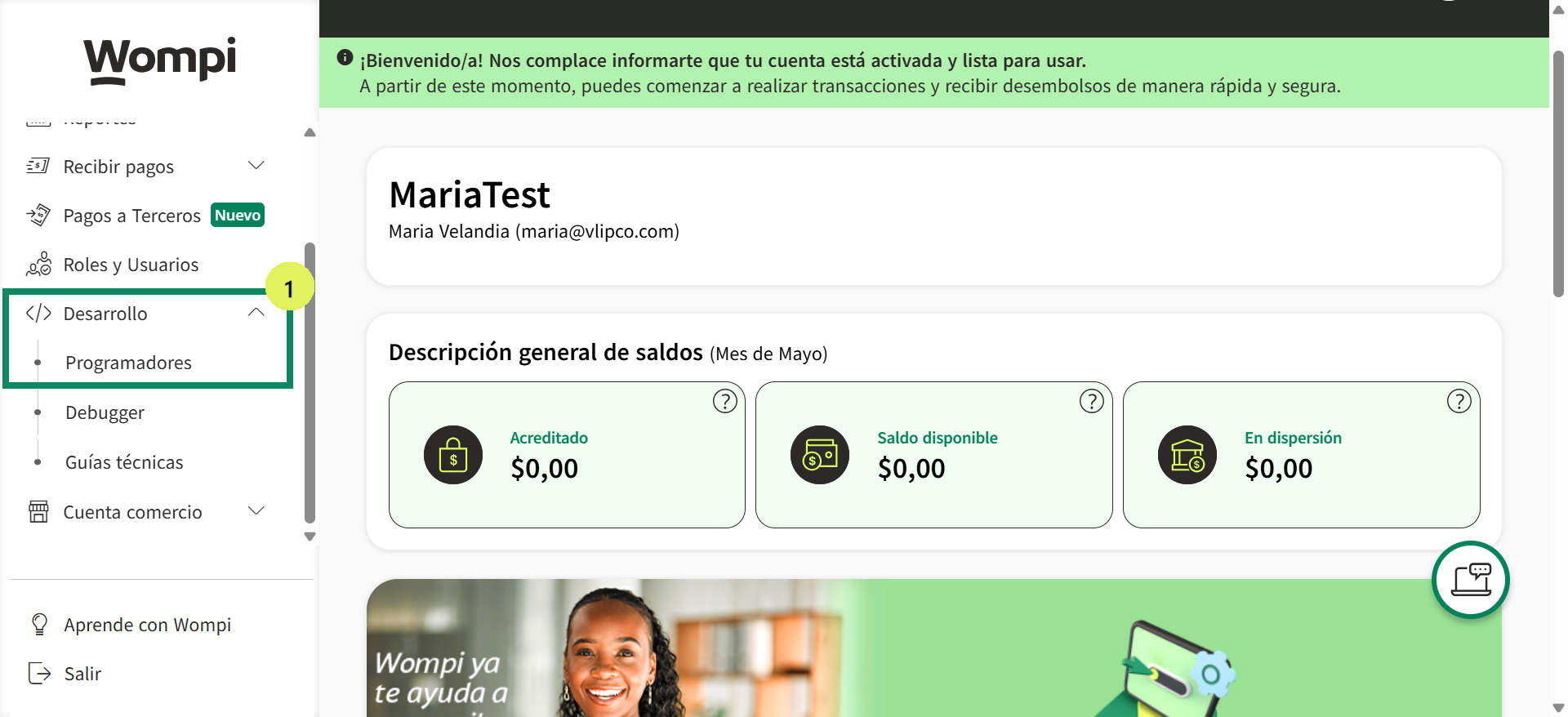
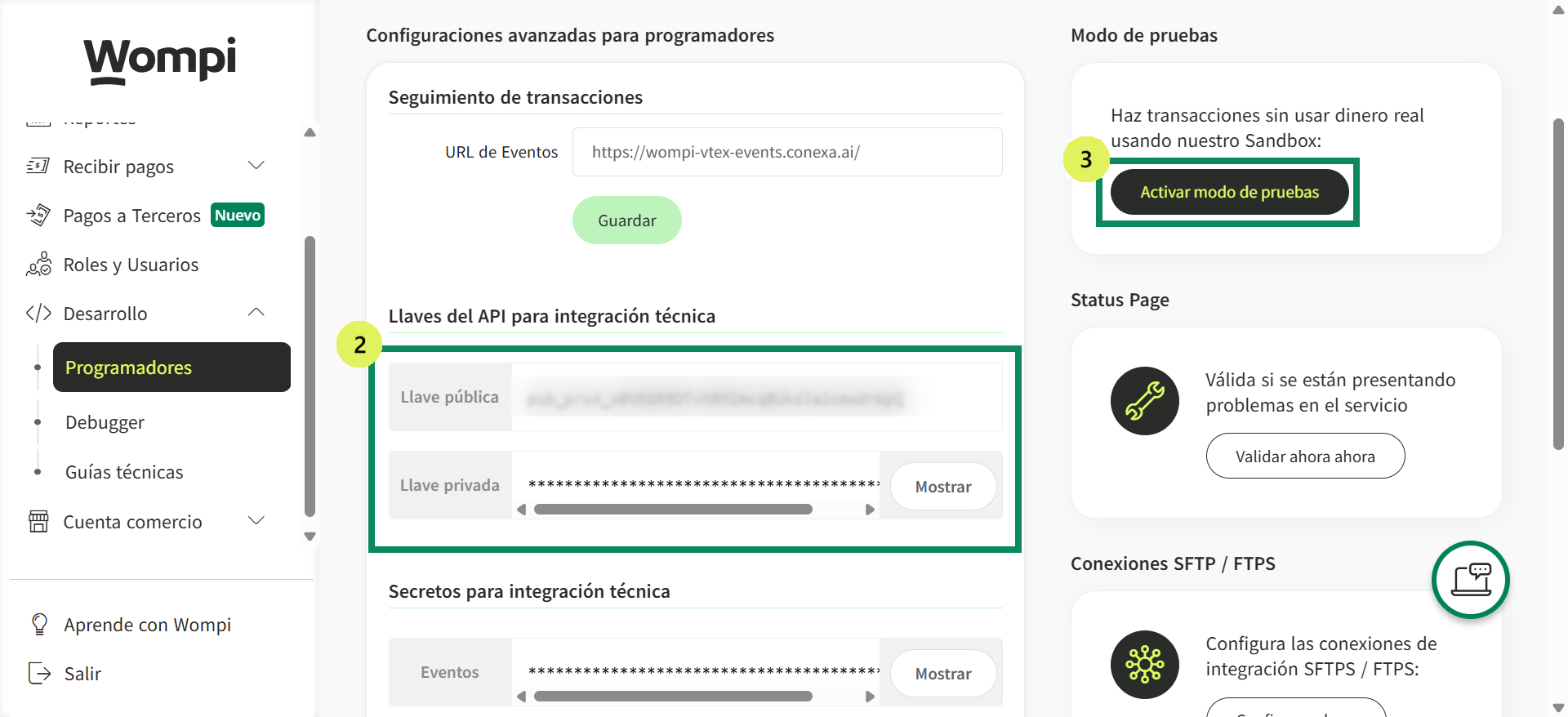
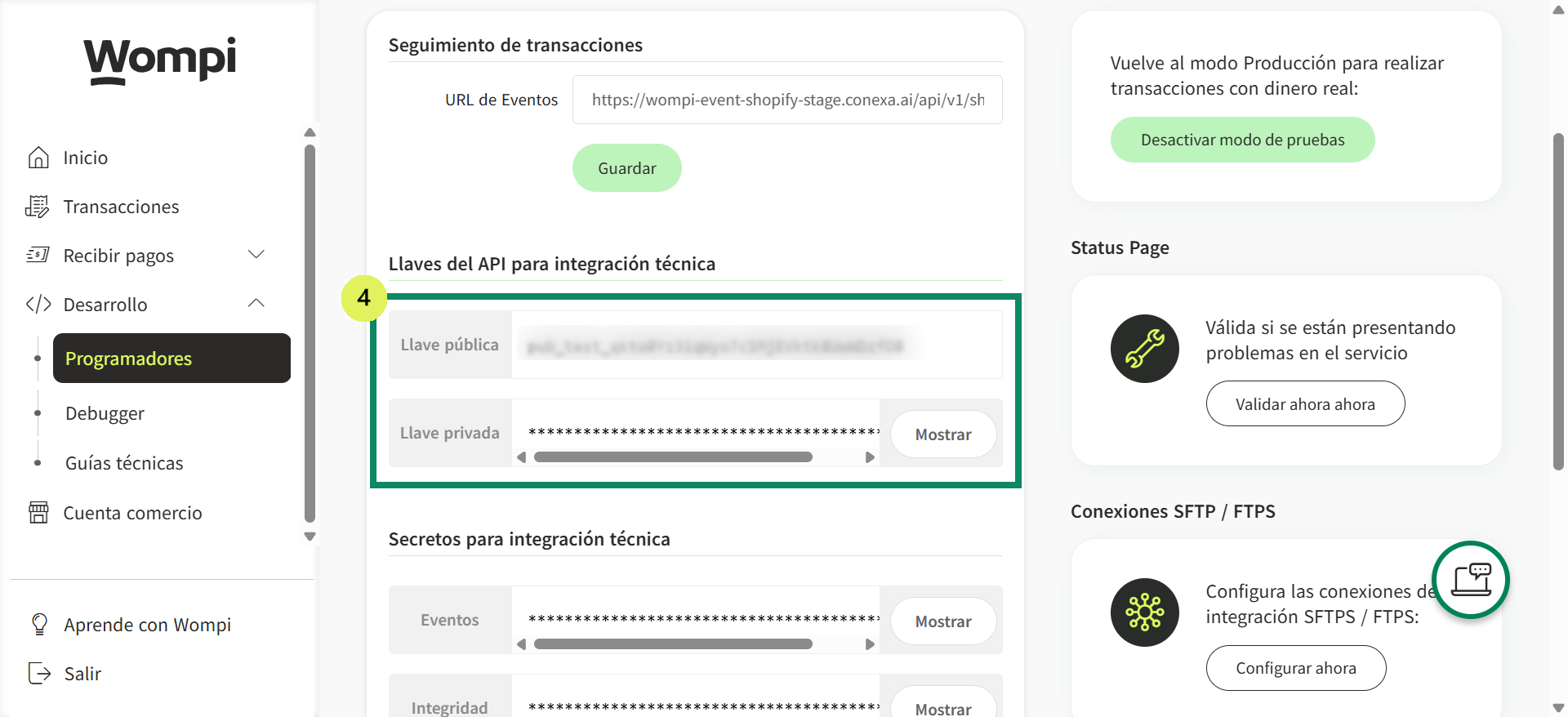
Installation
To install Wompi on your store, log in to the VTEX platform.
First step: configure the webhook
Before installing any connector, you must configure the Events URL (webhook) in your Wompi merchant account. This step is vital: it is the mechanism through which Wompi notifies your VTEX store of the status of each transaction. Without it, payments made through any of the connectors will not be updated correctly in your store.
This webhook applies to all connectors (PSE, Cards, Nequi, Bancolombia Button, Cash in Correspondents and WompiCo). Configure it only once per merchant before continuing.
To configure the Events URL and receive the status notifications correctly, we detail the following steps:
- Log in to Wompi with your credentials. Next, go to the Development section and click on the Developers option.
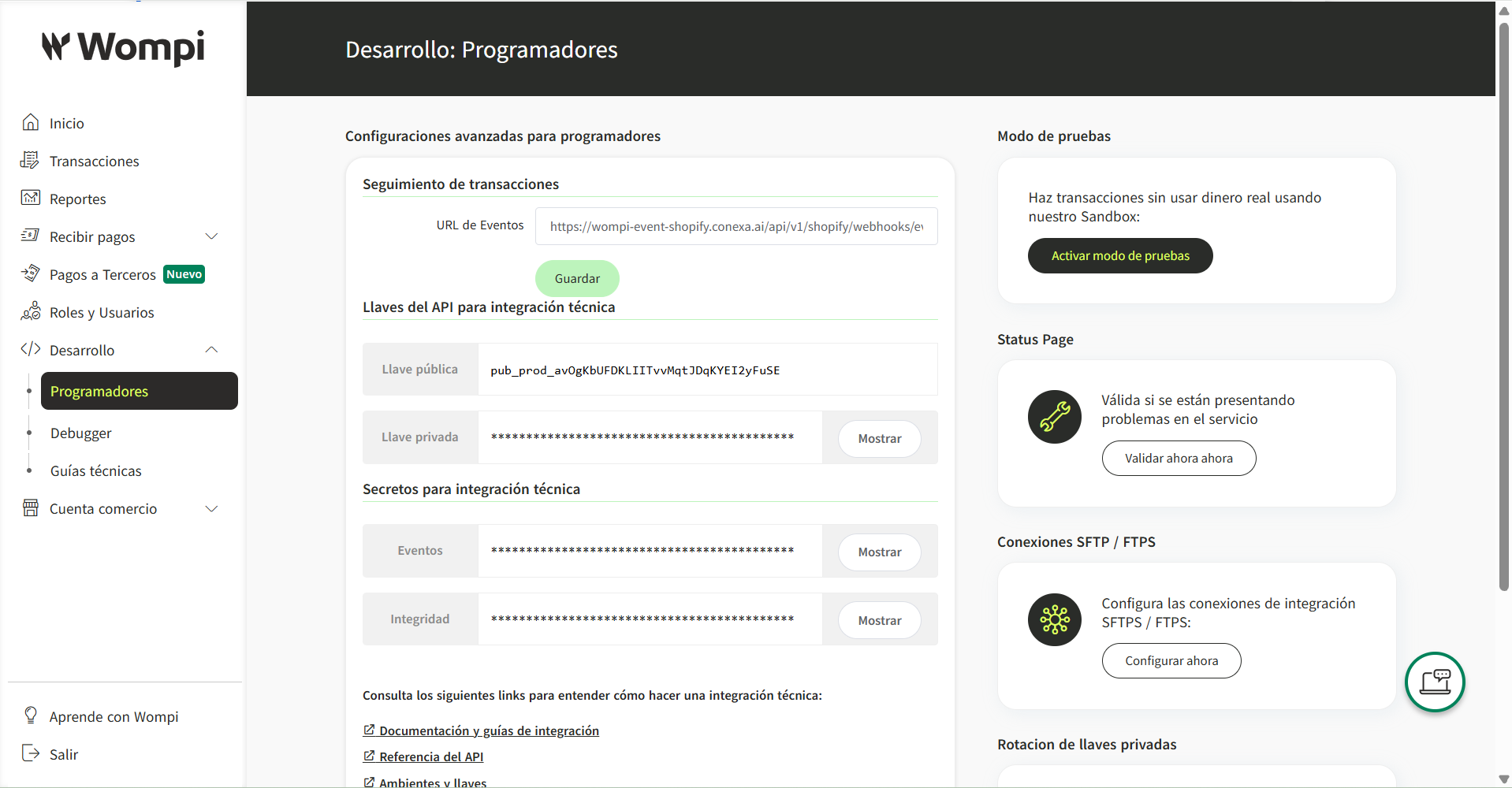
- In the Events URL field, add the URL that corresponds to the connector you are going to use and the environment you operate in, and press the Save button.
Native connectors (PSE, Cards, Nequi, Bancolombia Button, Cash in Correspondents):
| Environment | Events URL |
|---|---|
| Production | https://wompi-vtex-events.conexa.ai/ipn/event |
| Test | https://wompi-vtex-events-stage.conexa.ai/ipn/event |
Non-native connector (WompiCo):
| Environment | Events URL |
|---|---|
| Production | https://payment-integrators.wompi.co/public/v1/waybox/transactions/notify_status |
| Test | https://payment-integrators.wompi.co/public/v1/waybox/transactions/notify_status |
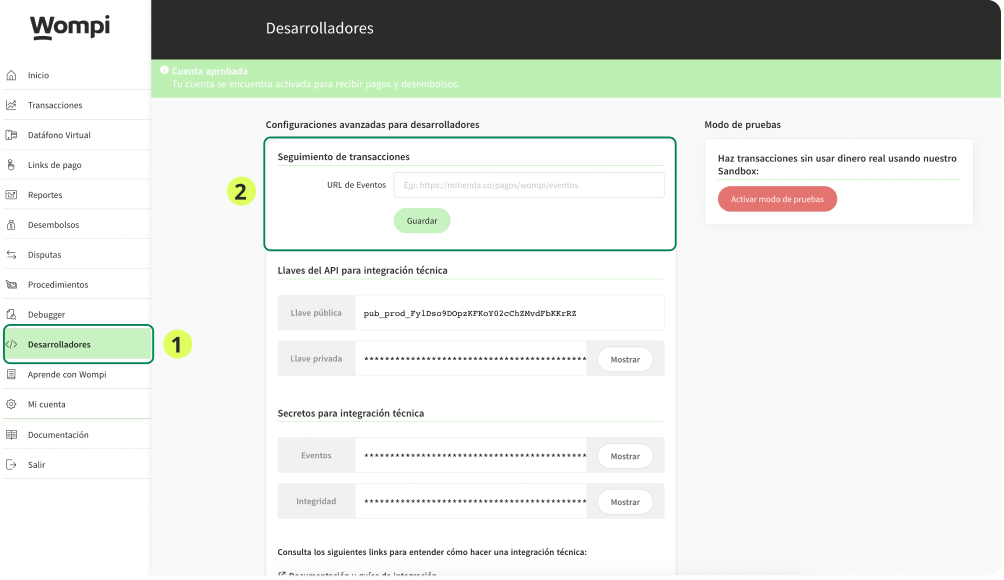
Each commerce platform sends transactions to a different Events URL. For this reason, each store must have its own merchant account in Wompi, configured with the URL that corresponds to it. Do not use the same Wompi merchant for two different platforms, since the status notifications would get crossed and would not arrive correctly.
That's it! With the webhook configured, you can now continue with the installation of the connector you need.
Wompi - PSE
Make sure you have configured the Events URL (webhook). Without this step, Wompi will not be able to notify your VTEX store of the status of each transaction. See First step: configure the webhook.
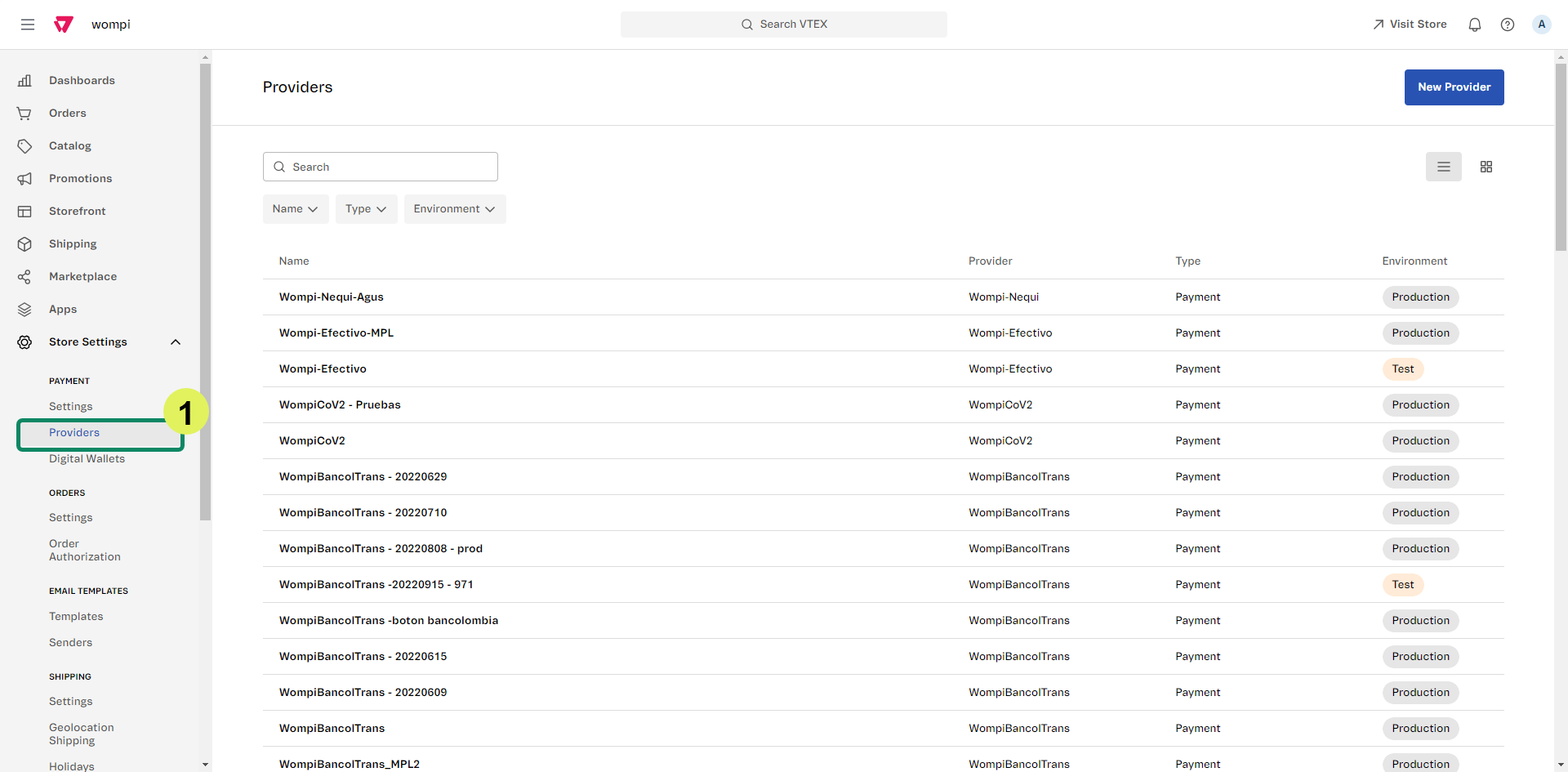
Go to Store Settings > Payment > Providers.
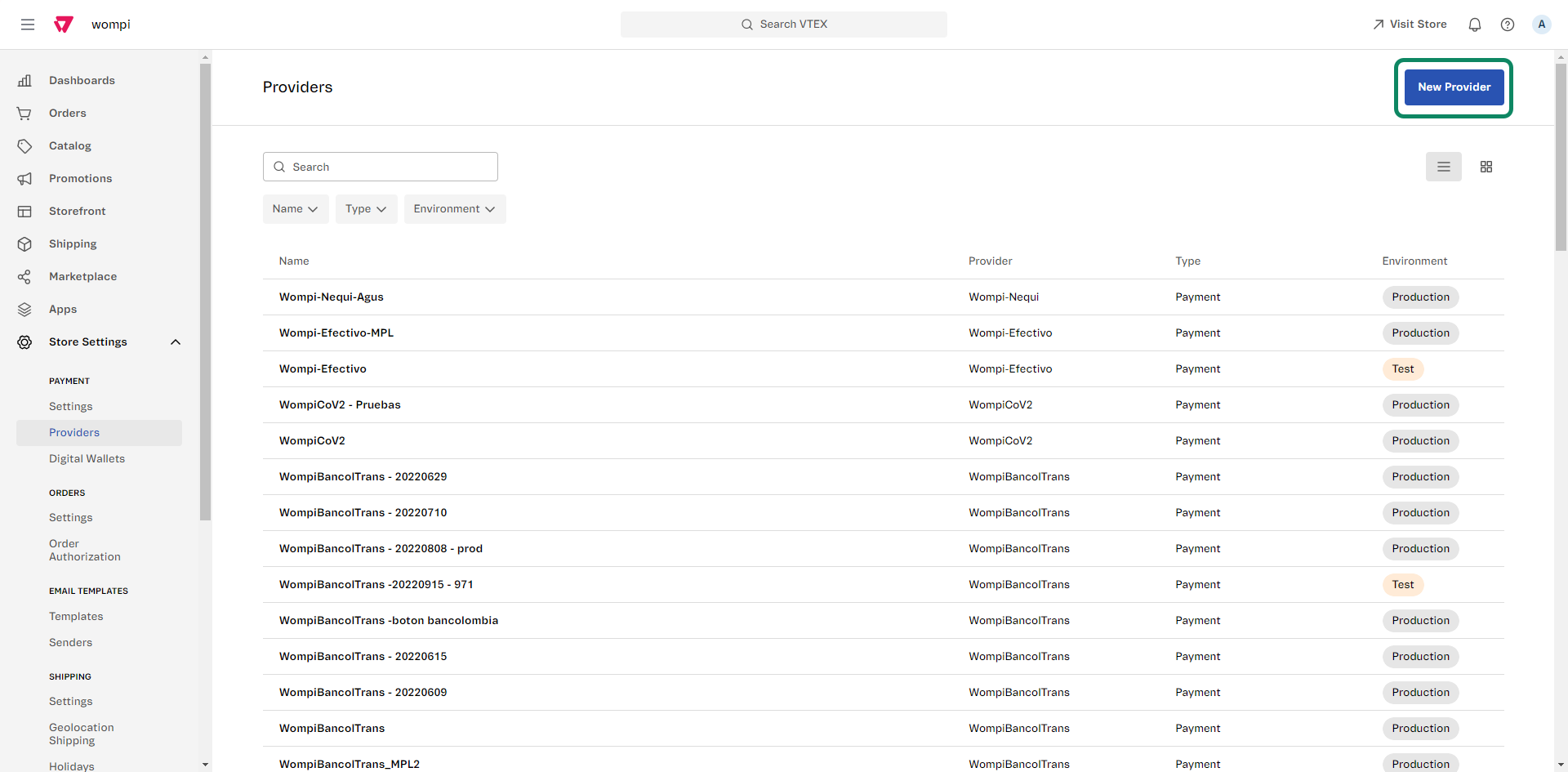
Next, click on the New provider button, search for Wompi-PSE in the list and click on this option.
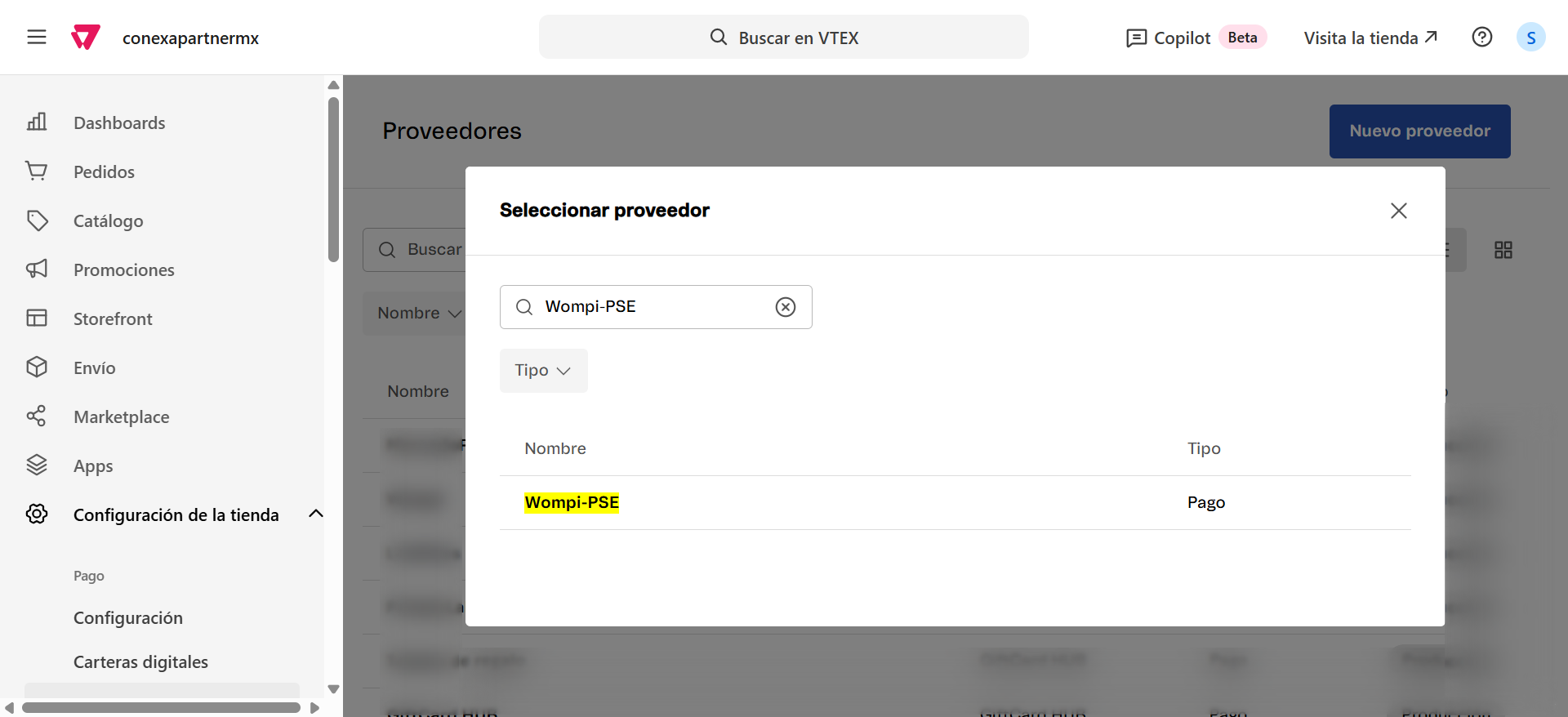
You will then see the following screen where the credentials required for the integration are requested. Remember that, to perform the integration, you must have the Wompi credentials.
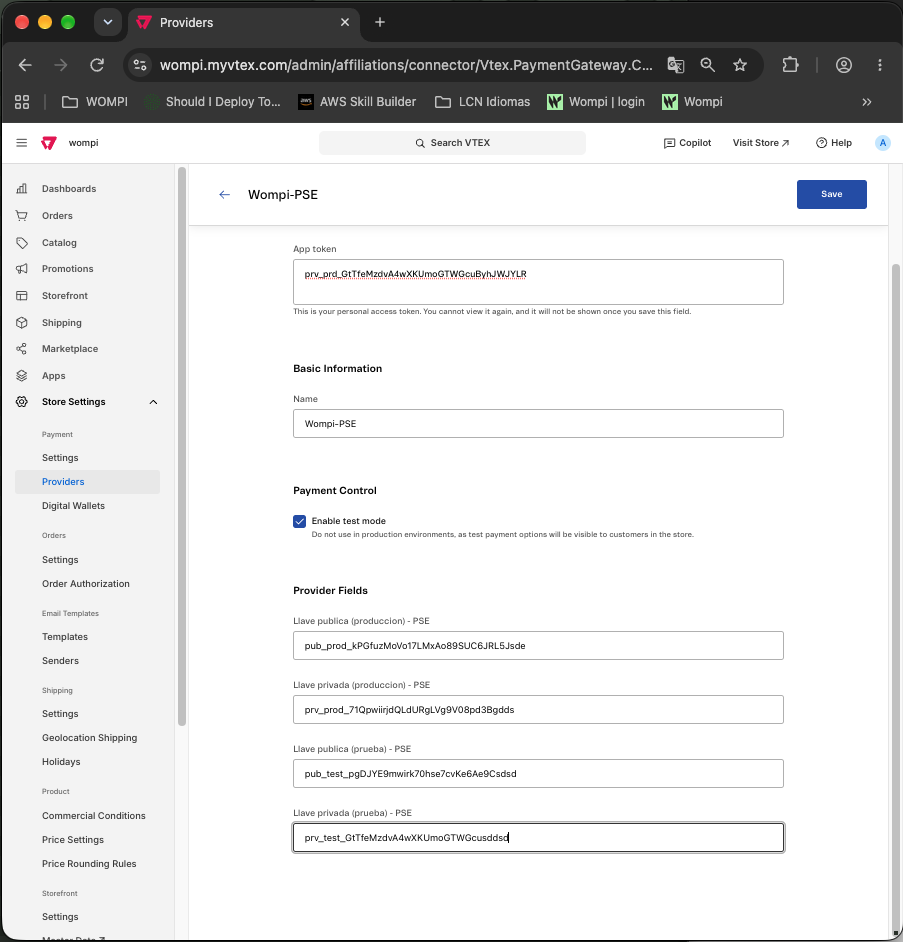
The public key corresponds to the Application Key and the private key corresponds to the Application Token. Remember to enter the credentials according to the mode you are going to operate in (test or production). Don't know where to find them? See Get your Wompi credentials.
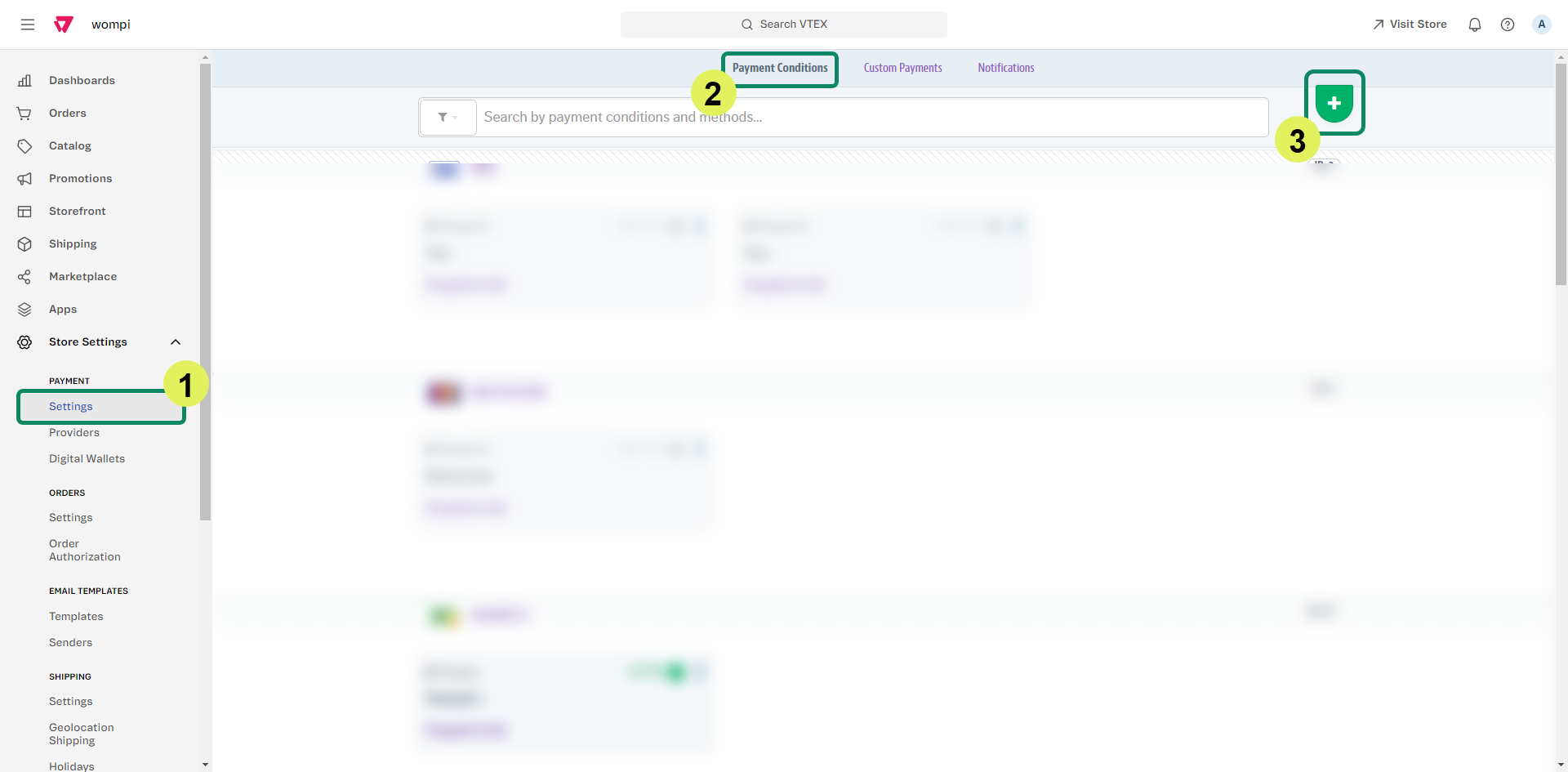
Next, you will need to set up the payment conditions for Wompi. Go to Store Settings > Payment > Settings, open the Payment Conditions tab and press the + icon.
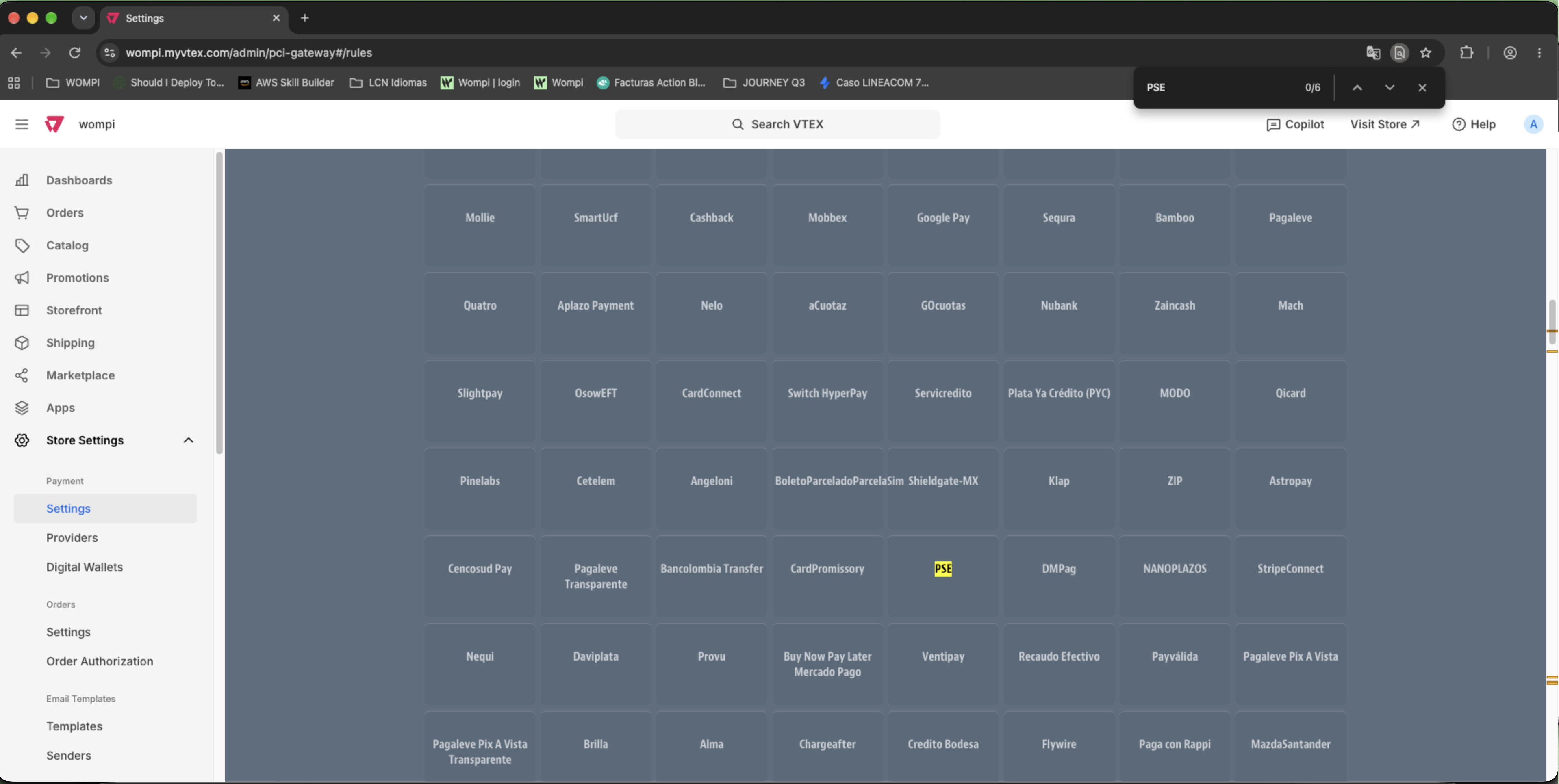
Search for the PSE option, select it, choose the provider, activate the condition and click the Save button.
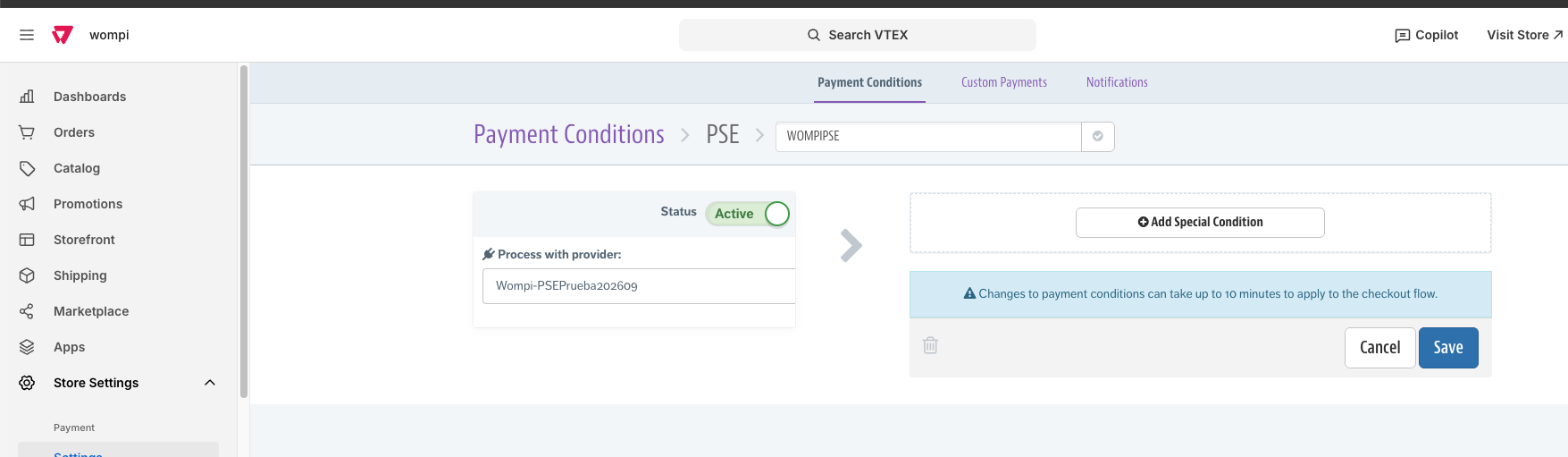
Changes to payment conditions may take up to 10 minutes to be applied at checkout in your VTEX store.
Installation of the Banks for PSE application
To complete the PSE configuration, you must install the Banks for PSE application, which activates the bank list. The following is a step-by-step guide:
- You must download and install VTEX IO CLI. See more details in the following documentation.
- Locate the Terminal (Windows or other operating system) on your PC and run it with administrator permissions by right-clicking on the Terminal icon and selecting Run as administrator.
- With the VTEX IO CLI installed, use the command
vtex loginfollowed by the VTEX account name to log into your VTEX account. This will open a browser window requesting your credentials.
$ vtex login {VTEX account name}


- Once you are logged in, you can close the browser window and return to the Terminal. You can use the
vtex whoamicommand to verify which account and workspace are being used by the Terminal. - Type vtex and press Enter to test the installation of VTEX IO CLI.
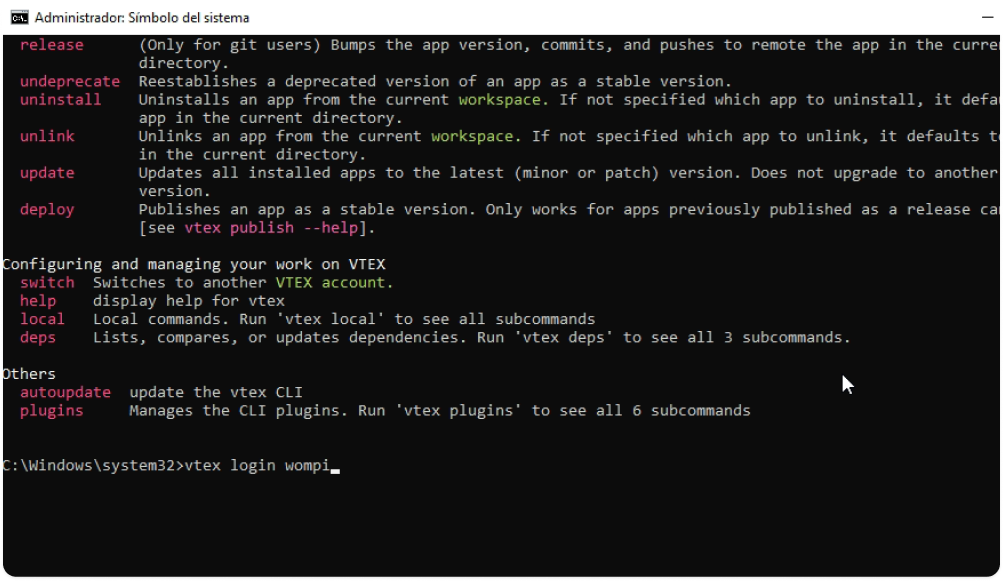
- Proceed to install Banks for PSE by typing the command
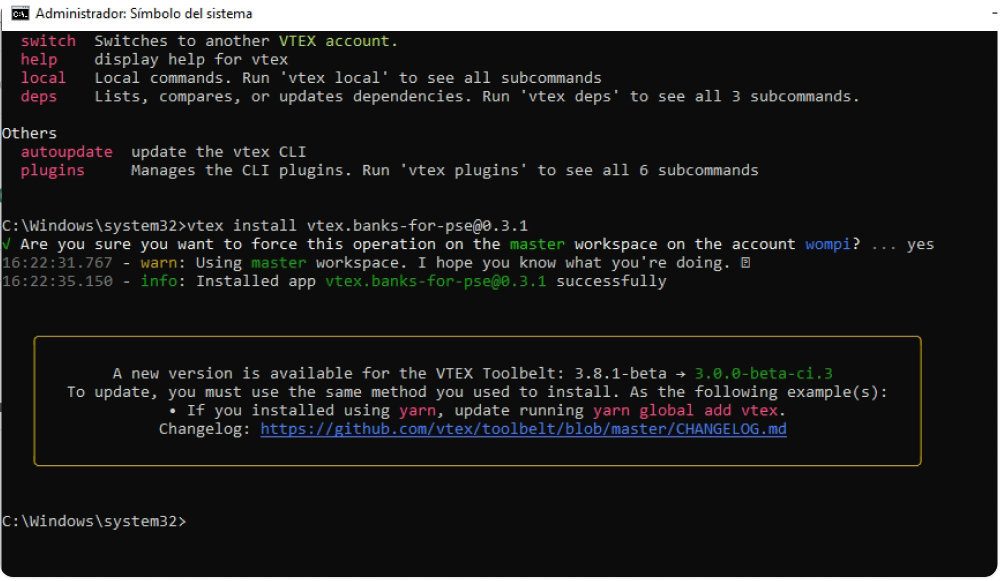
vtex install vtex.banks-for-pse@0.3.1through the Terminal using the VTEX IO CLI. Confirm the changes, type y or Y to confirm the installation. An installation success message will be displayed.

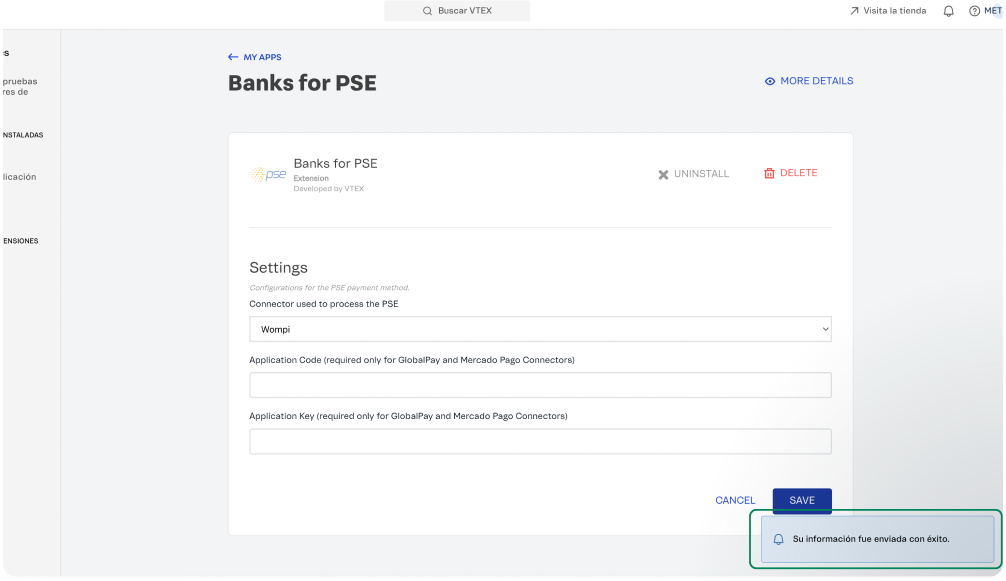
- Go to your VTEX store, see the Applications / Application Management section. You will see the Banks for PSE application installed. Then click on the Settings option.

- In the Connector used to process the PSE section select Wompi and finally press the SAVE button.

Wompi - Cards
Make sure you have configured the Events URL (webhook). Without this step, Wompi will not be able to notify your VTEX store of the status of each transaction. See First step: configure the webhook.
First, you need to configure the payment provider. To do this, go to the Store Settings -> Providers -> New provider section.
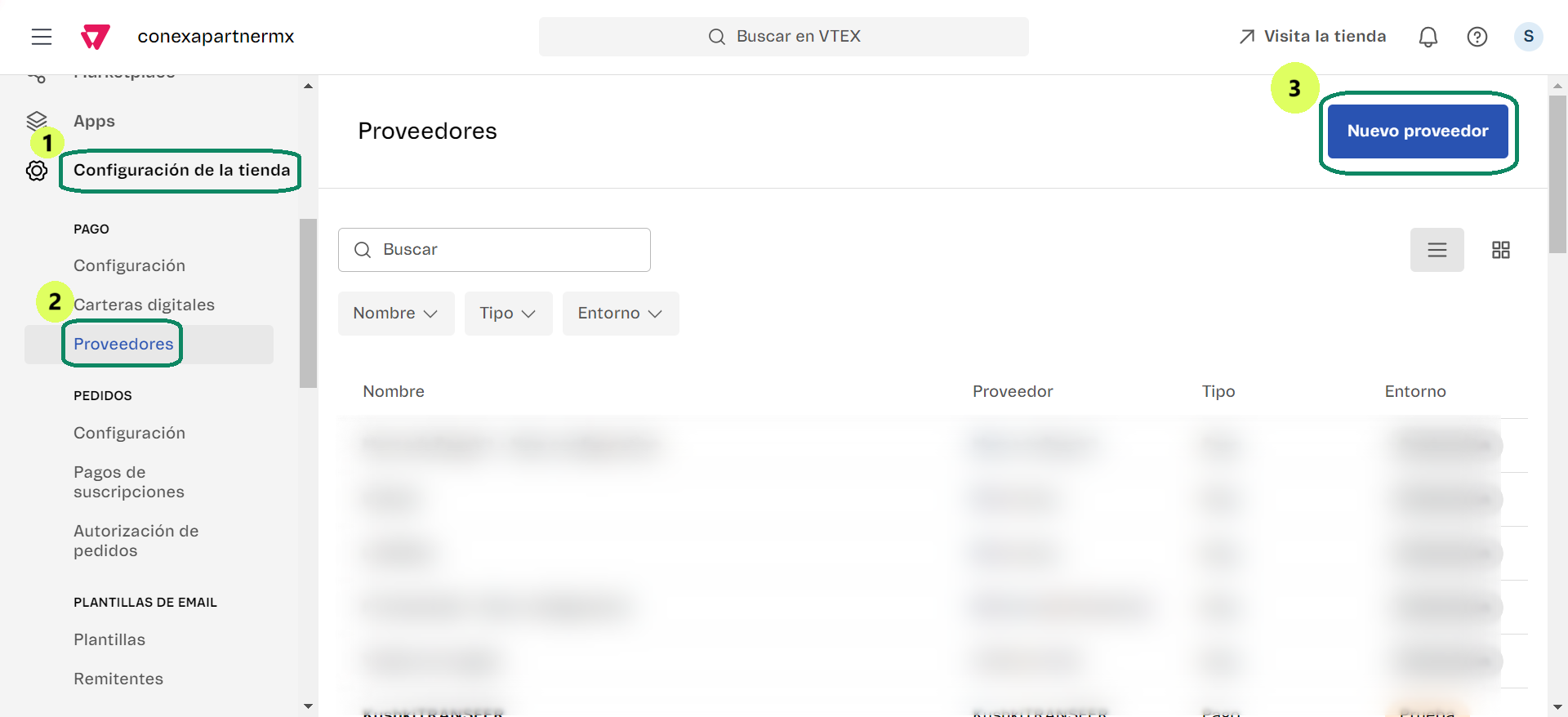
Search for Wompi in the list and click on that option to continue the process.
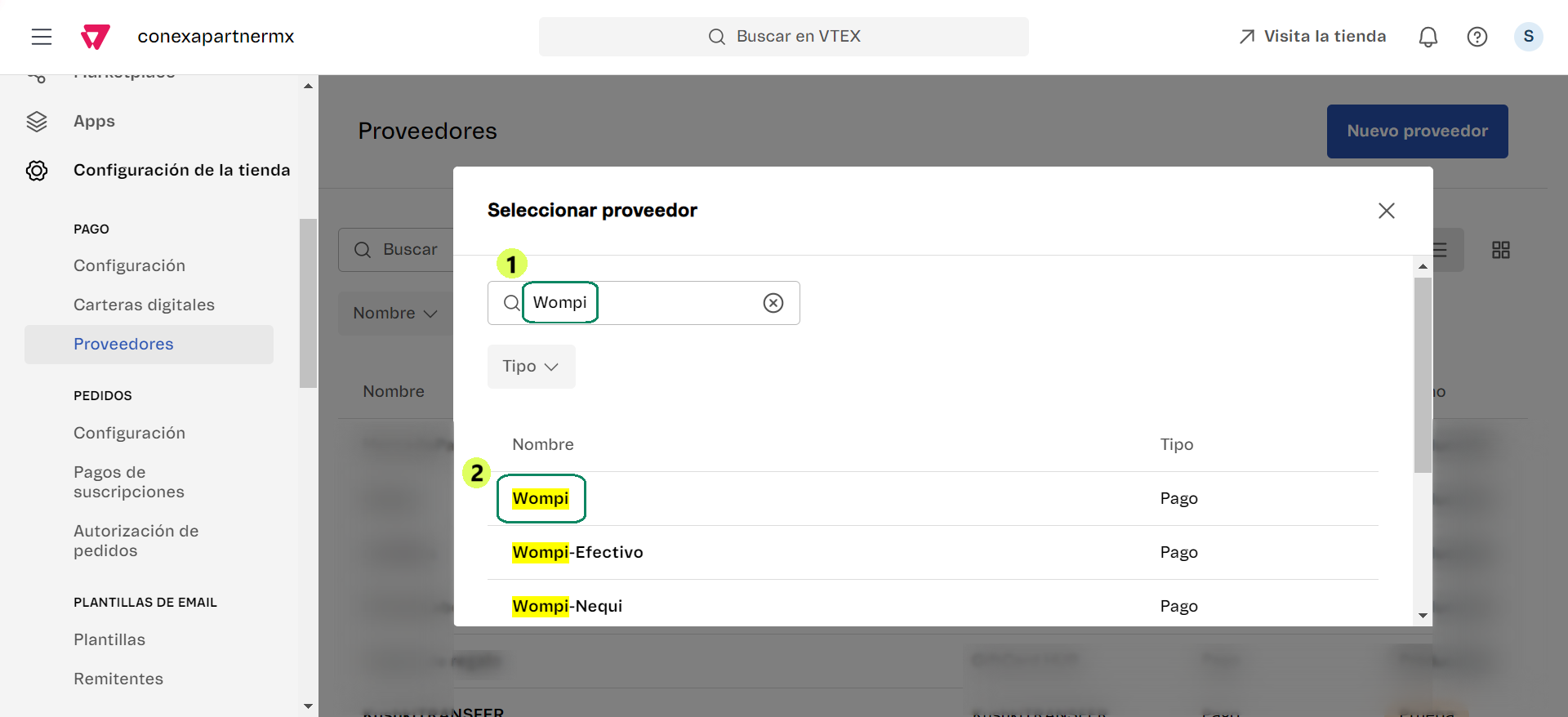
Next, you need to:
- Enter your Wompi account credentials.
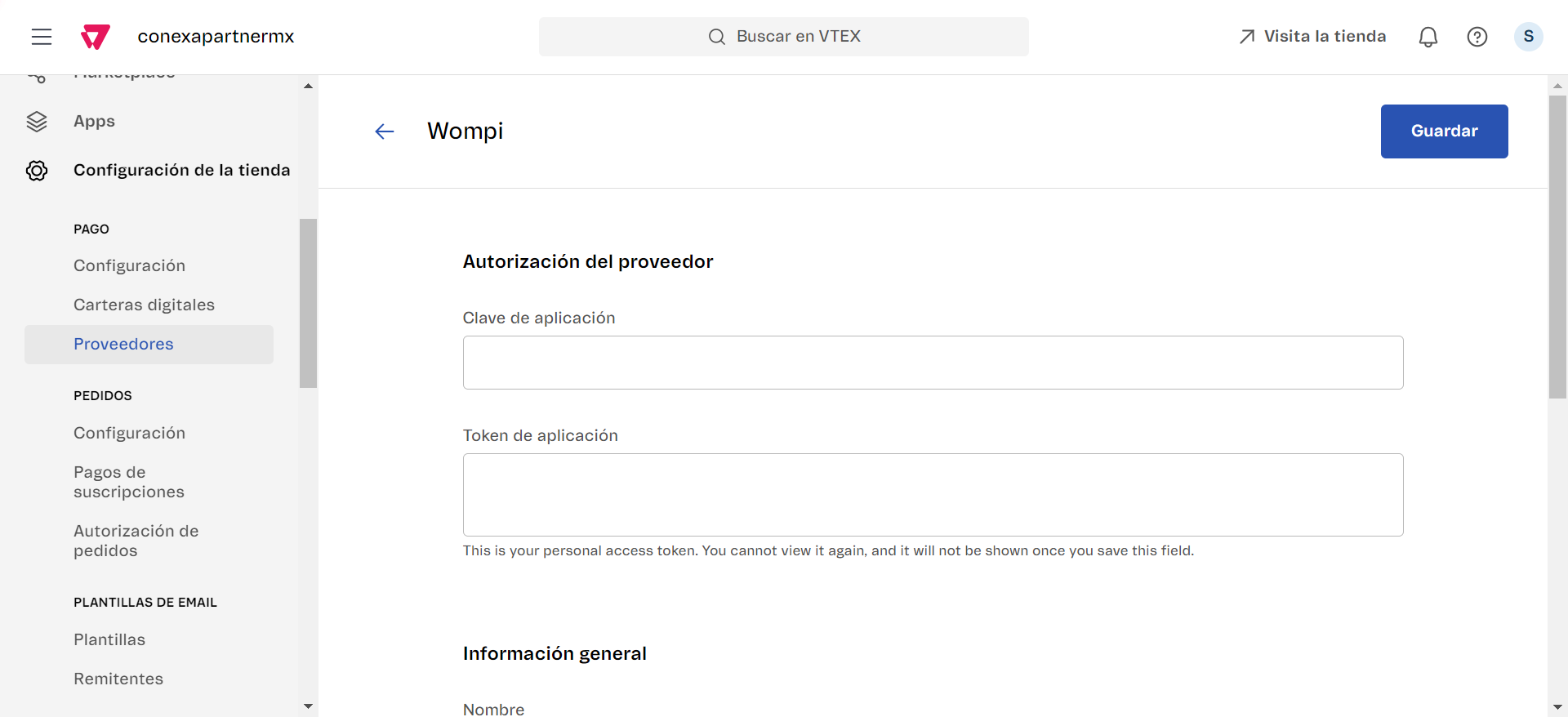
The public key corresponds to the Application Key and the private key corresponds to the Application Token. Don't know where to find them? See Get your Wompi credentials.
- Customize the provider name if desired, select whether to operate in test mode or not, and select the country where your store operates.
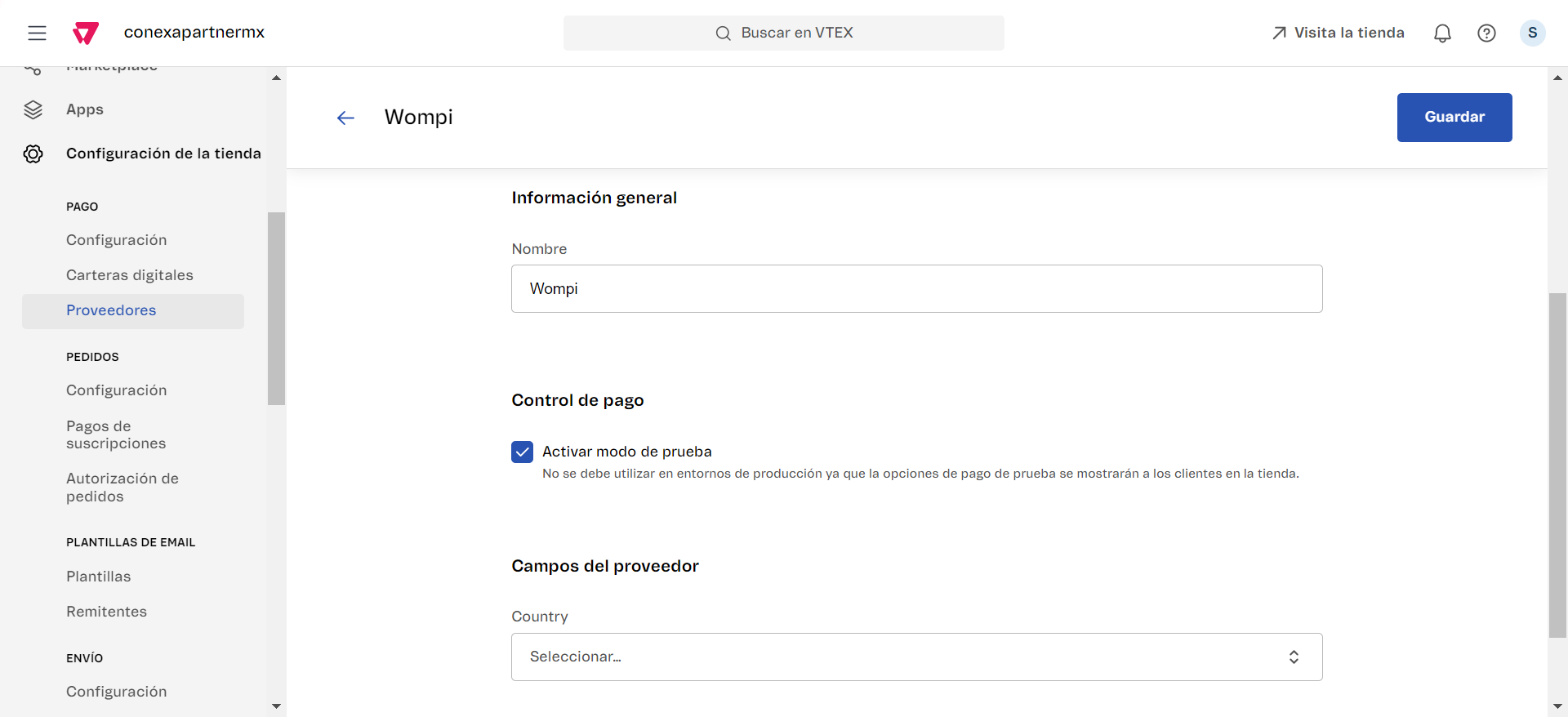
If you operate in test mode, remember to enter Wompi test credentials in the first step. If you disable test mode, enter Wompi production credentials.
Once you've finished, click on the Save button.
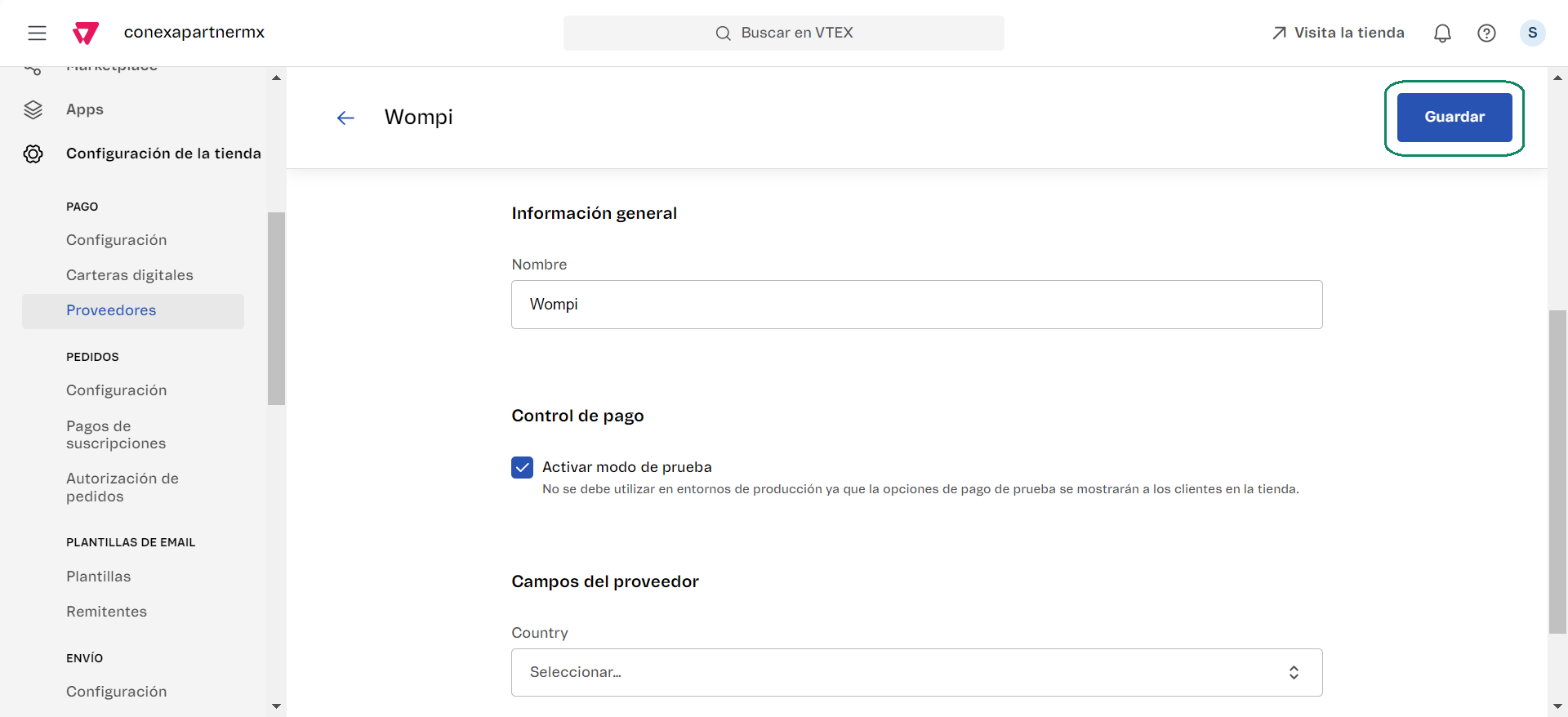
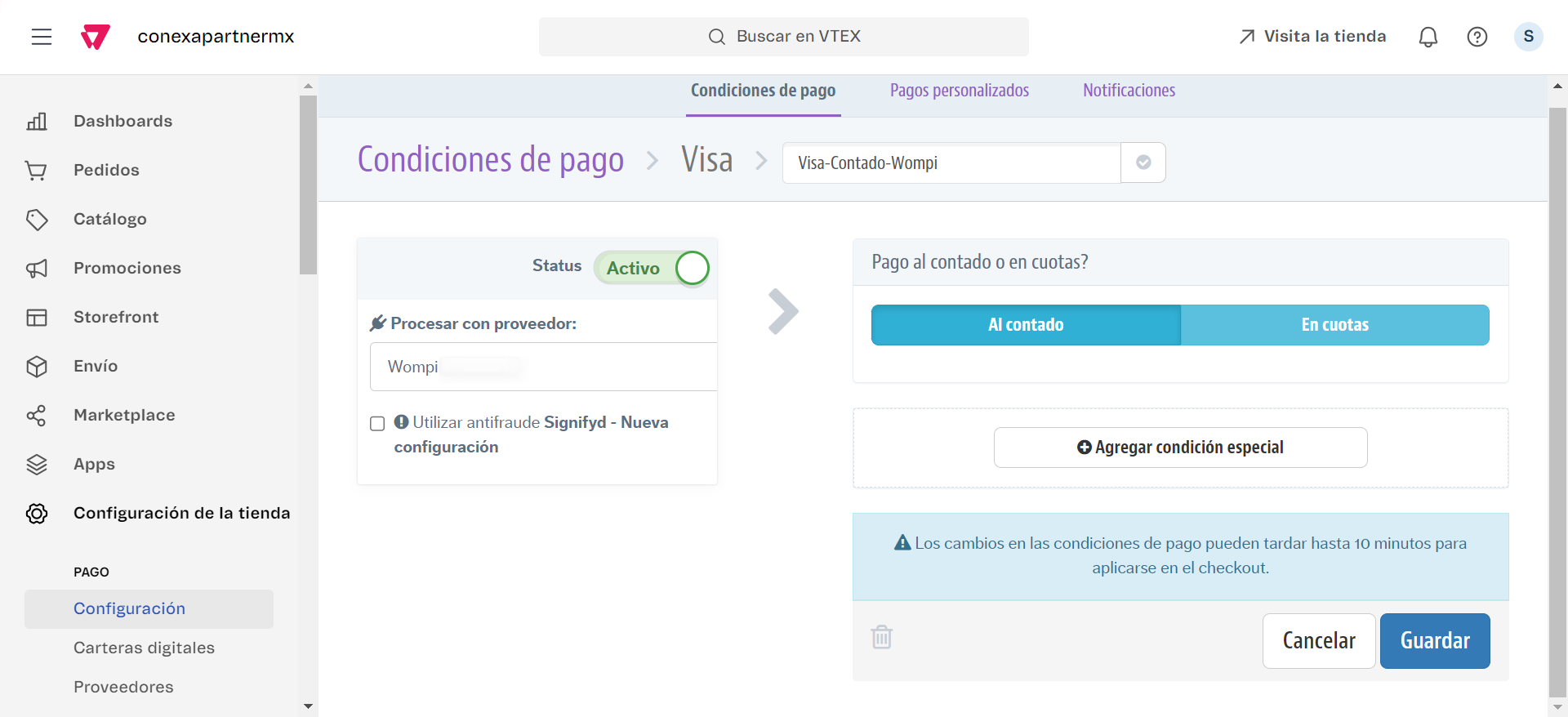
Finally, you will need to configure the payment conditions for Wompi. Go to the Payment Conditions tab and press the + icon.
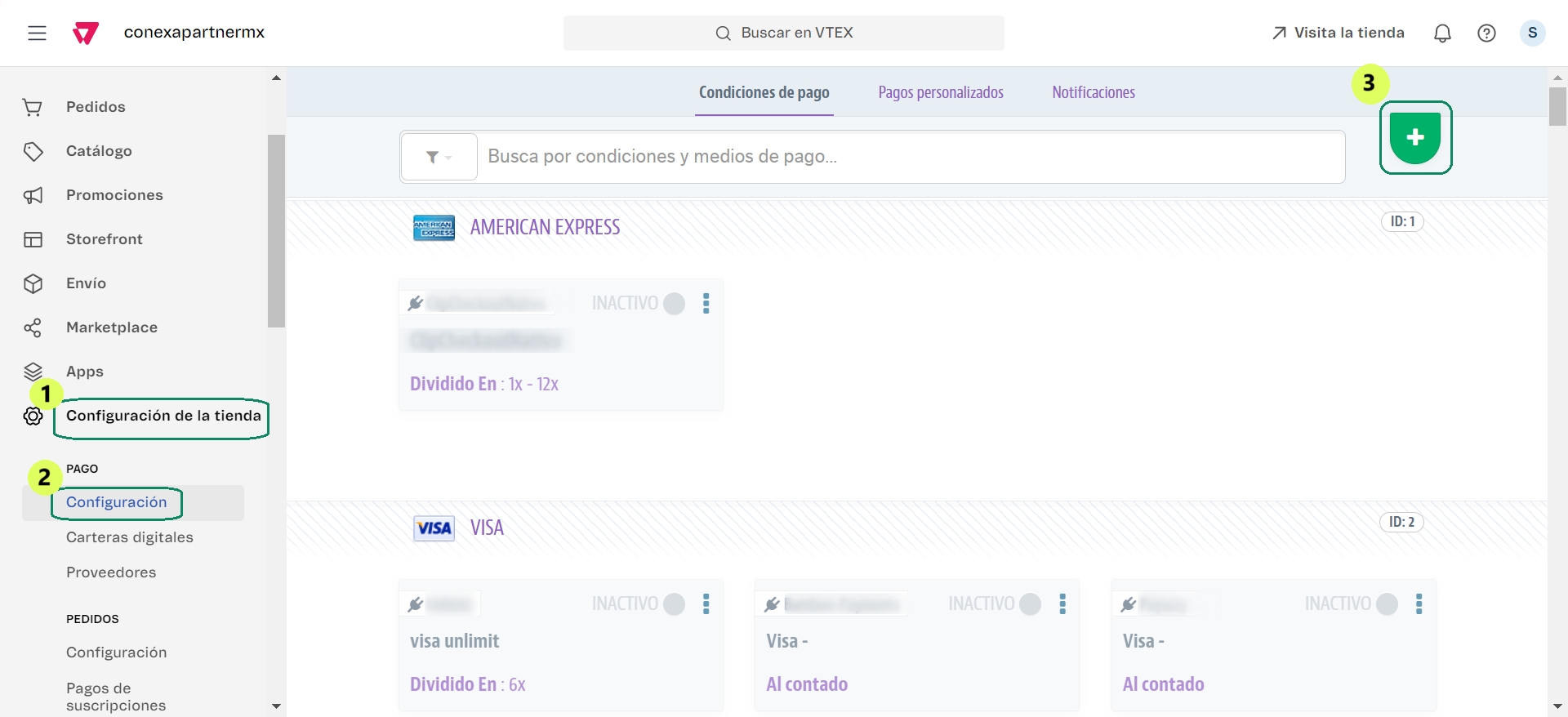
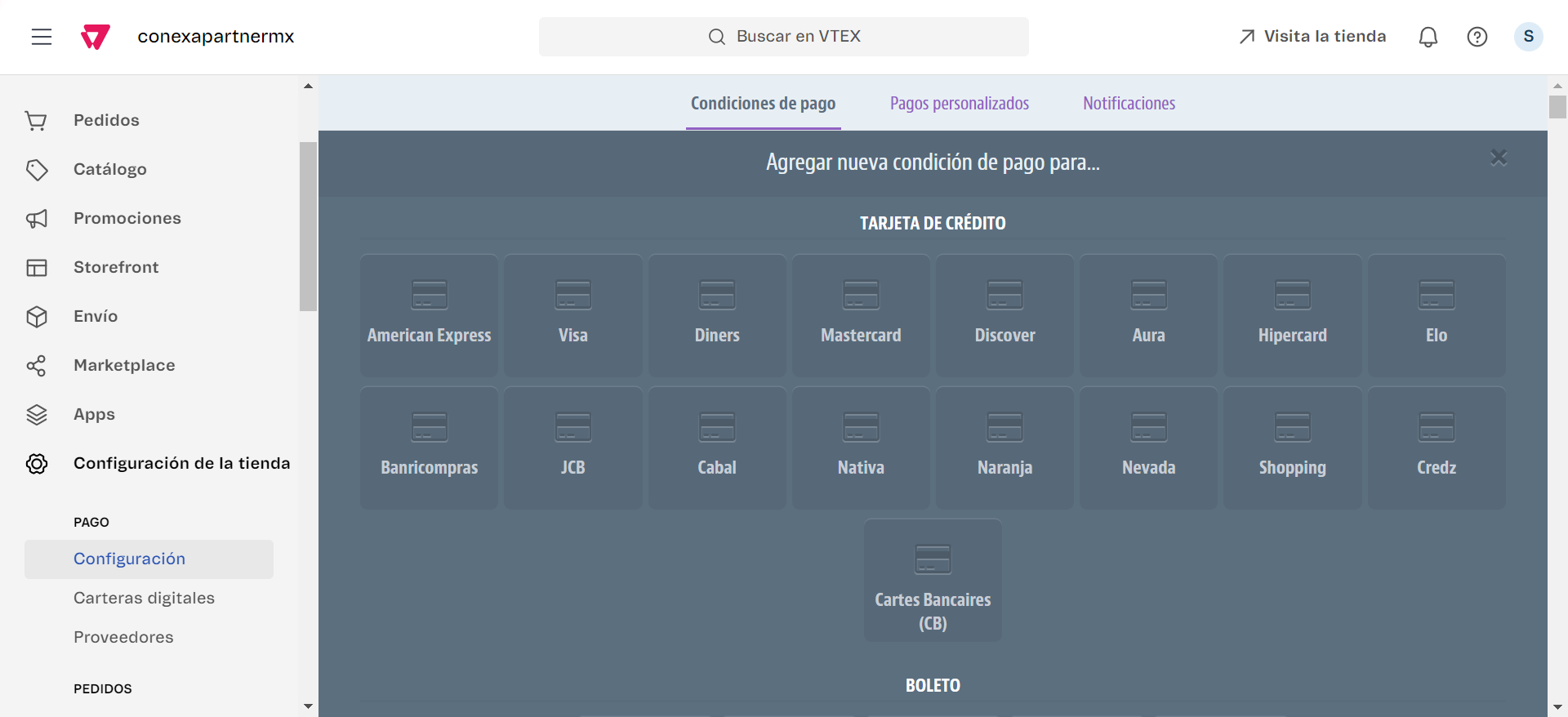
You can configure installment payments or full payments as follows:
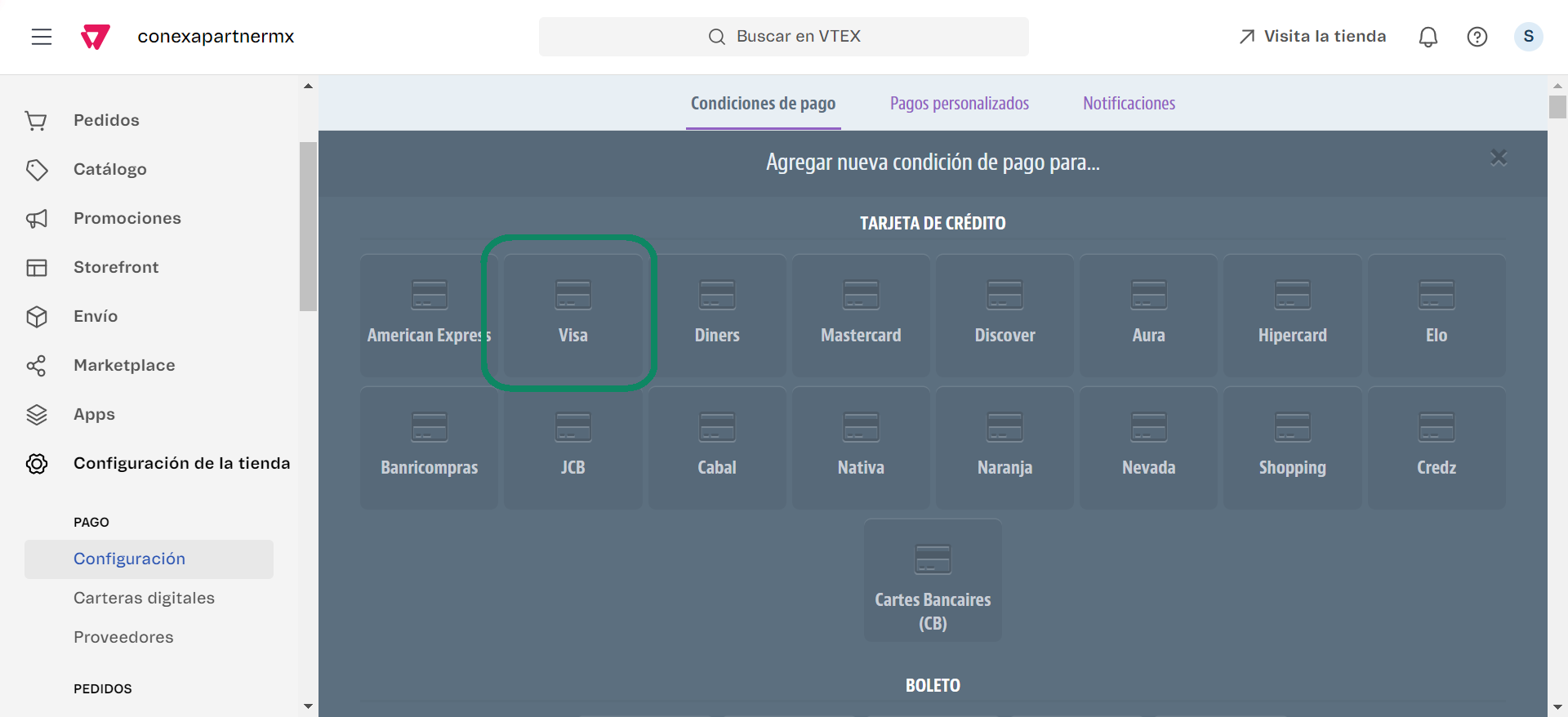
- Installment payment Select the brand you wish to offer your customers.
Customize a name if desired, activate the condition, select the provider name you previously configured, choose the Installment option, enter the corresponding data, and finally save the changes.
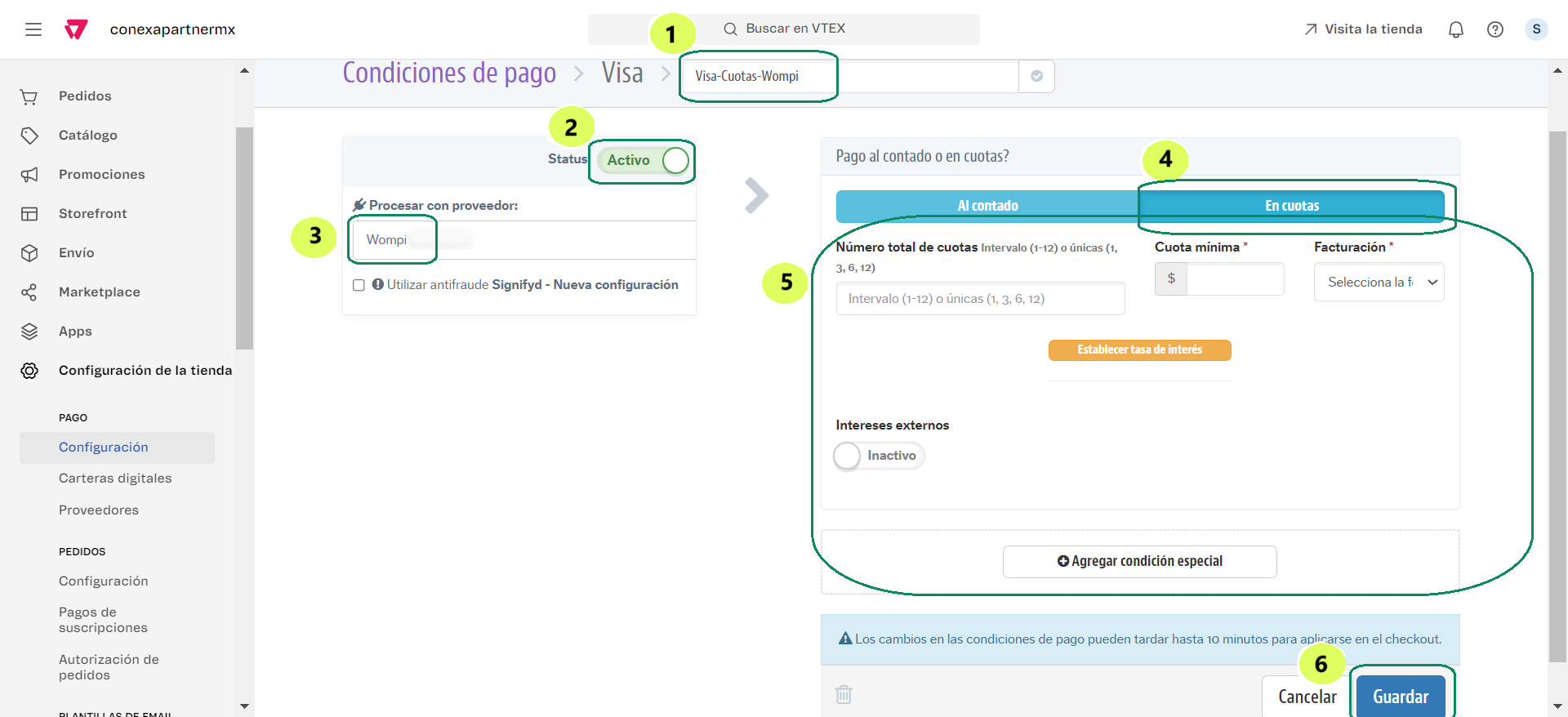
Once this is done, your customers will be able to make installment payments with their card using Wompi through the configured brand.
- Full payment Repeat the same process as Installment payment but instead of selecting the Installment option, select Full payment.
Nequi, Bancolombia Button and Cash in Correspondents
Make sure you have configured the Events URL (webhook). Without this step, Wompi will not be able to notify your VTEX store of the status of each transaction. See First step: configure the webhook.
These three payment methods share a common first step: configuring the Wompi provider. Once done, you configure each method individually as a custom payment. We guide you step by step below.
Base provider configuration
You only need to do this step once. The provider you configure here will serve to enable Nequi, Bancolombia Button and Cash in Correspondents.
Go to Store Settings > Providers > New provider.
Search for Wompi in the list and click on that option to continue the process.
Next, you need to:
- Enter your Wompi account credentials.
The public key corresponds to the Application Key and the private key corresponds to the Application Token. Remember to enter the credentials according to the mode you are going to operate in (test or production). Don't know where to find them? See Get your Wompi credentials.
- Customize the provider name if desired, select whether to operate in test mode or not, and select the country where your store operates.
If you operate in test mode, remember to enter Wompi test credentials in the first step. If you disable test mode, enter Wompi production credentials.
Once you've finished, click on the Save button.
Nequi
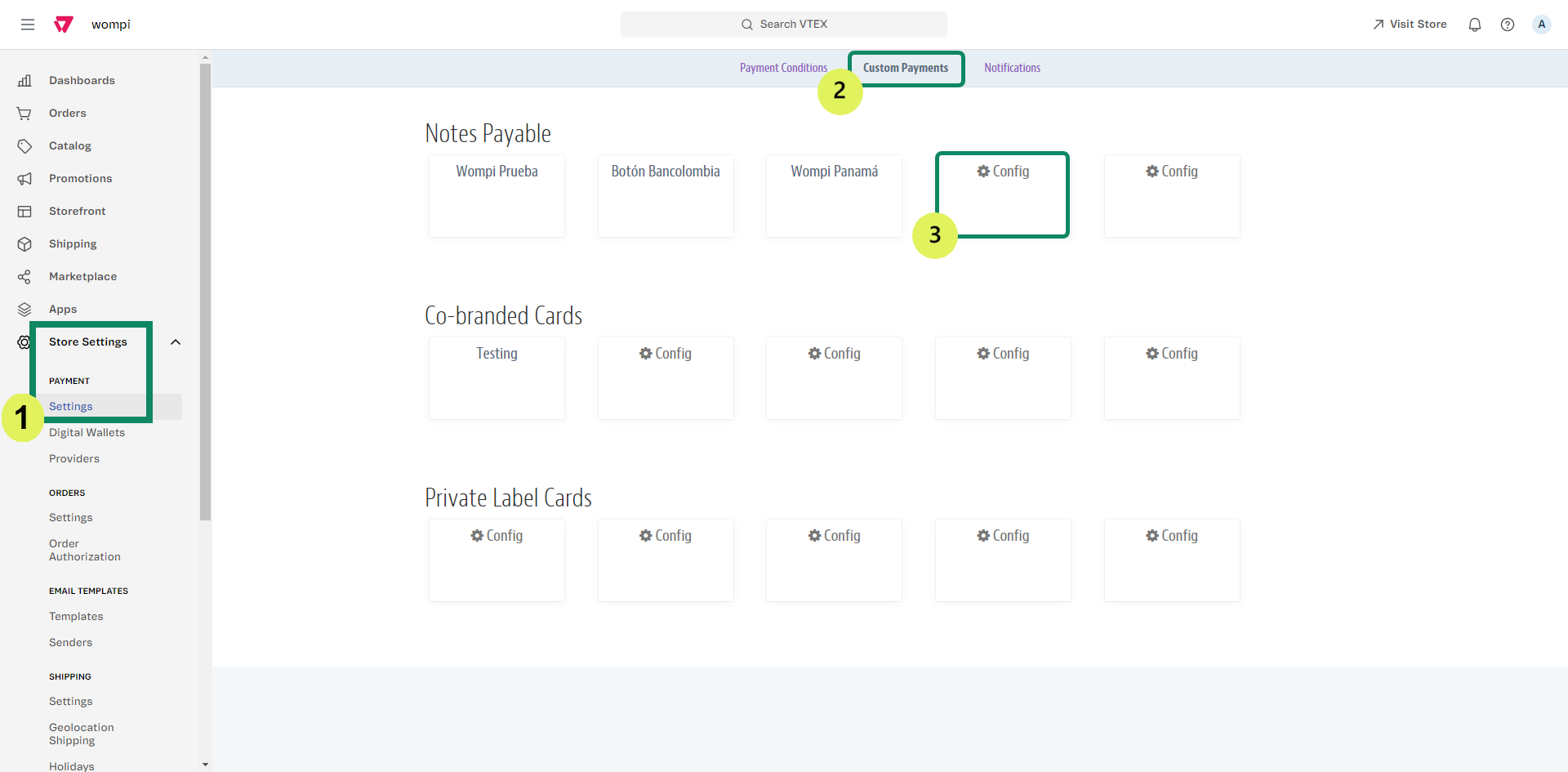
- From Store Settings > Payment > Settings open the Custom Payments tab, and in the Promissory Notes section that appears first in the list, click on Configure.
- Assign the name NEQUI and save.
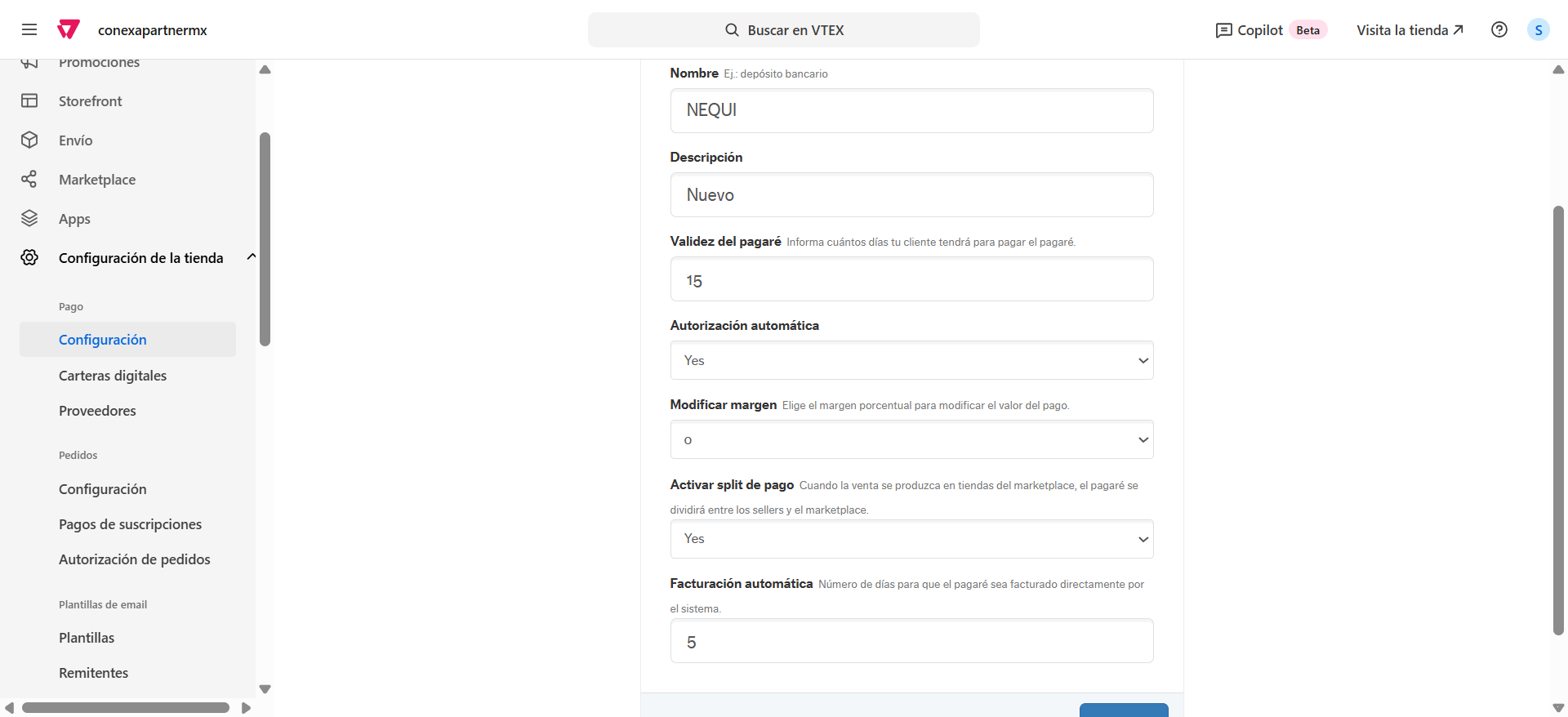
It is important to give the custom payment exactly the name NEQUI. Providing a different name would not guarantee efficient transaction management and the experience would be affected for both users and customers.
- Configure the payment condition. Go to the Payment Conditions tab and press the + icon. Select the Wompi provider you configured in the previous step.
- In the Custom Payments section, search for NEQUI and select it. If you can't see this section, reduce the zoom until you can see it at the end of the list.
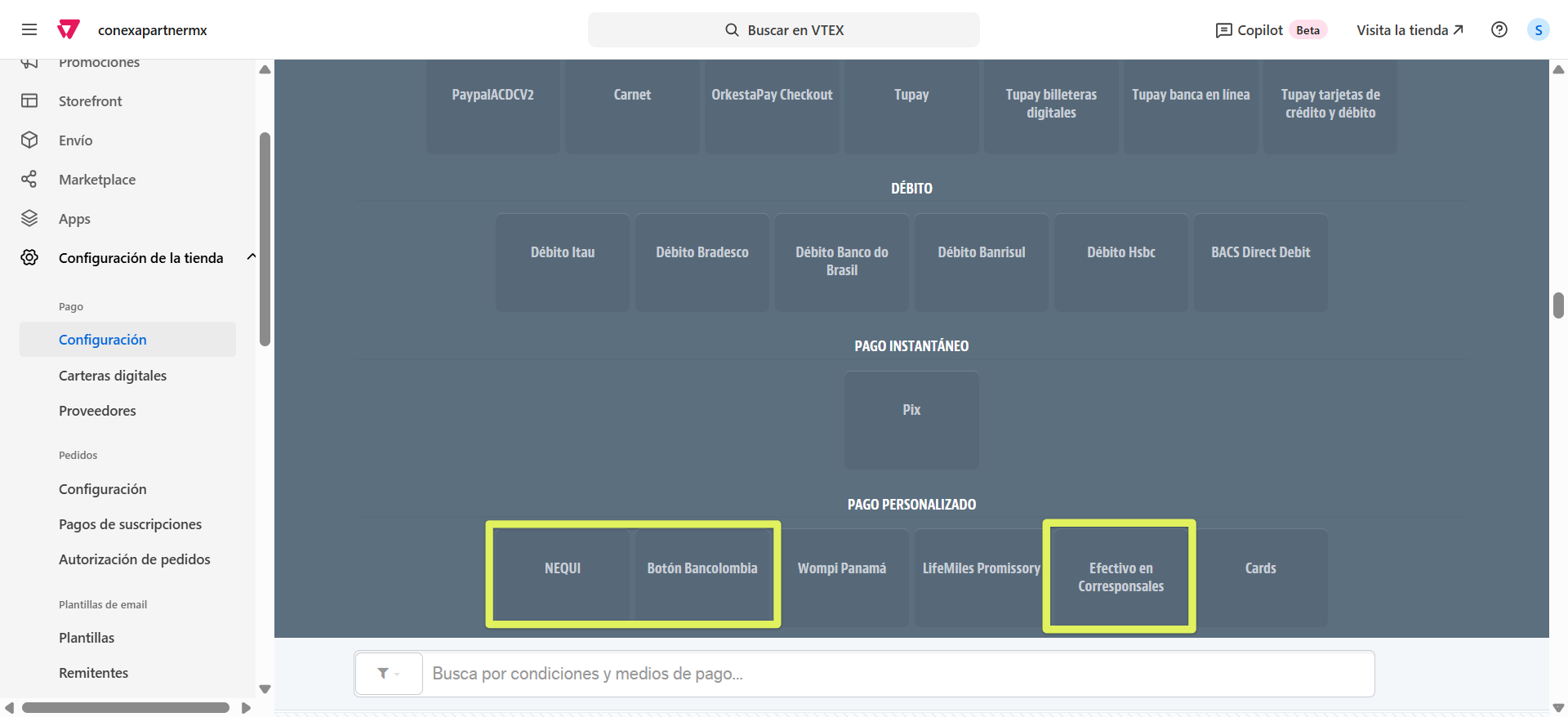
- Activate the condition and click the Save button to finish the configuration.
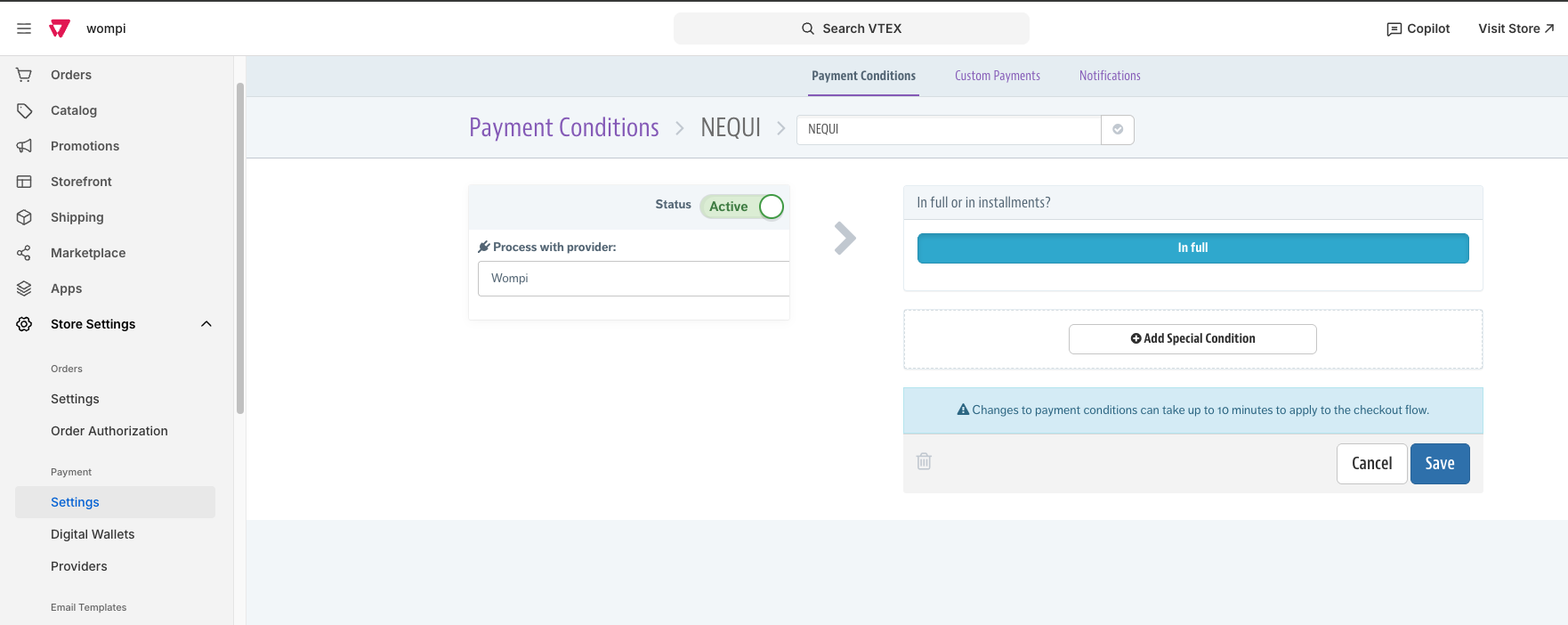
Changes to payment conditions may take up to 10 minutes to be applied at checkout in your VTEX store.
Bancolombia Button
- From Store Settings > Payment > Settings open the Custom Payments tab, and in the Promissory Notes section that appears first in the list, click on Configure.
- Assign the name Botón Bancolombia and save.
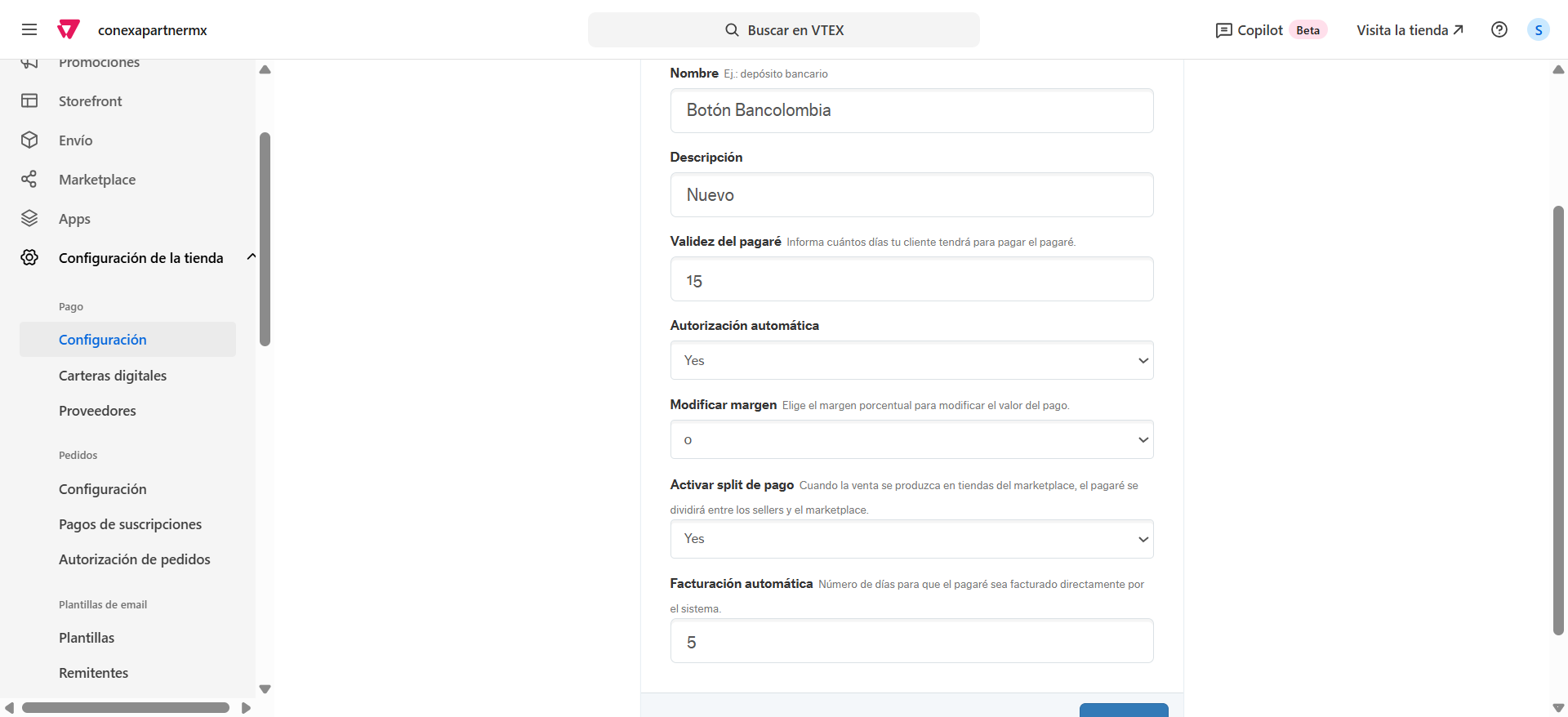
It is important to give the custom payment exactly the name Botón Bancolombia. Providing a different name would not guarantee efficient transaction management and the experience would be affected for both users and customers.
- Configure the payment condition. Go to the Payment Conditions tab and press the + icon. Select the Wompi provider you configured in the previous step.
- In the Custom Payments section, search for Botón Bancolombia and select it. If you can't see this section, reduce the zoom until you can see it at the end of the list.
- Activate the condition and click the Save button to finish the configuration.
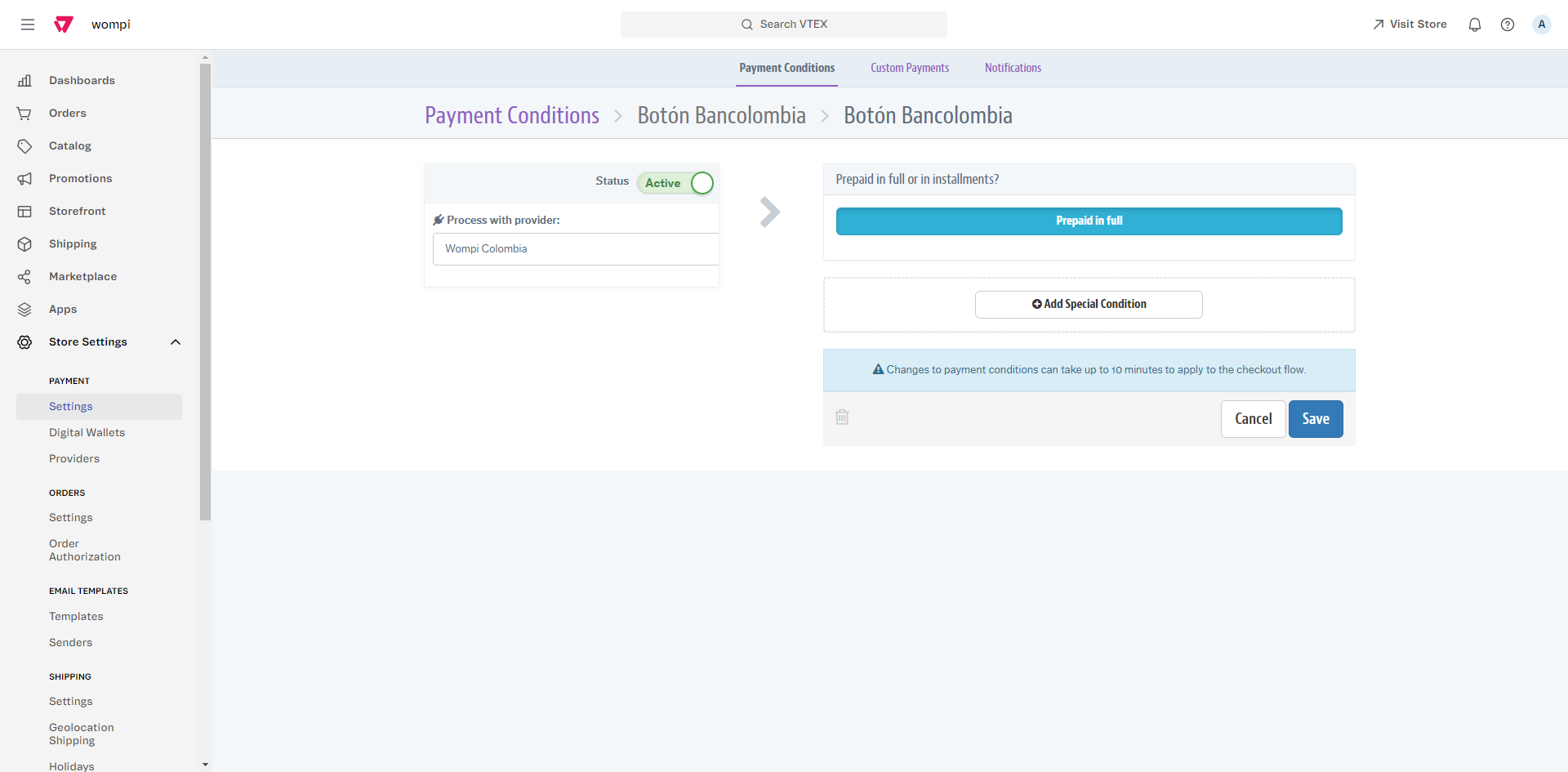
Changes to payment conditions may take up to 10 minutes to be applied at checkout in your VTEX store.
Cash in Correspondents
- From Store Settings > Payment > Settings open the Custom Payments tab, and in the Promissory Notes section that appears first in the list, click on Configure.
- Assign the name Efectivo en Corresponsales and save.
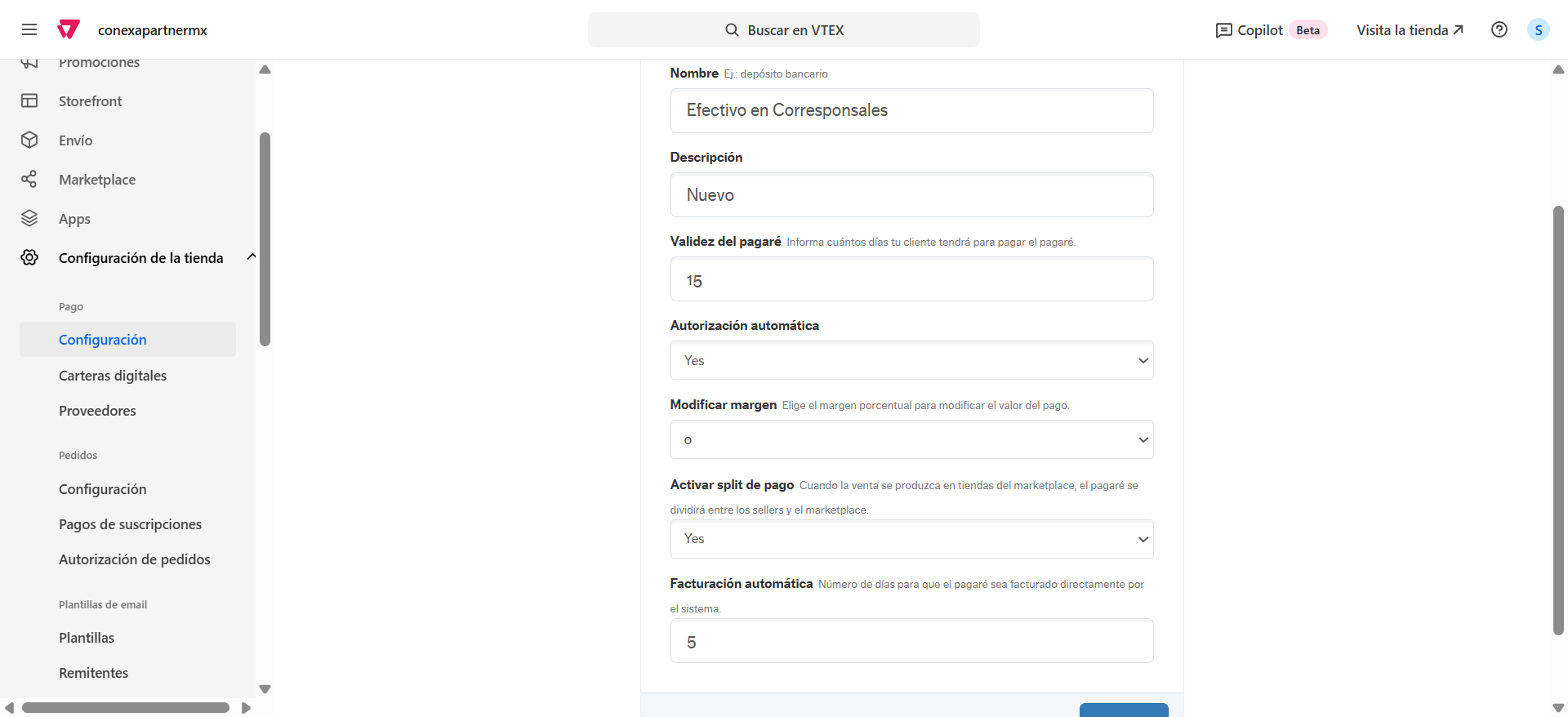
It is important to give the custom payment exactly the name Efectivo en Corresponsales. Providing a different name would not guarantee efficient transaction management and the experience would be affected for both users and customers.
- Configure the payment condition. Go to the Payment Conditions tab and press the + icon. Select the Wompi provider you configured in the previous step.
- In the Custom Payments section, search for Efectivo en Corresponsales and select it. If you can't see this section, reduce the zoom until you can see it at the end of the list.
- Activate the condition and click the Save button to finish the configuration.
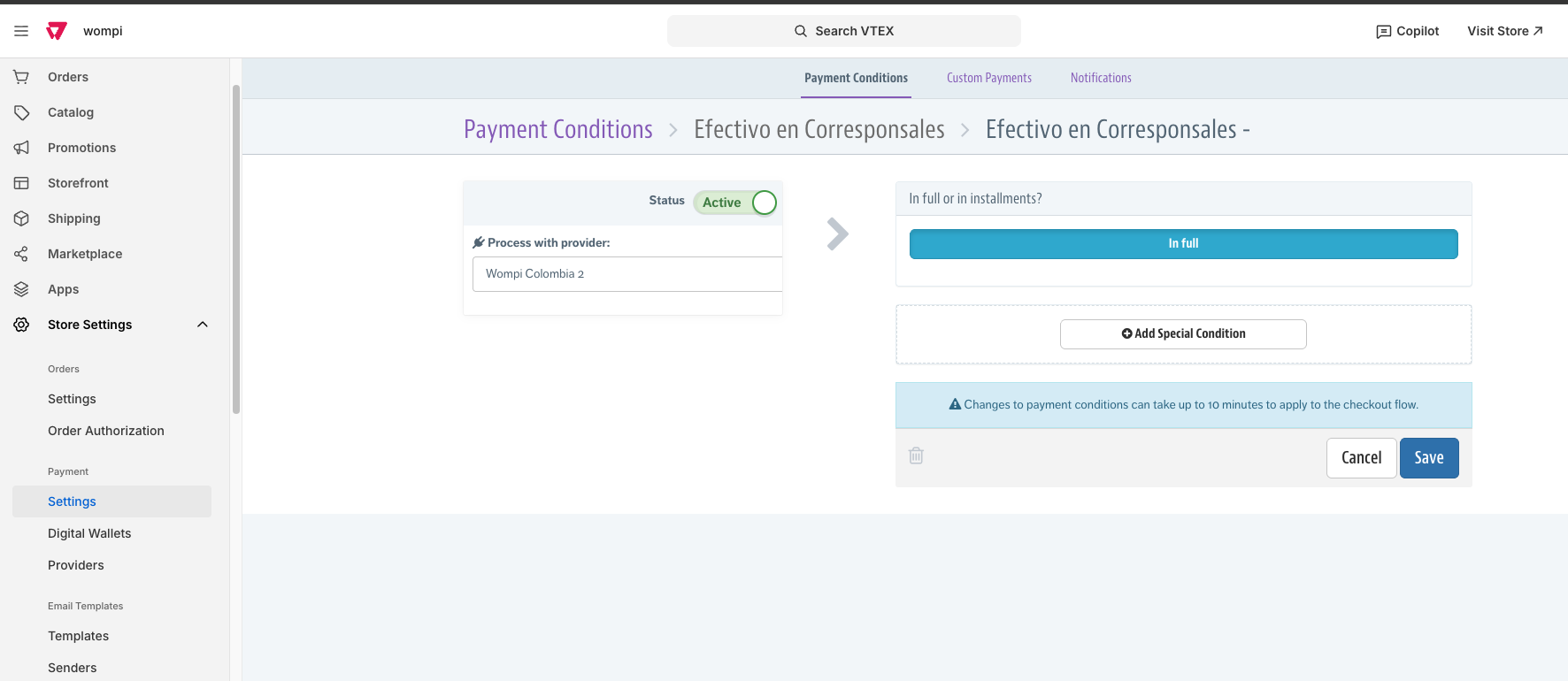
Changes to payment conditions may take up to 10 minutes to be applied at checkout in your VTEX store.
WompiCo (non-native connector)
Make sure you have configured the Events URL (webhook). Without this step, Wompi will not be able to notify your VTEX store of the status of each transaction. See First step: configure the webhook.
Unlike the native connectors, WompiCo does not require you to copy credentials: the connection is authorized by logging in to Wompi. The installation has two parts: first you connect your Wompi account with VTEX, and then you enable WompiCo as a payment method in the checkout.
Part A. Connect your Wompi account with VTEX
- Go to Store Settings > Providers > New provider.
- Search for WompiCo in the list and click on that option to continue the process.
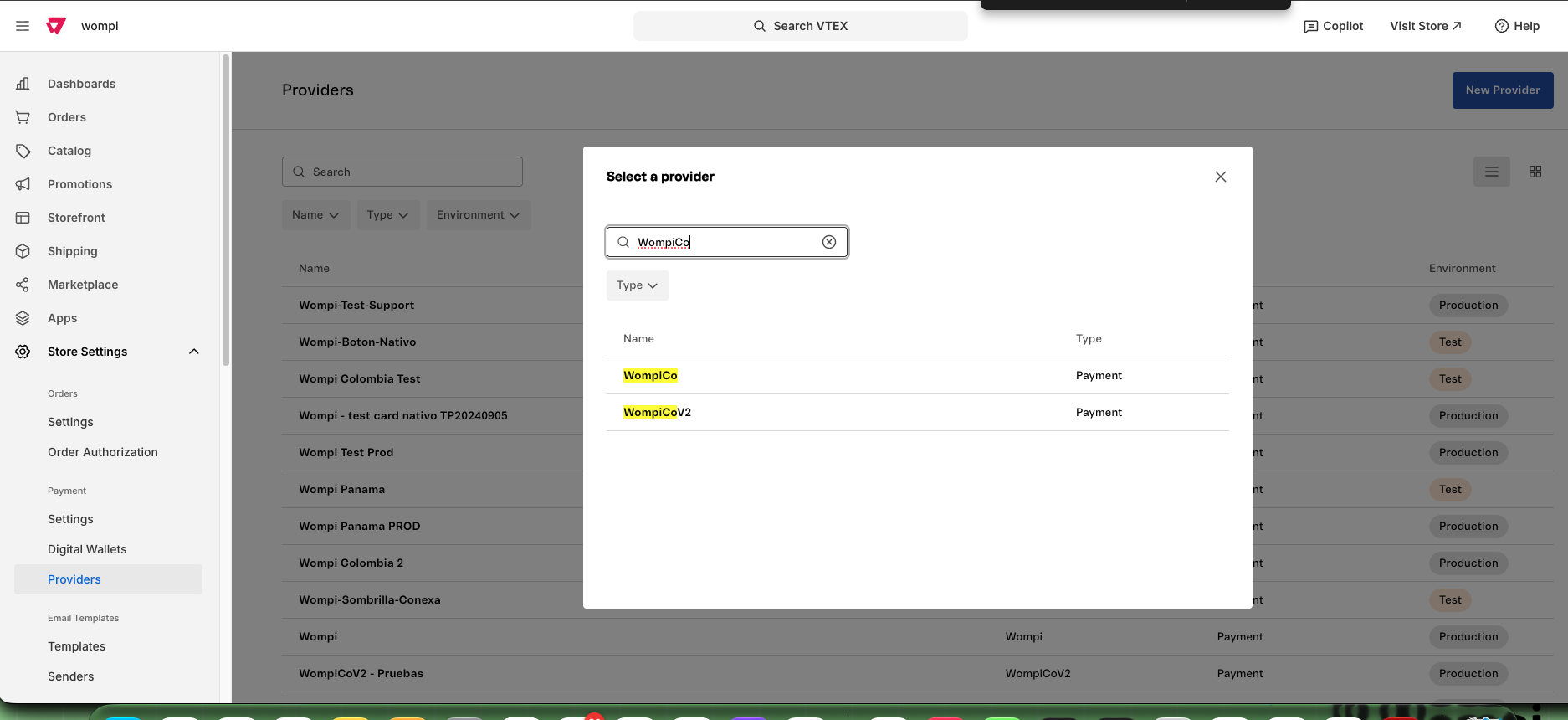
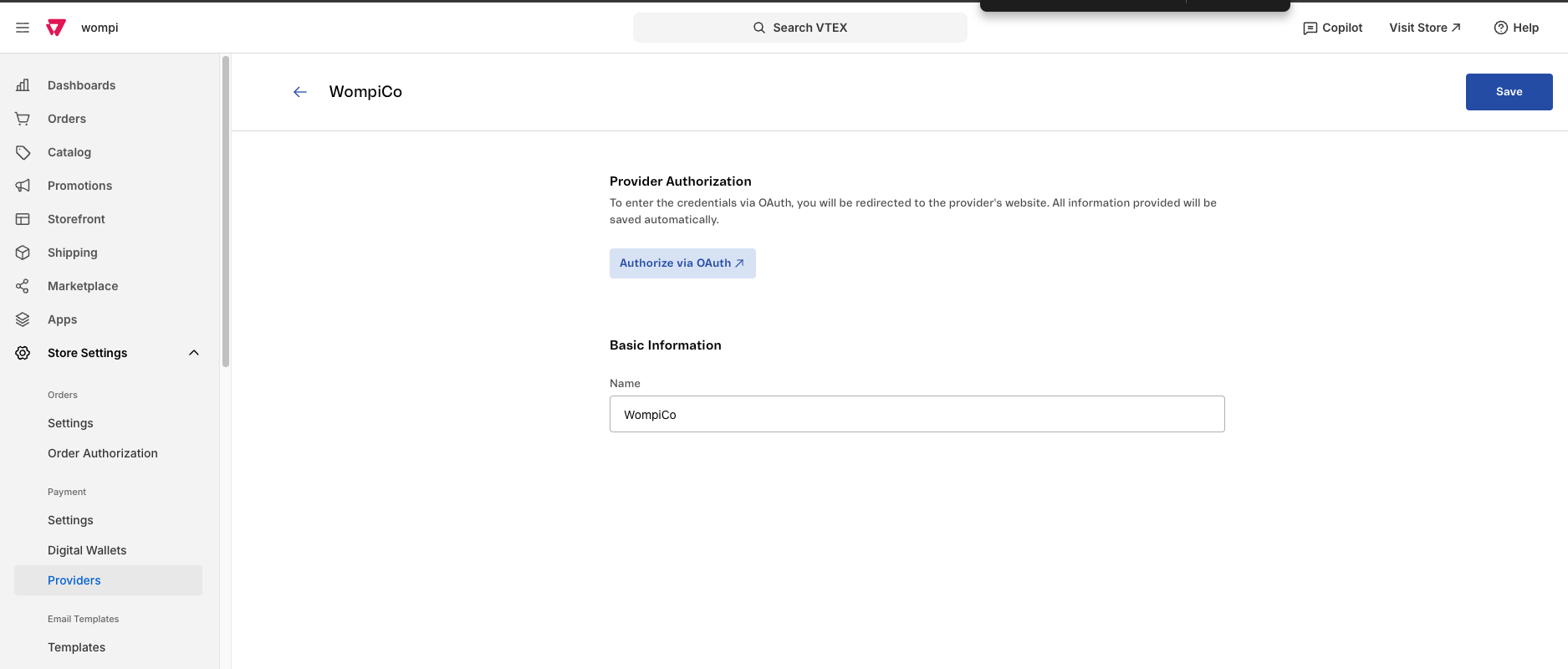
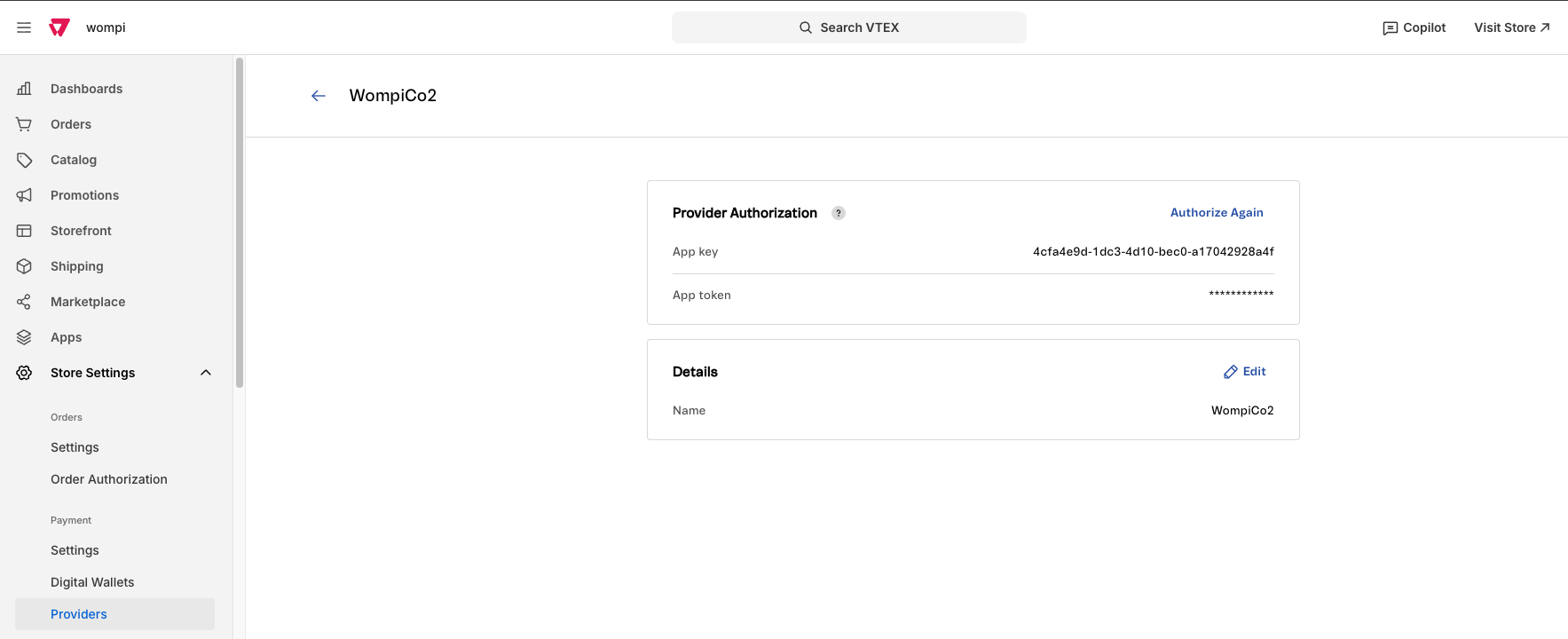
- Choose a name for the provider and click the Authorize via OAuth button.
- Click the Continue button.
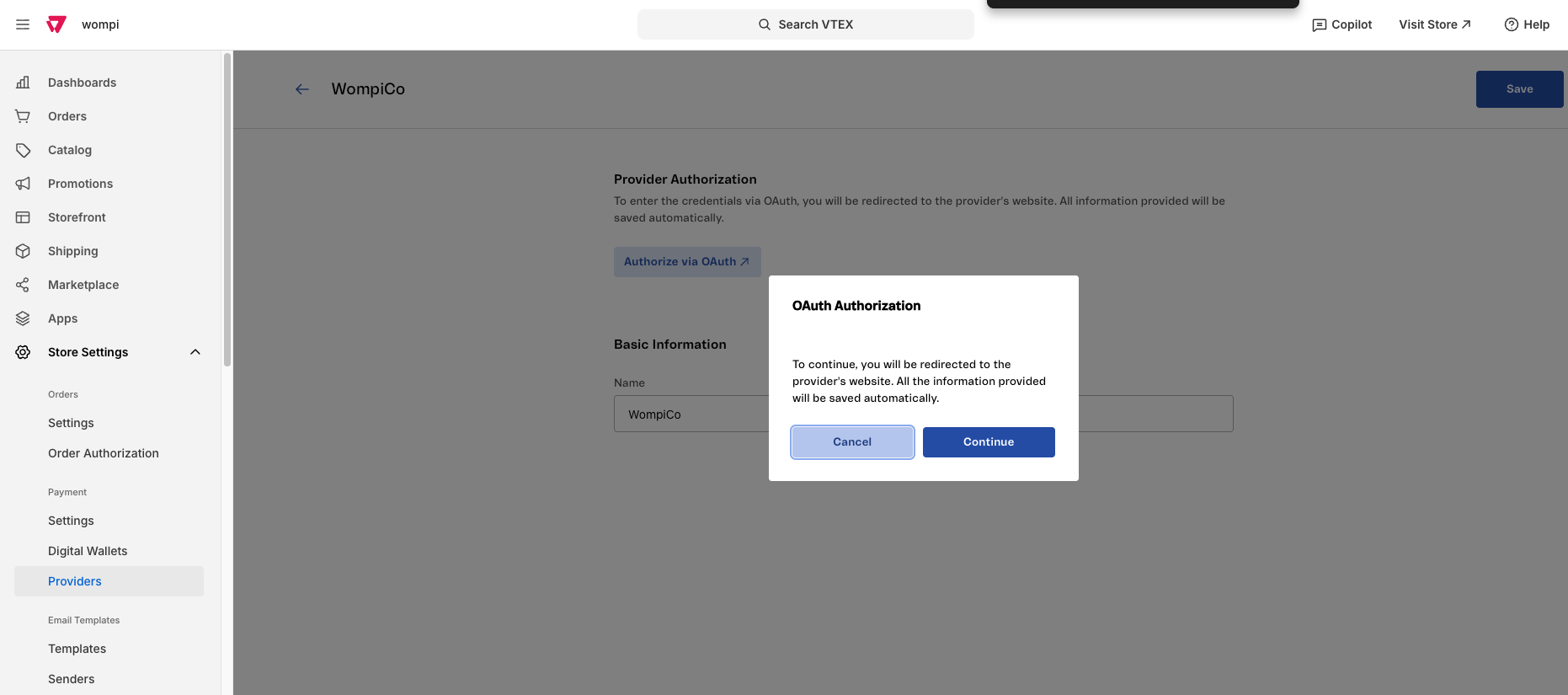
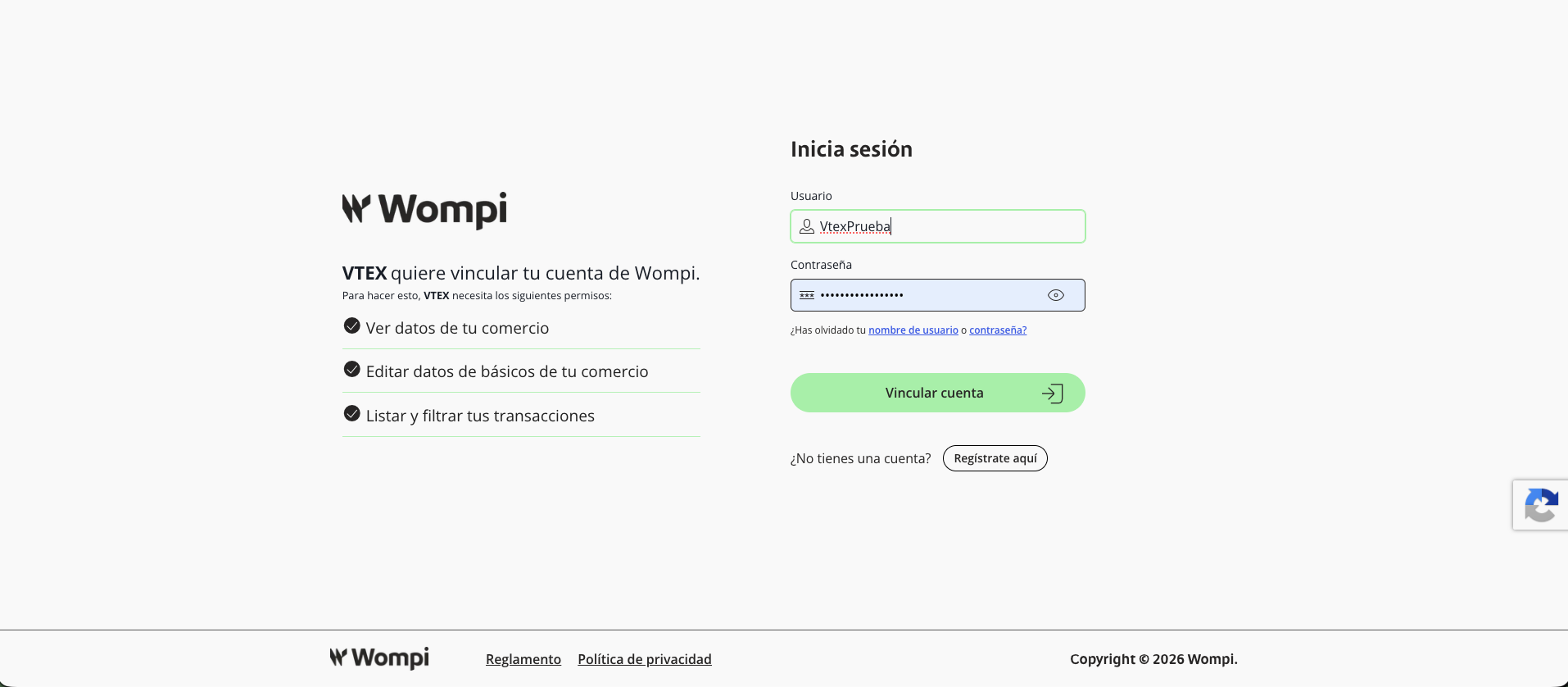
VTEX will redirect you to the Wompi site to log in. VTEX does not know your Wompi username or password.
- Log in to Wompi with your merchant account. When finished, Wompi returns the internal credentials to VTEX and the affiliation is connected.
Part B. Enable WompiCo as a payment method
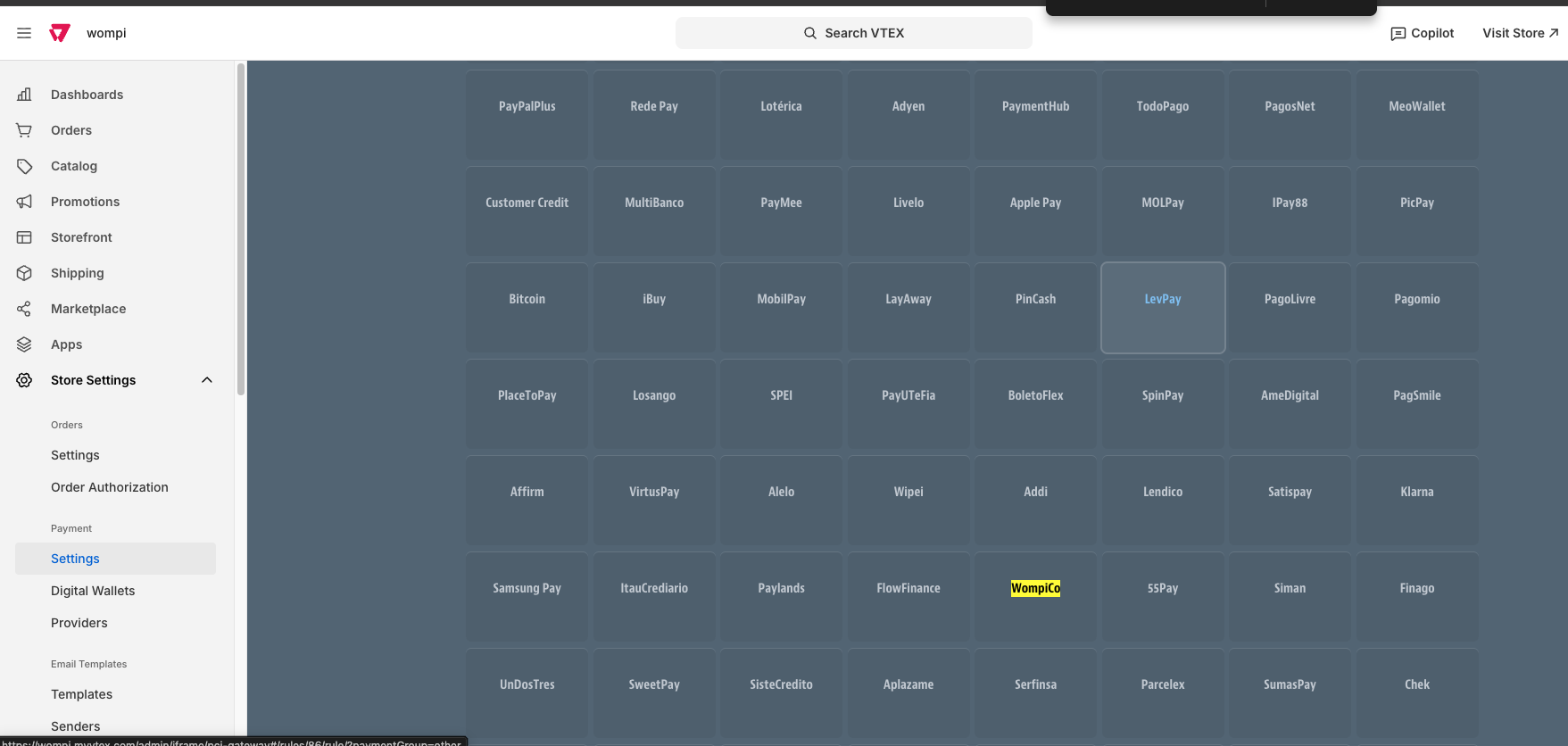
- Go to the Payment Conditions tab and click the green + button.
- In the list of methods, search for WompiCo and click on it.
- Complete the configuration and click Save:
- Enter the name your buyers will see for the method at checkout (for example, Wompi).
- Set the status to Active.
- In Process with affiliation, choose the affiliation you created in Part A.
- The special conditions are optional: they are used to limit when the method applies (for example, by amount or by product). If you don't need them, leave them blank.
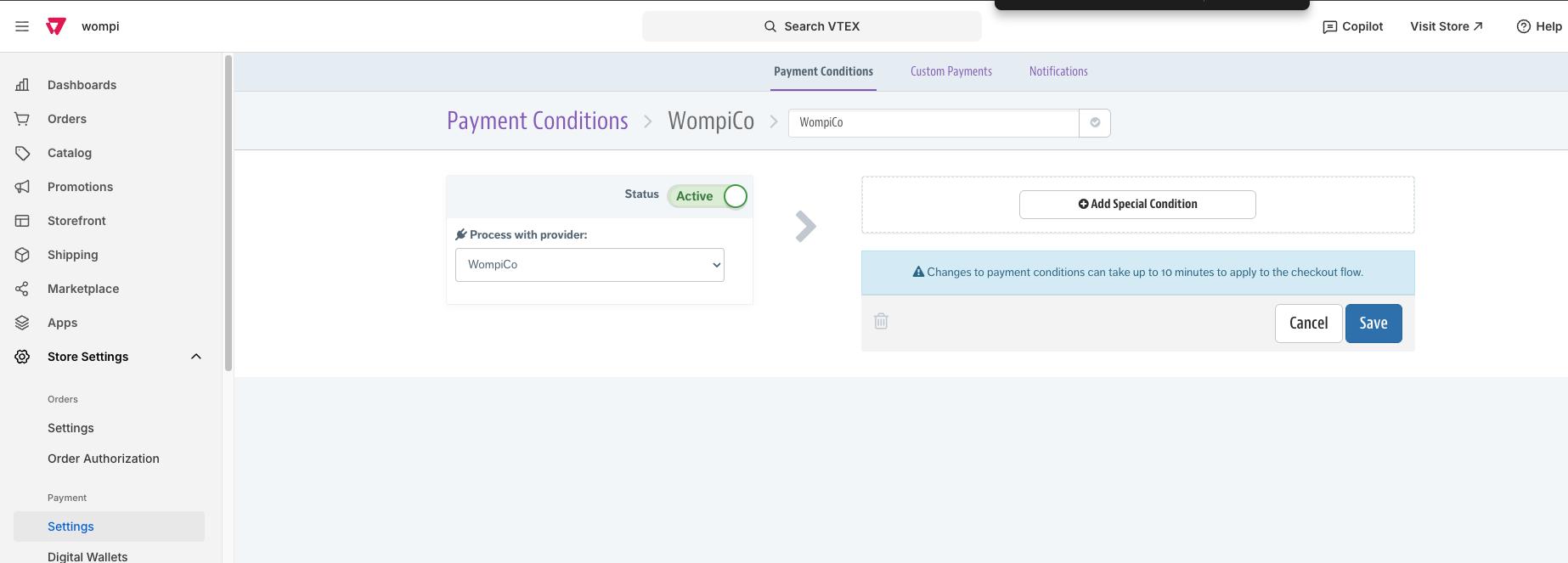
The method may take up to 10 minutes to appear in the checkout. Special conditions are a VTEX feature for all payment methods; you can learn more in the VTEX special conditions guide.
The payment methods the buyer will see inside Wompi (cards with 3DS, PSE, Nequi, Bancolombia Button, among others) depend on what is enabled in your account and your commercial model with Wompi, not on this configuration.
Testing and going live
Test purchase, step by step
Before selling for real, we recommend making a test purchase from start to finish to confirm that everything is configured correctly.
- Add a product to the cart in your store and proceed to checkout.
- Choose Wompi and the payment method you want to test.
- Use the Wompi test data for that method. You can find it in the sandbox test data guide.
- Complete the payment and confirm that you return to your store with the order confirmed.
- Verify the result on both sides:
- In the VTEX admin, under Orders, the order should show Wompi as the payment method and the transaction id.
- In the Wompi dashboard, the transaction should appear with its status.
- Repeat the process with each payment method you are going to offer.
Checklist for going live
Before activating real payments, check that you have completed each item:
- You tested each enabled payment method, with one successful and one declined result.
- Order statuses update automatically in VTEX (confirm that the webhook works).
- You replaced the test keys with the prod keys in VTEX.
- You disabled test mode in the provider and in Wompi.
- You changed the Events URL (webhook) to the production one.
- You confirmed that each method appears in the real checkout (remember it can take up to 10 minutes).
- You made a real, low-value purchase and verified the order in VTEX and in Wompi.
- You have your advisor's contact and the Wompi support channel at hand.
One of the most common causes of failures when going live is mixing up the keys: using test credentials in production or vice versa. Always verify that the keys correspond to the environment you are operating in.
Customers flow
To make a payment, once the product is selected and added to the cart, your customers will see the option of Wompi as an available payment method.
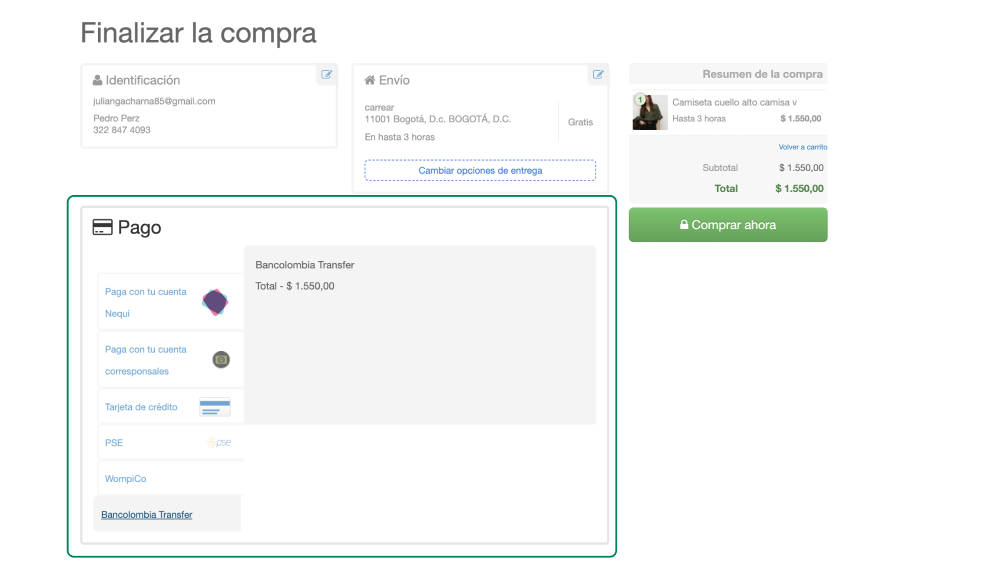
Wompi - Cash in Correspondents
Bank Correspondents is an offline payment method, that is, it is made in person.
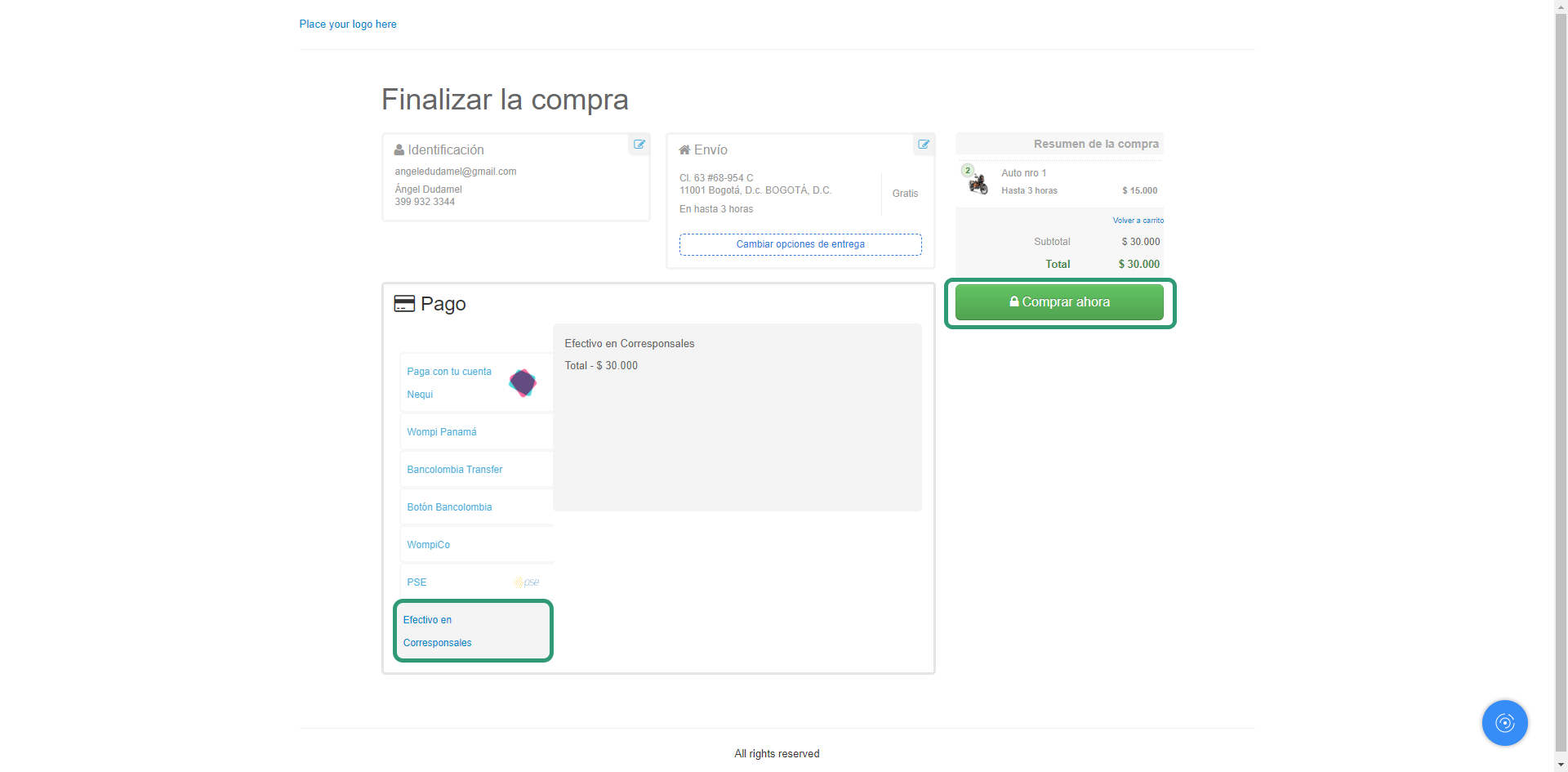
The buyer selects the payment method in the checkout of your VTEX store and presses the Buy Now button.
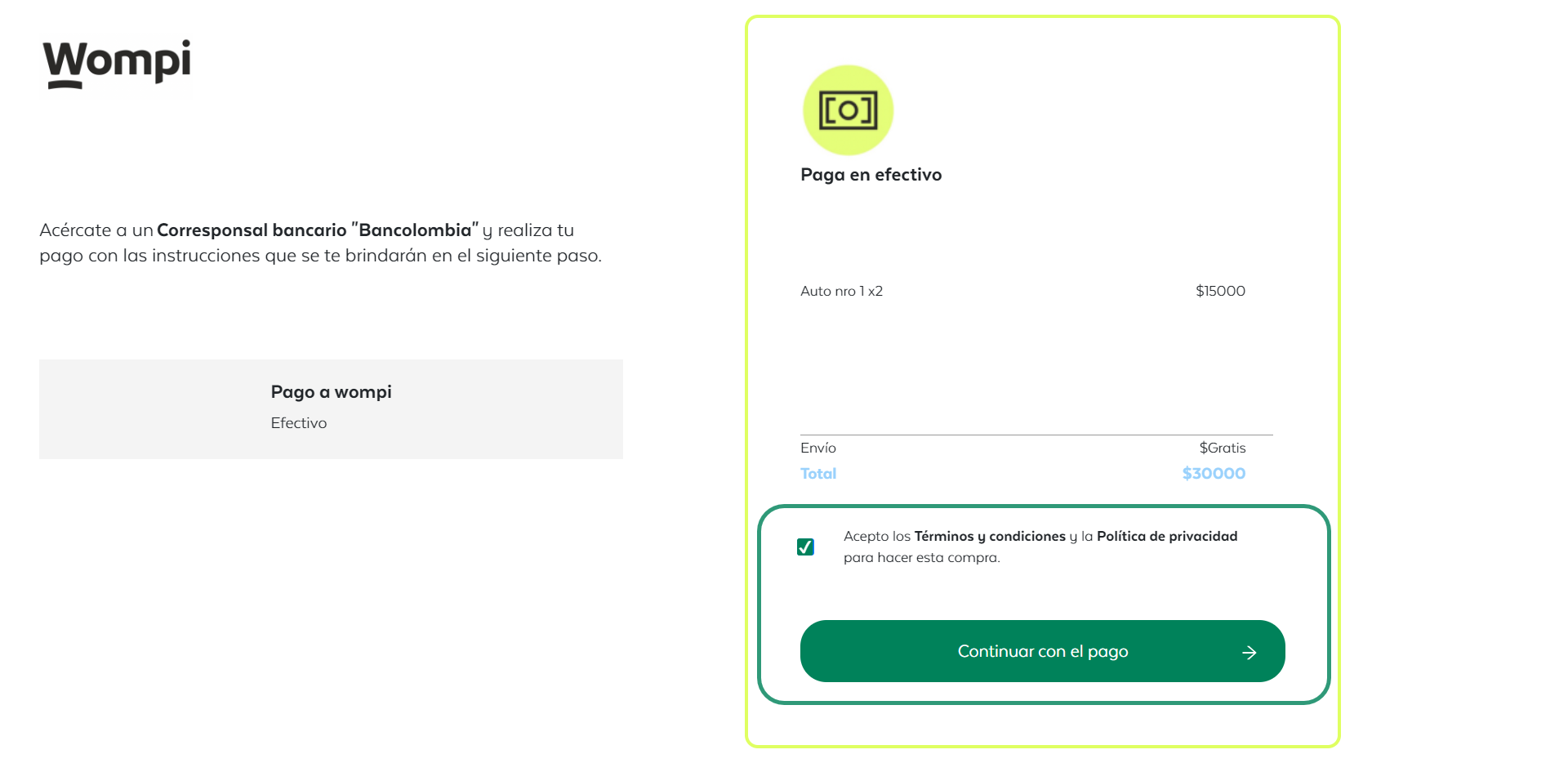
Next, they must approve the terms and conditions and press the Continue with payment button.
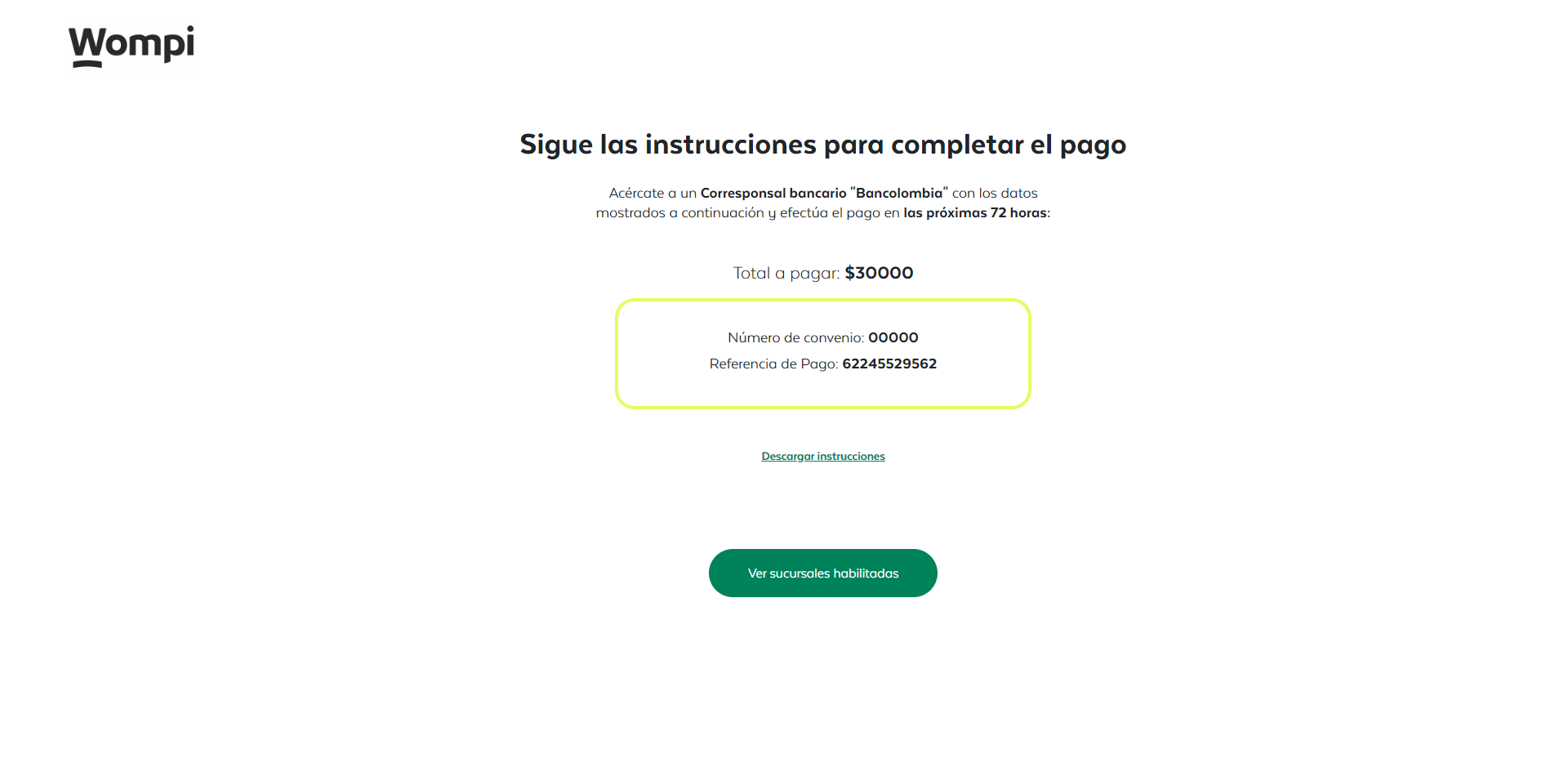
A unique code will be displayed. The buyer should go to a Bank Correspondent and, using the reference code, will be able to finalize the operation. The status of the transaction should be updated.
Wompi - PSE
PSE is the banking network in Colombia that will allow the buyer to make a money transfer choosing any bank of preference.
The buyer selects the PSE payment method and the bank of their choice at the checkout of your VTEX store.
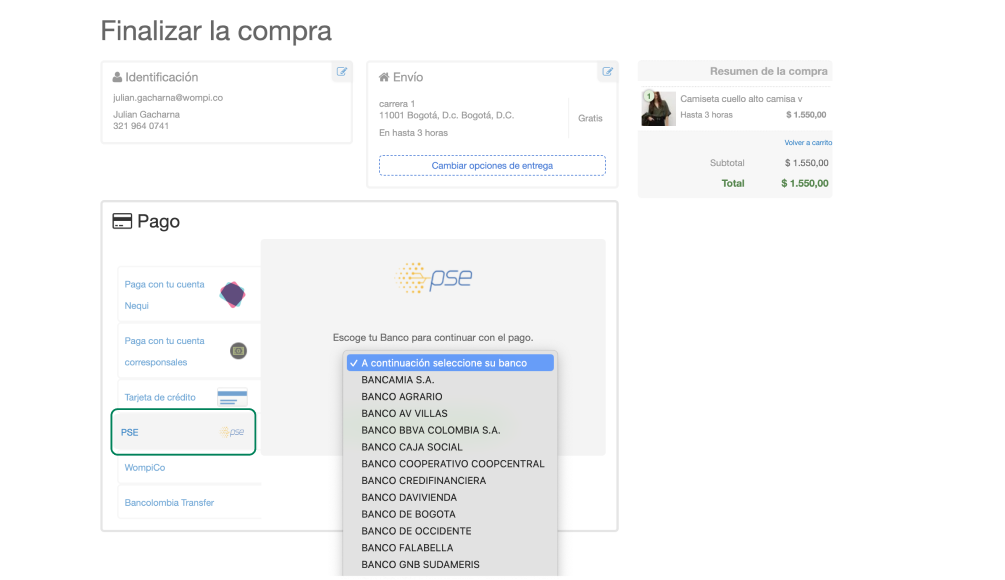
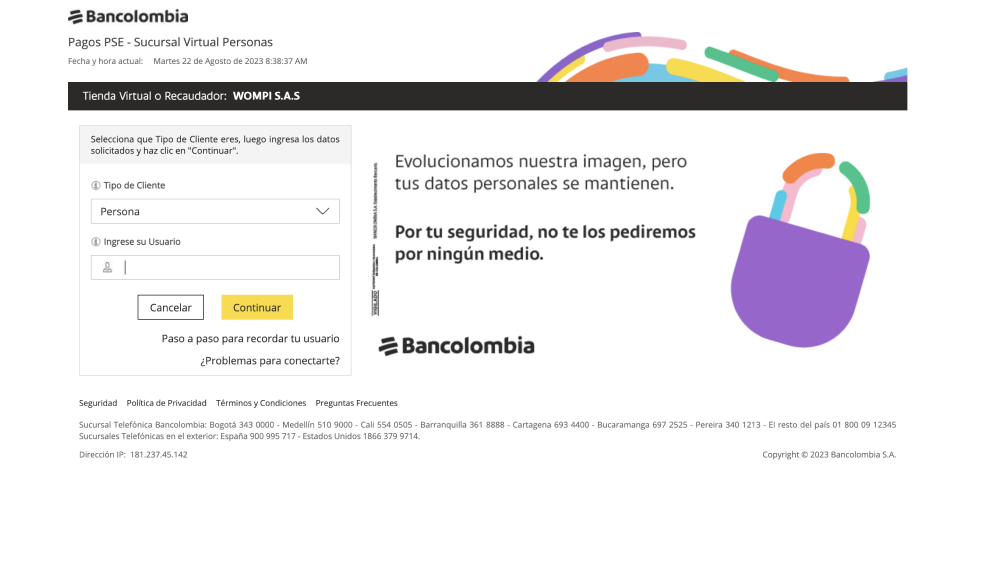
Press the Continue and make payment button and you will be redirected to each bank's experience to continue with the transaction.
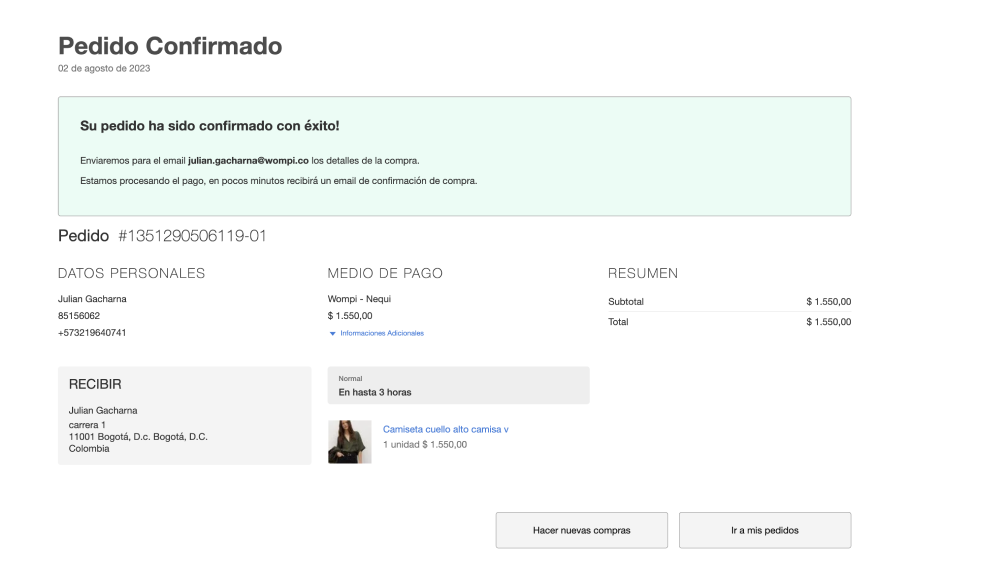
Once the operation is completed, you will be returned to the checkout of your VTEX store with the order confirmation.
Wompi - Nequi
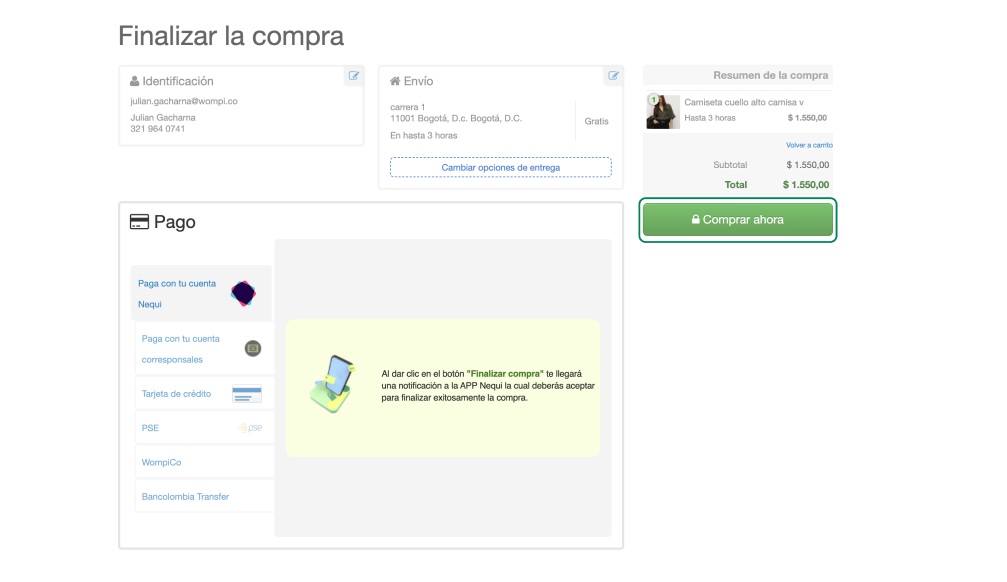
Nequi is a bank wallet. The buyer must identify themselves with the phone number of their Nequi account and select the payment method at checkout.

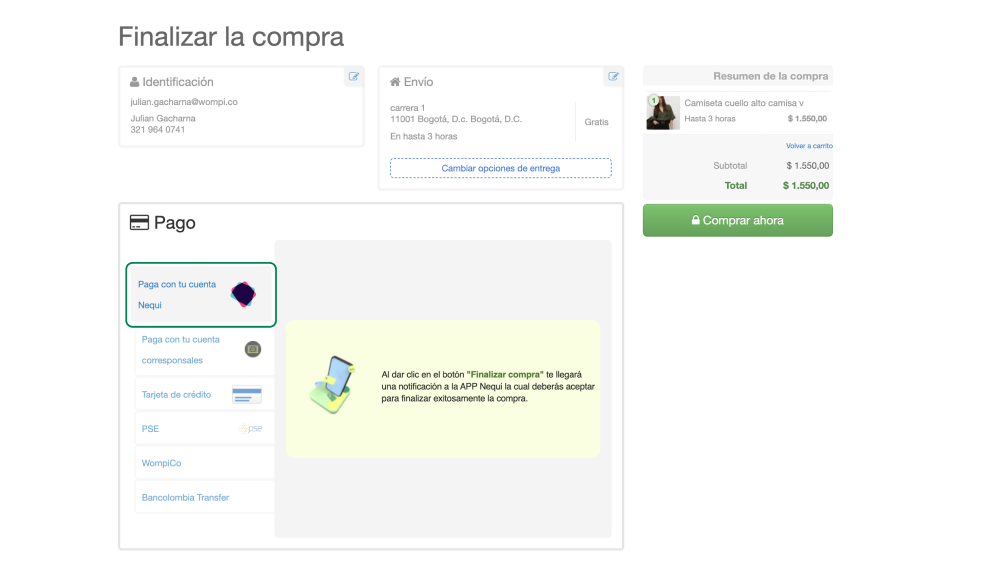
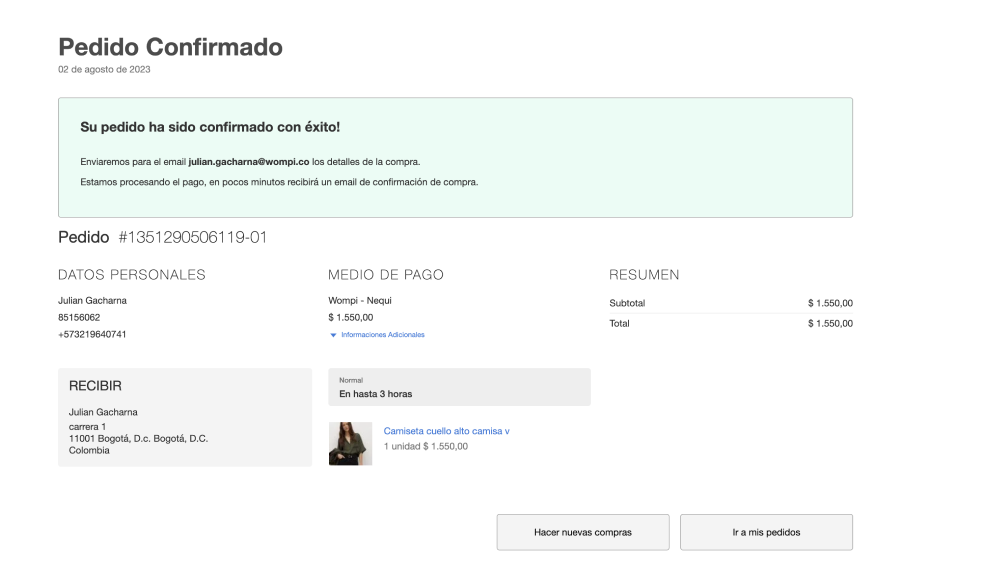
Next, they must press the Buy Now button. The buyer will receive a notification to confirm the transaction, and once confirmed, the purchase will be completed.
Bancolombia Button
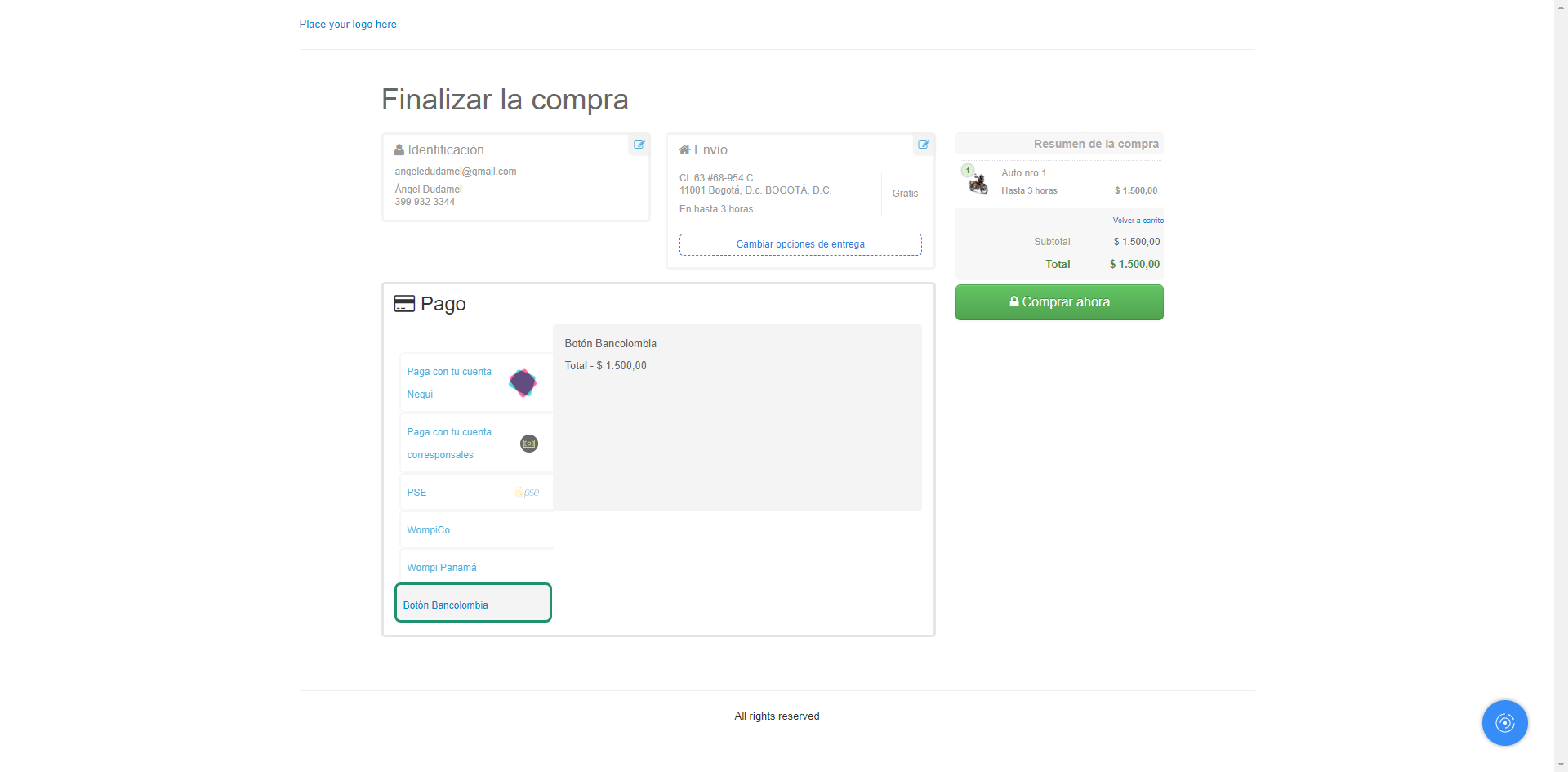
The buyer selects the Bancolombia Button payment method at the checkout of your VTEX store.
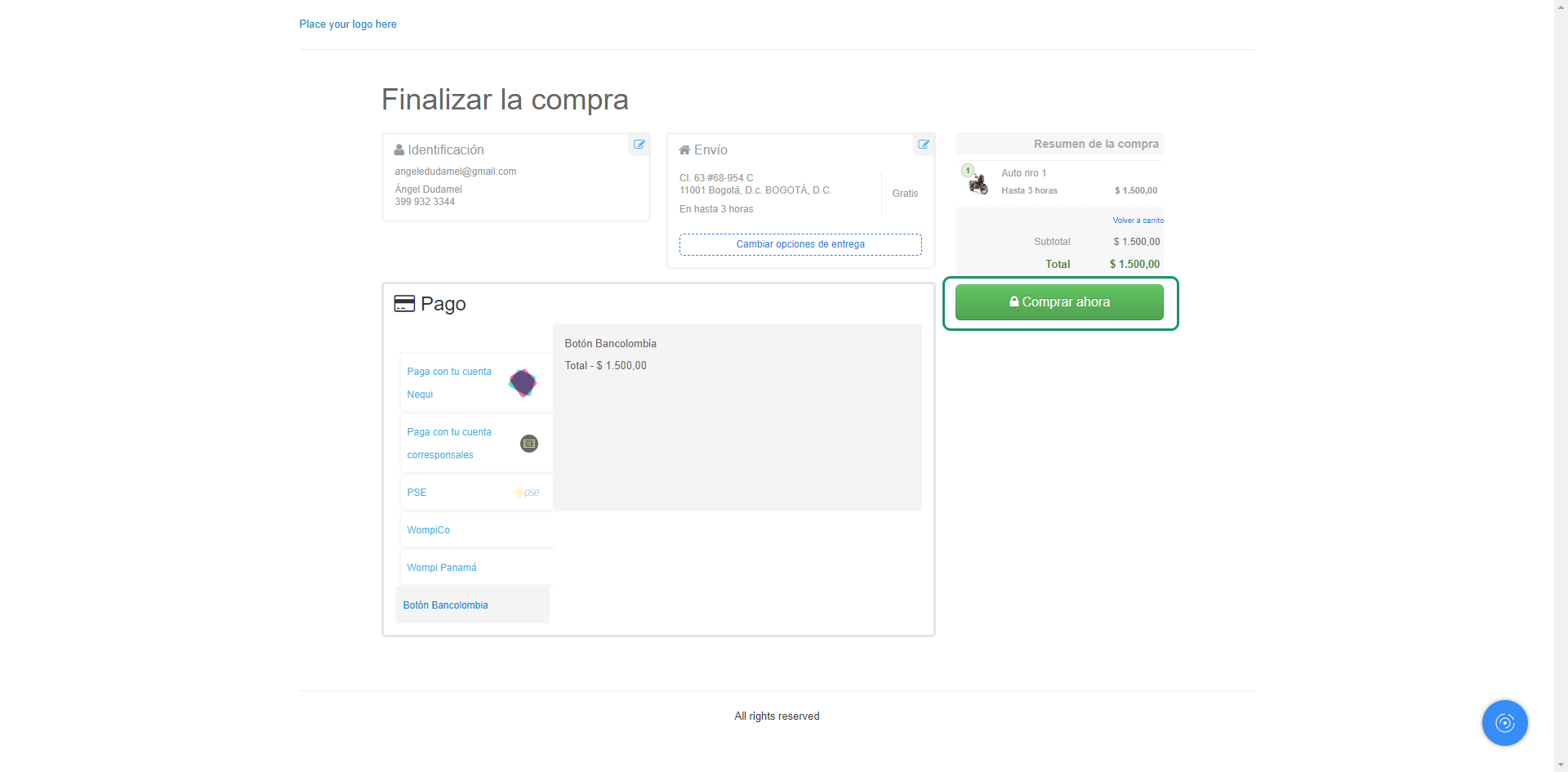
Press the Buy Now button and you will be redirected to the bank's experience to continue with the transaction.
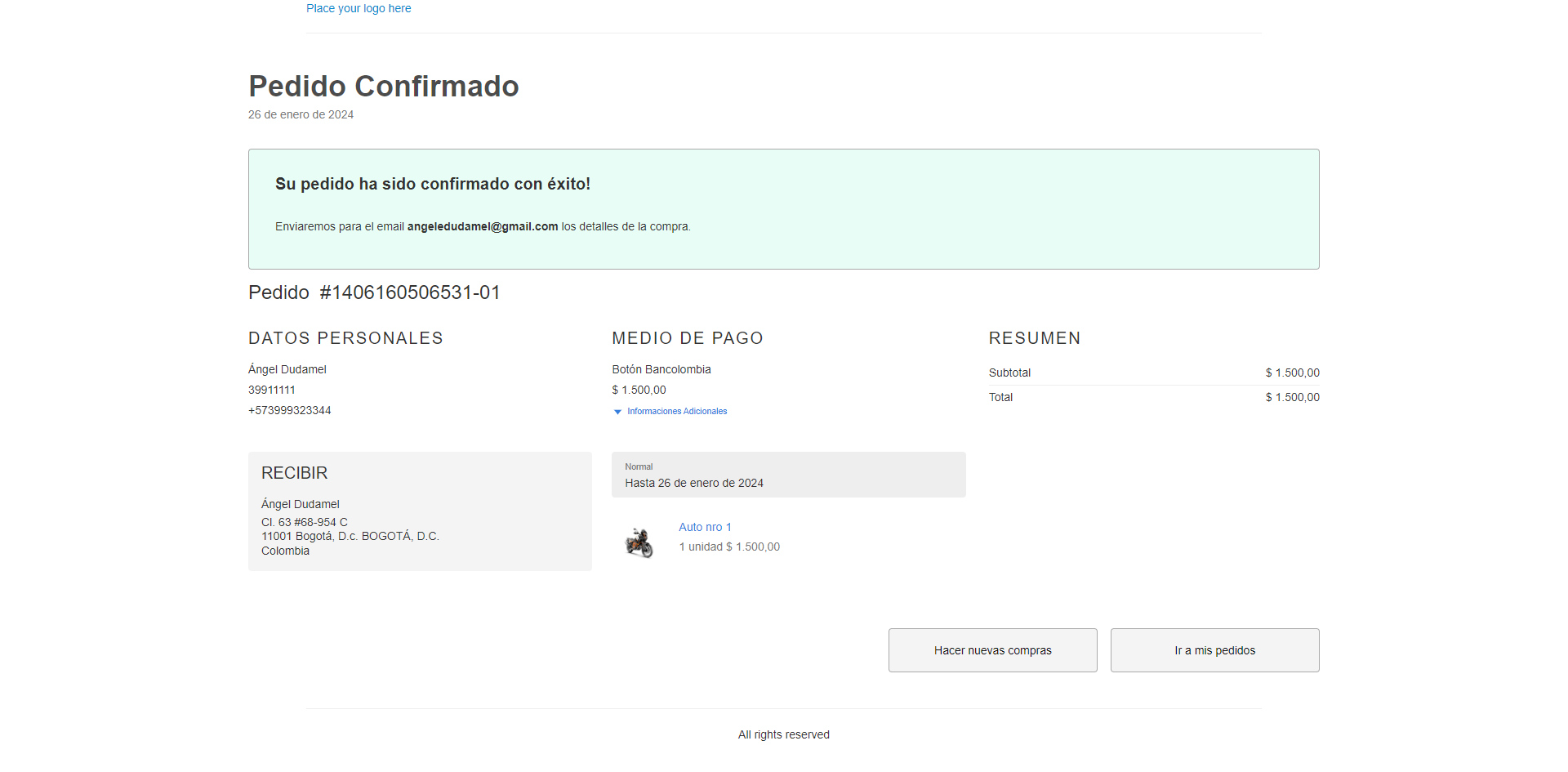
Once the operation is completed, you will return to the checkout of your VTEX store with the order confirmation.
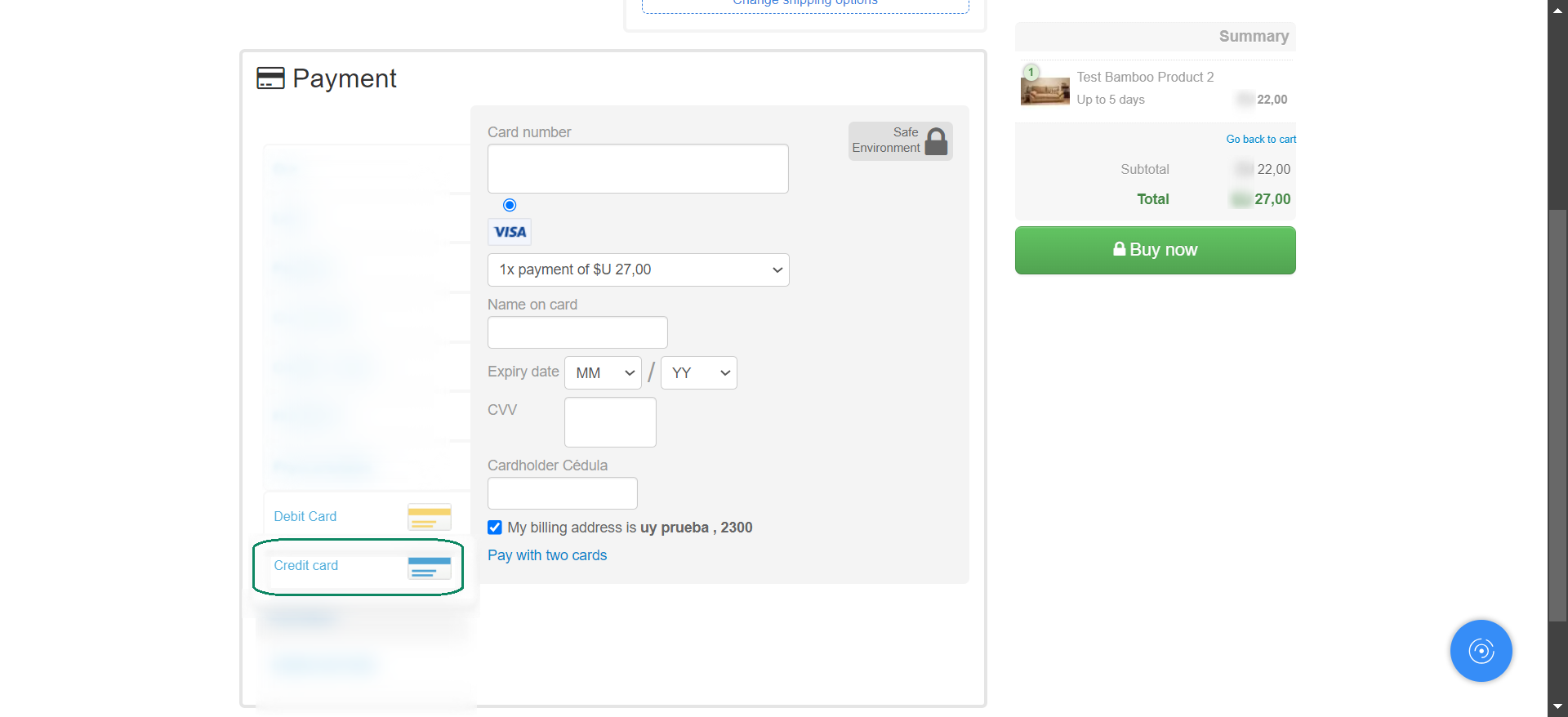
Wompi - Cards
The buyer selects Credit Card or Debit Card as the payment method.
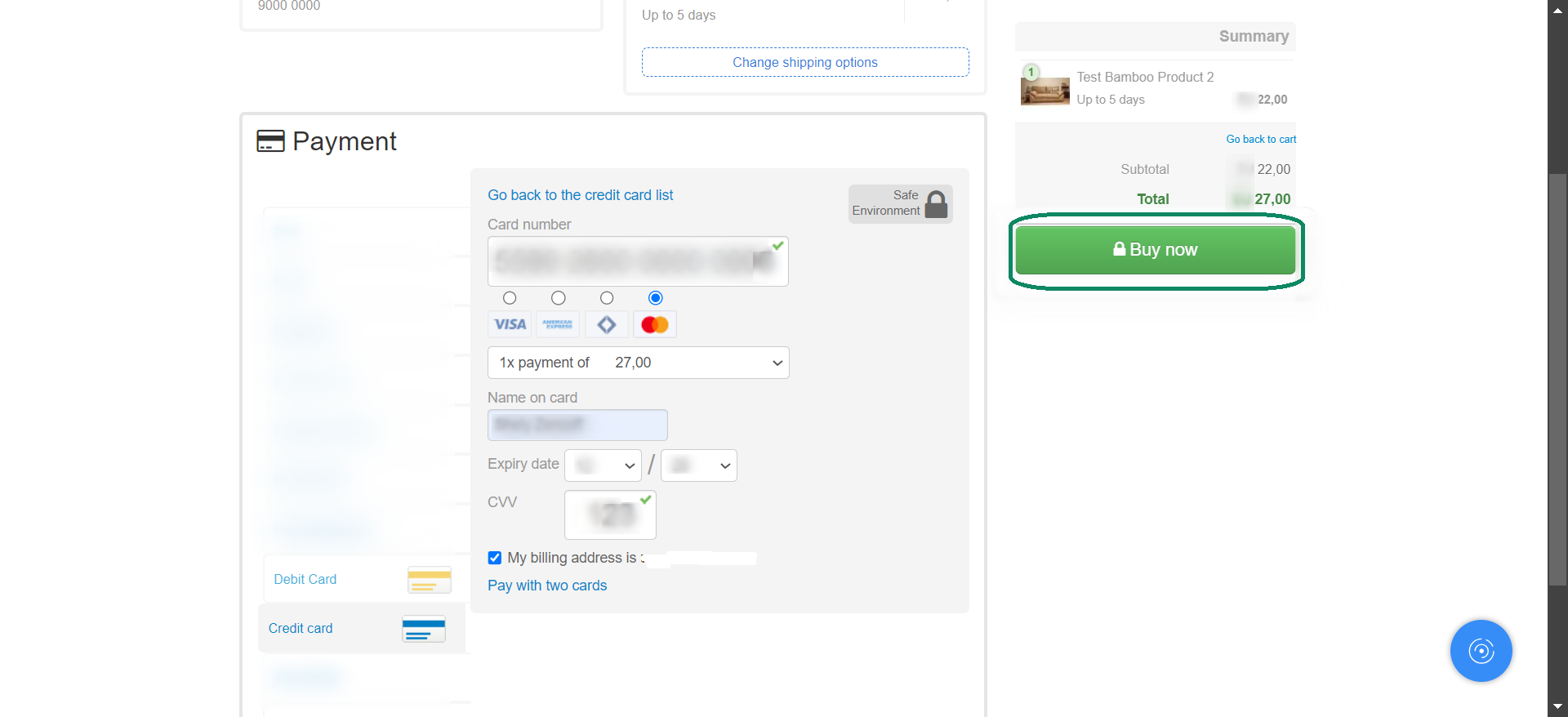
Then, they must enter the card details, the number of installments if applicable, and complete the purchase.
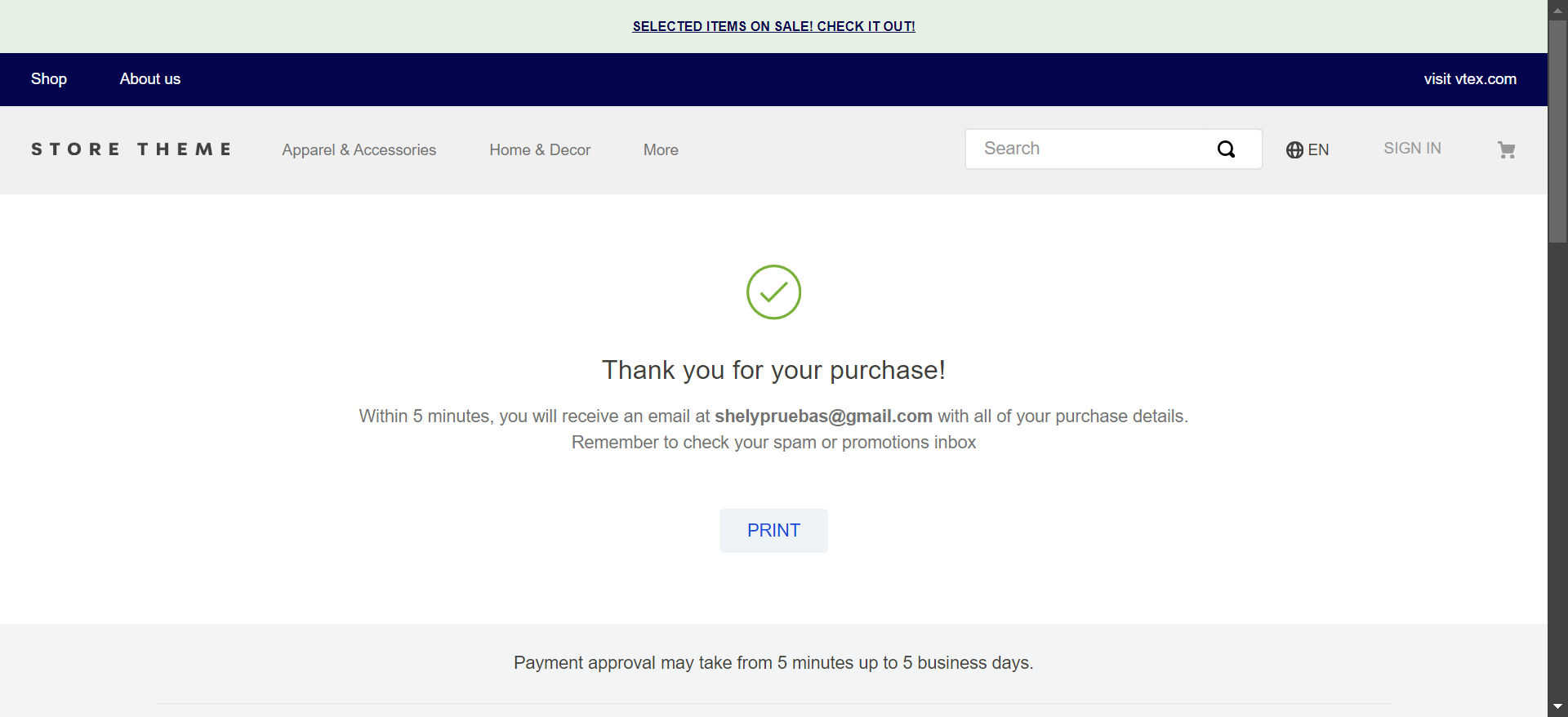
Once the operation is completed, you are returned to your VTEX store checkout with the order confirmation.
Administrator flow
As the administrator of your store, you will be able to view a list of your transactions with the payment method used.
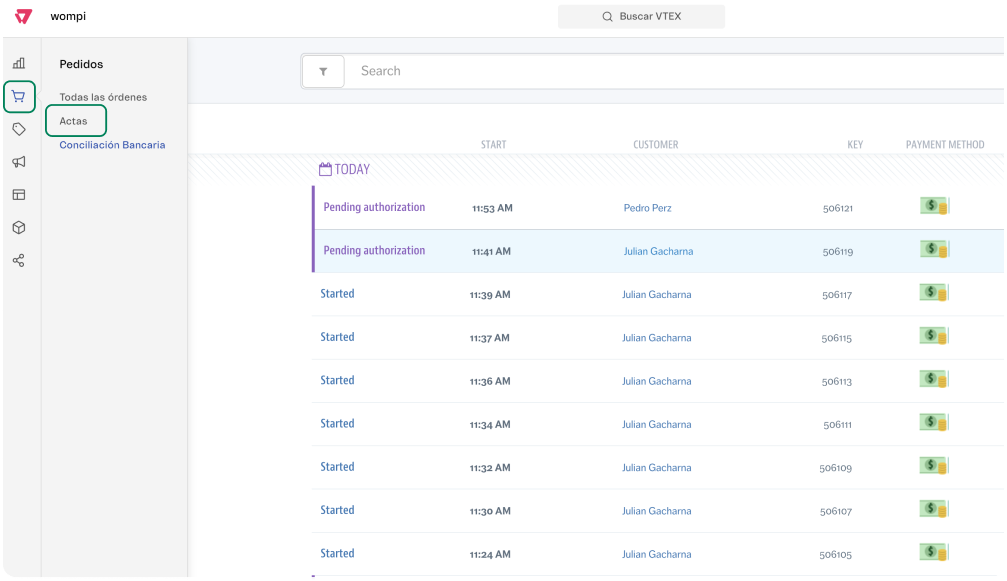
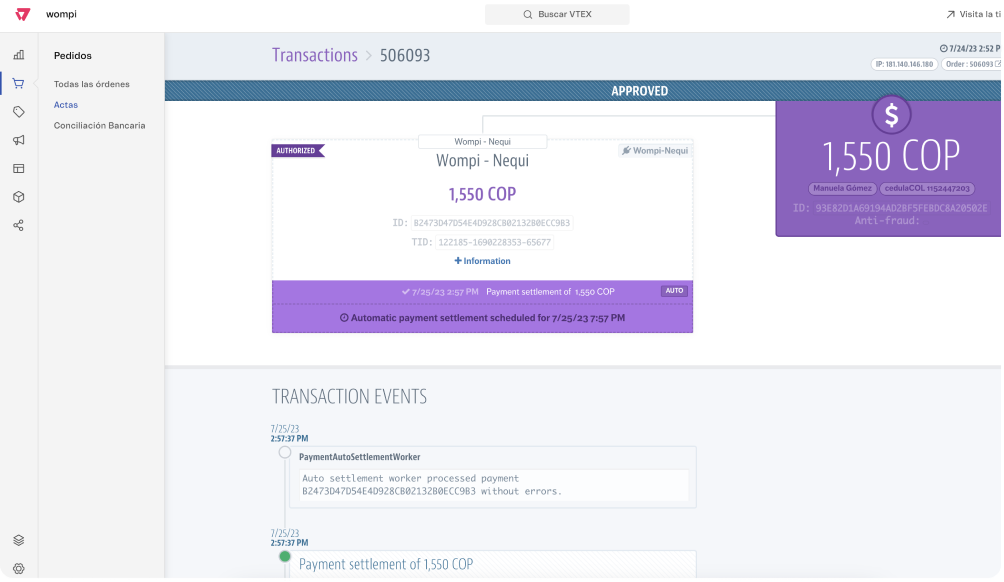
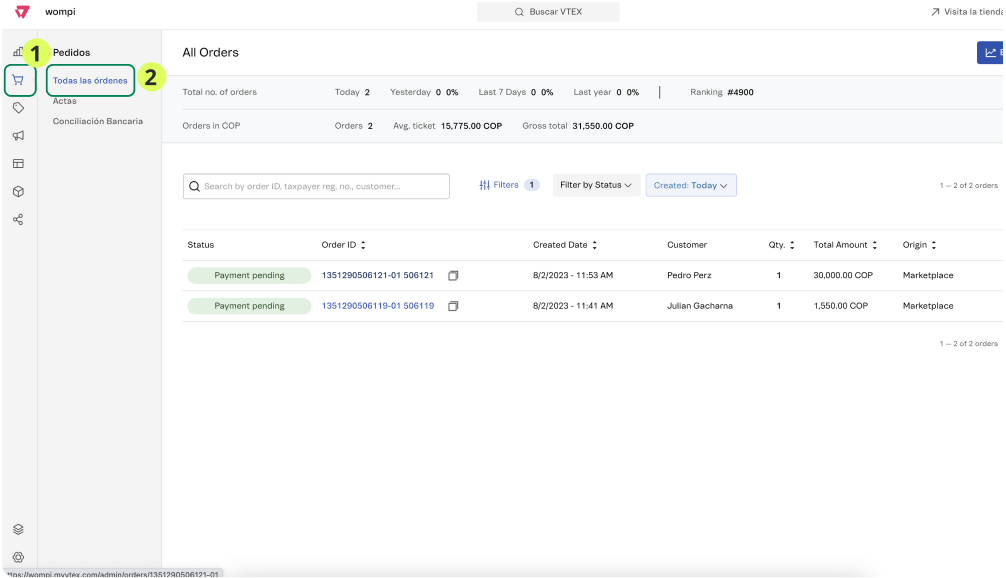
In the same way, from the order list you can check the details of your orders: you will see if the payment was made through Wompi and the corresponding transaction id.

Also, as a merchant from the Wompi dashboard, you will be able to view the payment made.

Where to see each payment
You can track each order's payment in three places. This view is especially useful for finance and reconciliation teams:
| Where | Path | What you will see |
|---|---|---|
| Transactions in VTEX | Payments > Transactions | List of transactions with the payment method used |
| Order detail in VTEX | Order Management > Orders, open the order | Whether the payment was made with Wompi and the transaction id |
| Wompi dashboard | Log in to Wompi and go to Transactions | The payment made, with its status, method and amount |
How to identify the payment method of an order
In the native connectors, each order shows the payment method with the name of the custom payment you configured (NEQUI, Botón Bancolombia, Efectivo en Corresponsales) or with the card brand.
If you need to reconcile a payment with Wompi, take the transaction id that appears in the order detail in VTEX and cross-reference it with the Wompi dashboard or reports, where you will find the complete detail of the transaction (status, method and amount).
The order status in VTEX depends on the webhook. If a payment appears approved in Wompi but pending in VTEX, start by reviewing the Events URL (webhook) configuration and that it corresponds to the correct environment.
Frequently asked questions
1. Which connector should I choose, native or non-native?
It depends on the payment experience you want to offer. With the native connectors, the buyer pays inside the VTEX checkout without redirects, and you configure each payment method separately. With the non-native connector (WompiCo), the buyer is redirected to the Wompi checkout, you enable all methods with a single installation and cards are processed with 3DS. Review the full comparison in the How to connect Wompi to your VTEX store section.
2. Are cards processed with 3DS?
With the non-native connector (WompiCo), yes. With the native card connector, no. 3DS adds an extra buyer authentication step that helps reduce fraud and, when the transaction is authenticated correctly, shifts chargeback liability to the issuing bank. If your store has a history of card fraud, this difference should weigh on your decision. To enable 3DS you must request it from Wompi through the authorized channels; it applies to Visa and Mastercard cards.
3. Can I switch from the native connector to the non-native one?
As a general recommendation, configure the non-native connector in parallel, test it with test mode, and disable the native one only when you confirm the new one works correctly. This way you avoid being left without active payment methods during the transition.
4. Why is the payment method not displayed in my store?
If you configured everything and the method does not appear at checkout, check in this order: 1) Wait up to 10 minutes after saving the payment condition. 2) Confirm that the condition is in Active status and associated with your Wompi provider. 3) Verify that the custom payments (Nequi, Bancolombia Button, Cash in Correspondents) have the exact name indicated in the guide. 4) Confirm that the keys correspond to the mode you are operating in (test or production). 5) Confirm with your advisor that the method is enabled in your Wompi account. If the problem persists, contact support.
5. Where can I get more information about gateway affiliation registration?
Visit Register gateway affiliations from Tutorials and Solutions of the VTEX platform.
6. Where can I get more information to set up payment conditions?
Visit Configure payment terms from Tutorials and Solutions of the VTEX platform.
7. Can I stop offering a payment method?
Yes, whenever you want you can disable the payment method. Go to the Store Settings -> Payment -> Settings section, click on the Payment Conditions tab and disable the payment condition for Wompi. Then, from the same screen you can re-enable the condition if you want to use it again in your VTEX store.
8. How can I view more information about my transactions?
From your VTEX store (in Payments > Transactions and in the order detail) and from the Wompi panel, you will be able to get more details about your transactions. See the Administrator flow section for more detail.
9. Is the status of the payment made updated in my store?
Yes, as long as the webhook is correctly configured. Once the buyer makes the payment for the order, you should see the approved payment in your store. If a payment appears approved in Wompi but pending in VTEX, review the Events URL (webhook) first and that it corresponds to the correct environment.
10. Who generates the reference that reaches Wompi, VTEX or the merchant?
The reference is generated by the plugin. In the VTEX admin, when you look up a transaction you will find three fields: the ID is the unique identifier that VTEX assigns to the transaction; the TID is the reference generated in the plugin that travels to Wompi to reference the transaction there; and the NSU is the identifier of the transaction in Wompi. The TID reaches Wompi and is stored in the reference field, which is generated by the plugin and also stored in VTEX.
Write to us on WhatsApp or open a support ticket and our team will help you.
