Events
When you make payments through the Third-Party Payments API, it is important that your system can stay updated on the status of each operation. For this, Wompi offers an event mechanism via webhook, which allows you to receive automatic notifications every time a relevant change occurs in the payment lifecycle.
These events are sent to the URL you previously configure and contain detailed information about the operation, such as its current status, values, timestamps, and associated references, among others. This functionality is key to maintaining payment traceability and automating business flows based on their outcome.
Ideal for keeping your system synchronized with the real status of transactions.
How to configure the event URL
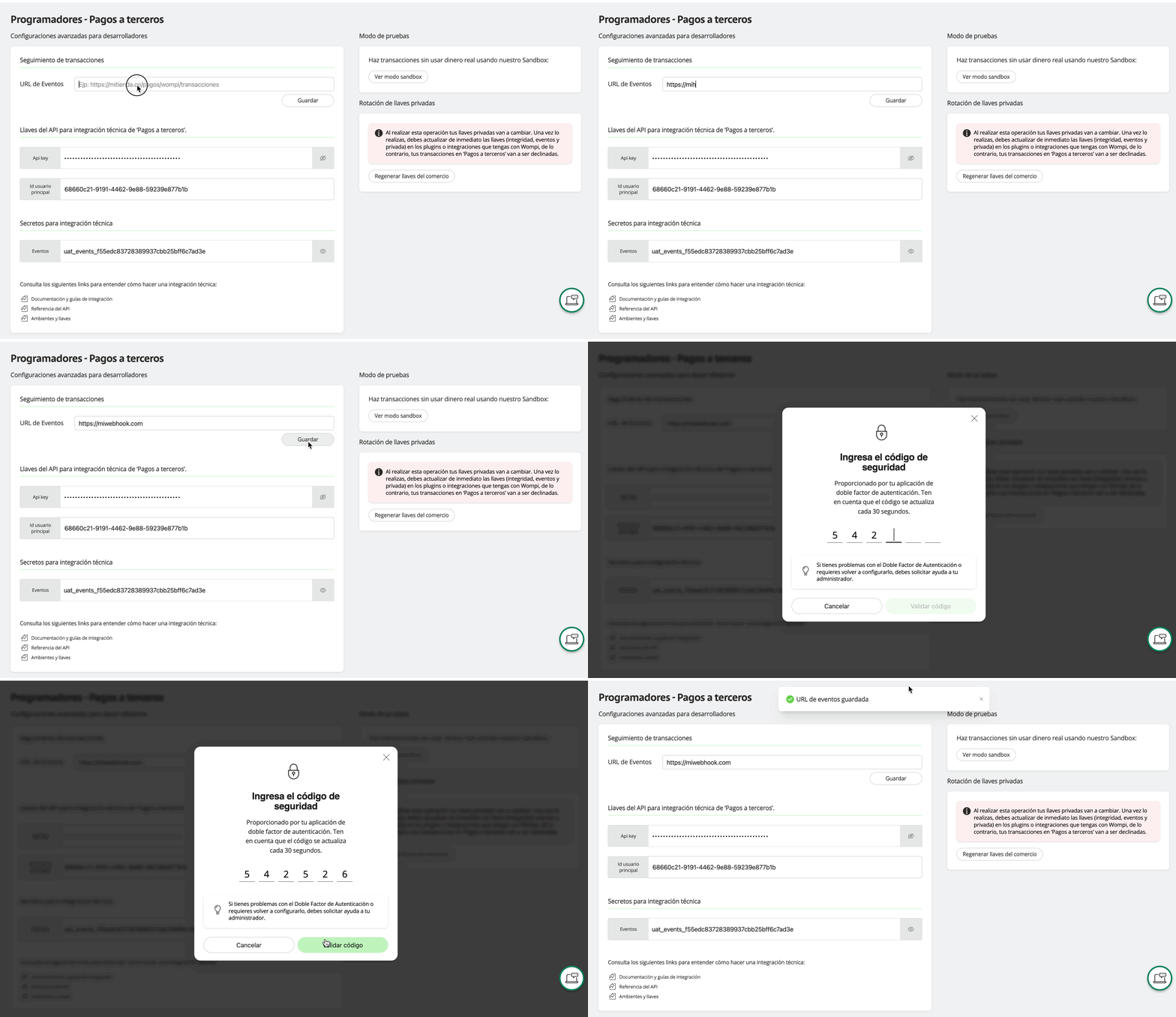
You can register a URL to receive events in both the sandbox and production environments, from the Wompi dashboard.
- Log in to your main account in our merchant dashboard.
- Find and select the Development option in the main menu.
- Within Development, choose the Developers option.
- In the upper left, select Third-Party Payments.
- Enter the public URL where you will receive the events and save the changes.
You can switch to sandbox mode and configure the event URL for this environment
Event generalities
For your endpoint to correctly receive events, it must meet the following requirements:
- HTTP Method: It must accept
POSTrequests. - Protocol: It must use HTTPS (unencrypted URLs are not allowed).
- Accessibility: It must be publicly accessible from the internet.
- Response codes: You must respond with an HTTP
2xxcode (ideally 200 OK) to confirm receipt of the event.
If your endpoint does not respond with a 2xx code, Wompi will retry sending the event up to 3 additional times.
Available event types
Wompi currently emits the following events related to payments:
Batch status change
payout.updated
Event example:
{
  "event": "payout.updated",
  "data": {
    "payout": {
      "id": "04a6e53d-a244-4140-ab9e-48fa541f9fe5",
      "reference": "ref_98765",
      "amountInCents": 7500000,
      "paymentType": "PAYROLL",
      "status": "TOTAL_PAYMENT",
      "totalTransactions": 3,
      "currency": "COP",
      "dispersionDatetime": "2025-05-14T10:30:00.000Z",
      "approvedAt": "2025-05-14T11:00:00.000Z",
      "createdAt": "2025-05-13T09:00:00.000Z"
    }
  },
  "signature": {
    "properties": ["payout.id", "payout.status", "payout.amountInCents"],
    "checksum": "639dc6bd2ac0104f090651c07773b6537f935623cf0ed04894f0687d4c9eebc7"
  },
  "timestamp": 1747673128600,
  "sentAt": "2025-05-15T15:00:00.000Z"
}
Transaction status change
transaction.updated
Event example:
{
  "event": "transaction.updated",
  "data": {
    "transaction": {
      "id": "04a6e53d-a244-4140-ab9e-48fa541f9fe5",
      "payoutId": "payout_12345",
      "amountInCents": 7500000,
      "status": "FAILED",
      "payee": {
        "name": "Juan Pérez",
        "document": "123456789",
        "bank": "BANCOLOMBIA",
        "accountType": "SAVINGS",
        "accountNumber": "1234567890",
        "email": "juan.perez@example.com"
      },
      "failureReason": {
        "code": "C01",
        "message": "La cuenta no existe o está inactiva"
      },
      "currency": "COP",
      "appliedAt": "2025-05-14T13:00:00.000Z",
      "createdAt": "2025-05-13T10:00:00.000Z"
    }
  },
  "signature": {
    "properties": [
      "transaction.id",
      "transaction.status",
      "transaction.amountInCents"
    ],
    "checksum": "82f0e769716170e202edfd348f604bd8461cdeeb416594cde563a890215a5282"
  },
  "timestamp": 1747673128600,
  "sentAt": "2025-05-15T15:00:00.000Z"
}
Security: Integrity validation
Each event sent by Wompi includes a cryptographic signature so that you can validate its authenticity and ensure that it has not been modified in transit.
Where is the signature?: The signature is found in two places in the event:
- In the HTTP header:
X-Event-Checksum - In the event body:
signature.checksum
The signature is generated from a list of properties (signature.properties) and the use of the event secret that you can obtain from the developers section.
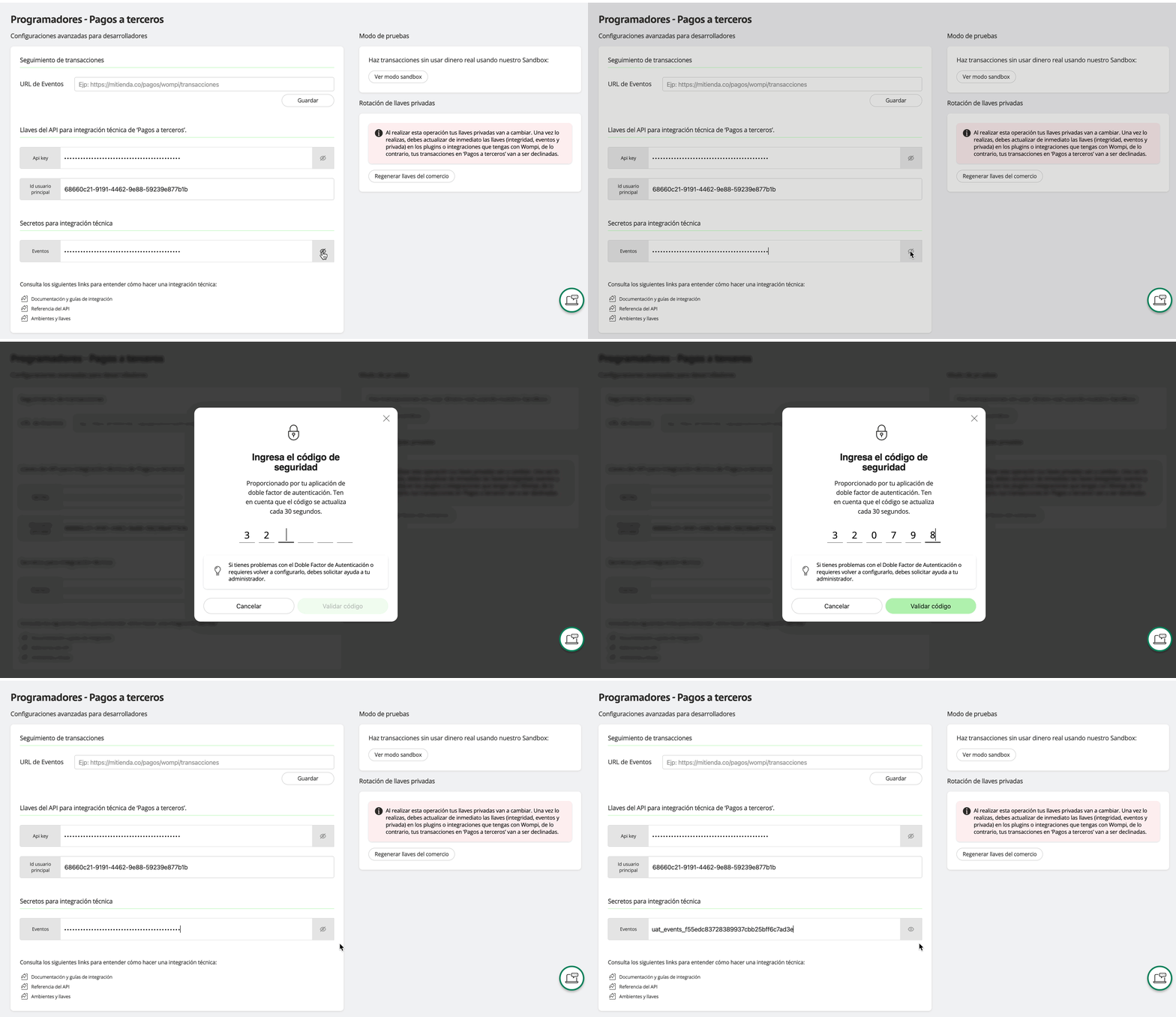
Obtain event secret
A Secret known only by the merchant and Wompi, which is available in the third-party payments developers option, under the Technical integration secrets section. This secret must be safeguarded with the utmost security on your servers.
Steps to validate the signature
- Extract the properties listed in
signature.properties, in the order they appear. - Concatenate the values as a text string, without spaces or separators.
- Concatenate the timestamp field.
- Concatenate your secret.
- Generate the hash using the
SHA256algorithm. - Compare the result with the value of
X-Event-Checksumorsignature.checksum.
If the values match, the event is legitimate. If not, you must reject it and not process it.
The properties may vary over time and with each event, so it is very important that you do not assume them as a fixed array within your code, but always extract them from the event and use them appropriately in each validation.
Example
Let's validate the signature of the previously seen transaction.updated event
Step 1: Concatenate the values of the event data
In the signature object of the event you must concatenate the value of the data described in the properties field. In this case we have:
transaction.id: Whose value is04a6e53d-a244-4140-ab9e-48fa541f9fe5transaction.status: Whose value isFAILEDtransaction.amountInCents: Whose value is7500000
The resulting value of concatenating these data, respecting the order specified in the signature.properties array is:
04a6e53d-a244-4140-ab9e-48fa541f9fe5FAILED7500000
Step 2: Concatenate the timestamp field
To the concatenation of the properties shown in Step 1, you must also concatenate the timestamp field of the event, which in this case is 1747673128600. The value you should now have in the string at this point is:
04a6e53d-a244-4140-ab9e-48fa541f9fe5FAILED75000001747673128600
Step 3: Concatenate your secret
In this step you must concatenate your secret to the string you are generating up to this point. Let's assume, in this example, that your secret is:
prod_events_7b193c8afd7b47949f90d443cb1e1742
The event secret is different from the API Key
The final result of the concatenation should be:
04a6e53d-a244-4140-ab9e-48fa541f9fe5FAILED75000001747673128600prod_events_7b193c8afd7b47949f90d443cb1e1742
Step 4: Use SHA256 to generate the checksum
With this data properly concatenated, it is time to generate the checksum using SHA256. Passing the string through this algorithm gives, for example, the following result:
82f0e769716170e202edfd348f604bd8461cdeeb416594cde563a890215a5282
The way you use SHA256 to calculate this value varies depending on each programming language. However, the result should always be the same, given the nature of this secure asymmetric encryption algorithm.
Step 5: Compare your calculated checksum with the one provided in the event
By generating the checksum value yourself on your server, you can now compare it with the one that arrived in the event. If both are the same then you can be sure that the presented information is legitimate and sent by Wompi, and not an impersonation by a third party. Otherwise, you must ignore this event.
