Payment Methods
Every time you create a transaction using our API, you have the option of processing the payment using different payment methods. Currently, the available payment methods are:
- Credit or Debit Cards: Allows your customers to pay using credit or debit cards.
- Bancolombia Transfer Button: Allows your customers to pay using their savings or checking account from Bancolombia.
- Nequi: Allows your customers to pay with Nequi using their cellphone to complete the payment.
- PSE: Allows your customers to pay with PSE using the savings or checking account from any Colombian bank.
- Cash Payment in Corresponsal Bancario Bancolombia: Allows your customers to pay with cash in any of the more than 15,000 physical points of payment from Bancolombia called Corresponsales Bancarios Bancolombia.
- PCOL: Allow your customer to pay redeeming points from Puntos Colombia loyalty program.
- BNPL BANCOLOMBIA: Enabling your clients to choose a BANCOLOMBIA free investment credit option, with zero interest, split into 4 monthly installments for transactions exceeding $100,000 pesos.
- DAVIPLATA: Provide your customers with the option to use their Daviplata account to make payments conveniently.
- SU+ PAY: It allows users to purchase products or services and pay for them in installments, facilitating financial management and access to a wide range of products.
To use a payment method you must POST to the /transactions endpoint with:
- Specify the
payment_methodfield with a JSON object containing specific details for each method, described below.
To end the payment process for any of the available payment methods, we recommend periodically verifying (long polling) the state of a transaction, waiting for a final status (approved, declined, voided or error), using the transaction ID and our API, since none of the payment methods deliver an instant synchronous response. A transaction that has just been created always has a PENDING status.
Final statuses for a transaction
The final status of a transaction can be: APPROVED (approved), DECLINED (declined), VOIDED (voided, applies to card transactions only) or ERROR (if there is an external error authorizing the transaction).
Credit or Debit Cards
In Wompi, your customers can process payments using Visa or MasterCard Credit or Debit Cards, as long as the card has a CVC (card verification code), usually printed on the back of the card.
The payment method type that you must use to create the transaction is CARD. When using the payment method CARD you need to take into account that:
- You must first tokenize a card (more details below).
- You must ask your user how many installments they want to pay in.
Tokenize a Credit or Debit Card
By default we recommend tokenizing by encrypting the card information. If your use case does not support encryption, select the simple tokenization tab.
- Encrypting the information
- Simple tokenization
The steps to tokenize while encrypting the card information are:
- Get the public key (
GET /v1/tokens/keys/tokenization). - Generate the JWE with RSA-OAEP-256 and CEK AES-GCM-256.
- Send the
payload(the JWE as a string) toPOST /v1/tokens/cards.
To tokenize by encrypting the information, first generate a JWE (JSON Web Encryption) with the card information and send it in the payload field.
The public key required to generate the JWE —which uses the RSA-OAEP algorithm— can be obtained from the following endpoint:
GET /v1/tokens/keys/tokenization
To tokenize a card, send the encrypted card information to the following endpoint.
POST /v1/tokens/cards
Use your merchant public key in the authorization header.
"Authorization": "Bearer [merchant's public key]"
The JWE must be sent in the payload field as a base64 string and for the JWE CEK (Content Encryption Key) you must use AES GCM 256. Assuming a function encrypt_jwe, which generates the JWE from the card information, the public key, and the algorithm to use in the CEK, you must send the following information to the endpoint:
{
  "payload": encrypt_jwe(
    {
      "number": "4242424242424242", // Card number
      "cvc": "123", // Card security code (3 or 4 digits depending on the brand)
      "exp_month": "08", // Expiration month (2-digit string)
      "exp_year": "28", // Year expressed as 2 digits
      "card_holder": "Jose Perez" // Cardholder name
    },
    ENCRYPTION_PUBLIC_KEY,
    "RSA-OAEP-256"
  )
}
The successful v1/tokens/cards response looks like this:
{
  "status": "CREATED",
  "data": {
    "id": "tok_prod_1_BBb749EAB32e97a2D058Dd538a608301", // TOKEN that must be used to create the transaction
    "created_at": "2020-01-02T18:52:35.850+00:00",
    "brand": "VISA",
    "name": "VISA-4242",
    "last_four": "4242",
    "bin": "424242",
    "exp_year": "28",
    "exp_month": "08",
    "card_holder": "Jose Perez",
    "expires_at": "2020-06-30T18:52:35.000Z"
  }
}
Examples in different languages:
For Colombia use https://api.wompi.co/v1 as BASE_URL in the examples.
- JavaScript (Node)
- Python
- Java
- Php
import { pathToFileURL } from 'url'
import { importSPKI, EncryptJWT } from 'jose'

const BASE_URL = '<BASE_URL>'
const WOMPI_PUBLIC_KEY = '...'

const cardInfo = {
  number: '4242424242424242',
  exp_month: '04',
  exp_year: '30',
  cvc: '123',
  card_holder: 'test test',
}

let cachedPublicKey

async function getPublicKey() {
  if (cachedPublicKey) return cachedPublicKey

  const response = await fetch(`${BASE_URL}/tokens/keys/tokenization`, {
    headers: {
      Authorization: `Bearer ${WOMPI_PUBLIC_KEY}`,
      'Content-Type': 'application/json',
    },
  })

  if (!response.ok) {
    const body = await response.text()
    throw new Error(`Unable to fetch public key. Status ${response.status}: ${body}`)
  }

  const body = await response.json()
  const publicKeyPem = body?.data?.publicKey
  if (!publicKeyPem) throw new Error('Public key missing in response')

  cachedPublicKey = publicKeyPem
  return cachedPublicKey
}

async function tokenizeCard(payload) {
  const response = await fetch(`${BASE_URL}/tokens/cards`, {
    method: 'POST',
    headers: {
      Authorization: `Bearer ${WOMPI_PUBLIC_KEY}`,
      'Content-Type': 'application/json',
    },
    body: JSON.stringify(payload),
  })

  const body = await response.json()
  if (!response.ok) {
    throw new Error(
      `Tokenization failed - Status ${response.status}: ${JSON.stringify(body)}`
    )
  }

  return body
}

export async function encryptCardInfo(cardInfo, pubKey) {
  const secret = await importSPKI(pubKey, 'RSA-OAEP-256')
  const encryptedData = await new EncryptJWT(cardInfo)
    .setProtectedHeader({ alg: 'RSA-OAEP-256', enc: 'A256GCM' })
    .encrypt(secret)

  return encryptedData
}

const main = async () => {
  try {
    const publicKey = await getPublicKey()
    const encrypted = await encryptCardInfo(cardInfo, publicKey)
    console.log("encypted:", encrypted)
    const tokenizationResponnse = await tokenizeCard({ payload: encrypted })
    console.log(tokenizationResponnse)
    return tokenizationResponnse
  } catch (error) {
    console.error('Tokenization failed:', error)
    process.exitCode = 1
  }
}

if (import.meta.url === pathToFileURL(process.argv[1]).href) {
  main()
}
import json

import requests
from jwcrypto import jwk, jwe

BASE_URL = "<BASE_URL>"
WOMPI_PUBLIC_KEY = "......"

CARD_INFO = {
    "number": "4242424242424242",
    "exp_month": "04",
    "exp_year": "30",
    "cvc": "123",
    "card_holder": "test test",
}

PUBLIC_KEY_CACHE: bytes | None = None


def get_public_key() -> bytes:
    global PUBLIC_KEY_CACHE
    if PUBLIC_KEY_CACHE:
        return PUBLIC_KEY_CACHE

    response = requests.get(
        f"{BASE_URL}/tokens/keys/tokenization",
        headers={"Authorization": f"Bearer {WOMPI_PUBLIC_KEY}"},
    )
    response.raise_for_status()
    payload = response.json()

    public_key = payload.get("data", {}).get("publicKey")
    if not public_key:
        raise RuntimeError("Unable to fetch public key")

    PUBLIC_KEY_CACHE = public_key.encode("utf-8")
    return PUBLIC_KEY_CACHE


def encrypt(payload: dict, key: bytes | str) -> str:
    pem_key = key.encode("utf-8") if isinstance(key, str) else key
    public_jwk = jwk.JWK.from_pem(pem_key)
    protected_header = {"alg": "RSA-OAEP-256", "enc": "A256GCM"}

    jwe_token = jwe.JWE(json.dumps(payload).encode("utf-8"), protected=protected_header)
    jwe_token.add_recipient(public_jwk)
    return jwe_token.serialize(compact=True)


def tokenize(card_payload: dict) -> dict:
    response = requests.post(
        f"{BASE_URL}/tokens/cards",
        data=json.dumps(card_payload),
        headers={"Authorization": f"Bearer {WOMPI_PUBLIC_KEY}"},
    )
    response.raise_for_status()
    return response.json()


if __name__ == "__main__":
    encrypted_card = encrypt(CARD_INFO, get_public_key())
    print("JWE:", encrypted_card)
    token = tokenize({"payload": encrypted_card})
    print("Token:", token)
package com.wompi.cardtokenization;

// nimbus-jose-jwt
// bcpkix-jdk18on
// jackson-databind

import com.fasterxml.jackson.databind.JsonNode;
import com.fasterxml.jackson.databind.ObjectMapper;
import com.nimbusds.jose.EncryptionMethod;
import com.nimbusds.jose.JWEAlgorithm;
import com.nimbusds.jose.JWEHeader;
import com.nimbusds.jose.Payload;
import com.nimbusds.jose.crypto.RSAEncrypter;
import com.nimbusds.jose.jwk.JWK;
import com.nimbusds.jose.jwk.RSAKey;

import java.net.URI;
import java.net.http.HttpClient;
import java.net.http.HttpRequest;
import java.net.http.HttpResponse;
import java.nio.charset.StandardCharsets;
import java.time.Duration;
import java.util.LinkedHashMap;
import java.util.Map;
import java.util.concurrent.ConcurrentHashMap;

public class WompiCardTokenization {

    private static final String BASE_URL = "<BASE_URL>";
    private static final String WOMPI_PUBLIC_KEY = "...";

    private static final ObjectMapper MAPPER = new ObjectMapper();
    private static final HttpClient HTTP = HttpClient.newBuilder()
        .connectTimeout(Duration.ofSeconds(10))
        .build();
    private static String PUBLIC_KEY_CACHE;

    public static void main(String[] args) throws Exception {
        Map<String, String> cardInfo = new LinkedHashMap<>() {{
            put("number", "4242424242424242");
            put("exp_month", "04");
            put("exp_year", "30");
            put("cvc", "123");
            put("card_holder", "test test");
        }};

        String publicKeyPem = getPublicKey(BASE_URL);
        String encryptedCard = encrypt(cardInfo, publicKeyPem);
        System.out.println("JWE: " + encryptedCard);

        JsonNode tokenResponse = tokenize(encryptedCard, BASE_URL, WOMPI_PUBLIC_KEY);
        System.out.println("Token: " + tokenResponse.toPrettyString());
    }

    private static String getPublicKey(String baseUrl) throws Exception {
        if (PUBLIC_KEY_CACHE != null) {
            return PUBLIC_KEY_CACHE;
        }

        HttpRequest request = HttpRequest.newBuilder()
            .uri(URI.create(baseUrl + "/tokens/keys/tokenization"))
            .GET()
            .header("Accept", "application/json")
            .header("Authorization", "Bearer " + WOMPI_PUBLIC_KEY)
            .timeout(Duration.ofSeconds(15))
            .build();

        HttpResponse<String> response = HTTP.send(request, HttpResponse.BodyHandlers.ofString(StandardCharsets.UTF_8));
        JsonNode json = MAPPER.readTree(response.body());

        JsonNode publicKeyNode = json.path("data").path("publicKey");
        if (publicKeyNode.isMissingNode() || publicKeyNode.isNull()) {
            throw new IllegalStateException("Unable to retrieve public key: " + response.body());
        }

        String pemRaw = publicKeyNode.asText();
        String pem = normalizePem(pemRaw);

        PUBLIC_KEY_CACHE = pem;
        return pem;
    }

    private static String encrypt(Map<String, String> payload, String pemKey) throws Exception {
        try {
            JWK jwk = JWK.parseFromPEMEncodedObjects(pemKey);
            RSAKey rsaKey = jwk.toRSAKey();
            JWEHeader header = new JWEHeader.Builder(JWEAlgorithm.RSA_OAEP_256, EncryptionMethod.A256GCM)
                .contentType("application/json")
                .build();

            Payload jwePayload = new Payload(MAPPER.writeValueAsString(payload));
            var jweObject = new com.nimbusds.jose.JWEObject(header, jwePayload);
            jweObject.encrypt(new RSAEncrypter(rsaKey));
            return jweObject.serialize();
        } catch (Exception e) {
            String preview = pemKey == null ? "null" : pemKey.substring(0, Math.min(120, pemKey.length()));
            throw new IllegalStateException("Failed to parse public key. Starts with: " + preview, e);
        }
    }

    private static String normalizePem(String raw) {
        if (raw == null || raw.isBlank()) {
            return raw;
        }

        String cleaned = raw
            .replace("\\n", "\n")
            .replace("\r", "")
            .trim();

        String base64 = cleaned
            .replace("-----BEGIN PUBLIC KEY-----", "")
            .replace("-----END PUBLIC KEY-----", "")
            .replaceAll("\\s+", "");

        return "-----BEGIN PUBLIC KEY-----\n" + base64 + "\n-----END PUBLIC KEY-----";
    }

    private static JsonNode tokenize(String encryptedPayload, String baseUrl, String wompiPublicKey) throws Exception {
        Map<String, String> body = Map.of("payload", encryptedPayload);
        String requestBody = MAPPER.writeValueAsString(body);

        HttpRequest request = HttpRequest.newBuilder()
            .uri(URI.create(baseUrl + "/tokens/cards"))
            .header("Accept", "application/json")
            .header("Content-Type", "application/json")
            .header("Authorization", "Bearer " + wompiPublicKey)
            .timeout(Duration.ofSeconds(30))
            .POST(HttpRequest.BodyPublishers.ofString(requestBody, StandardCharsets.UTF_8))
            .build();

        HttpResponse<String> response = HTTP.send(request, HttpResponse.BodyHandlers.ofString(StandardCharsets.UTF_8));
        return MAPPER.readTree(response.body());
    }
}
<?php

declare(strict_types=1);

require __DIR__ . '/vendor/autoload.php';
//  "require": {
//    "web-token/jwt-encryption": "^3.4",
//    "web-token/jwt-key-mgmt": "^3.4",
//    "ext-json": "*",
//    "ext-openssl": "*"
//  }

use Jose\Component\Core\AlgorithmManager;
use Jose\Component\Core\JWK;
use Jose\Component\Encryption\Algorithm\ContentEncryption\A256GCM;
use Jose\Component\Encryption\Algorithm\KeyEncryption\RSAOAEP256;
use Jose\Component\Encryption\Compression\CompressionMethodManager;
use Jose\Component\Encryption\JWEBuilder;
use Jose\Component\Encryption\Serializer\CompactSerializer;
use Jose\Component\KeyManagement\JWKFactory;

const BASE_URL = '<BASE_URL>';
const WOMPI_PUBLIC_KEY = '...';

$cardInfo = [
    'number' => '4242424242424242',
    'exp_month' => '04',
    'exp_year' => '30',
    'cvc' => '123',
    'card_holder' => 'test test',
];

$publicKeyCache = null;

function getPublicKey(): string
{
    global $publicKeyCache;

    if ($publicKeyCache !== null) {
        return $publicKeyCache;
    }

    $ch = curl_init(BASE_URL . '/tokens/keys/tokenization');
    curl_setopt_array($ch, [
        CURLOPT_HTTPGET => true,
        CURLOPT_RETURNTRANSFER => true,
        CURLOPT_HTTPHEADER => [
            'Authorization: Bearer ' . WOMPI_PUBLIC_KEY,
        ],
    ]);
    $response = curl_exec($ch);
    $status = curl_getinfo($ch, CURLINFO_HTTP_CODE);
    if ($response === false || $status < 200 || $status >= 300) {
        throw new RuntimeException('Unable to fetch public key, status: ' . $status);
    }

    $decoded = json_decode($response, true);
    $pem = $decoded['data']['publicKey'] ?? null;
    if (!$pem) {
        throw new RuntimeException('Public key missing in response');
    }

    $pem = normalizePem($pem);

    $publicKeyCache = $pem;
    return $publicKeyCache;
}

function tokenize(string $encryptedPayload): array
{
    $body = json_encode(['payload' => $encryptedPayload], JSON_THROW_ON_ERROR);

    $ch = curl_init(BASE_URL . '/tokens/cards');
    curl_setopt_array($ch, [
        CURLOPT_POST => true,
        CURLOPT_RETURNTRANSFER => true,
        CURLOPT_HTTPHEADER => [
            'Authorization: Bearer ' . WOMPI_PUBLIC_KEY,
            'Content-Type: application/json',
        ],
        CURLOPT_POSTFIELDS => $body,
    ]);

    $response = curl_exec($ch);
    $status = curl_getinfo($ch, CURLINFO_HTTP_CODE);

    if ($response === false) {
        throw new RuntimeException('Tokenization request failed to execute');
    }

    $decoded = json_decode($response, true);
    if ($status < 200 || $status >= 300) {
        throw new RuntimeException('Tokenization failed with status ' . $status . ': ' . $response);
    }

    return $decoded;
}

function normalizePem(string $raw): string
{
    $cleaned = str_replace(["\r", '\\n'], ['', "\n"], trim($raw));
    $base64 = preg_replace(
        '/\s+/',
        '',
        str_replace(['-----BEGIN PUBLIC KEY-----', '-----END PUBLIC KEY-----'], '', $cleaned)
    );

    return "-----BEGIN PUBLIC KEY-----\n" . $base64 . "\n-----END PUBLIC KEY-----";
}

function encrypt(array $payload, string $pemKey): string
{
    $keyEncryption = new AlgorithmManager([new RSAOAEP256()]);
    $contentEncryption = new AlgorithmManager([new A256GCM()]);
    $compressionManager = new CompressionMethodManager([]); // no compression

    $jwk = JWKFactory::createFromKey($pemKey, null, ['use' => 'enc']);

    $jweBuilder = new JWEBuilder($keyEncryption, $contentEncryption, $compressionManager);
    $jwe = $jweBuilder
        ->create()
        ->withPayload(json_encode($payload, JSON_THROW_ON_ERROR))
        ->withSharedProtectedHeader([
            'alg' => 'RSA-OAEP-256',
            'enc' => 'A256GCM',
        ])
        ->addRecipient($jwk)
        ->build();

    $serializer = new CompactSerializer();
    return $serializer->serialize($jwe, 0);
}


function main(array $cardInfo): array
{
    $publicKey = getPublicKey();
    $encrypted = encrypt($cardInfo, $publicKey);
    echo "JWE: {$encrypted}\n";
    $token = tokenize($encrypted);
    echo "Token: " . json_encode($token, JSON_PRETTY_PRINT) . "\n";
    return $token;
}

main($cardInfo);
Use this option only if you cannot encrypt the information. It is equivalent to the encrypted flow, but here you send the card fields in plain text in the body instead of an encrypted payload.
To tokenize a card, use the following endpoint:
POST /v1/tokens/cards
Use your merchant public key in the authentication header.
Send the card information to this endpoint:
{
  "number": "4242424242424242", // Card number
  "cvc": "123", // Card verification code (3 or 4 digits depending on the brand)
  "exp_month": "08", // Expiration month (2-digit string)
  "exp_year": "28", // Year expressed as 2 digits
  "card_holder": "Jose Perez" // Cardholder name
}
The endpoint will respond:
{
  "status": "CREATED",
  "data": {
    "id": "tok_prod_1_BBb749EAB32e97a2D058Dd538a608301", // TOKEN that must be used to create the transaction
    "created_at": "2020-01-02T18:52:35.850+00:00",
    "brand": "VISA",
    "name": "VISA-4242",
    "last_four": "4242",
    "bin": "424242",
    "exp_year": "28",
    "exp_month": "08",
    "card_holder": "Jose Perez",
    "expires_at": "2020-06-30T18:52:35.000Z"
  }
}
From this response, the value of the "id" field is the token you must use within the payment method (in this case "tok_prod_1_BBb749EAB32e97a2D058Dd538a608301") to later create a transaction.
If you need to create multiple transactions for the same card, use the Payment Sources feature.
Create the Transaction
After obtaining the token details and having asked the user the number of ("installments"). The payment method fields for a new transaction with a card should be similar to the following:
{
  "payment_method": {
    "type": "CARD",
    "installments": 2, // Number of installments
    "token": "tok_prod_e6S2sAz383mdCQ38dj32z" // Card token
  }
  // Other transaction fields...
}
Finally, it is essential to periodically verify the status of a transaction in Wompi from your system. To obtain the transaction status, use the transaction ID and access the following endpoint:
GET /v1/transactions/<ID_TRANSACCION>
Make sure to replace <ID_TRANSACCION> with the actual transaction ID you want to query. This endpoint will provide you with details about the transaction status and payment information.
You will find an example of the fields required to perform a new credit or debit card transaction below:
{
  "data": {
    "id": "0101010-0101010101-10101",
    "created_at": "2023-01-17T18:16:06.287Z",
    "amount_in_cents": 1000000,
    "reference": "Prime_102305887219213_108224918",
    "currency": "COP",
    "payment_method_type": "CARD",
    "payment_method": {
      "type": "CARD",
      "extra": {
        "name": "MASTERCARD-0110",
        "brand": "MASTERCARD",
        "last_four": "0110",
        "processor_response_code": "51" // Response code from the card processor and/or issuer
      },
      "installments": 2
    },
    "redirect_url": null,
    "status": "DECLINED",
    "status_message": "Fondos Insuficientes",
    "merchant": {
      "name": "HULU PRIME",
      "legal_name": " HULU S.A.S.",
      "contact_name": "John Doe",
      "phone_number": "+573001111111",
      "logo_url": null,
      "legal_id_type": "NIT",
      "email": "payins+01codiprime@hulu.com",
      "legal_id": "100111111-01"
    },
    "taxes": []
  },
  "meta": {}
}
In the response, the processor_response_code, status, and status_message of the transaction are provided.
NOTE: We recommend using the processor_response_code field to obtain the processor's response. Additionally, please be aware that the endpoint response may include additional fields in the extra object.
Bancolombia Transfer Button
Simple Payment
In Wompi, your clients can complete the payment of a transaction using their Bancolombia savings or checking account. The name of the payment method that you must use when creating the transaction is BANCOLOMBIA_TRANSFER.
When using the BANCOLOMBIA_TRANSFER payment method type, you must take the following into account:
- Your client must choose what type of person they are in the
user_typefield. At the moment only Natural Person is available, as 'PERSON'.- You must specify a name of what is being paid in the
payment_descriptionfield. Maximum 64 characters. You cannot include single quotes in this data (').
- You must specify a name of what is being paid in the
Thus, the payment method fields of a new transaction with BANCOLOMBIA_TRANSFER must be similar to the following:
{
  "payment_method": {
    "type": "BANCOLOMBIA_TRANSFER",
    "user_type": "PERSON", // Type of person
    "payment_description": "Payment to Wompi Store", // Name of what is being paid. Maximum 64 characters
    "ecommerce_url": "https://comercio.co/thankyou_page" // Allows the customer to skip the wompi transaction summary screen, and redirect to a personalized summary of the current transaction
  }
  // Other fields of the transaction to create...
}
When creating the transaction, you must query it continuously (long polling) until it contains a field called async_payment_url inside an extra object, which will be inside the payment_method property. Once you obtain it, you must redirect your client to this URL to complete the payment at the respective financial institution (bank). The field you should expect from the transaction would look like the following:
{
  "payment_method": {
    "type": "BANCOLOMBIA_TRANSFER",
    // Other payment_method fields
    "extra": {
      "async_payment_url": "https://..." // URL to redirect to the client
    }
  }
  // Other fields of the transaction...
}
Recurring Purchase New
Within Wompi's platform, we offer to your clients the possibility of allowing recurring payments from their Bancolombia account. This service is the perfect solution for those seeking convenience and efficiency in managing their periodic payments. This innovative payment option allows customers to securely authorize automatic and scheduled charges.
To create a recurring transaction, it is necessary to have created a payment source as seen here.
With the <<ID_SOURCE_PAYMENT>> field, you will proceed to create the transaction. If the token is in the APPROVED state, the transaction will be carried out without the need for the client to authenticate in Bancolombia
{
  "payment_method": {
    "type": "BANCOLOMBIA_TRANSFER",
    "payment_description": "Payment to Wompi Store", // Name of what is being paid. Maximum 64 characters
    "ecommerce_url": "https://comercio.co/thankyou_page" // Allows the customer to skip the wompi transaction summary screen, and redirect to a personalized summary of the current transaction
  },
  "payment_source_id": <<PAYMENT_SOURCE_ID>>, // ID of the previously created payment source
  // Other fields of the transaction to create...
}
When the payment process through Bancolombia is completed, it will redirect to the redirect_url that you originally specified in the transaction, so that you can verify the result of the transaction, again with a long polling until obtaining a final status.
Finally, always remember to periodically check the status of a transaction in Wompi from your system using the transaction ID and our API, with the endpoint GET /v1/transactions/<TRANSACTION_ID>.
Bancolombia QR
Allow your customers to use their Bancolombia accounts and Nequi accounts by generating a QR that must be read by the respective bank app. The name of the payment method that you must use when creating the transaction is BANCOLOMBIA_QR. You must bear in mind that payments through this medium only apply to natural persons.
The payment method fields for a BANCOLOMBIA_QR transaction will look like the following:
{
  "payment_method": {
    "type": "BANCOLOMBIA_QR",
    "payment_description": "Payment to Wompi Store", // Payment description
    // The next field is ONLY required if you're using the Sandbox environment:
    "sandbox_status": "APPROVED" // Desired final status. One of the following: APPROVED, DECLINED o ERROR
  }
  // Other transaction fields...
}
When creating the transaction, you must consult it continuously (long polling) until it contains a field called qr_image and qr_id, which will be inside the payment_method property, which will have the image of the QR in base64 inside an extra object.
Once you get it, you can render the QR in an img tag as follows:
<img src="data:image/svg+xml;base64 + ${qr_image}"/>
The field you need to check for will look like the following:
{
  "payment_method": {
    "type": "BANCOLOMBIA_QR",
    // Other payment method fields
    "extra": {
      "qr_id": "a3827b90-501b-11ed-ae9b-3156df51ed75", // ID QR code
      "qr_image": "PD94bWwgdmVyc2lvbj0iK.....", // Qr image code in base64
      "external_identifier": "d00000000000" //Reconciliation ID once the payment is made
    }
  }
  // Others transactions fields...
}
After finalizing the payment process through BANCOLOMBIA_QR, it will redirect the customer to the redirect_url that you specified in the transaction (if you did) so that you can verify the result of the transaction again using long polling, until you get a final status.
Lastly, remember to periodically check the state of the transaction in Wompi from your system using the transaction ID and our API endpoint GET /v1/transactions/<TRANSACTION_ID>.
Nequi
With Wompi your customers can complete a payment by using Nequi on their cellphones. The name of the payment method that you need to use to create the transaction is NEQUI.
By using the payment method NEQUIyou only need to ask your customer for a 10 digit colombian cellphone number that is registered with Nequi, to send it along with the information to our API. Remember to tell your customer that he must have le Nequi app installed on his phone to complete the payment using this method.
Once you have the customer's cellphone number, all the fields should look like the following example:
{
  "payment_method": {
    "type": "NEQUI",
    "phone_number": "3107654321" // Nequi cellphone number
  }
  // Other transaction fields...
}
When creating a transaction, you should indicate your customers that they will get a push notification from Nequi on their cellphones, which they need to accept or reject the transaction. This results will be reflected in Wompi in a matter of seconds, once the user has taken action.
Lastly, remember to periodically check the state of the transaction in Wompi from your system using the transaction ID and our API endpoint GET /transactions/:id.
PSE
With Wompi your customers can complete a payment using their savings or checking bank accounts, for any Colombian bank, using PSE. The name of the payment method that you should use to create the transaction is PSE.
When using the PSE payment method, you need to take into account the following steps:
- You need to obtain a list of financial institutions using our API, in the endpoint
GET /v1/pse/financial_institutions - Your customer must choose the financial institution (bank) that he wants to pay with.
- Your customer must specify the legal type of person that he is: a natural (
0) or juridical (1) person. - Your customer must specify his legal Colombian ID Type and Number. All residents and foreigners in Colombia have one of these ID's.
- Your customer must specify their full name.
- Your customer must specify an e-mail account.
- Your customer must specify a phone number.
- Finally, you must specify a description of what your customer is paying for, maximum 64 characters.
After your clients have choosen a financial institution, use his (code) as the identifier you will send when you create the transaction. That way, the payment method fields for a PSE transaction will look like the following:
{
  "customer_email": "cliente@example.com",
  "payment_method": {
    "type": "PSE",
    "user_type": 0, // Person type, natural (0) or business (1)
    "user_legal_id_type": "CC", // Document type, CC, CE or NIT
    "user_legal_id": "1099888777", // Document number
    "financial_institution_code": "1", // Financial institution code
    "payment_description": "Payment to Wompi Store, ref: JD38USJW2XPLQA" // Description of the payment. Maximum 64 characters
  },
  "customer_data": {
    "phone_number": "573145678901",
    "full_name": "Name(s) Last name(s)"
  }
  // Other transaction fields...
}
To be taken into consideration: In order to mitigate fraud in the PSE service, additional actions have been defined that must be implemented by all companies linked to the Financial Services category. Among these actions is the inclusion of three mandatory fields in the transactional frame, related to the IP address of the user, the date the product was opened and the identification of the beneficiary.
To comply with the above description it is recommended to send the payment_method object with the fields reference_one, reference_two, and reference_three.
{
  // Other transaction fields...
  "payment_method": {
    "type": "PSE",
    "user_type": 0,
    "user_legal_id_type": "CC",
    "user_legal_id": "1999888777",
    "financial_institution_code": "1",
    "payment_description": "Pago a Tienda Wompi",
    "reference_one": "192.168.0.1", // IP address of the paying customer, if not sent, the source IP address of the request will be taken.
    "reference_two": "20240101",    // Product opening date in yyyymmdd format
    "reference_three": "123456"   // Document number of the beneficiary of the financial product
  }
}
When creating a transaction, you must check it continually using long polling until it contains a field called async_payment_url in an obect extra, within payment_method. Once you have it, you need to redirect the customer to this URL so that he can complete the payment in the respective financial institution. The field you need to check for will look like the following:
{
  "payment_method": {
    // Other payment method fields
    "extra": {
      "async_payment_url": "https://..." // URL where user should be redirected to compelted the payment
    }
  }
  // Other transaction fields...
}
After finalizing the payment process through PSE, it will redirect the customer to the redirect_url you specified in the transaction (if you did) so that you can verify the result of the transaction again using long polling, until you get a final status.
Lastly, remember to periodically check the state of the transaction in Wompi from your system using the transaction ID and our API endpoint GET /v1/transactions/<TRANSACTION_ID>.
Cash Payment in Corresponsal Bancario Bancolombia
Payment method availability
This payment method is not activated by default. To make this payment method available to your customers you need to follow the activation process. Click here to get started.
This payment method allows your customer to make cash payments by going to any Bancolombia branch office. To create a cash payment intention, you need to follow these steps:
Step 1: Create transaction
You must create a transaction assigning the value BANCOLOMBIA_COLLECT to the type field of the payment_method object.
{
  "payment_method": {
    "type": "BANCOLOMBIA_COLLECT" // Cash referenced Bancolombia payment
  }
  // Other transaction fields...
}
You will receive a transaction where the status field will have a PENDING value.
Step 2: Query the transaction
After creating the transaction, you must query it through GET /v1/transactions/<ID_DE_TRANSACCION> by long polling until you get the business agreement data that will be presented to you in the payment_method object in the extra field as follows:
{
  "payment_method": {
    "type": "BANCOLOMBIA_COLLECT",
    "extra": {
        "business_agreement_code": "12345", // This is an example
        "payment_intention_identifier": "65770204276"  // This is an example
    }
  // Other transaction information...
}
Step 3: Share the payment information
Once you have the payment information from the previous step, you can share the business_agreement_code and payment_intention_identifier with your customers so they can personally make the payment at any Corresponsal Bancario Bancolombia physical points of payment.
PCOL
With Wompi, your customers can complete a payment using their points from "Puntos Colombia". There are two options (i) Total payment with points (ii) Part of the payment with Points + a Second payment method that includes Credit or Debit cards, Bancolombia Transfer Button, Nequi o PSE. The name of the payment method that you should use to create the transaction is PCOL.
Step 1: Create PCOL transaction
You must create a transaction assigning the value PCOL to the payment_method object.
{
  "customer_email": "myemail@mail.com",
  "customer_data": {
    "phone_number": "+573121111111",
    "full_name": "Nombre Apellido"
  },
  "payment_method": {
    "type": "PCOL"
  }
  // Other transaction information...
}
When creating a transaction, you must check it continually using long polling until it contains a field called async_payment_url in an extra object, within payment_method. Once you have it, you need to redirect the customer to this URL so that he can start the payment with points redemption. The field you need to check for will look like the following:
{
  "payment_method": {
    // Other payment_method fields
    "extra": {
      "async_payment_url": "https://..." // URL where user should be redirected to compelted the payment
    }
  }
  // Other transaction information...
}
Step 2: Query PCOL transaction (Points redemption result)
At the end of the redemption process, your customer will be redirect to the redirect_url that you originally specified in the transaction, so that you can verify the result of the redemption and identify if the total payment was make with points or partial and has a remaining amount to pay.
Upon receiving the redirection, a long polling of the transaction must be done again until the status field is different from PENDING and receiving the fields point_redeemed, redeemed_amount_in_cents_pcol and remaining_amount_in_cents within an object extra, which will be inside the payment_method property:
{
  "payment_method": {
    "type": "PCOL",
    "extra": {
      "points_redeemed": 1000, // Points redeemed
      "remaining_amount_in_cents": 0, // Remaining amount to pay with another payment method
      "redeemed_amount_in_cents_pcol": 700000 // Amount redeemed using points
    }
  },
  "status": "APPROVED"
  // Other transaction information...
}
You should check the value within the field remaining_amount_in_cents:
(i) If the value is 0 and the transaction status APPROVED, this means that the customer paid the transaction total amount with points.
(ii) If the value is 0 and the status of the transaction is ERROR or DECLINED, this will indicate that any points were redeemed; in this case you can enable the customer the option to pay the total transaction with a second payment method. (Step 3)
(iii) If the value is greater than 0, you must enable the option to pay with a second payment method the remaining amount. (Step 3)
Step 3: Second payment method
If the previous step results in (ii) or (iii), a second payment method selection must be enabled with the options Credit or Debit card, Bancolombia Transfer Button, Nequi and PSE to pay the value in remaining_amount_in_cents. Once selected the second payment method, a second transaction must be created. In this case you should follow the documentation of the payment method and include a new field to associate the first transaction (parent_transaction_id):
Card as second payment method
{
  "payment_method": {
    "type": "CARD",
    "installments": 2, // Number of installments
    "token": "tok_prod_1_BBb749EAB32e97a2D058Dd538a608301" // Credit card token
  },
  "parent_transaction_id": "1929-1666902167-47609" // PCOL transaction
  // Other transaction information...
}
Bancolombia Transfer Button as second payment method
{
  "payment_method": {
    "type": "BANCOLOMBIA_TRANSFER",
    "user_type": "PERSON",
    "payment_description": "Pago a Tienda Wompi",
    "ecommerce_url": "https://comercio.co/thankyou_page"
  },
  "parent_transaction_id": "1929-1666902167-47609" // PCOL transaction
  // Other transaction information...
}
Nequi as second payment method
{
  "payment_method": {
    "type": "NEQUI"
    "phone_number": "3107654321"
  },
  "parent_transaction_id": "1929-1666902167-47609" // PCOL Transaction
  // Other transaction information...
}
PSE as second payment method
{
  "payment_method": {
    "type": "PSE",
    "user_type": 0,
    "user_legal_id_type": "CC",
    "user_legal_id": "1099888777",
    "financial_institution_code": "1",
    "payment_description": "Pago a Tienda Wompi, ref: JD38USJW2XPLQA",
    "ecommerce_url": "https://comercio.co/thankyou_page"
  },
  "parent_transaction_id": "1929-1666902167-47609" // PCOL transaction
  // Other transaction information...
}
Lastly, remember to periodically check the state of the transaction in Wompi from your system using the transaction ID and our API endpoint GET /transactions/:id. When checking a PCOL transaction with a second payment method associated, you will get a field called child_transaction_id within the extra object, within the property payment_method; this field is the transaction id for the second payment method.
{
  "payment_method": {
    "type": "PCOL",
    "extra": {
      "points_redeemed": 0,
      "async_payment_url": "https://....",
      "external_identifier": "external-id-123",
      "remaining_amount_in_cents": 300000,
      "redeemed_amount_in_cents_pcol": 0,
      "child_transaction_id": "11463-1666651097-12919" // Second payment method transaction
    }
  }
}
In the same way, when checking for the child_transaction_id, you will get the PCOL transaction id within parent_transaction_id:
{
  "payment_method": {
    "type": "NEQUI", // Second payment method
    "phone_number": "3222222222",
    "extra": {
      "parent_transaction_id": "11463-1666649502-97081" // PCOL Transaction
    }
}
BNPL Bancolombia
Within Wompi's platform, we offer your clients the opportunity to complete their transactions using a free investment credit provided by BANCOLOMBIA, distinguished by its attractive 0% interest rate. This convenient service allows users to enjoy financial flexibility by splitting the payment into 4 monthly installments. Emphasizing its accessibility, this payment method is available for transactions with amounts starting from $100,000 COP, ensuring a financial experience tailored to diverse needs. For more information about this innovative payment option, we invite you to find additional details here.
Step 1: Create the transaction with BNPL Bancolombia Payment Method
To create a BNPL Bancolombia Payment transaction, the payment method fields should be similar to the following:
{
  "amount_in_cents": 10000000, //$100.000 COP in cents
  "currency": "COP", // Currency type
  "customer_email": "myemail@mail.com", // Customer email
  "reference": "{{REFERENCE}}", // Reference
  "payment_method": {
    "type": "BANCOLOMBIA_BNPL", // Payment method
    "name": "Pedro", // Customer name
    "last_name": "Perez", // Customer last name
    "user_legal_id_type": "CC", // Customer type document
    "user_legal_id": "12345678", // Customer number document
    "phone_number": "3222222222", // Customer phone
    "phone_code": "+57", // Customer phone code
    "redirect_url": "https://www.wompi.com", // Redirection URL after the end of the BNPL experience
    "payment_description": "Payment to Wompi Store, ref: JD38USJW2XPLQA" // Name of the item being paid. Maximum 30 characters
  },
  "acceptance_token": "{{ACCEPTANCE_TOKEN}}", // Acceptance token
  "payment_method_type": "BANCOLOMBIA_BNPL" // Payment method
}
When creating the transaction, you must continuously check it (long polling) until it contains a field called url within an object extra, which will be inside the payment_method property. Once obtained, you should redirect your client to this URL to access the BNPL Bancolombia experience. The field you should expect from the transaction looks like the following:
{
  "data": {
    "id": "12041-1701116325-63662",
    "created_at": "2023-11-27T20:18:45.527Z",
    "finalized_at": null,
    "amount_in_cents": 50000000,
    "reference": "wvnofptru4s",
    "currency": "COP",
    "payment_method_type": "BANCOLOMBIA_BNPL",
    "payment_method": {
      "name": "Pedro",
      "type": "BANCOLOMBIA_BNPL",
      "extra": {
        "url": "https://test.com", // <------ URL
        "steps": ["ProvideAuthenticate"],
        "is_three_ds": false
      },
      "last_name": "Perez",
      "phone_code": "+57",
      "phone_number": "3222222222",
      "redirect_url": "https://www.wompi.com",
      "user_legal_id": "12345678",
      "user_legal_id_type": "CC",
      "payment_description": "Payment to Wompi Store, ref: JD38USJW2XPLQA" // Name of the item being paid. Maximum 30 characters
    },
    "payment_link_id": null,
    "redirect_url": null,
    "status": "PENDING",
    "status_message": null,
    "merchant": {
      "id": 1,
      "name": "Test",
      "legal_name": "Test",
      "contact_name": "Test",
      "phone_number": "+573222222222",
      "logo_url": null,
      "legal_id_type": "CC",
      "email": "test@wompi.com",
      "legal_id": "12345678",
      "public_key": "{{PUBLIC_KEY}}"
    },
    "taxes": [],
    "tip_in_cents": null
  },
  "meta": {}
}
Step 2: Validate Transaction Result
Upon completion of the redemption process through BNPL, it will redirect to the redirect_url that you originally specified in the transaction, allowing you to verify the transaction result. Upon receiving the redirection, you should perform long polling on the transaction again until the status field obtains a value other than PENDING:
{
  "data": {
    "id": "12041-1701116325-63662",
    "created_at": "2023-11-27T20:18:45.527Z",
    "finalized_at": null,
    "amount_in_cents": 50000000,
    "reference": "wvnofptru4s",
    "currency": "COP",
    "payment_method_type": "BANCOLOMBIA_BNPL",
    "payment_method": {
      "name": "Pedro",
      "type": "BANCOLOMBIA_BNPL",
      "extra": {
        "url": "https://test.com",
        "steps": ["ProvideAuthenticate"],
        "is_three_ds": false
      },
      "last_name": "Perez",
      "phone_code": "+57",
      "phone_number": "3222222222",
      "redirect_url": "https://www.wompi.com",
      "user_legal_id": "12345678",
      "user_legal_id_type": "CC",
      "payment_description": "Payment to Wompi Store, ref: JD38USJW2XPLQA" // Name of the item being paid. Maximum 30 characters
    },
    "payment_link_id": null,
    "redirect_url": null,
    "status": "APPROVED", // <------ Status
    "status_message": null,
    "merchant": {
      "id": 1,
      "name": "Test",
      "legal_name": "Test",
      "contact_name": "Test",
      "phone_number": "+573222222222",
      "logo_url": null,
      "legal_id_type": "CC",
      "email": "test@wompi.com",
      "legal_id": "12345678",
      "public_key": "{{PUBLIC_KEY}}"
    },
    "taxes": [],
    "tip_in_cents": null
  },
  "meta": {}
}
Daviplata
Within Wompi's platform, we offer your customers the opportunity to streamline their payments by using their Daviplata account. This service provides a convenient alternative to complete transactions efficiently. Leveraging the user-friendly features of Daviplata, your customers can make payments easily, tailored to their financial lifestyle.
To use this payment method, it is necessary to request the customer's document type and number, as well as ensure phone coverage. Additionally, the customer must have the application installed on their mobile device. The system will conduct a search and send an OTP code via a text message to the phone number associated with the two before mentioned fields, with the purpose of confirming the transaction.
Step 1: Create the transaction with Daviplata payment method
To initiate a payment transaction with Daviplata, it is necessary for the transaction fields to follow the next structure:
{
  "amount_in_cents": 150000, //Amount in cents ($1,500 Colombian pesos)
  "currency": "COP", //Currency
  "customer_email": "test@test.com", //Customer's email
  "reference": "{{REFERENCE}}", //Reference created by the merchant
  "payment_method": {
    "type": "DAVIPLATA", //Payment method
    "user_legal_id_type": "CC", //Customer's document type
    "user_legal_id": "1134568019", //Customer's document number,
    "payment_description": "Payment to Wompi Store, ref: JD38USJW2XPLQA" // Name of the item being paid. Maximum 30 characters
  },
  "acceptance_token": "{{ACCEPTANCE_TOKEN}}", //Acceptance token
  "payment_method_type": "DAVIPLATA", //Payment method
  "redirect_url": "https://www.google.com" //Optional field: Redirect URL upon completion of the transaction
}
When creating the transaction, it is necessary to perform continuous queries (long polling) until it includes a field named url, which will be located in the property data -> payment_method -> extra -> url:
{
  "data": {
    "id": "12518-1707838356-68178",
    "created_at": "2024-02-13T15:32:37.046Z", //Creation date
    "finalized_at": null,
    "amount_in_cents": 150000, //Amount in cents ($1,500 Colombian pesos)
    "reference": "6lmmyl8howq", //Reference created by the merchant
    "currency": "COP", //Currency
    "payment_method_type": "DAVIPLATA", //Payment method
    "payment_method": {
      "type": "DAVIPLATA", //Payment method
      "extra": {
        "url": "https://test.com", //Wompi interface URL for entering OTP code
        "steps": ["Create"],
        "is_three_ds": false,
        "afe_decision": "FRAUD_CHECK",
        "url_services": {
          //Services for implementing OTP resend and confirmation
          "token": "token", //JSON Token
          "code_otp_send": "https://test.com", //URL for resending the OTP code
          "code_otp_validate": "https://test.com" //URL for validating the OTP code
        }
      },
      "user_legal_id": "53234234", //Customer's document number
      "user_legal_id_type": "CC", //Customer's document type,
      "payment_description": "Payment to Wompi Store, ref: JD38USJW2XPLQA" // Name of the item being paid. Maximum 30 characters
    },
    "payment_link_id": null,
    "redirect_url": "https://www.test.com", //Redirect URL upon completion of the transaction (if specified)
    "status": "PENDING", //Transaction status
    "status_message": null,
    "merchant": {
      //Merchant information
      "id": 999,
      "name": "test",
      "legal_name": "Pepito Perez",
      "contact_name": "Pepito Perez",
      "phone_number": "+573222222222",
      "logo_url": null,
      "legal_id_type": "CC",
      "email": "test@gmail.com",
      "legal_id": "32452341",
      "public_key": "public_key" //Merchant's public key
    },
    "taxes": []
  },
  "meta": {}
}
-
Utilizing the Wompi experience
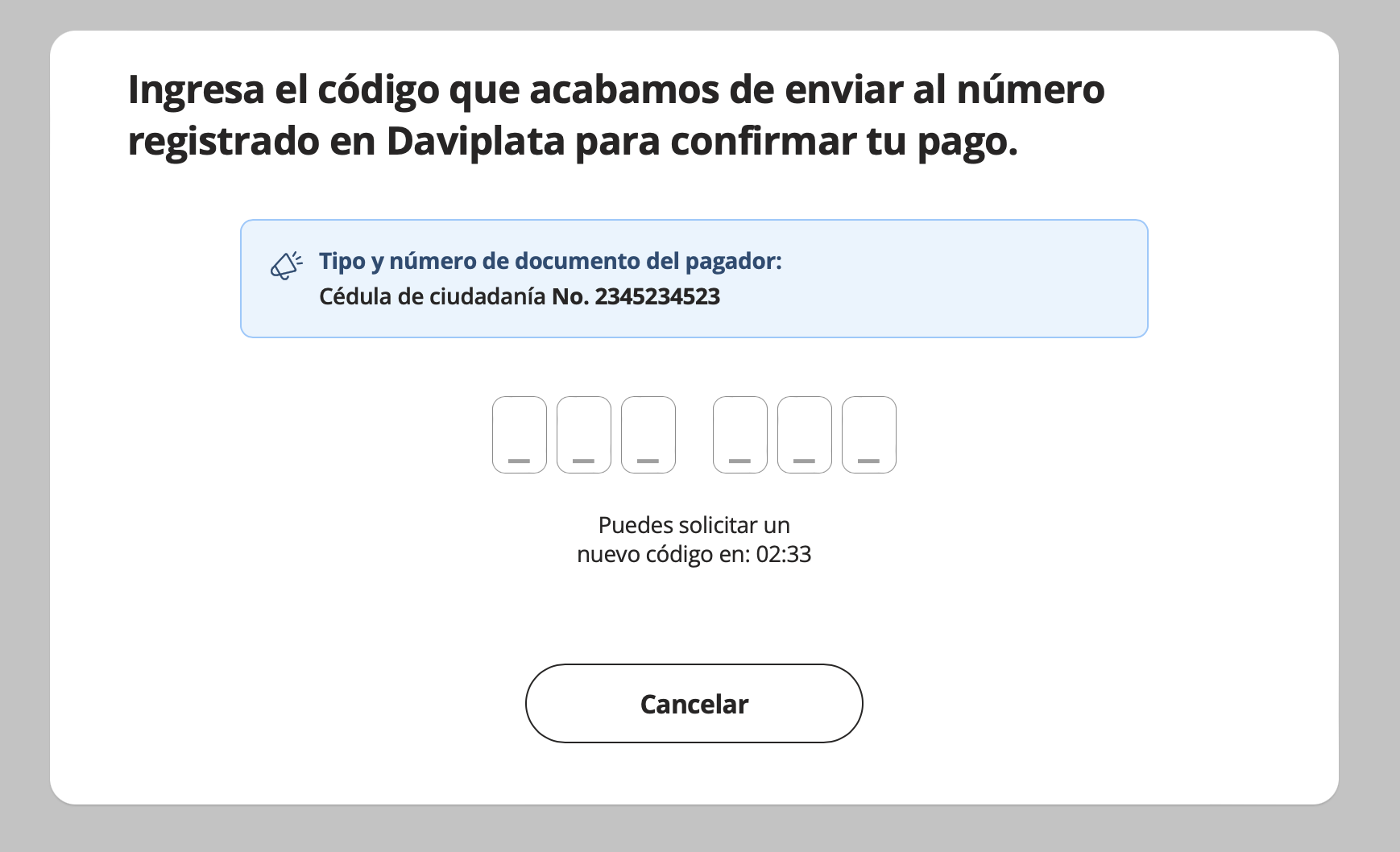
Once you have this information, you should redirect your client to the corresponding URL to access the experience we provide, where they can enter the confirmation OTP code. This experience looks like the following:
-
Applying your experience
This time, we focus on the JSON data -> payment_method -> extra -> url_services. Here you will find the following fields:
token: You must send this as aBearer tokenin yourHeaders.code_otp_send: It is used to resend anOTPcode to the client. To use it, you must make aPOSTtype request. Don't forget to include theBearer tokenin yourHeaders. In case of a successful request, the response will be as follows:
{
  "status": 200,
  "code": "OK",
  "message": "Solicitud ejecutada correctamente.",
  "data": {
    "transaction": {
      "PK": "12518-1707777099-36709", //Transaction identifier
      "status": "PENDING", //Transaction status
      "statusMessage": "",
      "amountInCents": 150000, //Amount in cents ($1,500 Colombian pesos)
      "clientInfo": {
        "typeDocument": "CC", // Type of paying document
        "numberDocument": "1043843543", // Payment document number
        "email": "test@sandbox.com" // Payer’s e-mail address
      },
      "steps": {
        "PurchaseIntention": [
          {
            "fechaExpiracionToken": "2024-02-13T15:03:08.272-05:00", //OTP expiration date
            "idSessionToken": "24748382" //OTP identifier
          },
          {
            "fechaExpiracionToken": "2024-02-13T15:16:15.744-05:00", //OTP expiration date
            "idSessionToken": "19935125" //OTP identifier
          }
        ]
      },
      "redirectUrl": "https://www.google.com", //Redirect URL upon completion of the transaction (if specified)
      "createdAt": "2024-02-12T22:31:57.903Z", //Creation date
      "updatedAt": "2024-02-12T22:32:11.975Z" //Modification date
    },
    "authorization": {
      "access_token": "access_token" //New access token
    },
    "attempts": {
      "currentSendCode": 2, //Number of times you have requested the OTP code resend
      "limitSendCode": 2, //Number of times you can request the OTP code
      "currentValidateCode": 0, //Number of times you have confirmed the OTP
      "limitValidateCode": 2 //Number of times you can confirm the OTP
    }
  }
}
IMPORTANT
When you resend an OTP code, before making the request to validate the new OTP code, you must update your Bearer token in the header, using the new access_token found in the authorization JSON field of the code_otp_send request.
data.transaction.redirectUrl: URL to redirect the user after the transaction is completed.data.transaction.clientInfo.typeDocument: Payer's document type (CC, CE, etc.).data.transaction.clientInfo.numberDocument: Payer's document number.data.attempts.limitValidateCode: Maximum number of validation attempts per OTP session. Each time you request a new code (viacode_otp_send), the validation attempts reset for that new session.data.attempts.limitSendCode: Maximum total number of OTP code sends allowed for the transaction.
code_otp_validate: This function allows you to send theOTPcode entered by the client to confirm the transaction. To validate theOTP, make aPOSTrequest ensuring that you include theBearer tokenin theHeadersand aJSONbody, as shown below:
{
  "code": 123456
}
In case of a successful request, the response will be as follows:
{
  "status": 200,
  "meta": {
    "trace_id": "5d9eb010-c9f7-11ee-aaec-a50d7c8df505"
  },
  "code": "OK",
  "message": "Solicitud ejecutada correctamente.",
  "data": {
    "transaction": {
      "PK": "12518-1707777099-36709", //Transaction identifier
      "status": "PENDING", //Transaction status
      "statusMessage": "",
      "amountInCents": 1500000, //Amount in cents ($1,500 Colombian pesos)
      "clientInfo": {
        "typeDocument": "CC", // Type of paying document
        "numberDocument": "1043843543", // Payment document number
        "email": "test@sandbox.com" // Payer’s e-mail address
      },
      "steps": {
        "PurchaseIntention": [
          {
            "fechaExpiracionToken": "2024-02-12T17:35:11.554-05:00",
            "idSessionToken": "93016224"
          }
        ],
        "ConfirmIntention": [
          {
            "idTransaccionAutorizador": "000000368995", //ID Authorizador
            "estado": "Aprobado", //Final status of the transaction(DAVIPLATA)
            "fechaTransaccion": "2024-02-13T14:55:56", //Transaction completion date
            "numAprobacion": "452341" //Approval number
          }
        ]
      },
      "redirectUrl": "https://www.test.com", //Redirect URL upon completion of the transaction (if specified)
      "createdAt": "2024-02-12T22:31:57.903Z", //Creation date
      "updatedAt": "2024-02-12T22:37:56.592Z" //Modification date
    },
    "authorization": {
      "access_token": "access_token" //access token
    },
    "attempts": {
      "currentSendCode": 1, //Number of times you have requested the OTP code resend
      "limitSendCode": 2, //Number of times you can request the OTP code
      "currentValidateCode": 1, //Number of times you have confirmed the OTP
      "limitValidateCode": 2 //Number of times you can confirm the OTP
    }
  }
}
OTP Validation Retry Handling
The OTP validation process has several scenarios you must handle in your integration:
Scenario 1: Invalid OTP with retries available in the session
If the OTP code entered is incorrect but the user still has validation attempts available within the current OTP session (without needing to request a new code), the response will be:
{
  "status": 200,
  "code": "OK",
  "message": "Request executed successfully.",
  "data": {
    "transaction": {
      "PK": "12518-1707777099-36709",
      "status": "PENDING",
      "statusMessage": "",
      "amountInCents": 150000,
      "clientInfo": {
        "typeDocument": "CC",
        "numberDocument": "1043843543",
        "email": "test@sandbox.com"
      },
      "steps": {
        "PurchaseIntention": [
          {
            "fechaExpiracionToken": "2024-02-12T17:35:11.554-05:00",
            "idSessionToken": "93016224"
          }
        ]
      },
      "redirectUrl": "https://www.test.com",
      "createdAt": "2024-02-12T22:31:57.903Z",
      "updatedAt": "2024-02-12T22:37:56.592Z"
    },
    "authorization": {
      "access_token": "access_token"
    },
    "attempts": {
      "currentSendCode": 1,
      "limitSendCode": 2,
      "currentValidateCode": 1, // Incremented: used 1 of 2 attempts in this session
      "limitValidateCode": 2   // Maximum validation attempts per OTP session
    }
  }
}
Expected action: Allow the user to re-enter the OTP code without requesting a new one. The absence of a ConfirmIntention object in steps indicates the transaction was not confirmed.
Scenario 2: OTP session exhausted (HTTP 422)
When the user exhausts all validation attempts for the current session, the service responds with HTTP 422. This does not mean the transaction has failed permanently — it indicates that a new OTP code must be requested via code_otp_send (if sends are still available).
// HTTP 422
{
  "status": 422,
  "code": "ERROR",
  "message": "Validation attempts for this session have been exhausted.",
  "data": {
    "status": "PENDING" // The transaction is still alive
  }
}
Expected action:
- If
attempts.currentSendCode < attempts.limitSendCode→ callcode_otp_sendto get a new code. - If all sends are exhausted → the transaction will eventually move to
DECLINEDstatus due to timeout, or you can cancel it manually (see Cancel transaction section).
Scenario 3: Transaction declined or errored
If the HTTP response is 422 and the data.status field is DECLINED or ERROR, the transaction has reached a final state and cannot be retried.
Retry Flow Diagram
┌─────────────────┐
│  User enters    │
│  OTP code       │
└────────┬────────┘
         │
         ▼
┌─────────────────┐     200 + ConfirmIntention      ┌──────────────┐
│ code_otp_validate├──────────────────────────────────►│   APPROVED  │
└────────┬────────┘                                   └──────────────┘
         │
         │ 200 without ConfirmIntention
         │ (Invalid OTP, retries remaining)
         ▼
┌─────────────────┐
│ Allow new       │ ◄─── User can retry without
│ attempt         │      requesting a new code
└────────┬────────┘
         │
         │ 422 + status PENDING
         │ (session exhausted)
         ▼
┌─────────────────────┐   Sends remaining?
│ Request new OTP     │   Yes → code_otp_send
│ (code_otp_send)     │   No → Cancel or wait for timeout
└─────────────────────┘
Cancel Daviplata Transaction
If the user decides not to continue with the payment process, you can cancel the transaction via a PUT request to the cancellation endpoint. Include the Bearer token in the headers:
PUT {base_url}/daviplata/transactions/CancelTransaction
Headers: Authorization: Bearer {token}
Successful response:
{
  "status": 200,
  "code": "OK",
  "message": "Transaction cancelled successfully."
}
The transaction will move to DECLINED status. This operation is useful when:
- The user presses a "Cancel" button in your interface.
- All send and validation attempts have been exhausted without success.
- The user abandons the payment flow.
HTTP Error Codes — Daviplata (Simple payment)
Below are the HTTP error codes you may receive when interacting with Daviplata endpoints for simple payments:
| HTTP Code | Scenario | Description | Recommended Action |
|---|---|---|---|
200 | Valid OTP | The transaction was confirmed successfully. The ConfirmIntention field will be present in steps. | Show approved transaction summary. |
200 | Invalid OTP (with retries) | The code was incorrect but attempts remain in the session. ConfirmIntention is absent from steps. | Allow the user to re-enter the code without requesting a new one. |
401 | Expired or invalid token | The Bearer token sent is not valid or has already been used. | Get a new token from authorization.access_token of the last successful code_otp_send. |
422 | OTP session exhausted (transaction alive) | All validation attempts for the current session have been used. The data.status field is PENDING. | Request a new code via code_otp_send if sends are still available. Otherwise, cancel or wait for timeout. |
422 | Transaction finalized | The transaction has already reached a final state. The data.status field is DECLINED or ERROR. | Do not retry. Inform the user of the final result. |
500 | Internal server error | Unexpected processing error. | Retry the request. If it persists, contact support. |
- No
ConfirmIntentionin the 200 response → Invalid OTP, can retry in the same session. - HTTP 422 with
status: PENDING→ Session exhausted, can request a new code (ifcurrentSendCode < limitSendCode). - HTTP 422 with
status: DECLINEDorERROR→ Final state, do not retry.
Step 2: Validate the transaction outcome
Once the redemption process through Daviplata is completed, you will be redirected to the redirect_url you specified when creating the transaction (if defined) or to our interface. At this point, you can check the final status of the transaction. If you specified a redirect_url when creating the transaction, it is recommended to perform continuous long polling until the transaction reaches a final state:
{
  "data": {
    "id": "12518-1707854036-89959",
    "created_at": "2024-02-13T19:53:56.879Z", //Creation date
    "finalized_at": "2024-02-13T19:55:58.000Z", //Completion date
    "amount_in_cents": 150000, //Amount in cents ($1,500 Colombian pesos)
    "reference": "zieemgxkai", //Reference created by the merchant
    "currency": "COP", //Currency
    "payment_method_type": "DAVIPLATA", //Payment method
    "payment_method": {
      "type": "DAVIPLATA", //Payment method
      "extra": {
        "url": "https://test.com", //Wompi interface URL for entering OTP code
        "steps": [
          "ConfirmIntention",
          "ConfirmIntention",
          "PurchaseIntention",
          "Create"
        ],
        "is_three_ds": false,
        "afe_decision": "FRAUD_CHECK",
        "url_services": {
          //Services for implementing OTP resend and confirmation
          "token": "token", //JSON Token
          "code_otp_send": "https://test.com", //URL for resending the OTP code
          "code_otp_validate": "https://test.com" //URL for validating the OTP code
        },
        "external_identifier": "452341", //Approval number
        "daviplata_transaction_id": "452341" //Approval number
      },
      "user_legal_id": "53234234", //Customer's document number
      "user_legal_id_type": "CC", //Customer's document type,
      "payment_description": "Payment to Wompi Store, ref: JD38USJW2XPLQA" // Name of the item being paid. Maximum 30 characters
    },
    "payment_link_id": null,
    "redirect_url": null, //Redirect URL upon completion of the transaction (if specified)
    "status": "APPROVED", //Transaction status
    "status_message": null,
    "merchant": {
      //Merchant information
      "id": 999,
      "name": "test",
      "legal_name": "Pepito Perez",
      "contact_name": "Pepito Perez",
      "phone_number": "+573222222222",
      "logo_url": null,
      "legal_id_type": "CC",
      "email": "test@gmail.com",
      "legal_id": "32452341",
      "public_key": "public_key" //Merchant's public key
    },
    "taxes": []
  },
  "meta": {}
}
Daviplata subscription
Wompi is a payment platform that facilitates electronic transactions, offering various functionalities for users. One of the available options is the subscription with Daviplata, which can be used in three different ways for greater convenience and efficiency:
1. Favorite payment
Wompi allows users to select Daviplata as their favorite payment method. This means that every time you make a transaction, you won't need to re-enter your Daviplata account details.
Advantages
- Time-saving on future transactions.
- Greater convenience by not having to repeatedly enter payment details.
- Security by using a reliable payment method.
2. Automatic debit
Wompi also offers the option to set up automatic recurring payments from your Daviplata account. This feature is ideal for subscriptions and services that require periodic payments.
Advantages
- Ensures that payments are made on time.
- Eliminates the need to remember payment dates.
- Simplifies the management of your personal finances.
3. Favorite payment and automatic debit
The combination of favorite payment and automatic debit offers the best of both worlds: convenience and automation. By setting Daviplata as your favorite payment method and enabling automatic debit, you ensure that recurring payments are made automatically using your preferred payment method.
Advantages
- Maximum simplification of the payment process.
- Automation of recurring payments with your preferred payment method.
- Greater peace of mind knowing that payments are managed efficiently and securely.
If you want to know how the API for this functionality works, you can check it at Payment Sources & Tokenization: DaviPlata Accounts
SU+ PAY
We offer your customers the opportunity to purchase products or services and pay for them in installments. This service is the perfect solution for those looking for flexibility and efficiency in managing their payments. This innovative payment option allows customers to spread the cost of their purchases over multiple payments, making it easier to acquire goods and services without the need for a full initial payment.
To use this payment method, customers need to have an SU+ Pay account and available credit. Purchases must be greater than $35,000 and less than $5,000,000. The customer will select the number of installments at the time of purchase, and the system will automatically manage periodic payments based on the selected installments. This is particularly useful for higher-value purchases, allowing customers to plan their finances more effectively.
To confirm purchases, customers will receive a One-Time Password (OTP) which they must enter to authorize the transaction. This ensures an additional layer of security for each purchase, guaranteeing that only the account holder can approve payments.
This convenience not only enhances the shopping experience for customers but also ensures businesses have a steady stream of income with less administrative effort.
Step 1: Create the transaction using SU+ PAY as the payment method.
To initiate a payment transaction with SU+ PAY, the fields of the transaction need to follow the next structure:
{
  "amount_in_cents": 3500000, //Amount in cents ($35,000 Colombian pesos)
  "currency": "COP", //Currency
  "customer_email": "test@test.com", //Customer's email
  "reference": "{{REFERENCE}}", //Reference created by the merchant
  "payment_method": {
    "type": "SU_PLUS", //Payment method
    "user_legal_id_type": "CC", //Customer's document type
    "user_legal_id": "1134568019" //Customer's document number,
  },
  "acceptance_token": "{{ACCEPTANCE_TOKEN}}", //Acceptance token
  "payment_method_type": "SU_PLUS", //Payment method
  "redirect_url": "https://www.google.com" //Optional field: Redirect URL upon completion of the transaction
}
After creating the transaction, you need to continuously query (long polling) until the transaction includes a field called URL, located in the property data -> payment_method -> extra -> url. You should redirect your customer to this URL to interact with the SU+ Pay user experience. Here, they can view the credit summary, choose the number of installments, and confirm the purchase by entering the OTP code sent to their phone number.
{
  "data": {
    "id": "12518-1707838356-68178",
    "created_at": "2024-02-13T15:32:37.046Z", //Creation date
    "finalized_at": null,
    "amount_in_cents": 3500000, //Amount in cents ($35,000 Colombian pesos)
    "reference": "6lmmyl8howq", //Reference created by the merchant
    "currency": "COP", //Currency
    "payment_method_type": "SU_PLUS", //Payment method
    "payment_method": {
      "type": "SU_PLUS",
      "extra": {
        "url": "https://public-assets.dev.wompi.dev/sandbox_su_plus/index.html?transaction_id=11004-1719319279-86121&external_api_url=https://api-sandbox.co.dev.wompi.dev/v1&url_redirect=https://transaction-redirect.dev.wompi.dev/check&code_approved=964734&code_declined=799133&code_cancel=304456&code_error=540140", //URL experience SU+ PAY
        "steps": ["Create"],
        "is_three_ds": false
      },
      "user_legal_id": "53234234", //Customer's document number
      "user_legal_id_type": "CC" //Customer's document type,
    },
    "payment_link_id": null,
    "redirect_url": "https://www.test.com", //Redirect URL upon completion of the transaction (if specified)
    "status": "PENDING", //Transaction status
    "status_message": null,
    "merchant": {
      //Merchant information
      "id": 999,
      "name": "test",
      "legal_name": "Pepito Perez",
      "contact_name": "Pepito Perez",
      "phone_number": "+573222222222",
      "logo_url": null,
      "legal_id_type": "CC",
      "email": "test@gmail.com",
      "legal_id": "32452341",
      "public_key": "public_key" //Merchant's public key
    },
    "taxes": []
  },
  "meta": {}
}
Step 2: Validate the transaction result
Once the redemption process through SU+ PAY is completed, you will be redirected to the redirect_url you specified when creating the transaction (if defined) or to our interface. At this point, you can verify the final status of the transaction. If you have specified a redirect_url when creating the transaction, it is advisable to perform continuous long polling until the transaction reaches a final state:
{
  "data": {
    "id": "12518-1707854036-89959",
    "created_at": "2024-02-13T19:53:56.879Z", //Creation date
    "finalized_at": "2024-02-13T19:55:58.000Z", //Completion date
    "amount_in_cents": 150000, //Amount in cents ($1,500 Colombian pesos)
    "reference": "zieemgxkai", //Reference created by the merchant
    "currency": "COP", //Currency
    "payment_method_type": "SU_PLUS", //Payment method
    "payment_method": {
      "type": "SU_PLUS", //Payment method
      "extra": {
        "url": "https://public-assets.dev.wompi.dev/sandbox_su_plus/index.html?transaction_id=11004-1719319279-86121&external_api_url=https://api-sandbox.co.dev.wompi.dev/v1&url_redirect=https://transaction-redirect.dev.wompi.dev/check&code_approved=964734&code_declined=799133&code_cancel=304456&code_error=540140", // Experience SU+ PAY
        "steps": ["Create"],
        "is_three_ds": false,
        "external_identifier": "4c701f2d-5f2f-4a09-9722-5f71a5cd7c32",
        "su_plus_transaction_id": "4c701f2d-5f2f-4a09-9722-5f71a5cd7c32"
      },
      "user_legal_id": "53234234", //Customer's document number
      "user_legal_id_type": "CC", //Customer's document type,
      "payment_description": "Payment to Wompi Store, ref: JD38USJW2XPLQA" // Name of the item being paid. Maximum 30 characters
    },
    "payment_link_id": null,
    "redirect_url": null, //Redirect URL upon completion of the transaction (if specified)
    "status": "APPROVED", //Transaction status
    "status_message": null,
    "merchant": {
      //Merchant information
      "id": 999,
      "name": "test",
      "legal_name": "Pepito Perez",
      "contact_name": "Pepito Perez",
      "phone_number": "+573222222222",
      "logo_url": null,
      "legal_id_type": "CC",
      "email": "test@gmail.com",
      "legal_id": "32452341",
      "public_key": "public_key" //Merchant's public key
    },
    "taxes": []
  },
  "meta": {}
}
