Users
In this section, you can create and manage the users who will operate your business account.
Required Permissions
- Have a SuperAdmin role or one with permissions to view and manage users.
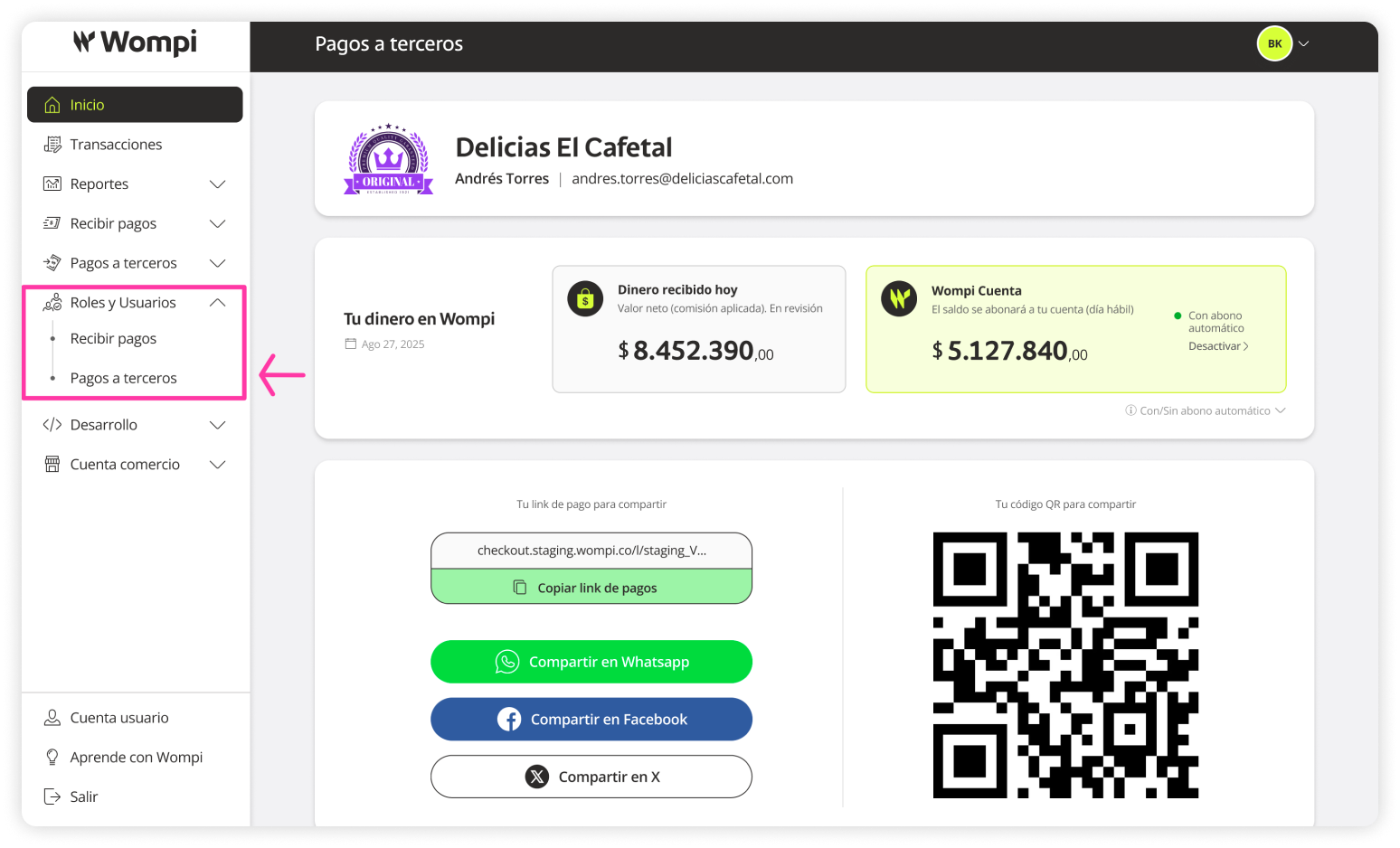
 When you access the Wompi dashboard, open the Roles and Users section from the left menu and select the Payouts option.
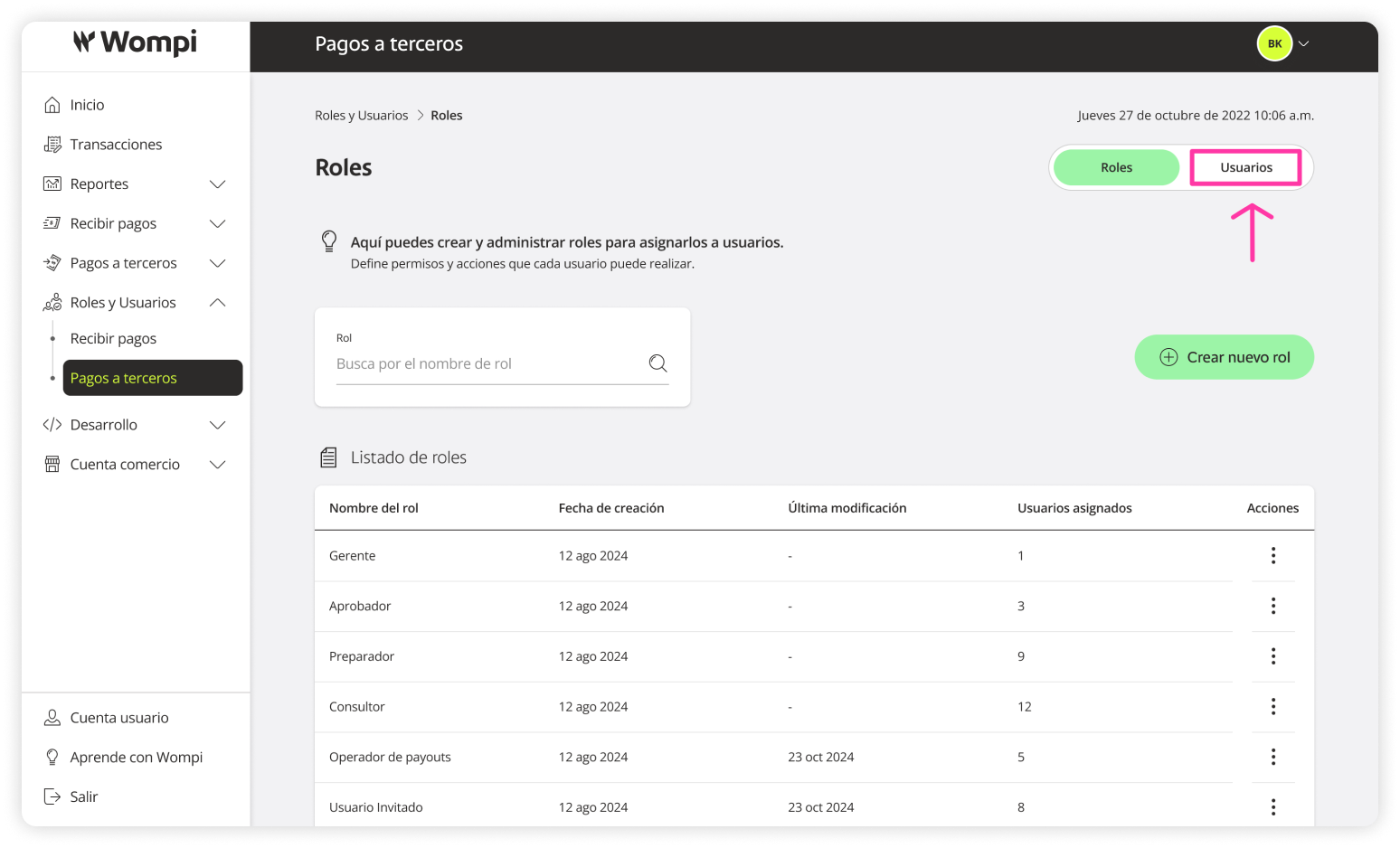
 You'll land on the Roles section. Click Users on the top right buttons.
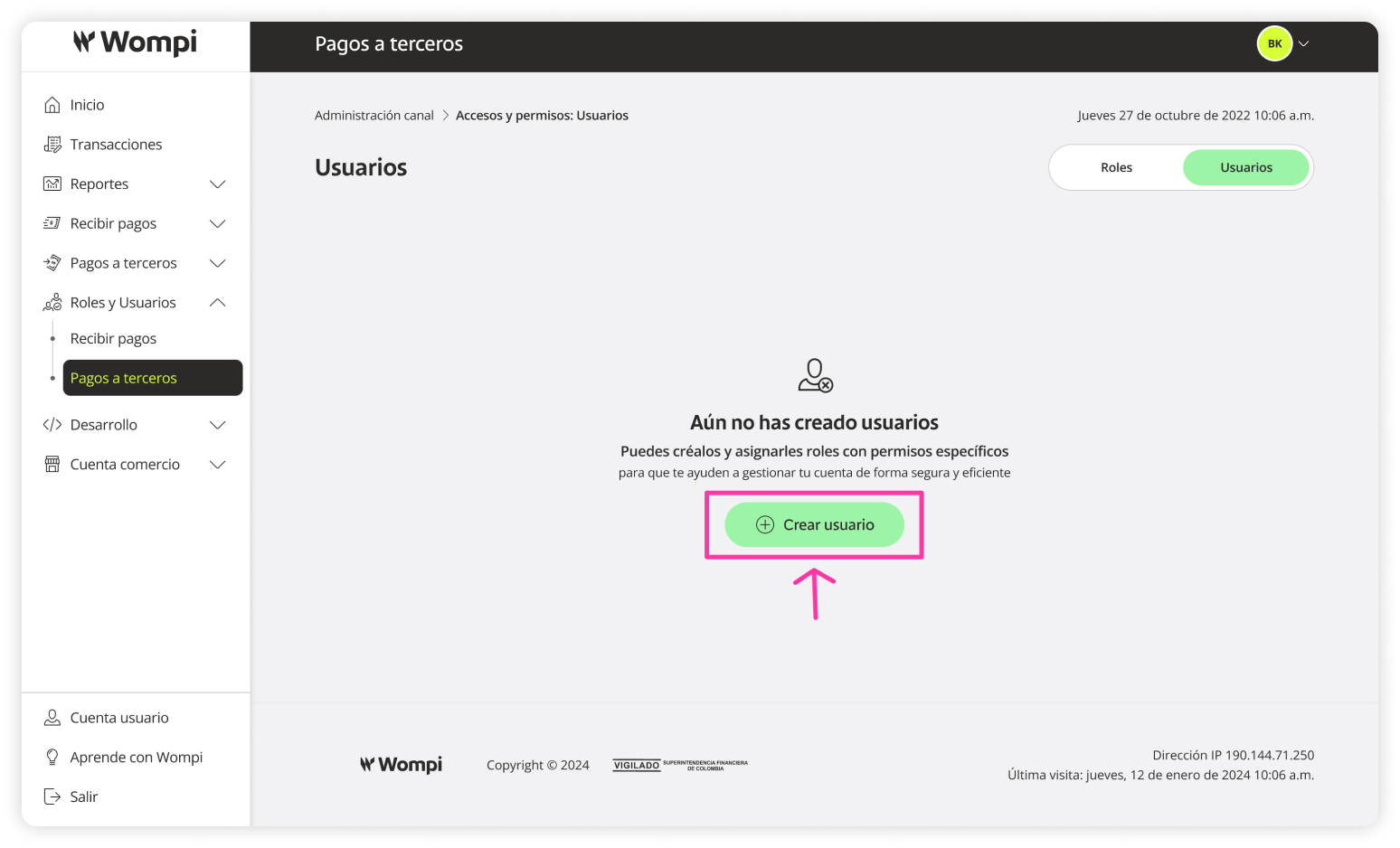
 If you don't have any users yet, you'll see an informational message along with a Create user button.
If users are already created, the section will display:
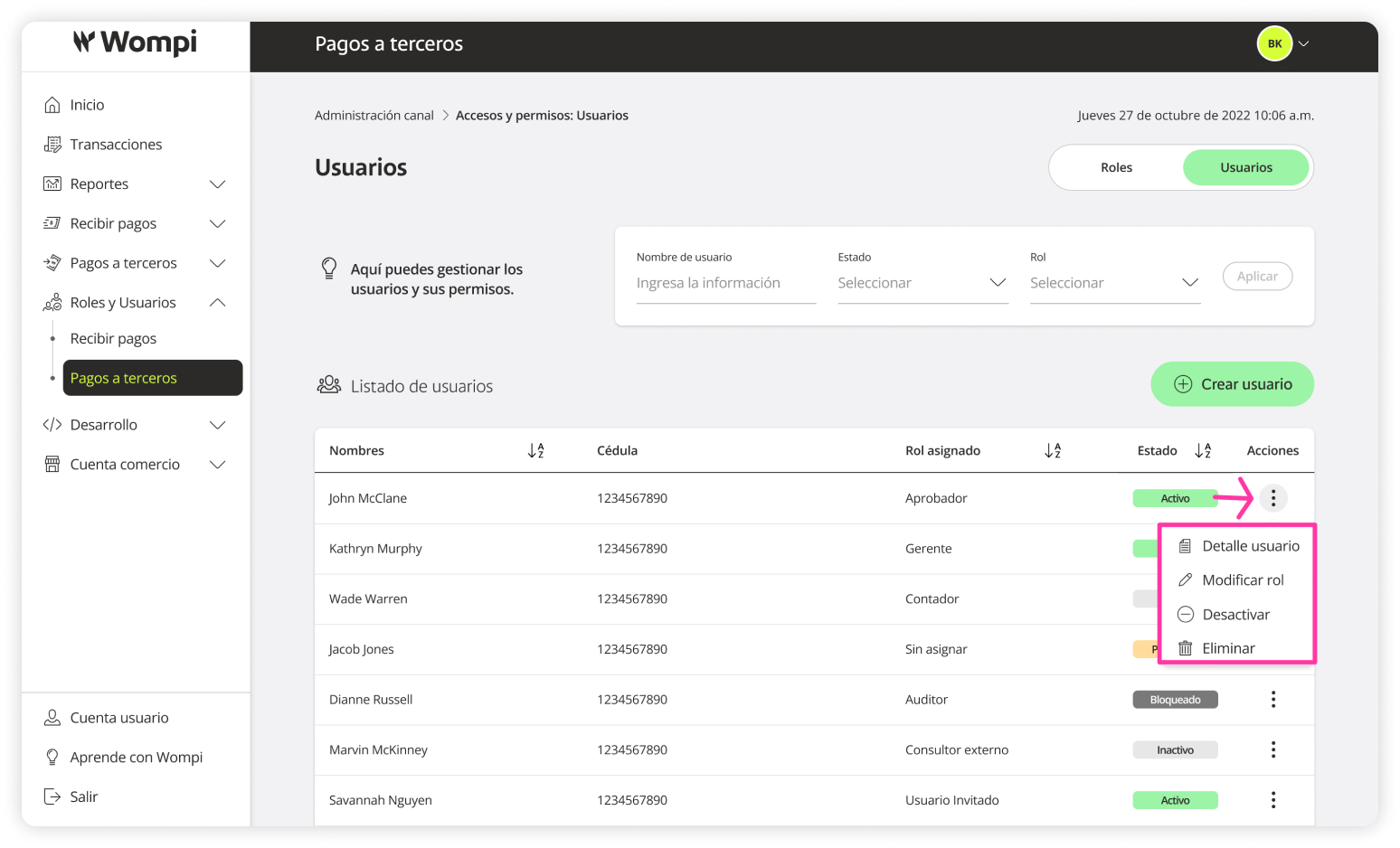
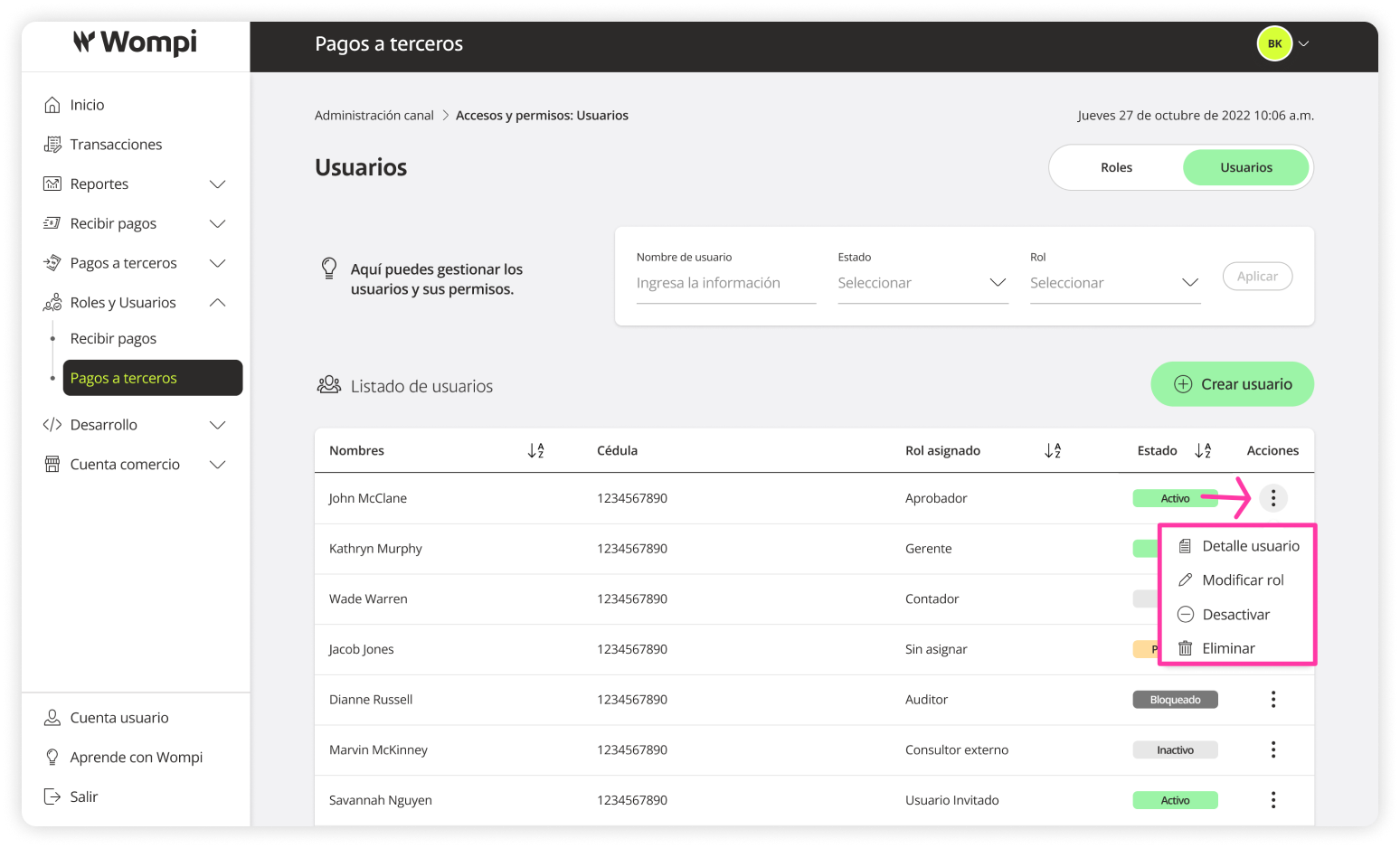
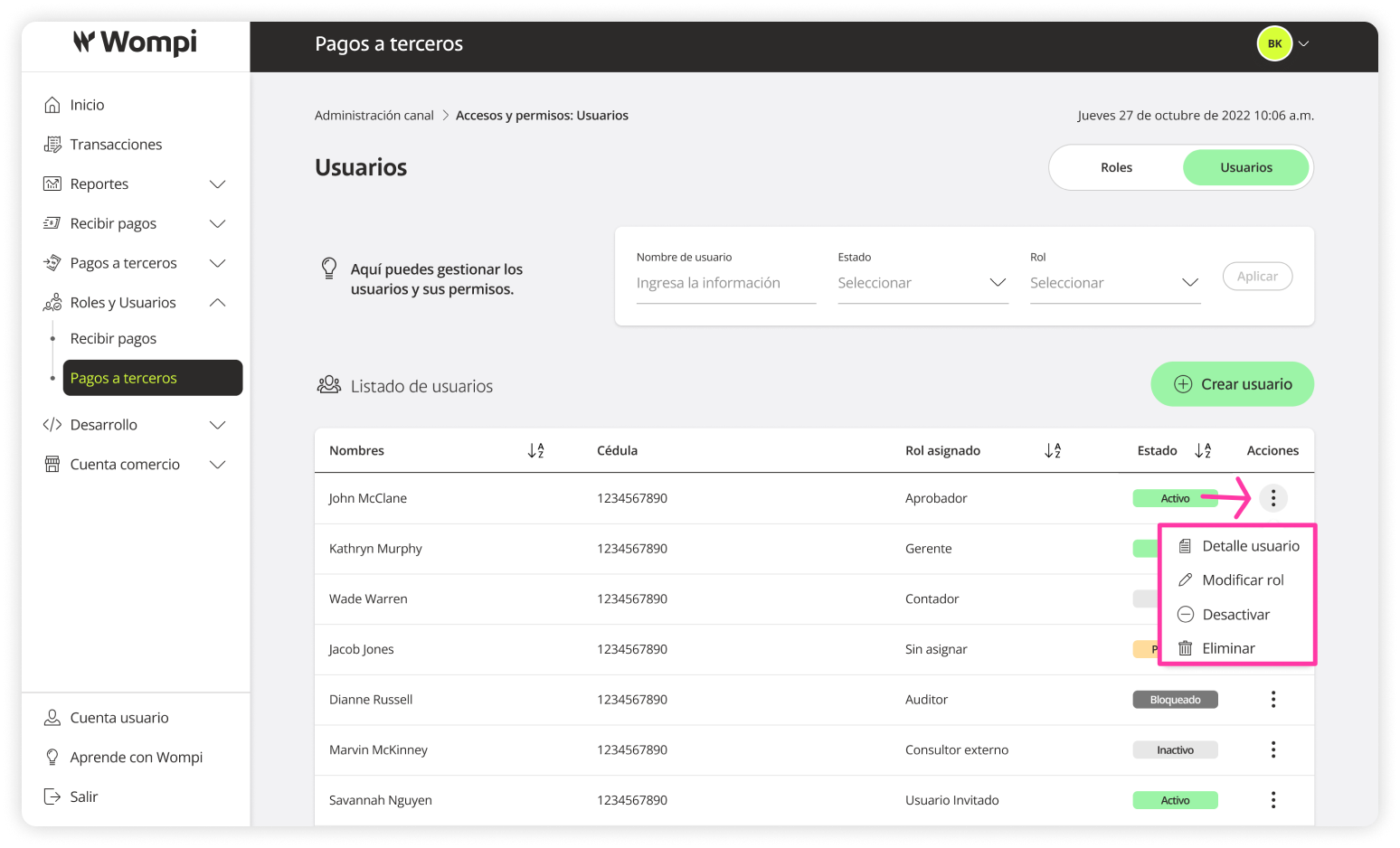
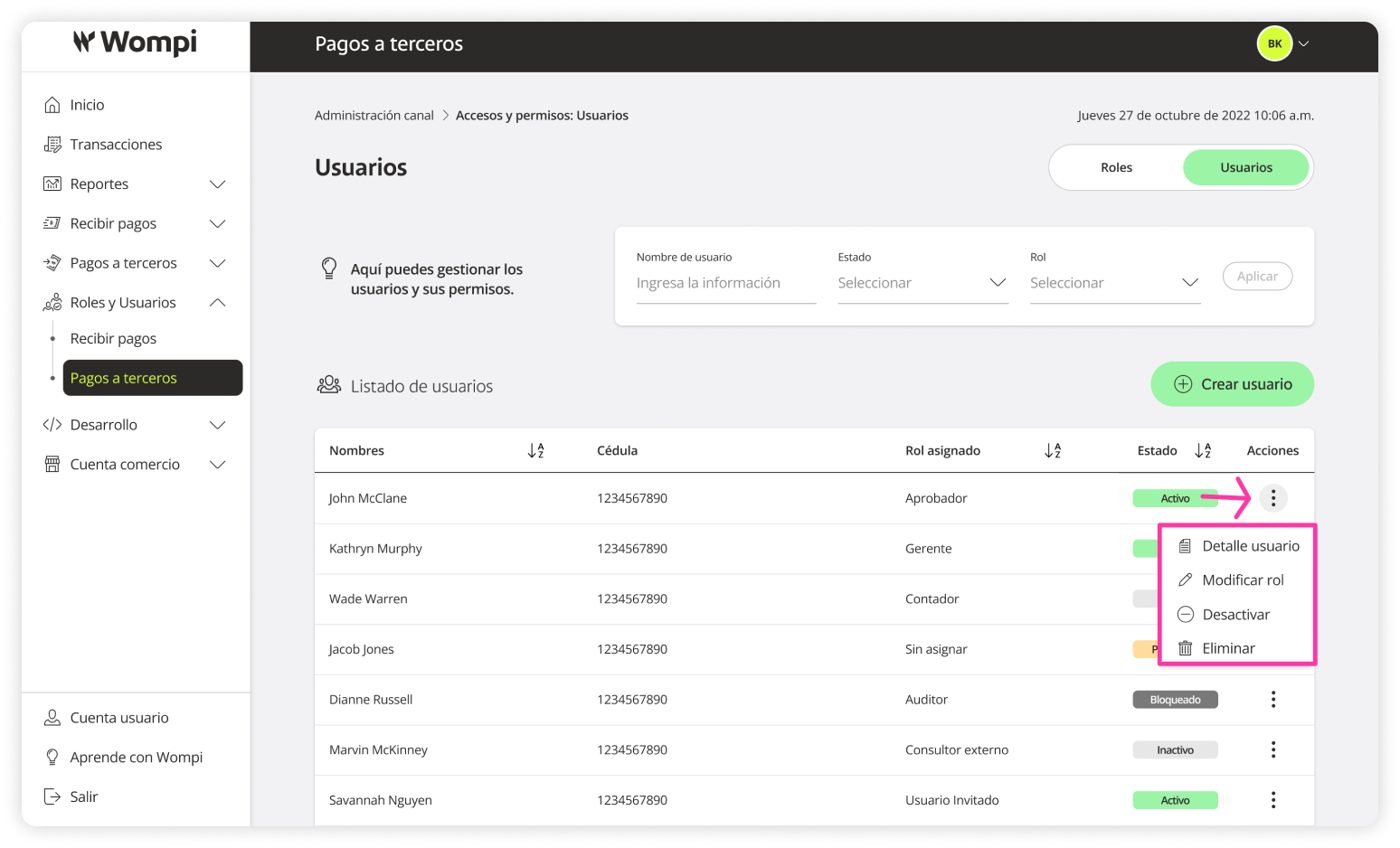
- User list: Name, Email, Assigned Role, Status, Actions (View Details, Change Role, Deactivate, Delete).
- Create a new user.
- Filter the list by: Username, Status, Role.
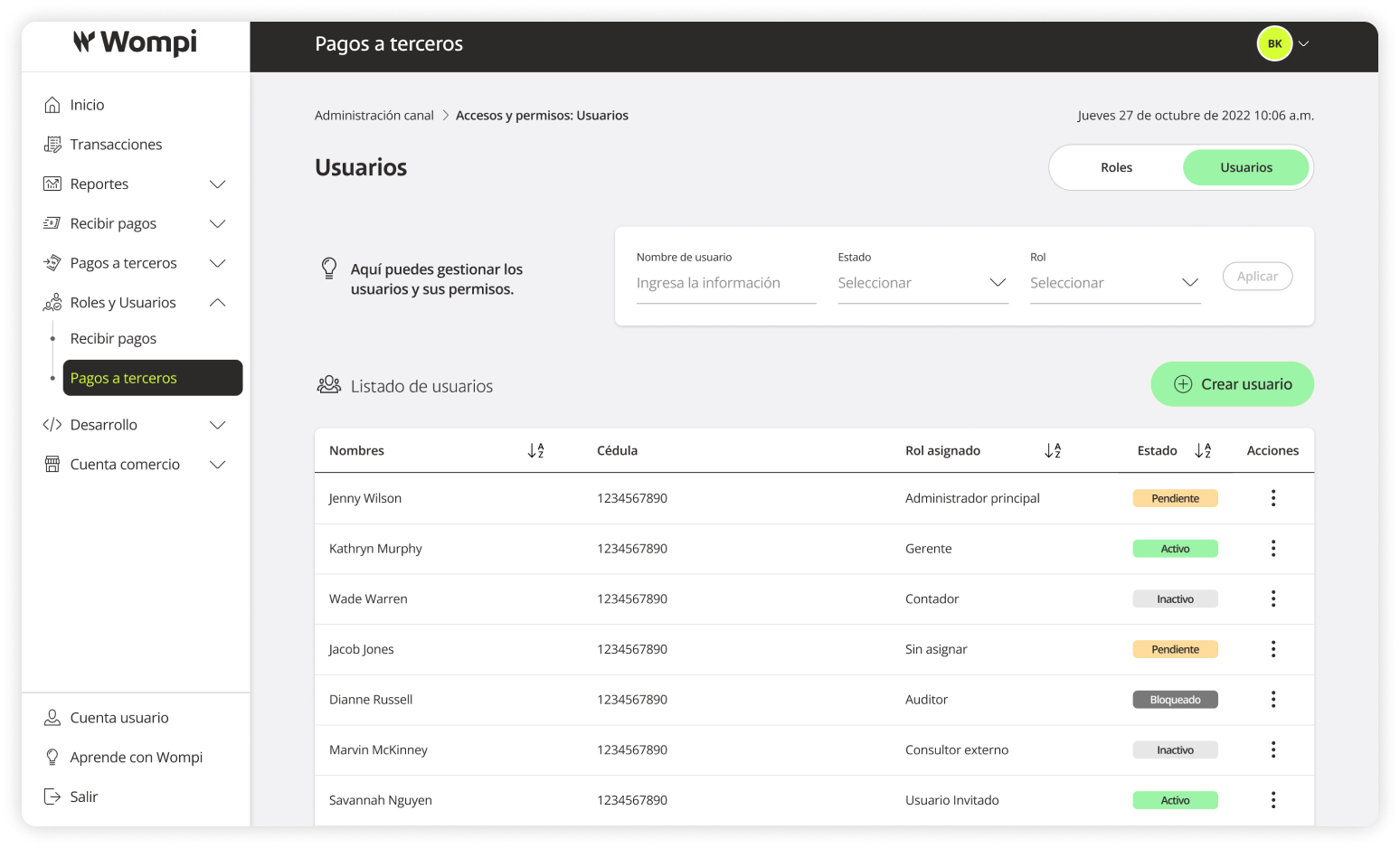
User statuses:

Create a new user
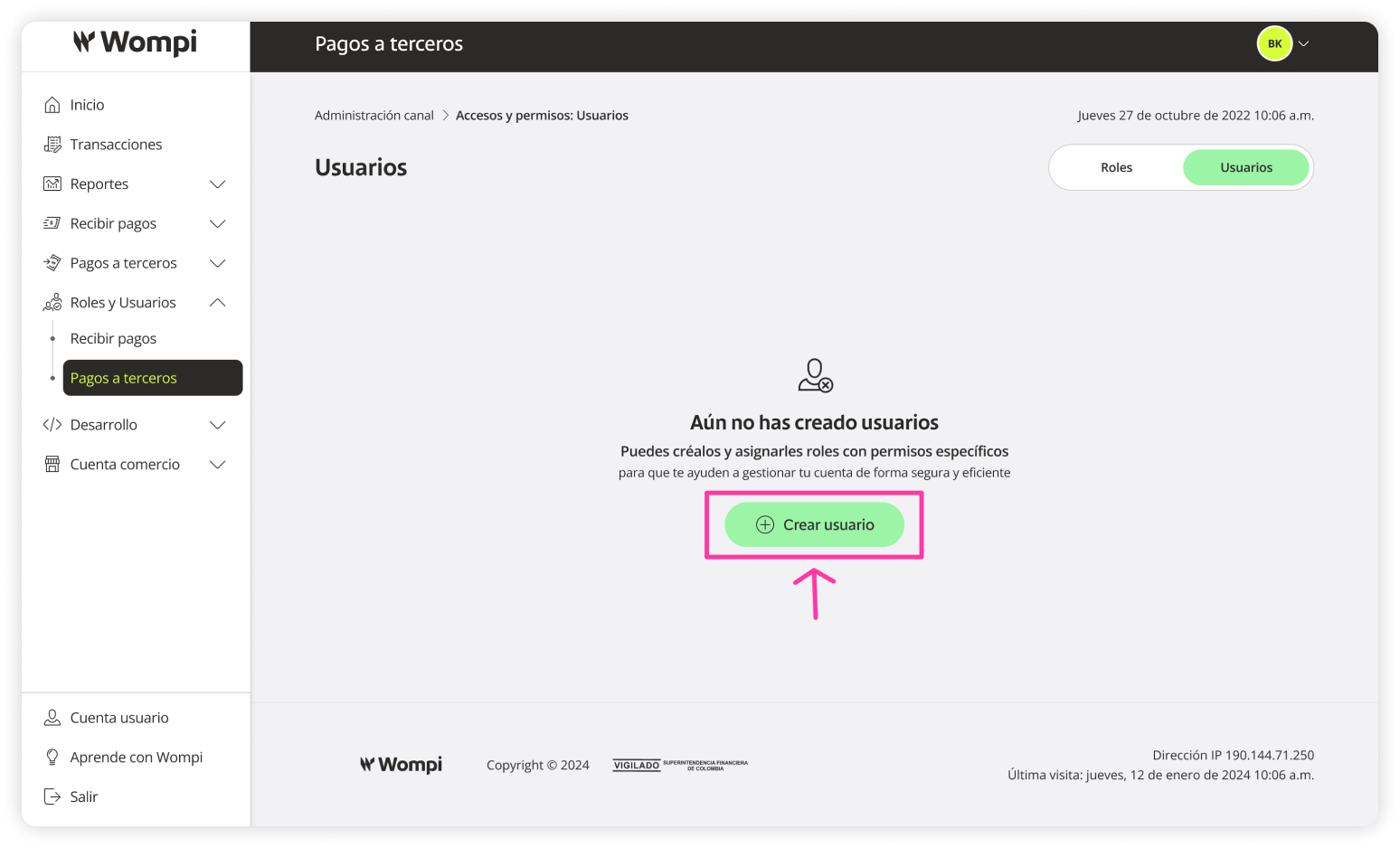
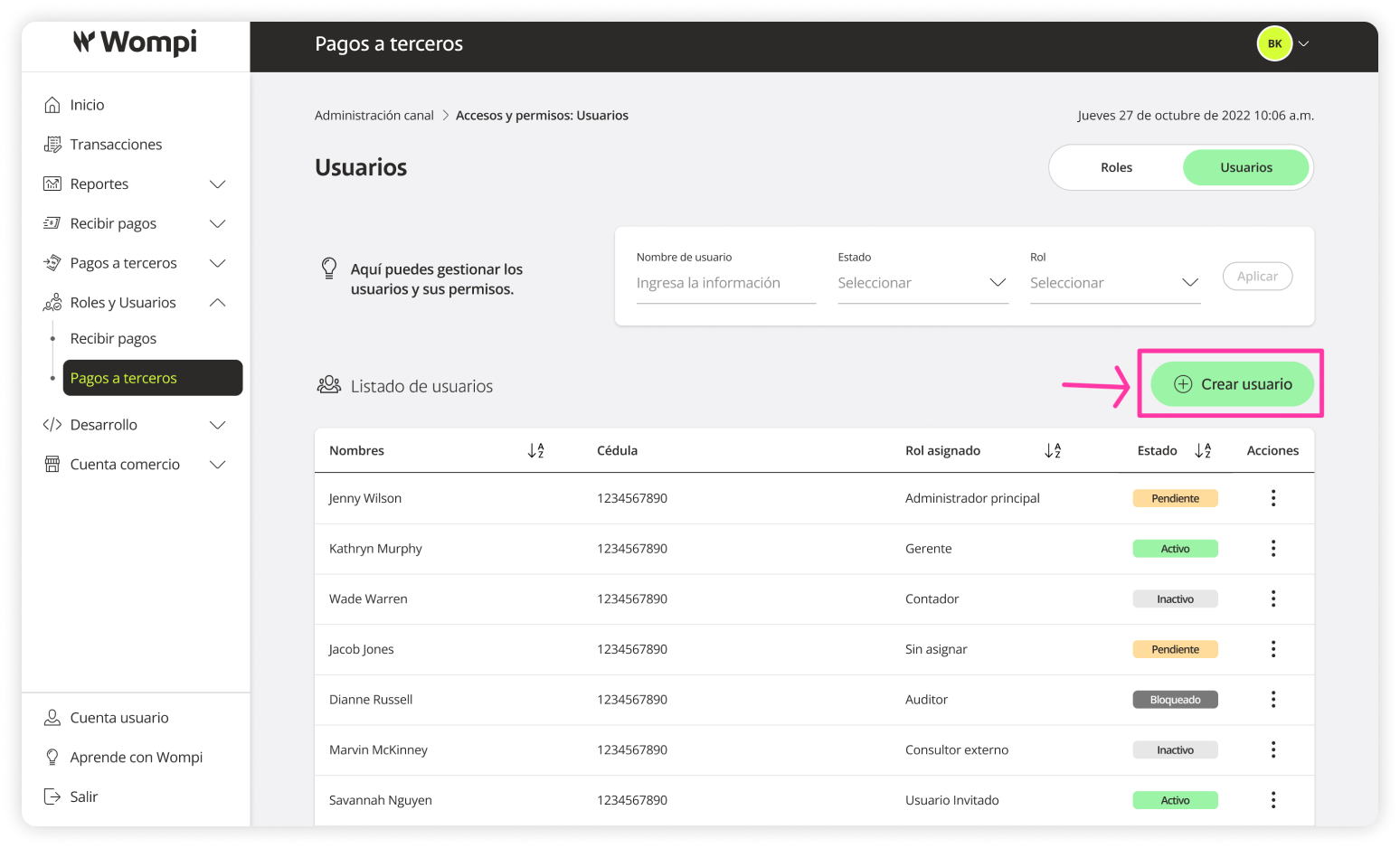
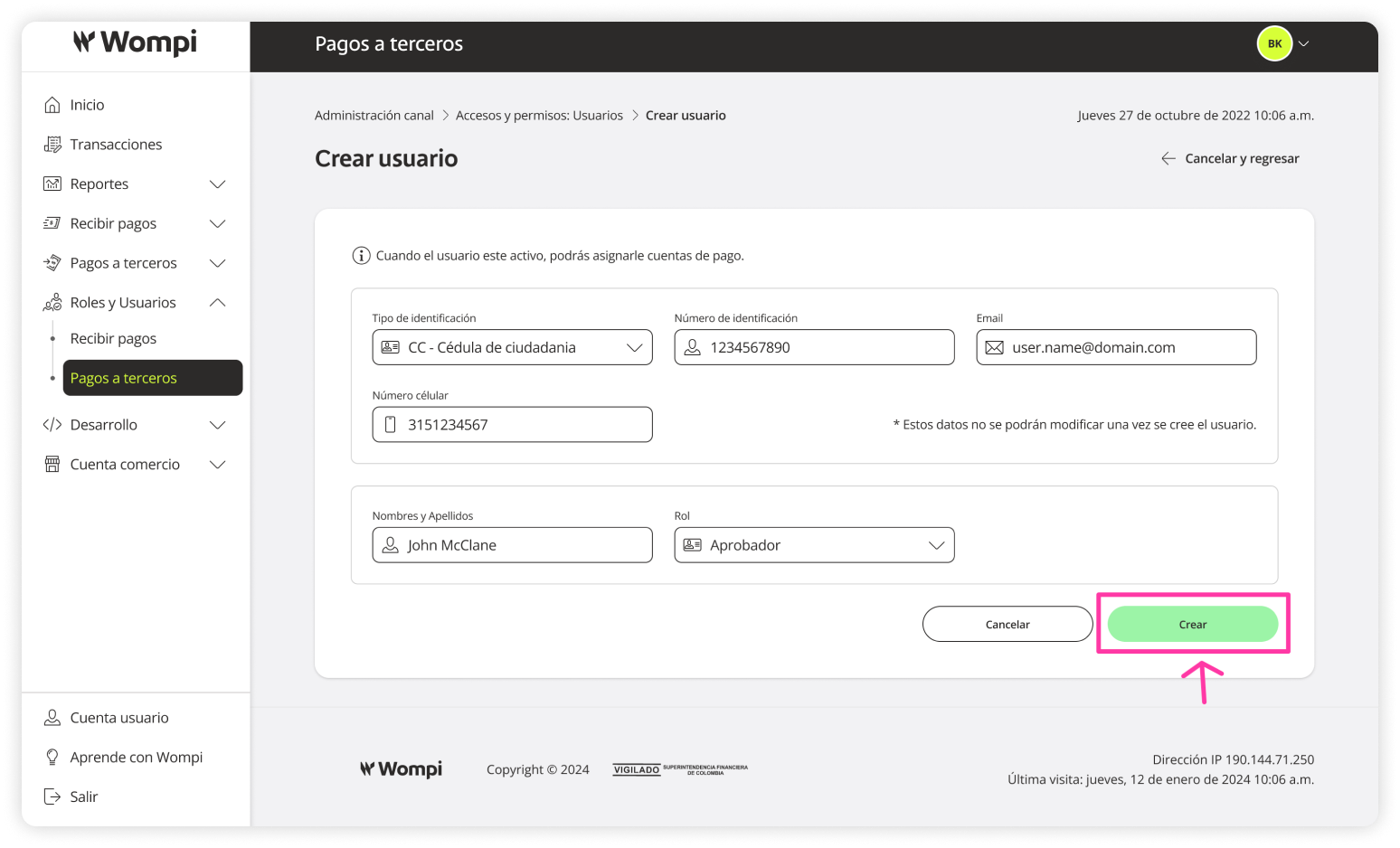
In the Users section under Payouts, click Create user.
Enter the following information:
Non-editable user fields:
- ID type
- ID number
- Email address
- Phone number
Editable after user creation:
- Full name
- Assigned role: Here you will see available roles created earlier.
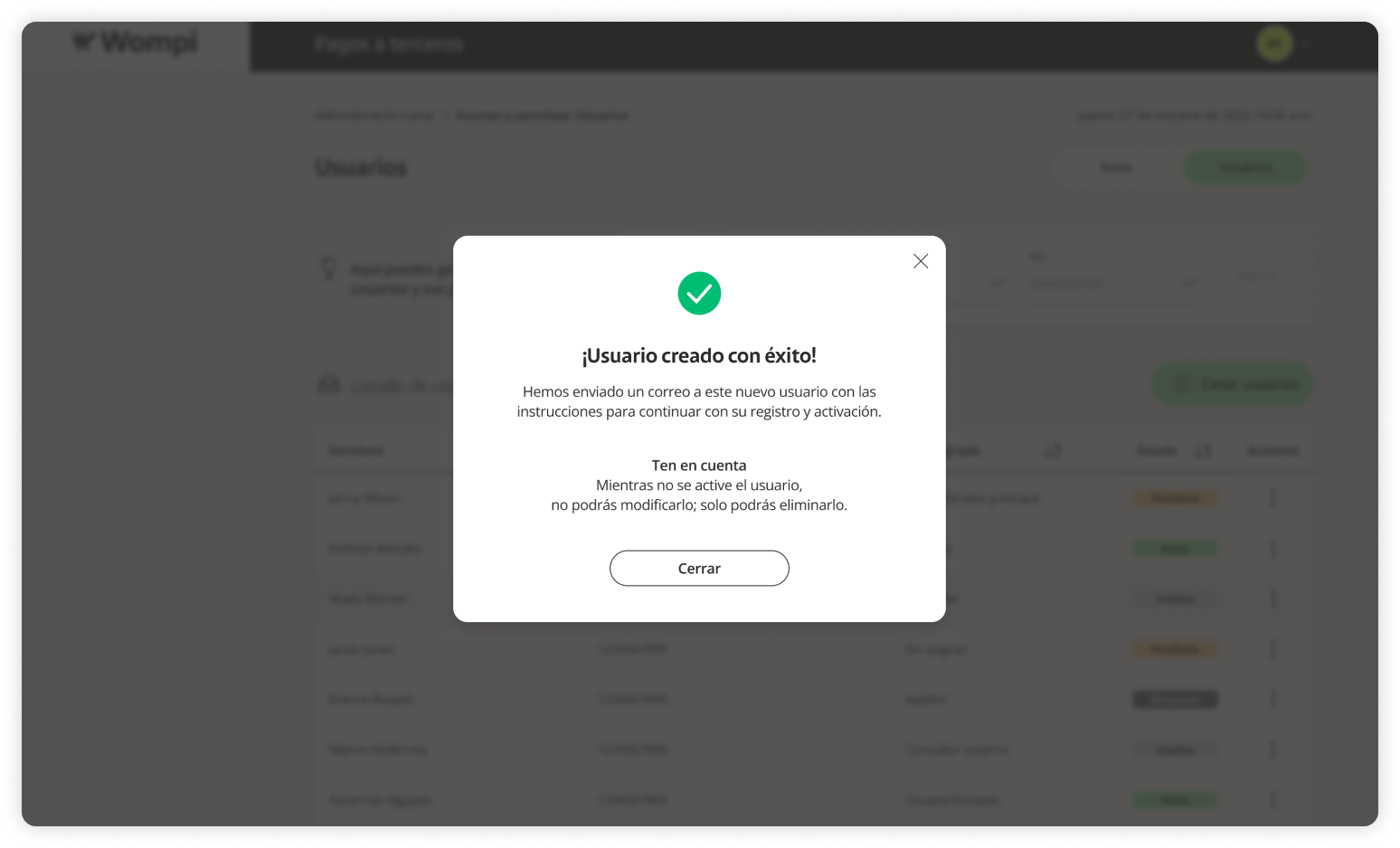
Note:
- Users can only be assigned payout bank accounts once they are active.
View details / Modify a user
To ensure your account’s security, any user change will require two-factor authentication.
In the Users section under Payouts, click the Actions button and select View Details.
In the User data module, you’ll be able to view and edit:
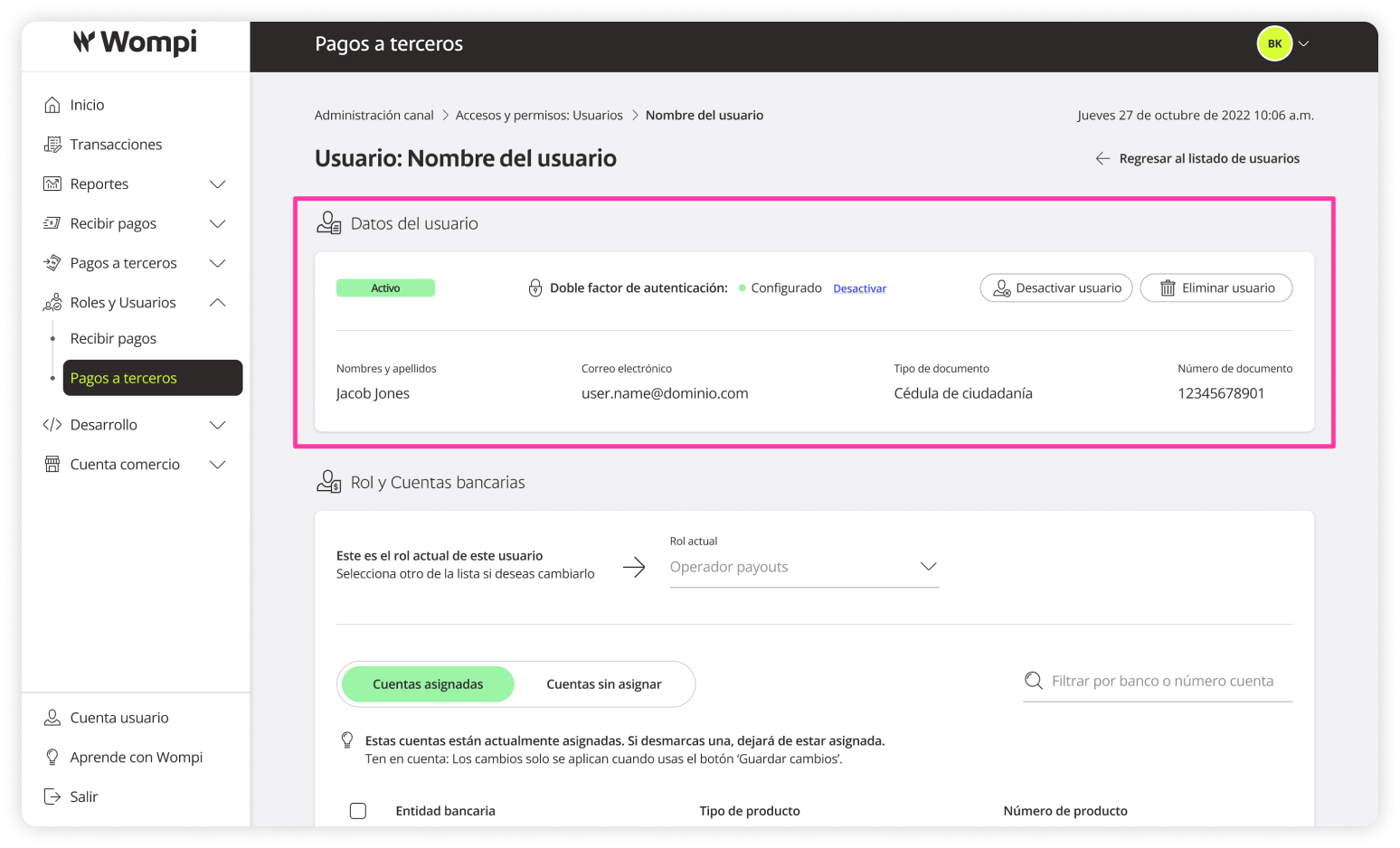
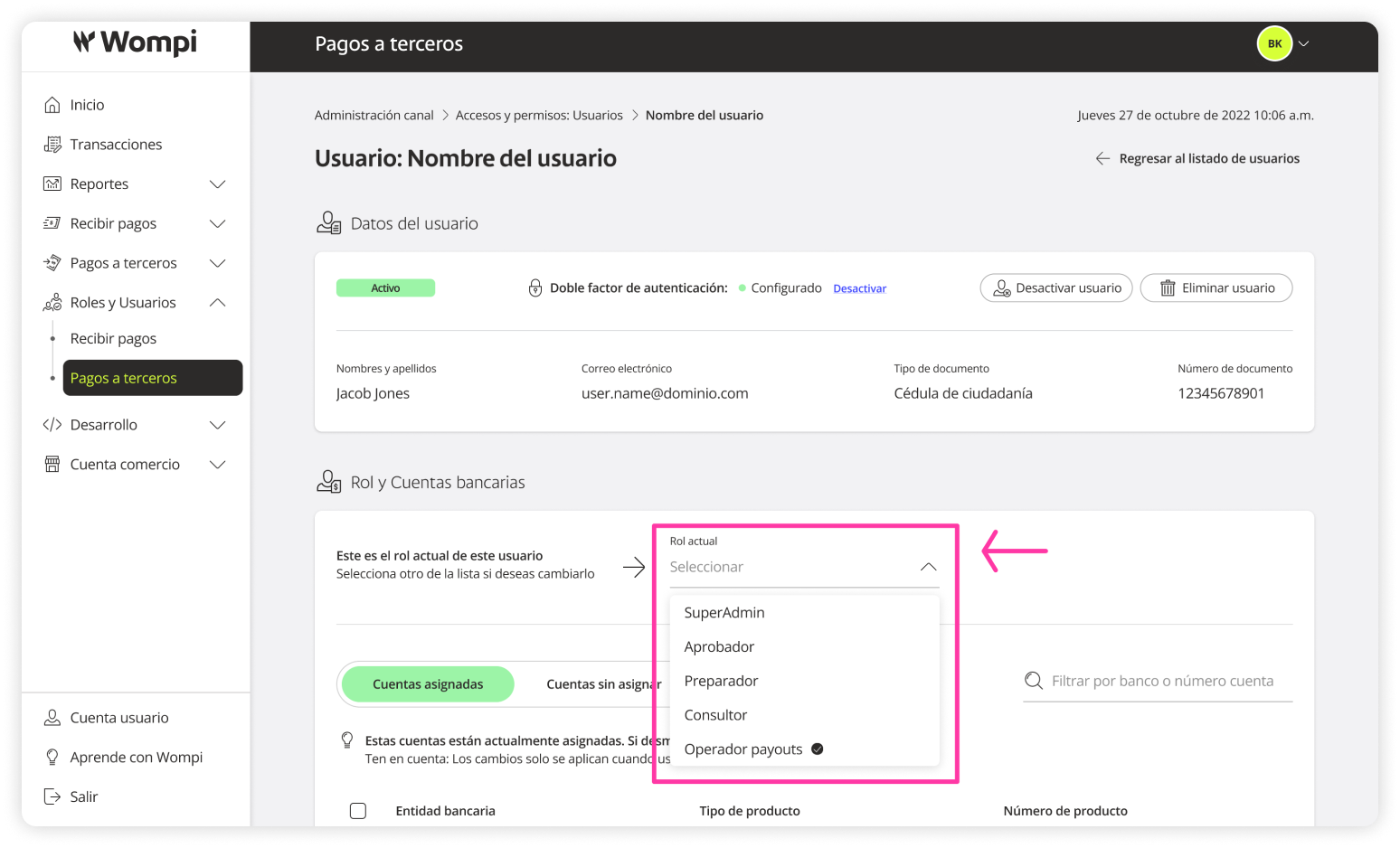
In the Role and bank accounts module, you can:
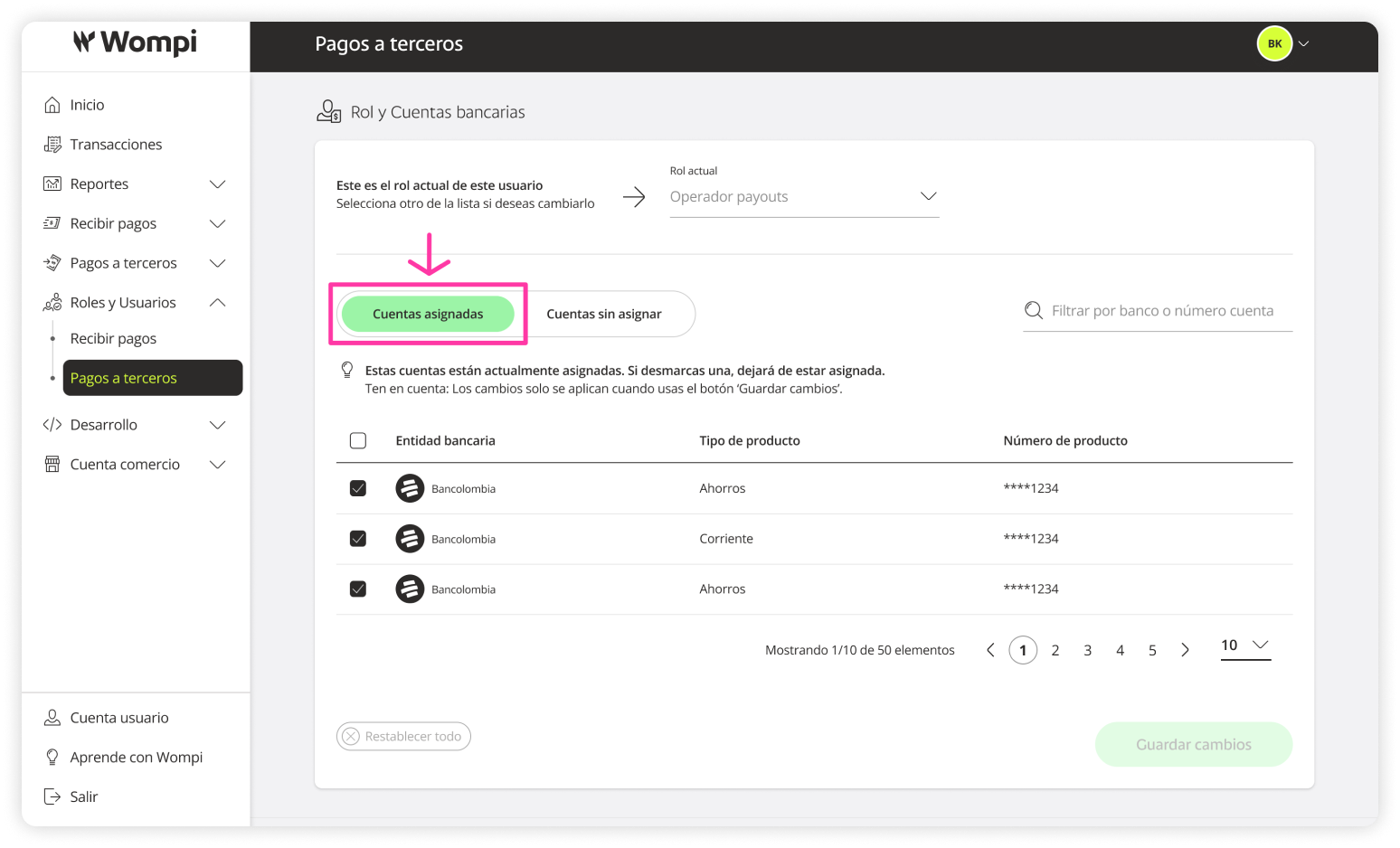
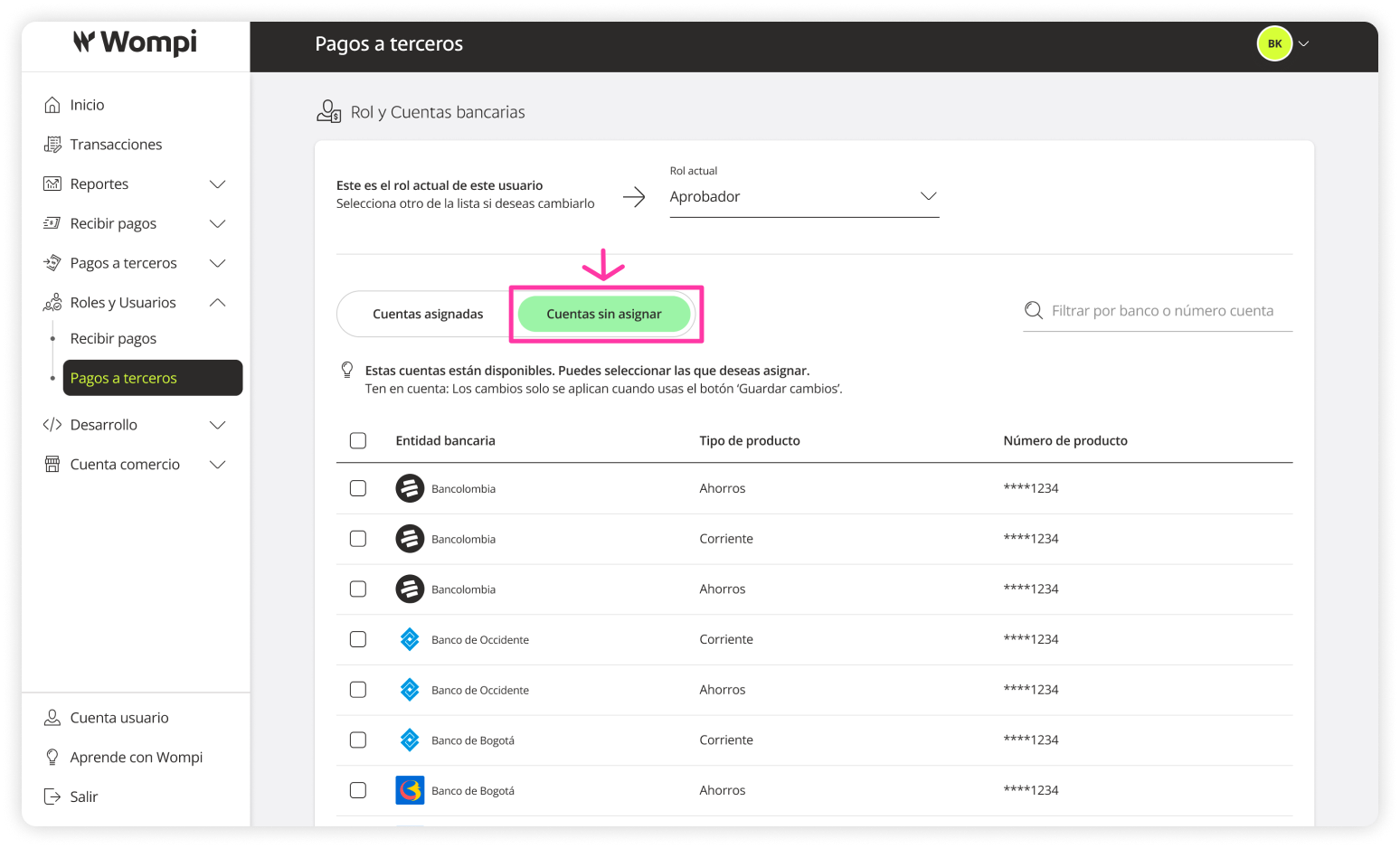
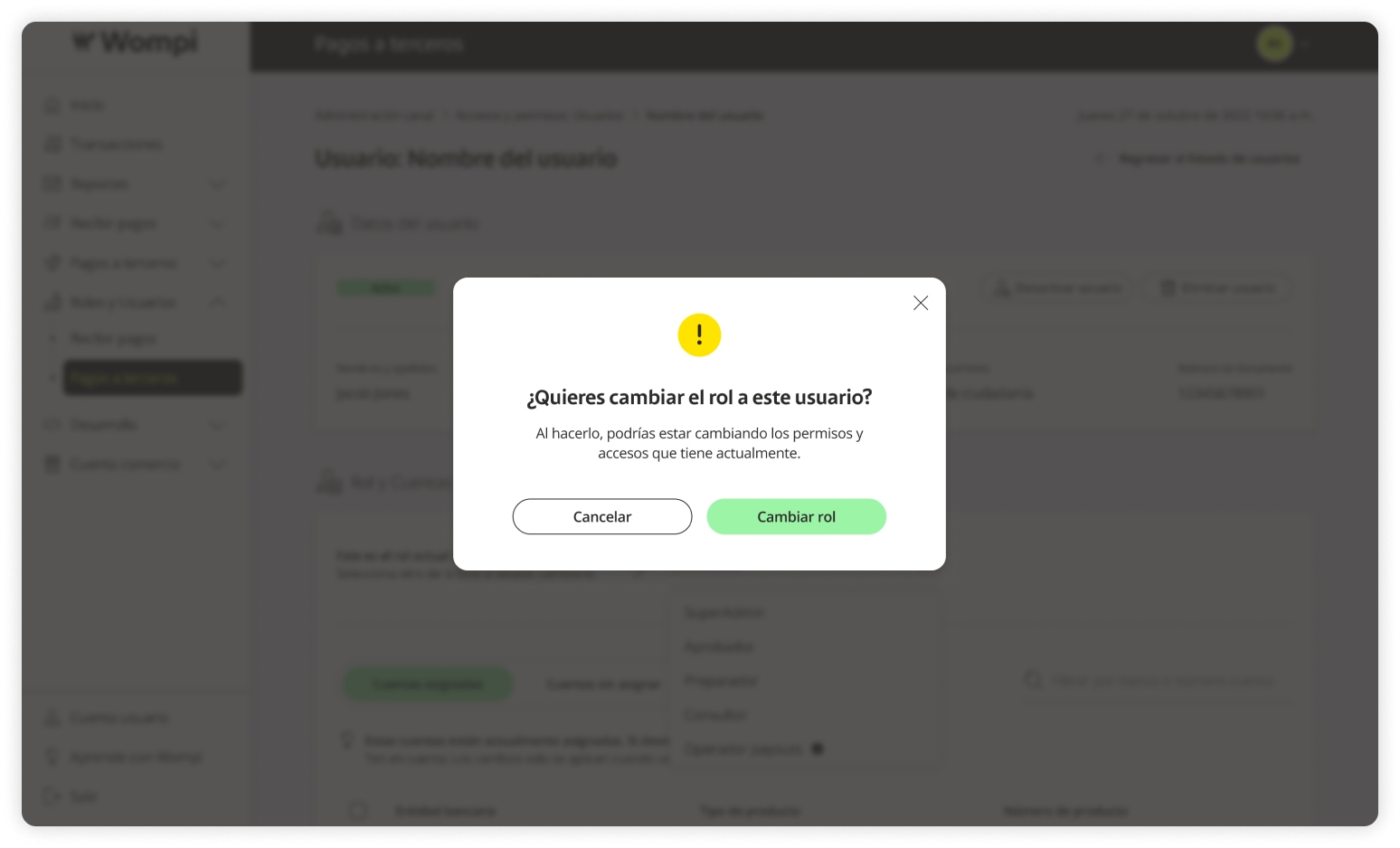
Change a user's role
To ensure your account’s security, any role change requires two-factor authentication.
You have two ways to modify a user's role:
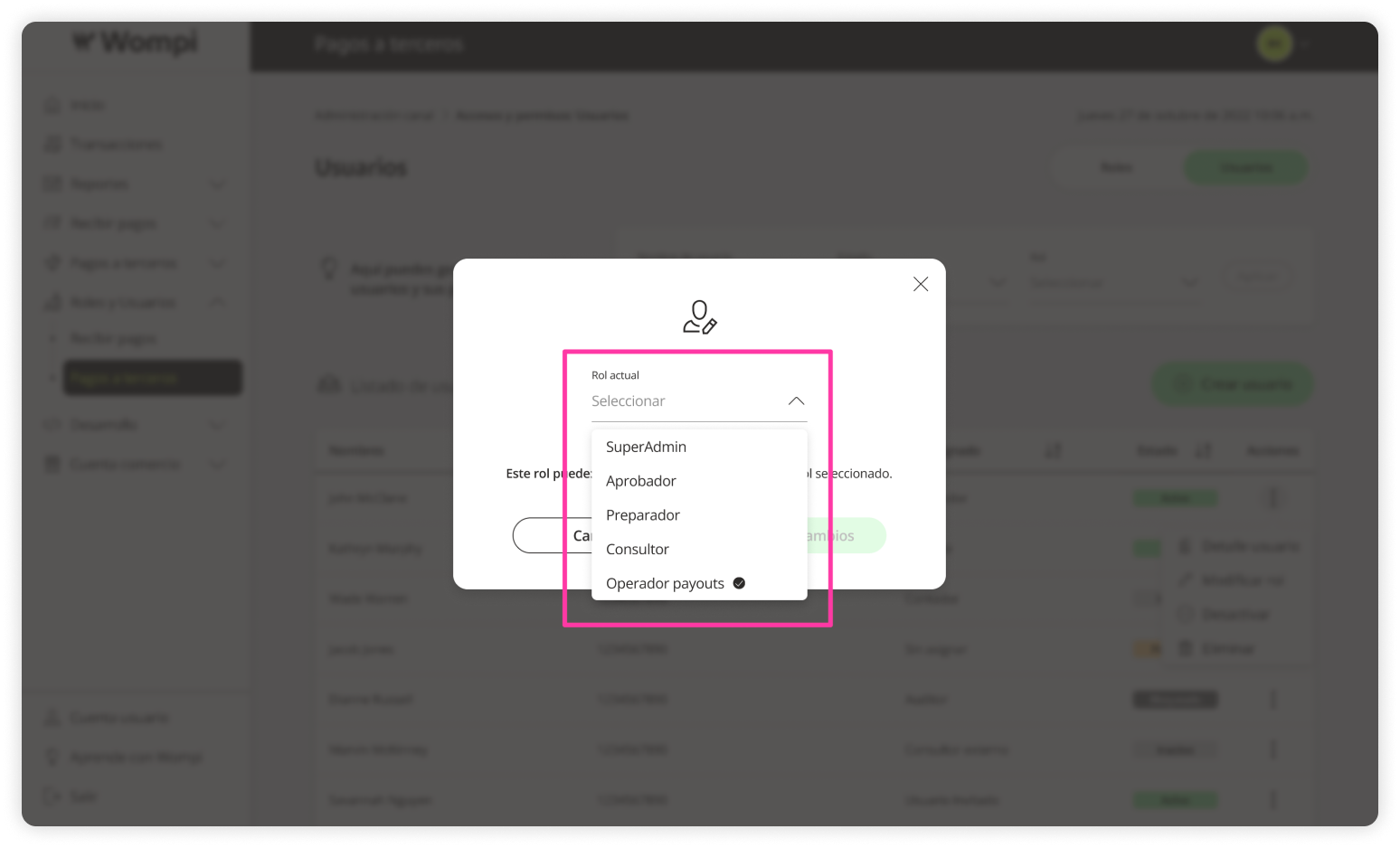
In the Users section under Payouts, click the Actions button and select Change Role.
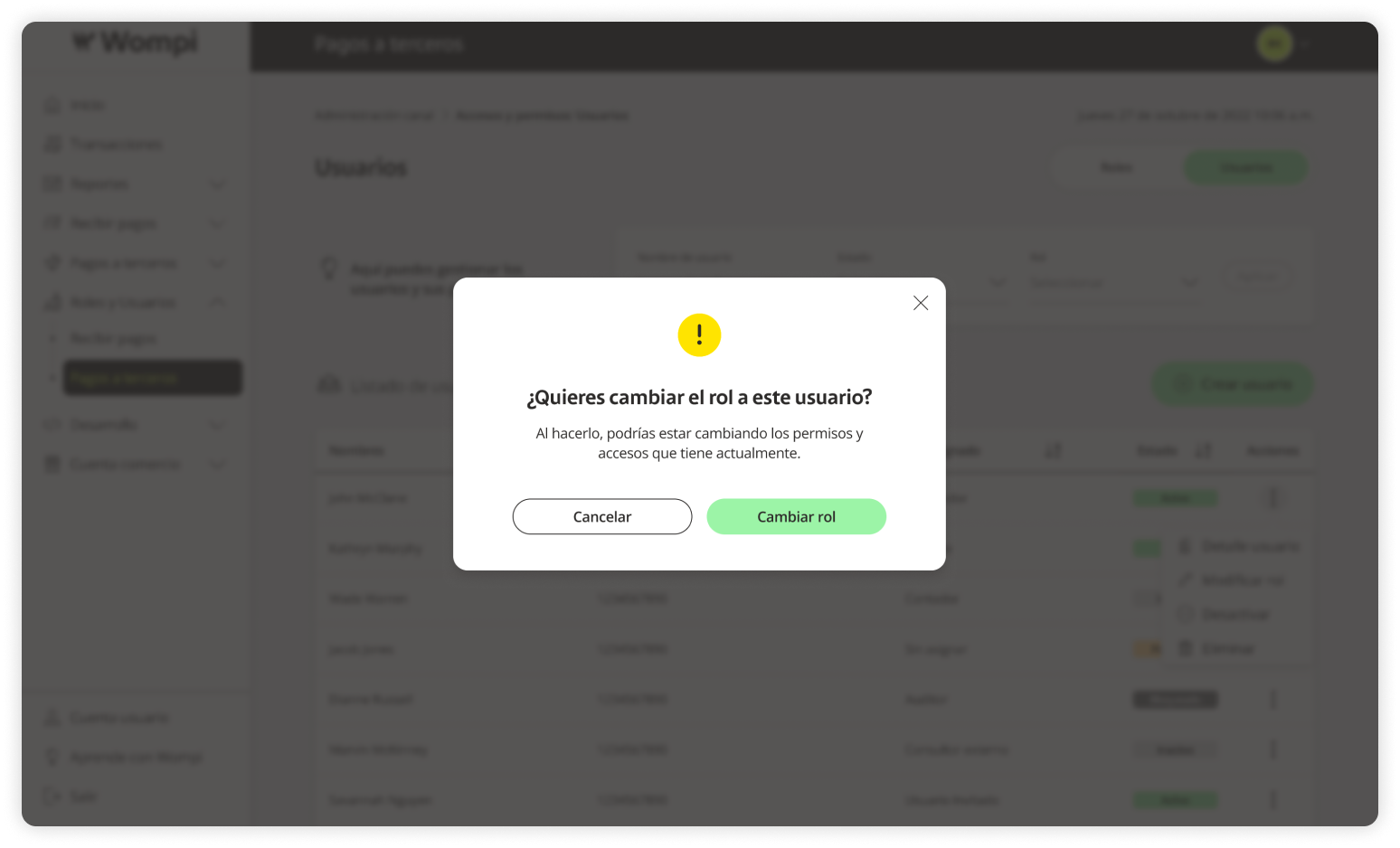
Alternatively, go to View Details from the Actions menu.
Deactivate a user
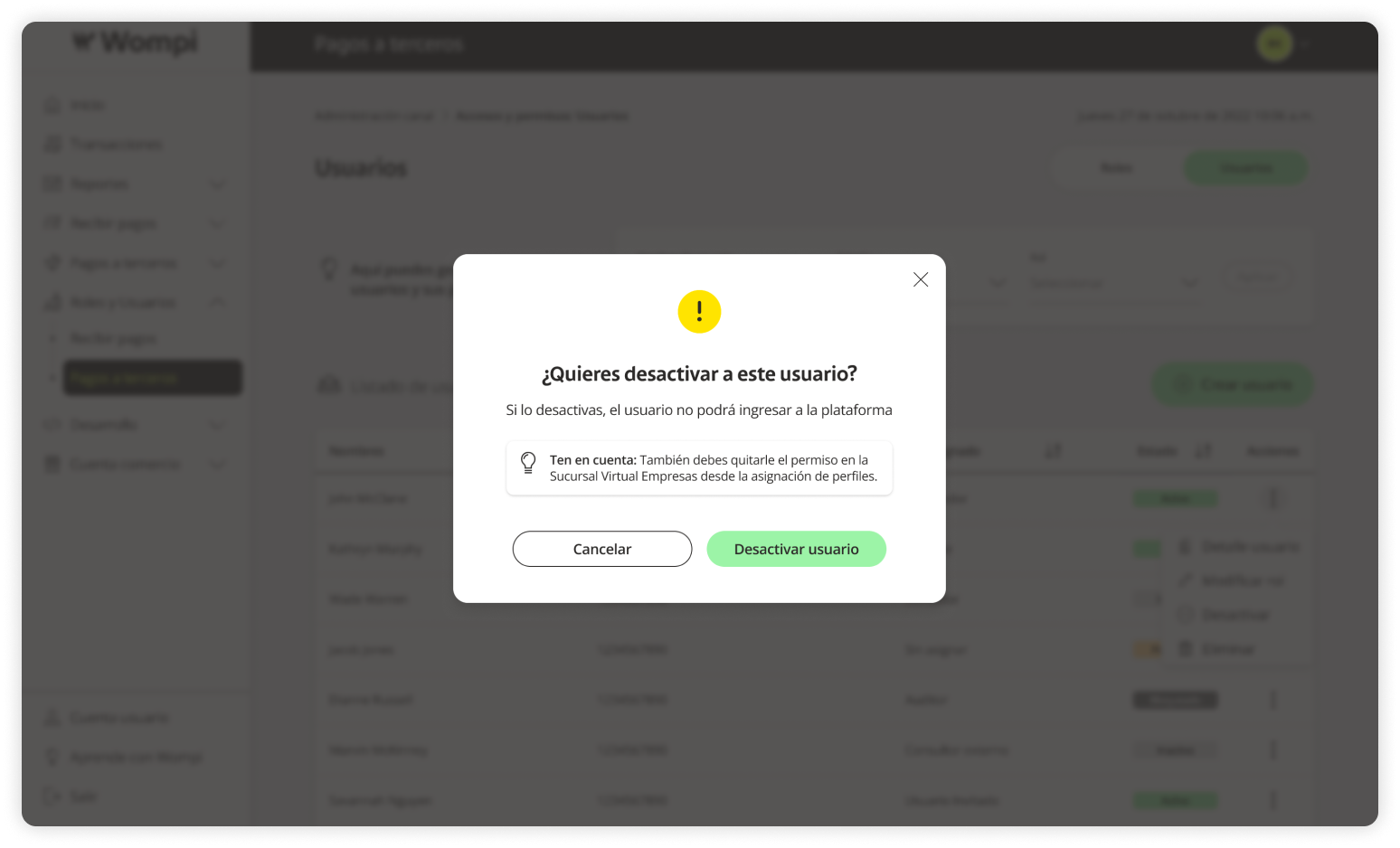
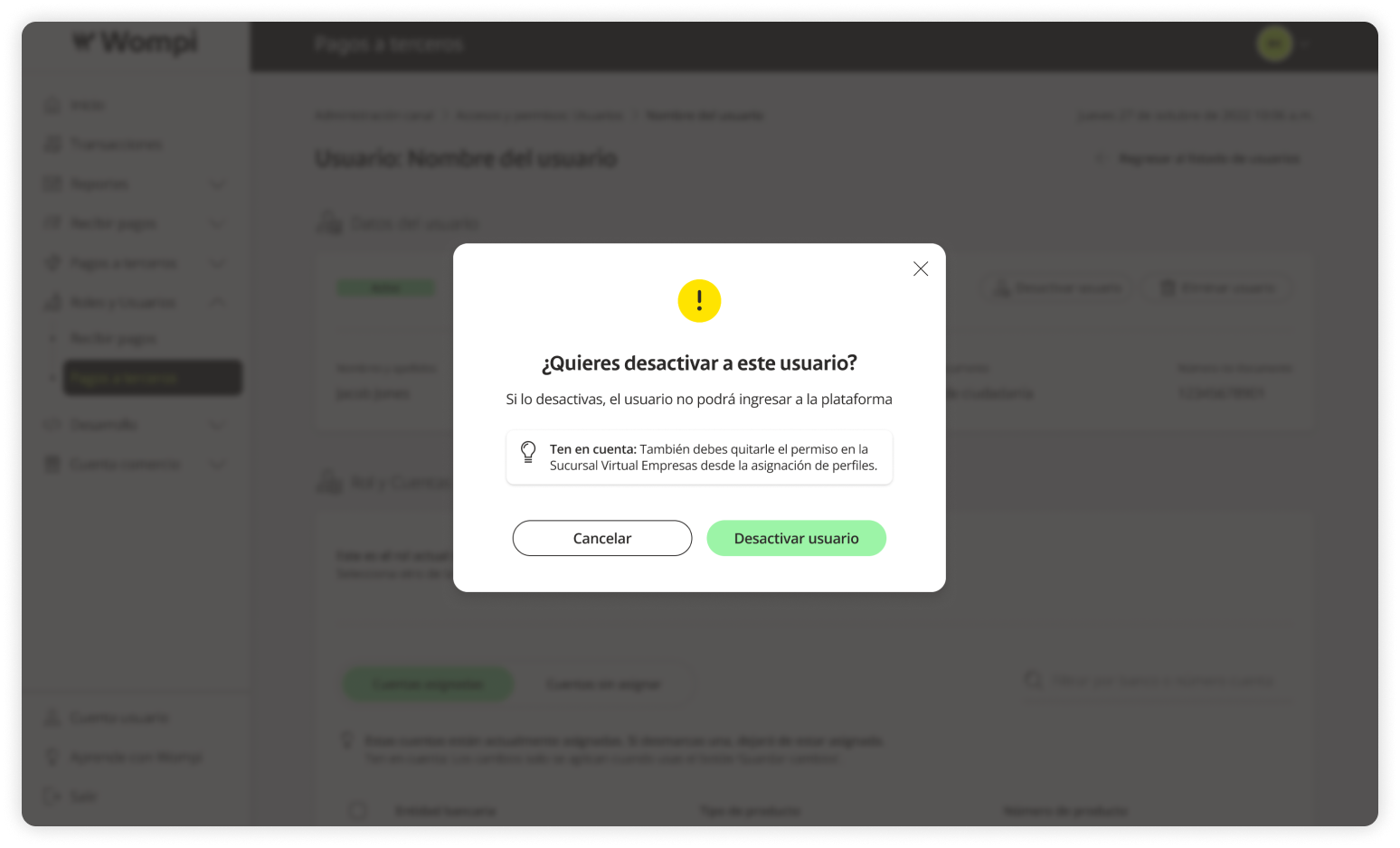
To ensure your account’s security, any deactivation requires two-factor authentication.
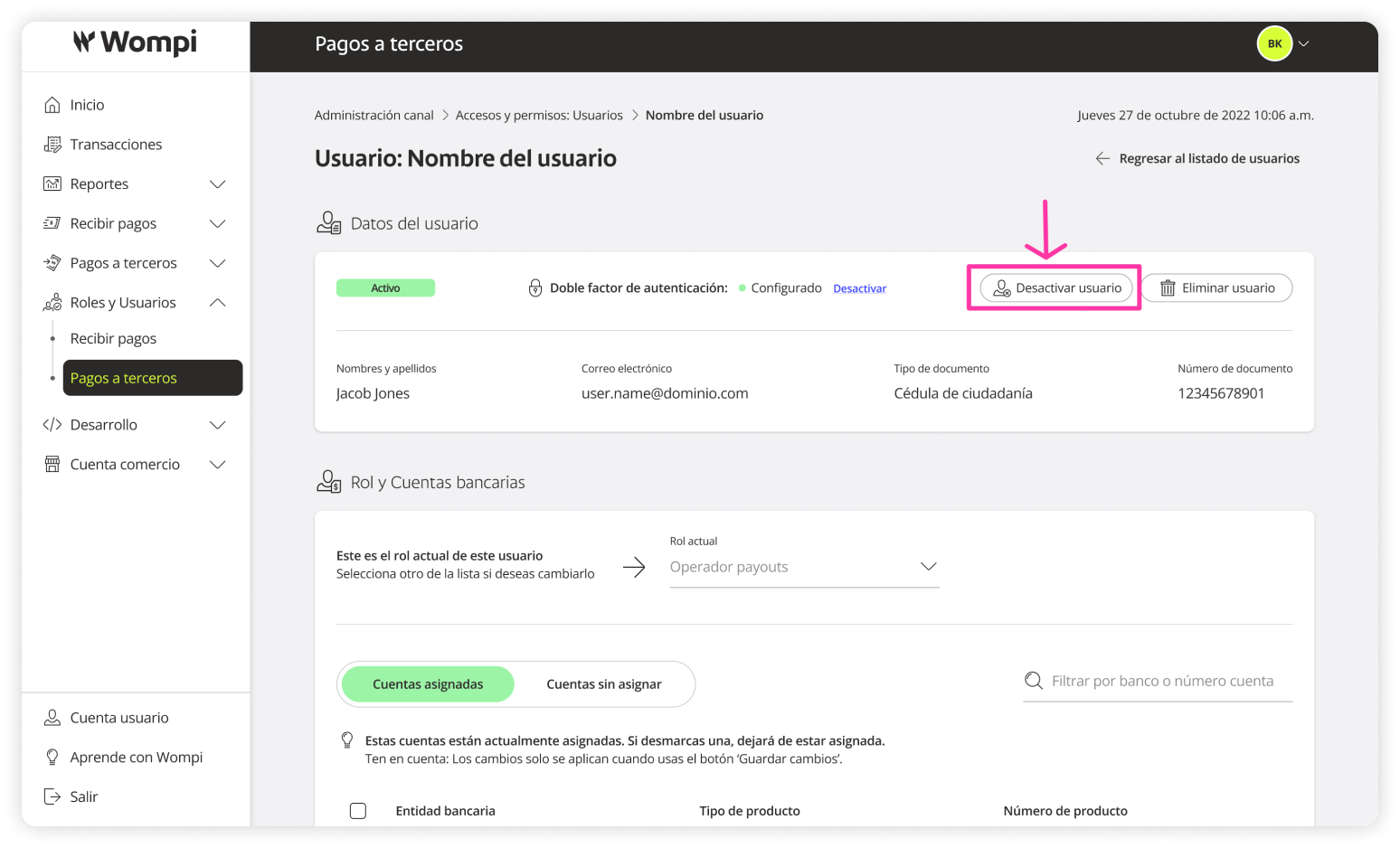
Two ways to deactivate a user:
In the Users section under Payouts, click Actions → Deactivate.
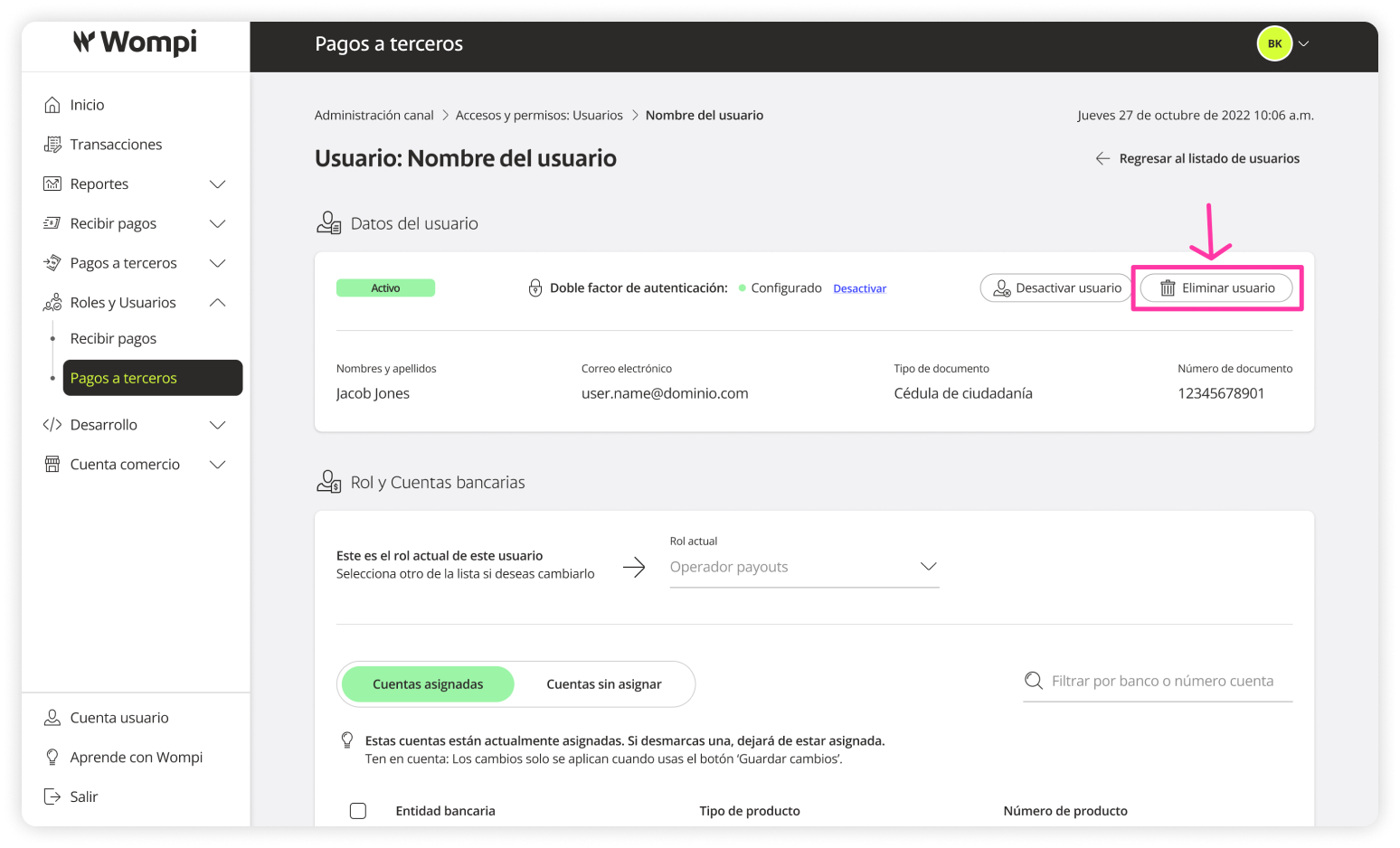
Alternatively, go to View Details from the Actions menu.
Delete a user
Two ways to delete a user:
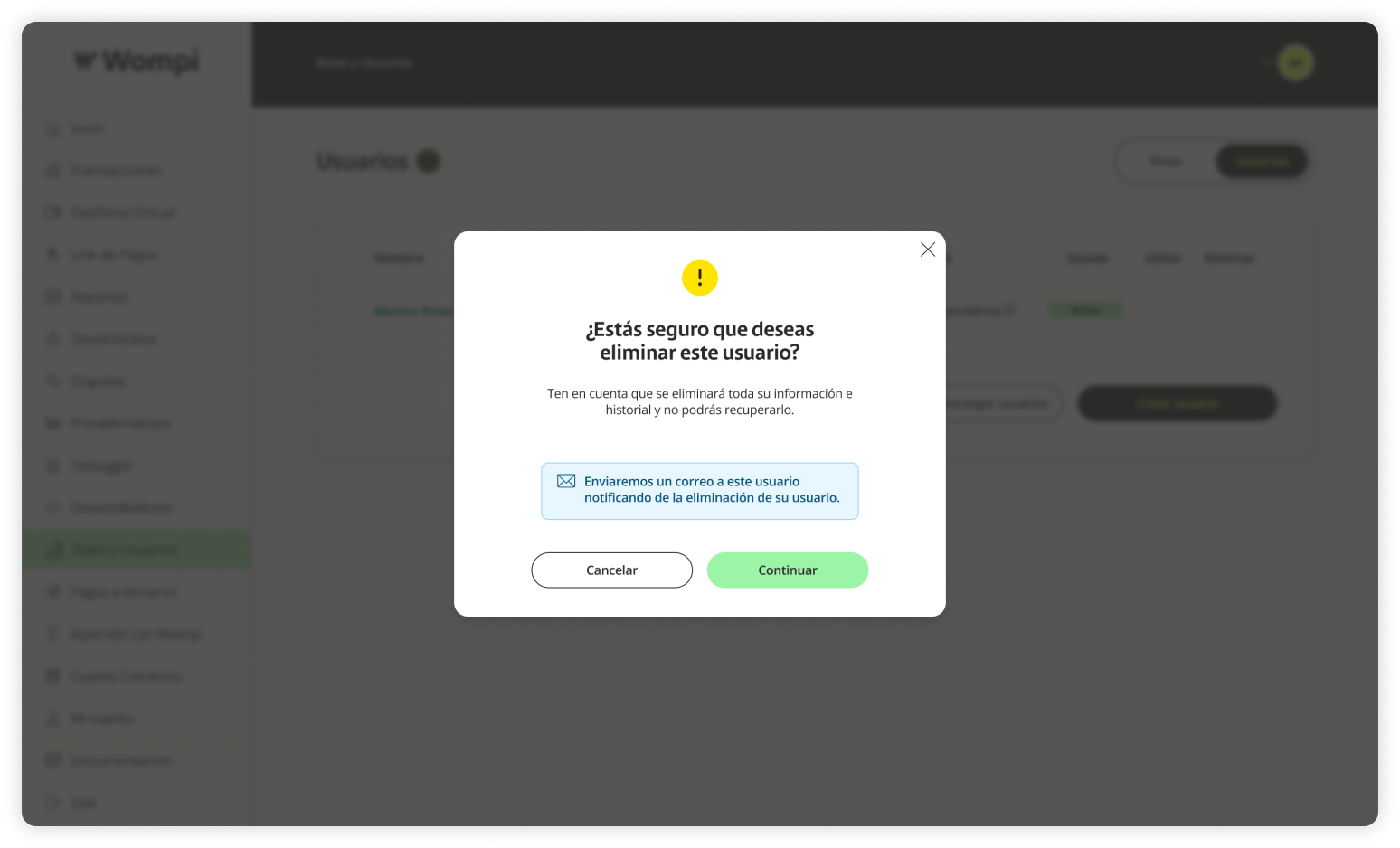
In the Users section under Payouts, click Actions → Delete.
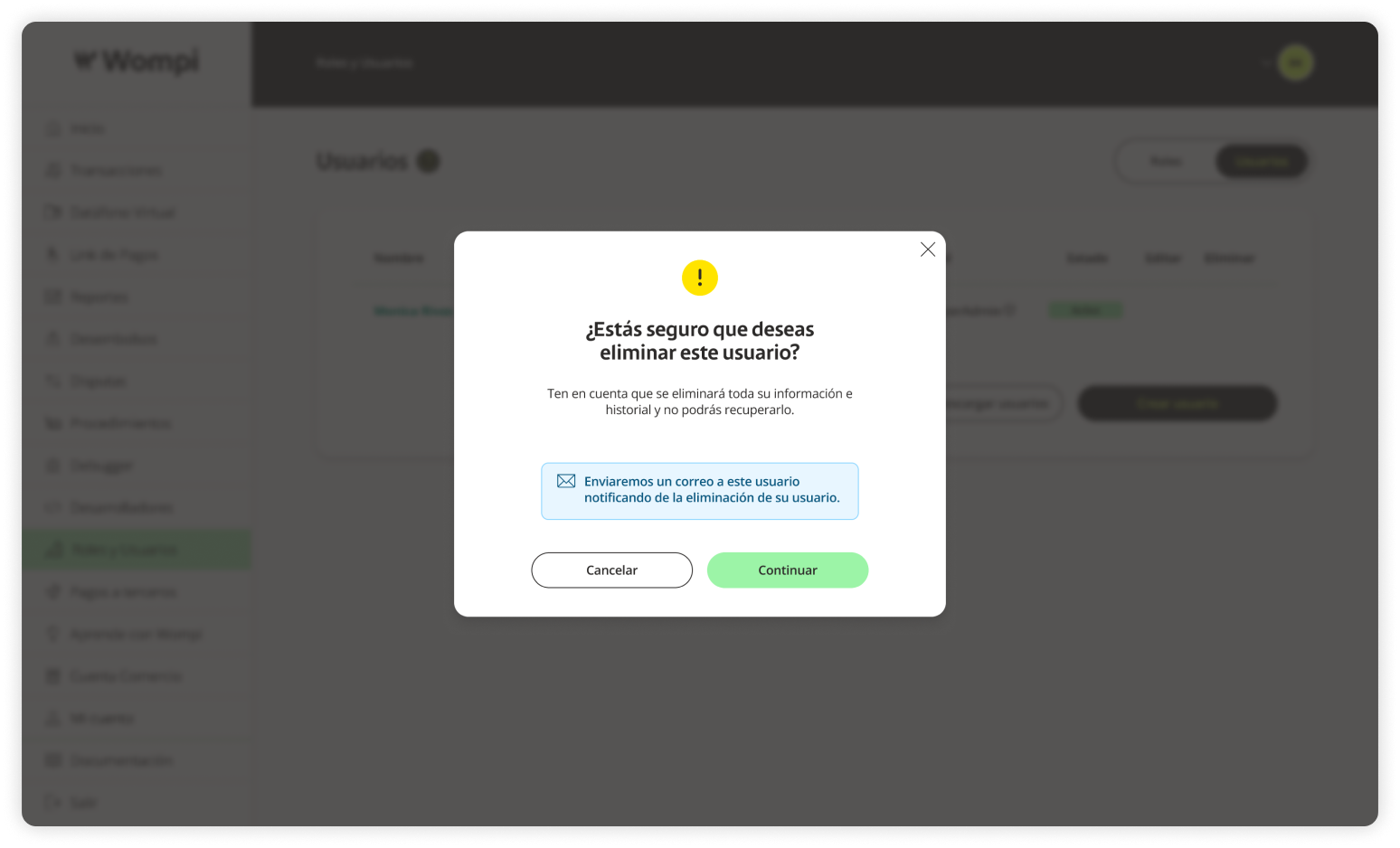
Alternatively, go to View Details from the Actions menu.