Sandbox for transactions with 3D Secure (v2)
Introduction
In this guide, you will learn how to perform a transaction using the 3D Secure protocol. 3D Secure is an authentication system that adds an extra layer of security to online transactions. Through this protocol, card issuers and acquirers can authenticate the cardholder before processing the transaction.
Helping protect your business and money is one of our priorities, and for this, we want to share some security tips here.
If your business performs 3DS authentications through an external provider or a provider other than Wompi, you can use the following guide to integrate 3DS with Wompi
How does the 3DS protocol work?
The process of a transaction with 3D Secure with Wompi generally follows these steps:
- Transaction initiation: Your customer selects products or services and proceeds to payment on your platform.
- Redirection to the authentication page: After entering the card details, your customer is automatically redirected to the card issuer's authentication page.
- Cardholder authentication: The card issuer will ask the cardholder to enter a password or a unique verification code. This may be a password, OTP (One-Time Password), or fingerprint, depending on the implemented authentication method.
- Transaction authorization: Once the cardholder has been successfully authenticated, the issuer generates a successful authentication message and sends it to the acquirer.
- Transaction processing: The acquirer receives the successful authentication message and proceeds to authorize the transaction. It checks for sufficient funds and whether the transaction meets the card's limits and fraud rules.
- Transaction confirmation: Once the transaction has been successfully processed and authorized, a confirmation is displayed to your customer indicating that the transaction has been completed.
- The 3DS protocol is available for Mastercard and Visa transactions.
- Depending on your business model (Gateway or Aggregator), 3DS protocol availability by franchise may vary. We recommend contacting our support channels for clarification.
General 3D Secure info for your business here and for your customer here.
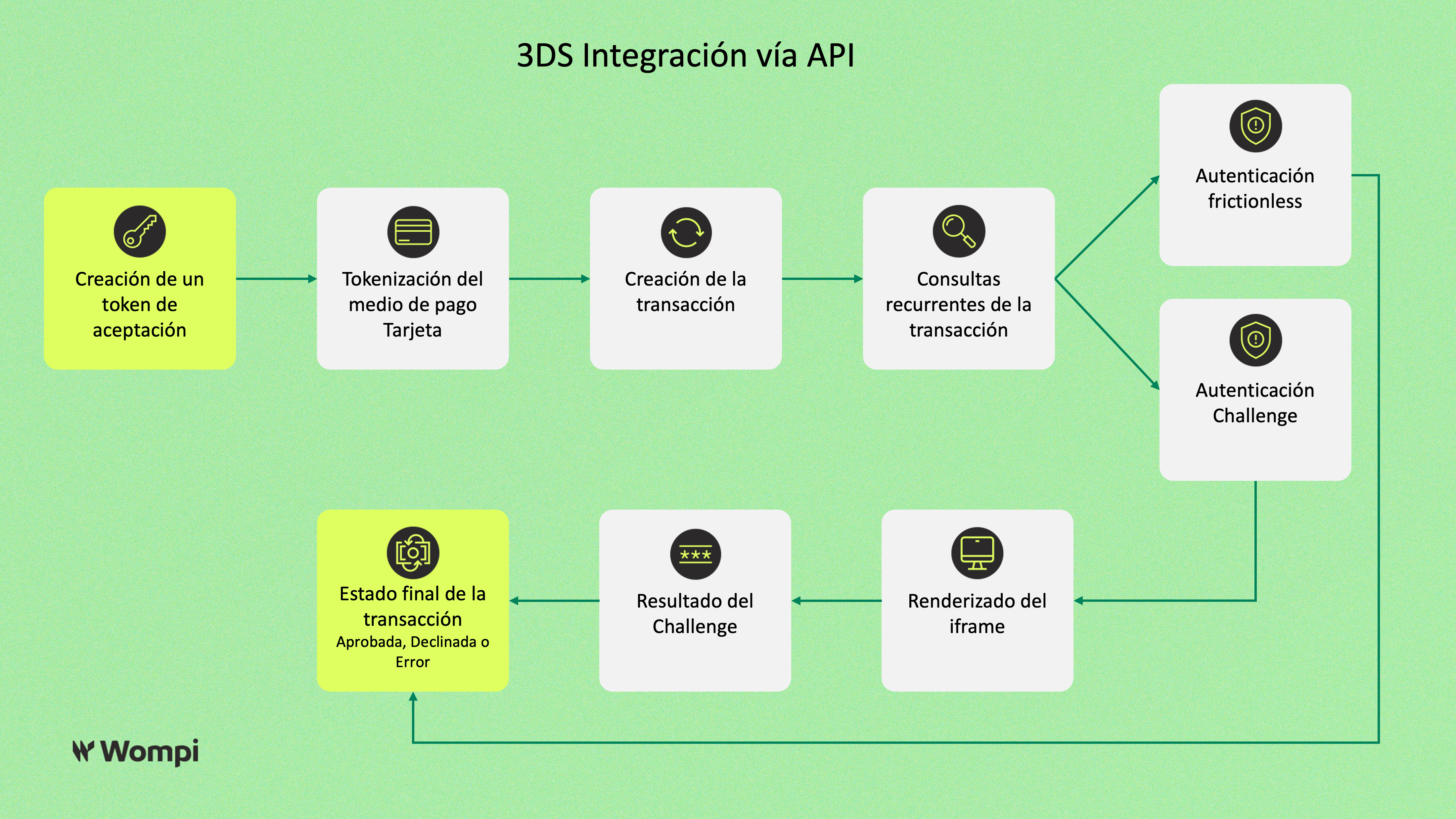
Frontend Integration Flow Diagram
Below, we present a detailed diagram of the 3D Secure integration flow in your frontend, illustrating all critical steps from browser data collection to the final transaction result:
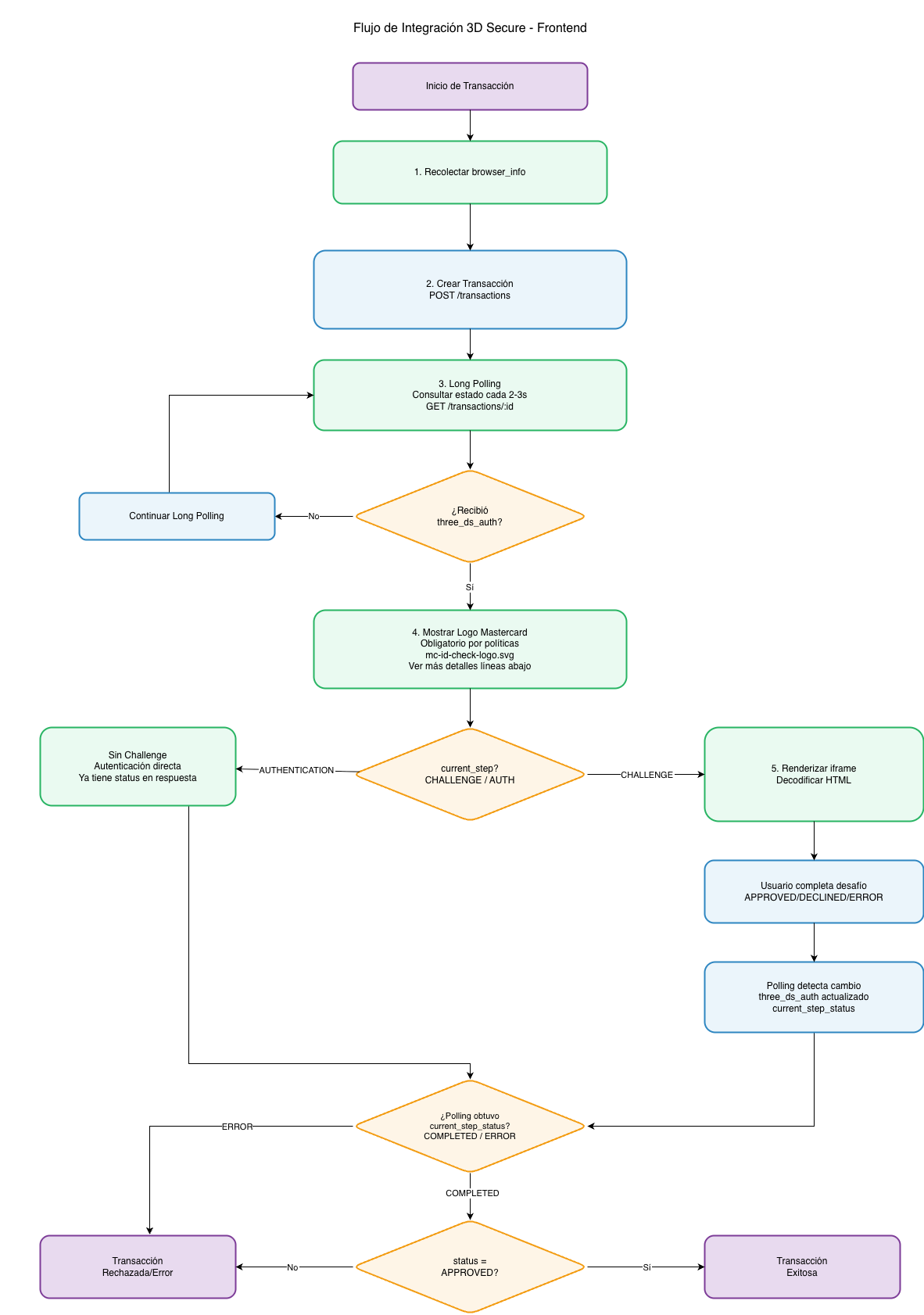
- Long Polling: Perform periodic queries every 2-3 seconds to check transaction status
- Mastercard Logo: Display mandatory when
three_ds_authis received in the response and whencurrent_stepisAUTHENTICATION - iframe Decoding: Convert HTML entities (
<→<) before rendering the challenge iframe - Critical States: CHALLENGE and AUTHENTICATION require special handling - CHALLENGE requires rendering the iframe and AUTHENTICATION indicates the process has finished
How can I use 3D Secure if my business is integrated via API?
Below is the process for implementing 3D Secure on your platform.
Section #1 - Implementing 3D Secure on your platform
Prerequisites
Before starting implementation, make sure you have the following:
- Authentication keys: We'll use the public key here, which we'll send as a
Bearer tokenin the request headers. - Test data: For greater ease, we recommend using the card
4242 4242 4242 4242, as it supports multiple types of 3DS authentication and responds flexibly during API testing. This helps avoid common errors that can arise when combining cards with incompatible scenarios (for example, sending a challenge with a card that doesn't require one). You can use other cards listed in the checkout section, but make sure the authentication type matches the expected behavior of each card.- Note: You can use this card in the checkout after implementing 3DS in your transactions.
- Execution environment URLs (Sandbox).
Step 1. Obtain a pre-signed acceptance token.
Step 2. Tokenize the payment method (Card).
Step 3. Create the transaction:
To activate the 3DSecure flow, set the is_three_ds field to true and the three_ds_auth_type field to one of the following values:
- no_challenge_success: 3D Secure authentication will occur without rendering anything for the user. The transaction will be
APPROVED. - challenge_denied: 3D Secure authentication will occur without rendering anything for the user. The transaction will be
DECLINED. - challenge_v2: 3D Secure authentication will require rendering a CHALLENGE
IFRAMEon your platform, which will be provided in the response. The transaction will bePENDINGuntil the user completes the challenge. - supported_version_error: 3D Secure authentication will result in an error due to the card not supporting the protocol. The transaction will be
ERROR. - authentication_error: 3D Secure authentication will result in an error due to an issue with the authentication process. The transaction will be
ERROR.
Additionally, include the browser_info field within customer_data with the payer's browser details:
browser_color_depthbrowser_screen_heightbrowser_screen_widthbrowser_languagebrowser_user_agentbrowser_tz
To get this data, you can use the following JavaScript:
{
   browser_color_depth: window.screen.colorDepth.toString(), // "24"
   browser_screen_height: window.screen.height.toString(), // "1050"
   browser_screen_width: window.screen.width.toString(), // "1680"
   browser_language: window.navigator.language.toString(), // "en-US"
   browser_user_agent: window.navigator.userAgent.toString(), // "Mozilla/5.0 (Linux; Android 6.0; Nexus 5 Build/MRA58N)...."
   browser_tz: new Date().getTimezoneOffset().toString() // "300"
}
Remember that, for 3D secure to work correctly, you need to send the browser info. If it's not included, there will be errors related to it.
With this in mind, to now create the transaction, we'll make a POST /transactions, with the following JSON body:
{
  "acceptance_token": "acceptance_token", // Generated in step 1
  "amount_in_cents": 1000000,
  "currency": "COP",
  "customer_email": "pepito_perez@example.com",
  "reference": "AHJDFDSFK184", // Unique value to identify the transaction
  "signature": "37c8407747e595535433ef8f6a811d853cd943046624a0ec04662b17bbf33bf5",
  "payment_method": {
    "type": "CARD",
    "token": "token_val_12345...", // Generated in step 2
    "installments": 1 // Number of installments
  },
  // Fields required for 3DSecure
  "is_three_ds": true,
  "three_ds_auth_type": "no_challenge_success", // no_challenge_success
  "customer_data": {
    "full_name": "Pepito Perez",
    "phone_number": "3109876543",
    // other payer customer information...
    "browser_info": {
      "browser_color_depth": "24",
      "browser_screen_height": "1050",
      "browser_screen_width": "1680",
      "browser_language": "en-US",
      "browser_user_agent": "Mozilla/5.0 (Linux; Android 6.0; Nexus 5 Build/MRA58N)...",
      "browser_tz": "-300"
    }
  }
}
- The fields
three_ds_auth_type,is_three_dsandbrowser_infoare required to activate 3D Secure. If not included, the transaction will process without 3D Secure authentication. - The field
three_ds_auth_typemust be sent only for transactions created in test mode (sandbox). In production, this field is not required and will be ignored. However, theis_three_dsandbrowser_infofields must be sent in production and sandbox.
After the POST request, you will receive a JSON like the following:
{
  "data": {
    "id": "11854-1728506262-27959",
    "created_at": "2024-10-09T20:37:43.075Z",
    "finalized_at": null,
    "amount_in_cents": 1000000,
    "reference": "AHJDFDSFK184",
    "customer_email": "pepito_perez@example.com",
    "currency": "COP",
    "payment_method_type": "CARD",
    "payment_method": {
      "type": "CARD",
      "extra": {
        "bin": "400000",
        "name": "MASTERCARD-0002",
        "brand": "MASTERCARD",
        "exp_year": "29",
        "exp_month": "06",
        "last_four": "0002",
        "card_holder": "Pedro Pérez",
        "is_three_ds": true,
        "three_ds_auth_type": "no_challenge_success" // Requested authentication type
      },
      "installments": 1
    },
    "status": "PENDING",
    "status_message": null,
    "billing_data": null,
    "shipping_address": null,
    "redirect_url": null,
    "payment_source_id": null,
    "payment_link_id": null,
    "customer_data": null,
    "bill_id": null,
    "taxes": []
  }
}
Step 4. Perform periodic transaction checks to verify status and ensure correct execution.
These checks should be performed repeatedly since during integration, it might be necessary to render the CHALLENGE IFRAME, detailed in the next steps.
Below are examples of how to implement long polling logic on your platform:
Cargando ejemplos...
After receiving the three_ds_auth object in the transaction response, it is mandatory to display the following
Mastercard logo on your platform to inform payers that their transaction is being authenticated through 3D Secure by
Mastercard policies. Below we show the flow as we do it at Wompi for your reference:
First you'll need the following Mastercard's logo for the next steps. To download the logo, please click the following image or open it in a new tab:

Implementation flow for the Mastercard 3D Secure logo
- We create the transaction and perform periodic queries (long polling) to check the transaction status.
- When we receive the three_ds_auth object in the transaction response, we display the Mastercard 3D Secure logo on our platform to inform the payer that their transaction is being authenticated through 3D Secure.
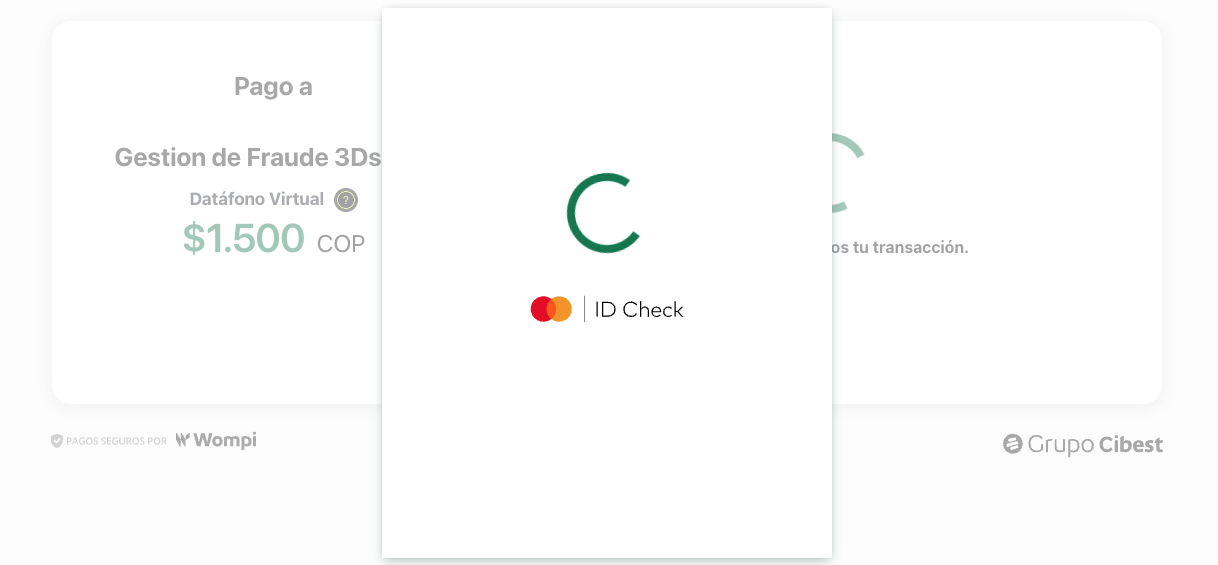
Displaying this logo is mandatory due to Mastercard policies, so make sure to implement it correctly on your platform. It does not have to be a modal like the example, but it must be visible to the payer.
- Depending on the authentication scenario, we will proceed to render the challenge IFRAME (CHALLENGE) — this step is OPTIONAL and depends on the type of authentication requested.
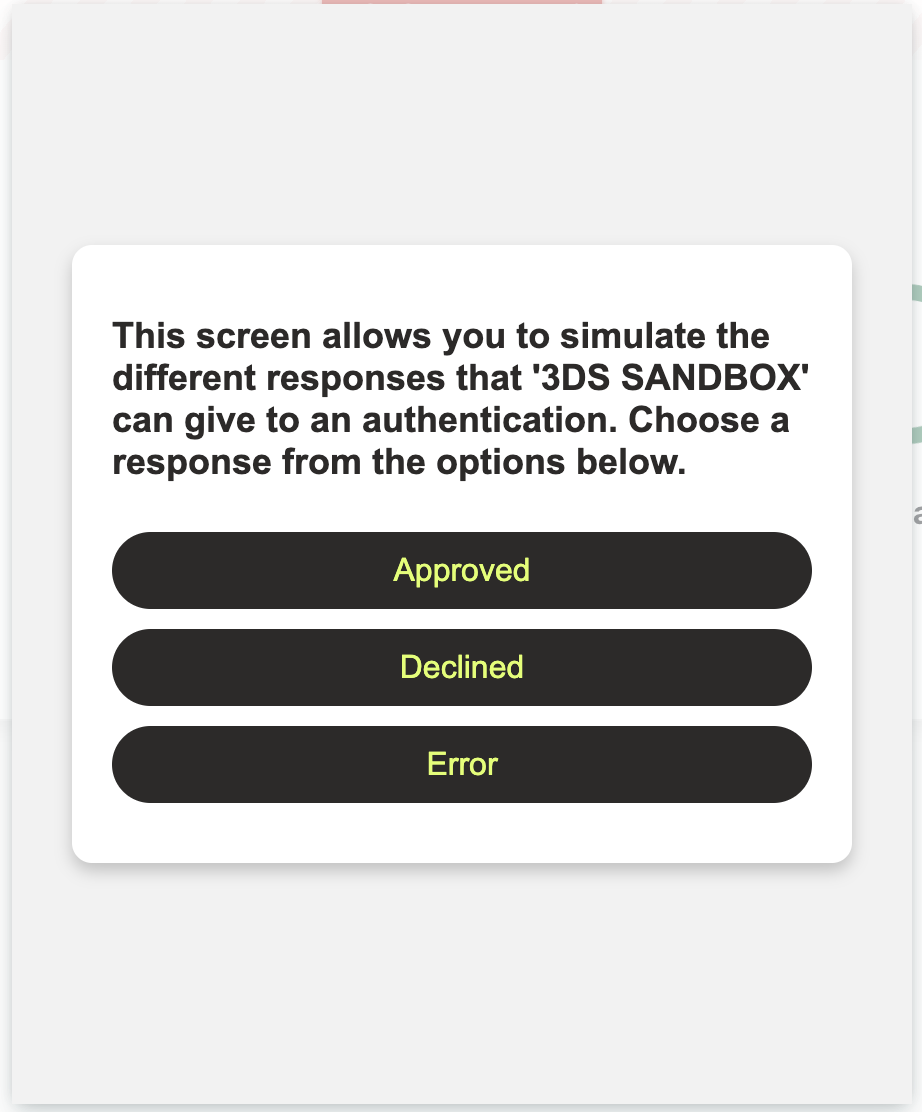
- If the challenge has been completed or the new authentication state is AUTHENTICATION, we show the Mastercard 3D Secure logo again to inform the payer that their transaction has been authenticated through 3D Secure.
- We wait for the final transaction status to show the result to the payer.
- We finish the process by displaying the transaction result to the payer.
With the above in mind, the following information shows the different scenarios that may occur depending on the type of authentication that was requested
Scenario 1: SUCCESSFUL authentication without CHALLENGE (no_challenge_success)
In this case, the transaction will be completed successfully without any additional challenge. The response will include the three_ds_auth field with:
current_step: AUTHENTICATION .current_step_status: COMPLETED .
{
  "data": {
    "id": "11854-1728506262-27959",
    "created_at": "2024-10-09T20:37:43.075Z",
    "amount_in_cents": 1000000,
    "reference": "AHJDFDSFK184",
    "currency": "COP",
    "payment_method_type": "CARD",
    "payment_method": {
      "type": "CARD",
      "extra": {
        "name": "MASTERCARD-0002",
        "brand": "MASTERCARD",
        "card_type": "DEBIT",
        "last_four": "0002",
        "is_three_ds": true,
        "three_ds_auth_type": "no_challenge_success", // Requested authentication type
        "three_ds_auth": {
          "current_step": "AUTHENTICATION", // authentication step
          "current_step_status": "COMPLETED" // successful result
        }
      },
      "installments": 1
    },
    "redirect_url": null,
    "status": "APPROVED", // Transaction status
    "status_message": null
    // Other fields...
  }
}
Scenario 2: DECLINED authentication without CHALLENGE (challenge_denied)
If the requested authentication type is challenge_denied, the transaction will be declined without requiring an additional challenge. The response will include the three_ds_auth field with:
current_step: AUTHENTICATION .current_step_status: Non-Authenticated .
{
  "data": {
    "id": "11854-1728506262-27959",
    "created_at": "2024-10-09T20:37:43.075Z",
    "amount_in_cents": 1000000,
    "reference": "AHJDFDSFK184",
    "currency": "COP",
    "payment_method_type": "CARD",
    "payment_method": {
      "type": "CARD",
      "extra": {
        "name": "MASTERCARD-0002",
        "brand": "MASTERCARD",
        "card_type": "DEBIT",
        "last_four": "0002",
        "is_three_ds": true,
        "three_ds_auth_type": "challenge_denied", // Requested authentication type
        "three_ds_auth": {
          "current_step": "AUTHENTICATION", // authentication step
          "current_step_status": "Non-Authenticated" // declined result
        }
      },
      "installments": 1
    },
    "redirect_url": null,
    "status": "DECLINED", // Transaction status
    "status_message": null
    // Other fields...
  }
}
Scenario 3: Authentication APPROVED, DECLINED or ERROR with CHALLENGE required (challenge_v2)
In this scenario, the end user is required to complete a CHALLENGE to authenticate the transaction. This CHALLENGE is an IFRAME rendered on your platform and contains the authentication challenge issued by the card issuer.
How to obtain and render the CHALLENGE iframe?
The iframe is obtained through the three_ds_method_data field in the transaction response. This field contains escaped HTML (with HTML entities like < instead of <), so you need to decode it before rendering it.
What does "decoding" the content mean?
The content comes in escaped format (with HTML entities) for secure transmission. These are the most common entities you'll find:
<→<>→>"→"&→&
You don't need to replace each entity manually. The code examples shown below decode all the content at once, automatically converting all HTML entities to their corresponding characters.
For example:
// RECEIVED content (escaped):
"<iframe src='https://example.com'></iframe>"

// DECODED content (ready to use):
"<iframe src='https://example.com'></iframe>"
{
  "data": {
    "id": "11854-1728506262-27959",
    "created_at": "2024-10-09T20:37:43.075Z",
    "amount_in_cents": 1000000,
    "reference": "AHJDFDSFK184",
    "currency": "COP",
    "payment_method_type": "CARD",
    "payment_method": {
      "type": "CARD",
      "extra": {
        "name": "MASTERCARD-0002",
        "brand": "MASTERCARD",
        "card_type": "DEBIT",
        "last_four": "0002",
        "is_three_ds": true,
        "three_ds_auth_type": "challenge_v2", // The type of authentication that has been requested
         "three_ds_auth": {
           "current_step": "CHALLENGE", // Indicates that the authentication requires a challenge
           "current_step_status": "PENDING" // Indicates that the challenge is pending resolution
           "three_ds_method_data": "<!DOCTYPE..." // Contains iFrame you should decode and render on your platform
         }
      },
      "installments": 1
    },
    "redirect_url": null,
    "status": "PENDING", // Transaction status is PENDING
    "status_message": null
    // Other fields...
  }
}
Code examples for decoding the HTML of the iframe
Below, we show different ways to decode the escaped HTML content:
Cargando ejemplos...
The DOMParser method is the most recommended as it's safer and supported in all modern browsers.
- DO NOT use the
srcattribute of the iframe, you must usesrcDocwith the decoded HTML - Make sure the iframe has enough space (we recommend at least 400-500px height)
- The iframe must be visible and not hidden with CSS
Complete React implementation
For projects using React, we provide a modular and complete implementation that handles the entire 3DS flow:
Cargando ejemplos...
React component features:
- Automatic Long Polling: Queries transaction status every 2-3 seconds using Wompi's endpoint
- Shows Mastercard Logo: Complies with mandatory policy requirements by displaying it when
three_ds_authis received - Handles CHALLENGE: Renders the iframe when
current_stepisCHALLENGEandcurrent_step_statusisPENDING - Automatic Decoding: Correctly converts escaped HTML using DOMParser
- Clear Visual States: Loading, Challenge visible, and final states (APPROVED, DECLINED, ERROR)
- Resource Cleanup: Automatic interval and listener cleanup in useEffect
- TypeScript Ready: Complete types for better development
The component automatically handles:
- Periodic queries (long polling) until final status is obtained
- Decoding of iframe HTML when necessary
- Display of Mastercard logo according to required policies
- Rendering of challenge iframe when
current_stepisCHALLENGE
You only need to replace YOUR_PUBLIC_KEY with your Wompi public key in the fetchTransactionStatus function.
Once the IFRAME is rendered, the end user will have 3 options to complete the challenge: APPROVED, DECLINED, or ERROR.
The option selected by the end user will determine the final status of the transaction.
This is how the rendered CHALLENGE IFRAME will look on your platform:
The sandbox CHALLENGE IFRAME is a simulation of the real authentication flow. Keep in mind that the card issuer may request
different types of authentication and challenges depending on the issuer's configuration and the card type.
Final transaction status after completing the CHALLENGE:
{
  "data": {
    "id": "11854-1728506262-27959",
    "created_at": "2024-10-09T20:37:43.075Z",
    "amount_in_cents": 1000000,
    "reference": "AHJDFDSFK184",
    "currency": "COP",
    "payment_method_type": "CARD",
    "payment_method": {
      "type": "CARD",
      "extra": {
        "name": "MASTERCARD-0002",
        "brand": "MASTERCARD",
        "card_type": "DEBIT",
        "last_four": "0002",
        "is_three_ds": true,
        "three_ds_auth_type": "challenge_v2", // The type of authentication that has been requested
        "three_ds_auth": {
          "current_step": "AUTHENTICATION", // Indicates that authentication required a challenge
          "current_step_status": "COMPLETED" // Non-Authenticated, COMPLETED or ERROR depending on the end user's selection
        }
      },
      "installments": 1
    },
    "redirect_url": null,
    "status": "APPROVED", // DECLINED, APPROVED or ERROR depending on the end user's selection
    "status_message": null
    // Other fields...
  }
}
Note: The current_step_status field represents the status of the card authentication, not the
final status of the transaction, since in test environments the processors DO NOT accept these card numbers to perform transactions.
Scenario 4: Error in the Supported Version step (supported_version_error)
In this scenario, the transaction will end in ERROR status without requiring an additional challenge. The transaction response will include the three_ds_auth field with the following values:
current_step: SUPPORTED_VERSION.current_step_status: ERROR.
{
  "data": {
    "id": "11854-1728506262-27959",
    "created_at": "2024-10-09T20:37:43.075Z",
    "amount_in_cents": 1000000,
    "reference": "AHJDFDSFK184",
    "currency": "COP",
    "payment_method_type": "CARD",
    "payment_method": {
      "type": "CARD",
      "extra": {
        "name": "MASTERCARD-0002",
        "brand": "MASTERCARD",
        "card_type": "DEBIT",
        "last_four": "0002",
        "is_three_ds": true,
        "three_ds_auth_type": "supported_version_error", // The requested authentication type
        "three_ds_auth": {
          "current_step": "SUPPORTED_VERSION", // Indicates that authentication couldn't proceed because the card is not compatible with the 3D Secure protocol
          "current_step_status": "ERROR" // Authentication status is ERROR
        }
      },
      "installments": 1
    },
    "redirect_url": null,
    "status": "ERROR", // Final status of the transaction is ERROR
    "status_message": null
    // Other fields...
  }
}
Scenario 5: Error in the Authentication step (authentication_error)
In this scenario, the transaction will end in ERROR status without requiring an additional challenge. The transaction response will include the three_ds_auth field with the following values:
current_step: AUTHENTICATION.current_step_status: ERROR.
{
  "data": {
    "id": "11854-1728506262-27959",
    "created_at": "2024-10-09T20:37:43.075Z",
    "amount_in_cents": 1000000,
    "reference": "AHJDFDSFK184",
    "currency": "COP",
    "payment_method_type": "CARD",
    "payment_method": {
      "type": "CARD",
      "extra": {
        "name": "MASTERCARD-0002",
        "brand": "MASTERCARD",
        "card_type": "DEBIT",
        "last_four": "0002",
        "is_three_ds": true,
        "three_ds_auth_type": "authentication_error", // The requested authentication type
        "three_ds_auth": {
          "current_step": "AUTHENTICATION", // Indicates that authentication couldn't proceed because of an error in the authentication process
          "current_step_status": "ERROR" // Authentication status is ERROR
        }
      },
      "installments": 1
    },
    "redirect_url": null,
    "status": "ERROR", // Final status of the transaction is ERROR
    "status_message": null
    // Other fields...
  }
}
Common Problems and Solutions
1. The iframe does not render correctly
Problem: The iframe appears blank or does not show the challenge.
Solutions:
- Verify that you're using
srcDocinstead ofsrcon the iframe element - Make sure you've decoded the HTML correctly (convert
<to<) - Check that the
three_ds_method_datacontent is not empty - Verify that the iframe has appropriate dimensions (minimum 400px height)
// ❌ INCORRECT
iframe.src = escapedHtml;

//  CORRECT
iframe.srcDoc = decodeIframeHtml(escapedHtml);
2. Not receiving the three_ds_auth object
Problem: The transaction does not return 3DS information in queries.
Solutions:
- Confirm you sent
is_three_ds: truewhen creating the transaction - Verify you included the
browser_infoobject with all required fields - Make sure you're querying the correct transaction using the returned ID
- Wait at least 1-2 seconds before the first query (asynchronous processing)
3. Infinite or non-stopping long polling
Problem: Queries continue indefinitely without reaching a final state.
Solutions:
- Implement a maximum timeout (recommended: 5 minutes)
- Stop polling when status is not
PENDING - Clean up intervals in useEffect cleanup (React) or component unmounting
- Handle network errors with limited retries
// Example with timeout
const MAX_ATTEMPTS = 150; // 5 minutes with 2s intervals
let attempts = 0;

const intervalId = setInterval(() => {
  if (attempts >= MAX_ATTEMPTS) {
    clearInterval(intervalId);
    onError(new Error("Timeout: The transaction took too long"));
    return;
  }

  pollTransaction();
  attempts++;
}, 2000);
Performance and UX
-
Optimize polling
- Use 2-3 second intervals (not less than 1 second)
- Implement exponential backoff on errors
- Stop immediately upon receiving final state
-
Visual feedback
- Show spinners during processing
- Clearly indicate when authenticating
- Provide descriptive error messages to users
-
Responsive design
- Challenge must be fully visible on mobile
- Adjust iframe dimensions based on device
- Ensure Mastercard logo is readable on all screens
Testing
-
Test all scenarios
- Approved challenge
- Declined challenge
- Successful frictionless authentication
- Authentication errors
- Unsupported version errors
- Timeouts and network errors
-
Test across different browsers
- Chrome, Firefox, Safari, Edge
- Mobile versions (iOS Safari, Chrome Mobile)
- Private/incognito mode
Section #2 - 3D Secure through your checkout (Sandbox)
Through your checkout in sandbox (or test) mode, you can experience simulated 3D Secure authentication scenarios.
To do this, follow these steps:
Note: The cards provided in this section are exclusively for testing through the CHECKOUT.
To perform tests through the API, you must follow the implementation process detailed above.
Step 1. Log in to your dashboard as a merchant
Step 2. Go to the left sidebar and select the "Development" option.
Step 3. Select the "Developers" option.
Step 4. Go to the top right and locate the "Test Mode" section and click the "Activate test mode" button.
Note: Once this option is selected, a red message should appear at the top indicating you are in Sandbox mode. Remember to return to this section to reset to production mode once testing is completed.
Step 5. Go to the Receive payments section and select Generic payment link.
Step 6. Click the "Copy to clipboard" button (or click the link to open it in a new tab) and paste it in a new window.
Step 7. Once the payment link is opened, confirm that the message Test Mode is displayed at the top. If so, continue with the next steps. If not, repeat the process to activate test mode for your merchant.
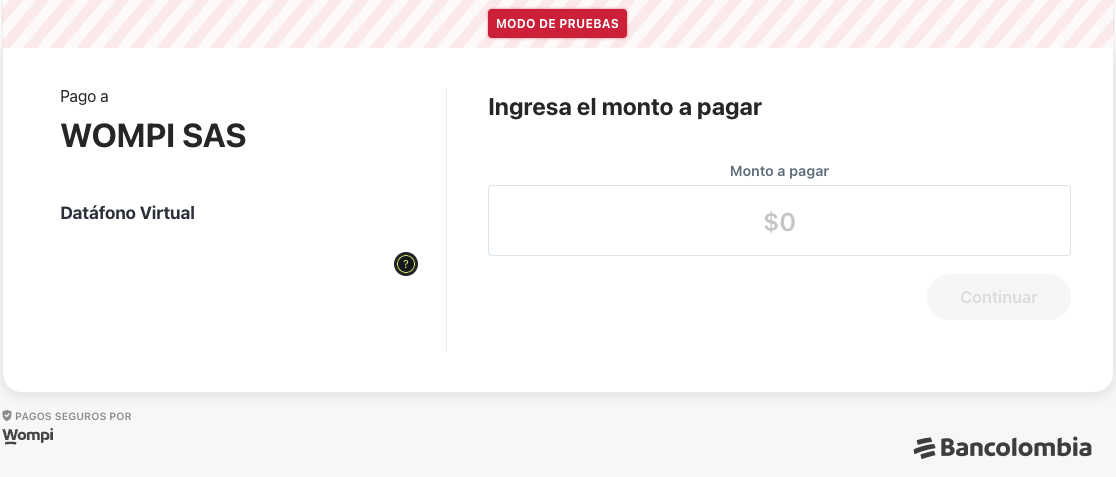
Step 8. Fill in the required fields and select the payment method "Credit or debit card".
Step 9. Fill in the card number field with one of the following cards:
- To require challenge: 2303779951000446, requires 3D Secure authentication.
- For a "frictionless" authentication: 2303779951000297, the card will authenticate successfully but does not require a challenge.
- For a denied authentication: 2303779951000453, the authentication will be denied.
- For an authentication with error: 2303779951000354, the authentication will end in an error state.
- To simulate a protocol error: 2303779951000347, indicates that the card is not supported by the protocol.
Step 10. Fill in the expiration date and CVC with generic data (e.g.: 03/27 and 123).
Step 11. If the card requires 3D Secure authentication, you will be asked to select one of the following options:
Note: If you select the Approved option, the transaction will be approved; if you select Declined, the transaction will be rejected; and if you select Error, the transaction will be marked as an error.
Step 12. Once you select an option, a message will appear with the result of the transaction based on your selection
Note: Keep in mind that for REAL transactions, the decision to request the "challenge" during the purchase process is made by the issuer.
