Test Data for Sandbox
To execute a test transaction you only need to make sure that you are using the public commerce key for the Sandbox environment. Remember that it has the pub_test_ prefix.
In what follows you will see the required test data for each payment method:
Cards
For a test transaction with a card number, you could use the following card numbers when you use the tokenization endpoint (if you use an integration with API) or when you fill the card data in our Widget, so you could obtain different responses:
4242 4242 4242 4242for an approved transaction (APPROVED). Any future expiry date and 3 digit CVC is valid.4111 1111 1111 1111for a declined transaction (DECLINED). Any future expiry date and 3 digit CVC is valid.
If you use any other card that is not one of the before mentioned ones, the final status of the transaction will be ERROR.
Nequi
To create an approved or declined transaction in the Sandbox environment, you only need to use the following numbers:
3991111111for an approved transaction (APPROVED)3992222222for a declined transaction (DECLINED)
Keep in mind that any other number you use will result in a transaction with a final status of ERROR.
For example:
{
  // Other transaction data...
  "payment_method": {
    "type": "NEQUI",
    "phone_number": "3991111111" // This will result in an APPROVED transaction
  }
}
PSE
For PSE payments, in case of using direct API integrations, you must send a specific financial_institution_code within payment_method, when creating a transaction (using POST /transactions endpoint). For example:
{
  // Other transaction data...
  "payment_method": {
    "type": "PSE",
    "user_type": 0, // User type, person (0) or company (1)
    "user_legal_id_type": "CC", // Document type, CC or NIT
    "user_legal_id": "1999888777", // Document number
    "financial_institution_code": "1", // "1" for APPROVED transactions, "2" for DECLINED transactions
    "payment_description": "Payment to John Store" // Max. 30 characters
  }
}
In the Widget, you will see the following banks for its usage, which will return specific transaction results:
- Banco que aprueba: This will return an APPROVED PSE transaction.
- Banco que rechaza: This will return a REJECTED PSE transaction.
Bancolombia Button
For Bancolombia Button payments, in case of using direct API integrations, you must use the sandbox_status property within the payment_method object, when creating a transaction (using POST /transactions endpoint). For example:
{
  // Other transaction data...
  "payment_method": {
    "type": "BANCOLOMBIA_TRANSFER",
    "payment_description": "Payment to John Store", // Max. 64 characters
  }
}
Once the transaction has been initiated and the status of the transaction has been consulted, the approval can be executed by selecting the button in the redirection of the data -> payment_method -> async_payment_url field.
{
    "data": {
        "id": "11004-1718123303-80111",
        "created_at": "2024-06-11T16:28:23.299Z",
        "finalized_at": null,
        "amount_in_cents": 150000,
        "reference": "jvo4t513zc9",
        "currency": "COP",
        "payment_method_type": "BANCOLOMBIA_TRANSFER",
        "payment_method": {
            "type": "BANCOLOMBIA_TRANSFER",
            "extra": {
                "is_three_ds": false,
                "async_payment_url": "<<URL to load the authentication step>>"
            },
            "user_type": "PERSON",
            "payment_description": "Test"
        },
        "payment_link_id": null,
        ............ Other response data
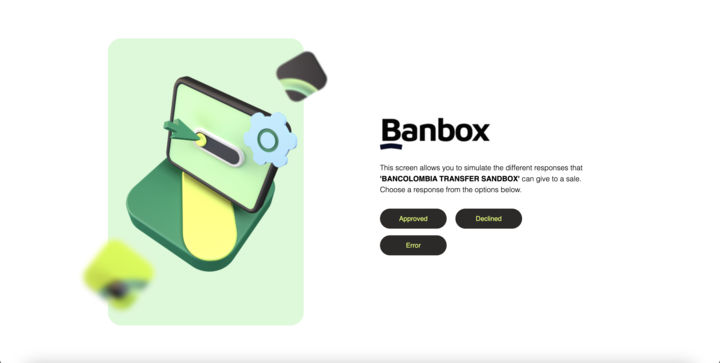
That URL will take you to the following view, where you can select the status in which you want the transaction to end.
Bancolombia QR
For Bancolombia QR payments, in case of using direct API integrations, you must use a sandbox_status property within payment_method object, when creating a transaction (using POST /transactions endpoint). For example:
{
  // Other transaction data...
  "payment_method": {
    "type": "BANCOLOMBIA_QR",
    "payment_description": "Pago a Tienda Wompi", // Max. 64 characters
    "sandbox_status": "APPROVED" // Desired final status of the transaction. Can be one of the following: APPROVED, DECLINED or ERROR
  }
}
For Widget integration, you can choose the following status:
- Transacción APROBADA: For approved transactions.
- Transacción DECLINADA: For declined transactions.
- Transacción con ERROR: For transactions with an error.
Puntos Colombia
For PCOL payments, in case of using direct API integrations, you must use a sandbox_status property within payment_method object, when creating a transaction (using POST /transactions endpoint). For example:
{
  // Other transaction data...
  "payment_method": {
    "type": "PCOL",
    "sandbox_status": "APPROVED_ONLY_POINTS" // Desired final status of the transaction.
  }
}
For PCOL sandbox_status, the possible options are:
- APPROVED_ONLY_POINTS: Total Payment with Points.
- APPROVED_HALF_POINTS: 50% of the Payment made with Points.
- DECLINED: Payment with only Points declined.
- ERROR: Error while doing a payment with only Points.
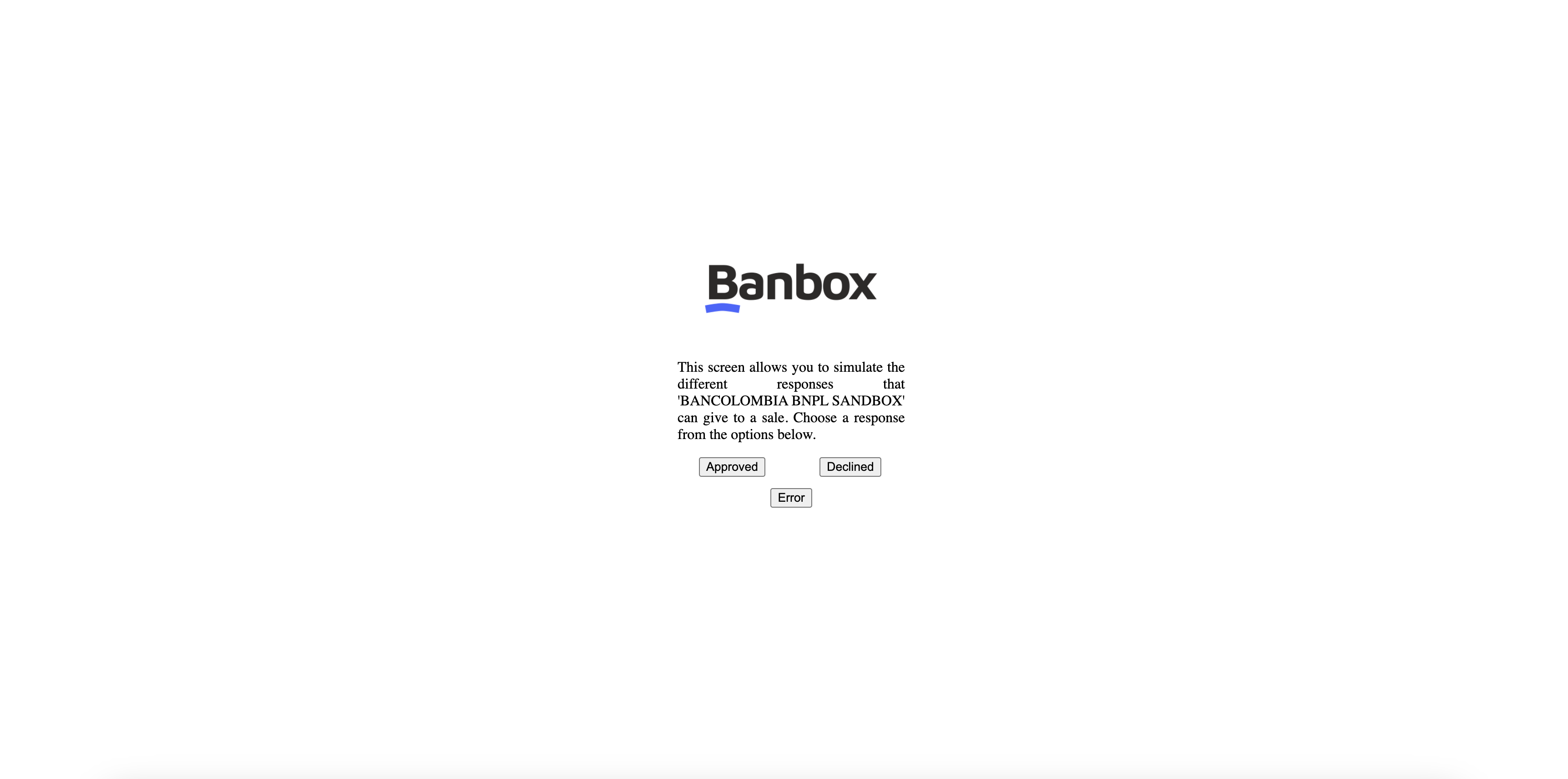
BNPL Bancolombia - Daviplata
For the BNPL sandbox environment, the only difference you will encounter is that the URL leading you to the BNPL experience will direct you to a page where you can define the final state in which the transaction will conclude. The website will look as follows:
DAVIPLATA - Single payment
When you initiate a transaction with the payment method Daviplata and use the interface provided by Wompi, you will have the option to choose the final status of the transaction, as shown in the following image:

To carry out transactions throughout the API, you just need to keep in mind the following OTP codes:
574829for an approved transaction (APPROVED)932015for a declined transaction (DECLINED)186743for a declined without sufficient balance transaction (DECLINED)999999for an error transaction (ERROR)- Any other 6-digit code (e.g.
123456) to simulate an invalid OTP with retries available. The transaction will remain inPENDINGstatus and the user can try again until the session attempts are exhausted.
DAVIPLATA - Recurring payment
To create a Daviplata token, we can use the following test numbers:
3991111111To create a token and obtain approved transactions (APPROVED)3992222222To create a token and obtain declined transactions (DECLINED)3993333333To create a token declined invalid wallet (DECLINED)
OTPs codes:
574829To confirm a token as approved (APPROVED)932016To confirm a token as declined for an existing subscription (DECLINED)- To simulate an invalid OTP code message, you must enter any 6 digit number.
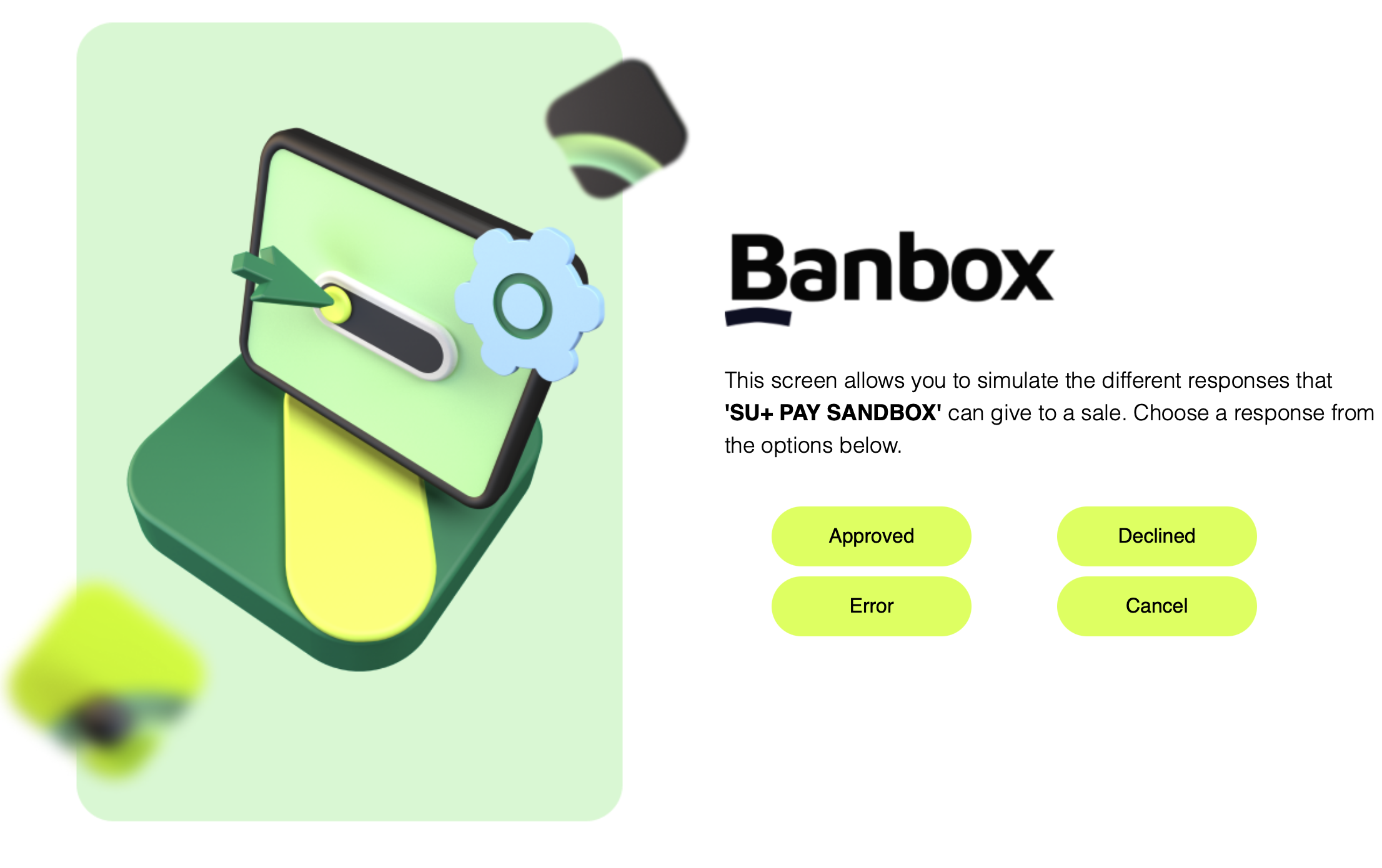
Su+ Pay
For the SU+ Pay test environment, you will be redirected to a page where you can define the final status of the transaction. The website will look like this: