Acceptance tokens
For Wompi, privacy and the correct handling of users' personal data are a priority. Therefore, complying with Colombian regulation and the Habeas data law, in all those endpoints where a user's personal information is collected, such as when creating a transaction (POST /transactions) or a payment source (POST /payment_sources ), you must send two Acceptance Tokens in the body of the request. One of the tokens corresponds to the acceptance of the privacy policy (acceptance_token), and the other indicates the acceptance of the personal data processing (accept_personal_auth). This ensures that the user was presented with the most recent versions of the contracts (PDF documents) that explain Wompi's handling of their personal data. The user must explicitly accept that they have read both contracts in the interface of your website or application, through checkboxes for example, and then the two tokens must be sent.
The steps to follow in this process are:
- Step 1: Acquire the presigned acceptance tokens.
- Step 2: Show the links displaying said contracts to the user.
- Step 3: Make sure the user has read and accepted said contracts.
- Step 4: Send tokens.
Each step of the process is explained in detail below, which applies to both, the creation of Transactions and Payment Sources.
Step 1: Acquire the presigned acceptance tokens
To get the presigned acceptance tokens, make a GET request to the /merchants/info endpoint, sending your public key in the x-merchant-public-key header:
GET /merchants/info
Headers:
  x-merchant-public-key: {{your_public_key}}
This endpoint will show the data related to your business including the acceptance tokens as follows:
The GET /merchants/:merchant_public_key endpoint (public key in the URL) will no longer be available after October 31, 2026. Migrate to the new GET /merchants/info endpoint with the public key in the x-merchant-public-key header before that date to avoid disruptions to your integration.
{
    "data": {
        // Other business fields
        "presigned_acceptance": {
            "acceptance_token": "eyJhbGciOiJIUzI1NiJ9.eyJjb250cmFjdF9pZCI6MSwicGVybWFsaW5rIjoiaHR0cHM6Ly93b21waS5jby93cC1jb250ZW50L3VwbG9hZHMvMjAxOS8wOS9URVJNSU5PUy1ZLUNPTkRJQ0lPTkVTLURFLVVTTy1VU1VBUklPUy1XT01QSS5wZGYiLCJmaWxlX2hhc2giOiIzZGNkMGM5OGU3NGFhYjk3OTdjZmY3ODExNzMxZjc3YiIsImppdCI6IjE1ODEwOTIzNjItMzk1NDkiLCJleHAiOjE1ODEwOTU5NjJ9.JwGfnfXsP9fbyOiQXFtQ_7T4r-tjvQrkFx0NyfIED5s",s
            "permalink": "https://wompi.co/wp-content/uploads/2019/09/TERMINOS-Y-CONDICIONES-DE-USO-USUARIOS-WOMPI.pdf",
            "type": "END_USER_POLICY"
        },
        "presigned_personal_data_auth": {
          "acceptance_token": "eyJhbGciOiJIUzI1NiJ9.eyJjb250cmFjdF9pZCI6NDQxLCJwZXJtYWxpbmsiOiJodHRwczovL3dvbXBpLmNvbS9hc3NldHMvZG93bmxvYWRibGUvYXV0b3JpemFjaW9uLWFkbWluaXN0cmFjaW9uLWRhdG9zLXBlcnNvbmFsZXMucGRmIiwiZmlsZV9oYXNoIjoiOTVkYzcwN2M0M2UxYmViMDAwMDUyZDNkNWJhZThhMDAiLCJqaXQiOiIxNzI5NTYwMTg3LTM3NDkxIiwiZW1haWwiOiIifQ.BhCzd8KyV0S_M5m22pmNu5lq8JV0L16JXkA2-OgZ5tQ",
          "permalink": "https://wompi.com/assets/downloadble/autorizacion-administracion-datos-personales.pdf",
          "type": "PERSONAL_DATA_AUTH"
        }
    }
}
Step 2: Show the links displaying said contracts to the user
In the before mentioned endpoint, you will have access to the links of each PDF file of the contracts that your users must read and agree to in order to proceed with their payments. You can find these links in the field called permalink.
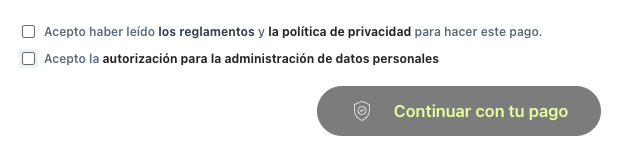
Step 3: Make sure the user has read and accepted said contracts
In this step, you must make sure that the user has explicitly read and agreed to each of the contracts. To achieve this, it's a good idea to place checkbox fields for each contract to be accepted. Once the user has activated each checkbox, it is assumed that the user has read and agreed to the proposed contracts.
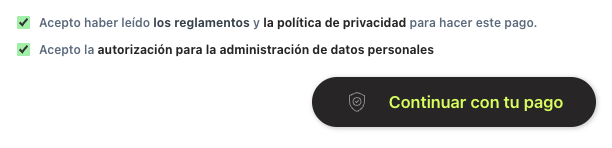
Step 4: Send tokens
Once the user accepts the contracts, you must add the Acceptance Tokens to the request body in the fields called acceptance_token and accept_personal_auth.
For example, when creating a transaction in POST /transactions:
{
  "acceptance_token": "eyJhbGciOiJIUzI1NiJ9.eyJjb250cmFjdF9pZCI6MSwicGVybWFsaW5rIjoiaHR0cHM6Ly93b21waS5jby93cC1jb250ZW50L3VwbG9hZHMvMjAxOS8wOS9URVJNSU5PUy1ZLUNPTkRJQ0lPTkVTLURFLVVTTy1VU1VBUklPUy1XT01QSS5wZGYiLCJmaWxlX2hhc2giOiIzZGNkMGM5OGU3NGFhYjk3OTdjZmY3ODExNzMxZjc3YiIsImppdCI6IjE1ODEwOTIzNjItMzk1NDkiLCJleHAiOjE1ODEwOTU5NjJ9.JwGfnfXsP9fbyOiQXFtQ_7T4r-tjvQrkFx0NyfIED5s",
  "accept_personal_auth": "eyJhbGciOiJIUzI1NiJ9.eyJjb250cmFjdF9pZCI6NDQxLCJwZXJtYWxpbmsiOiJodHRwczovL3dvbXBpLmNvbS9hc3NldHMvZG93bmxvYWRibGUvYXV0b3JpemFjaW9uLWFkbWluaXN0cmFjaW9uLWRhdG9zLXBlcnNvbmFsZXMucGRmIiwiZmlsZV9oYXNoIjoiOTVkYzcwN2M0M2UxYmViMDAwMDUyZDNkNWJhZThhMDAiLCJqaXQiOiIxNzI5NTY0MTM2LTU2NjMwIiwiZW1haWwiOiIifQ.0f-hFte-mpCcnxlrPgEG-fLdGBWUoQaUhU71pPuij40",
  "amount_in_cents": 2500000,
  "currency": "COP",
  "signature": "37c8407747e595535433ef8f6a811d853cd943046624a0ec04662b17bbf33bf5",
  "customer_email": "pepito_perez@email.com",
  "reference": "2322er3234ed4",
  "payment_method": {
    "type": "NEQUI",
    "phone_number": "3107654321"
  }
}
NOTE: If you have doubts on how to generate the integrity signature value, you can review the following documentation: ** Generate an integrity signature**.
For example, when creating a payment source in POST /payment_sources:
{
  "acceptance_token": "eyJhbGciOiJIUzI1NiJ9.eyJjb250cmFjdF9pZCI6MSwicGVybWFsaW5rIjoiaHR0cHM6Ly93b21waS5jby93cC1jb250ZW50L3VwbG9hZHMvMjAxOS8wOS9URVJNSU5PUy1ZLUNPTkRJQ0lPTkVTLURFLVVTTy1VU1VBUklPUy1XT01QSS5wZGYiLCJmaWxlX2hhc2giOiIzZGNkMGM5OGU3NGFhYjk3OTdjZmY3ODExNzMxZjc3YiIsImppdCI6IjE1ODEwOTIzNjItMzk1NDkiLCJleHAiOjE1ODEwOTU5NjJ9.JwGfnfXsP9fbyOiQXFtQ_7T4r-tjvQrkFx0NyfIED5s",
  "accept_personal_auth": "eyJhbGciOiJIUzI1NiJ9.eyJjb250cmFjdF9pZCI6NDQxLCJwZXJtYWxpbmsiOiJodHRwczovL3dvbXBpLmNvbS9hc3NldHMvZG93bmxvYWRibGUvYXV0b3JpemFjaW9uLWFkbWluaXN0cmFjaW9uLWRhdG9zLXBlcnNvbmFsZXMucGRmIiwiZmlsZV9oYXNoIjoiOTVkYzcwN2M0M2UxYmViMDAwMDUyZDNkNWJhZThhMDAiLCJqaXQiOiIxNzI5NTY0MTM2LTU2NjMwIiwiZW1haWwiOiIifQ.0f-hFte-mpCcnxlrPgEG-fLdGBWUoQaUhU71pPuij40",
  "customer_email": "john_smith@example.com",
  "type": "NEQUI",
  "token": "nequi_prod_RQkUiuv3lEnDLiSao2Cz0iQLdFlyQOI5"
}
