
Accept payments in your VTEX store in seconds!
Requirements
The only thing you need to set up the integration is:
- To be able to use Wompi as a payment method, you must be registered in one of the plans we offer. If you are not yet, create an account with Wompi and a sales advisor will contact you to assist you in the process and provide you with the necessary credentials to integrate Wompi into your VTEX store.
Installation
To install Wompi in your store, log in to the VTEX platform.
Installing the connector for Panama
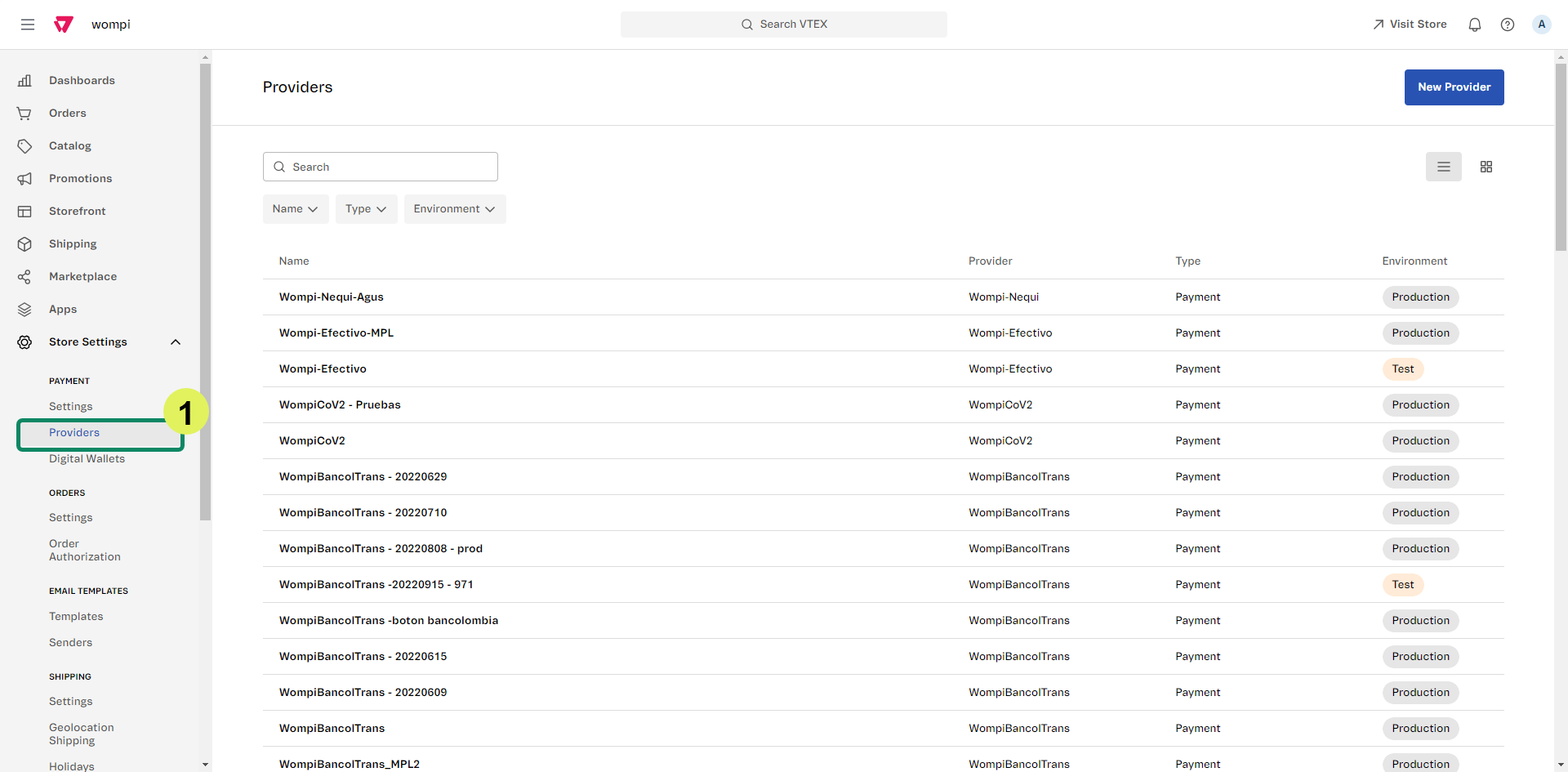
- Go to the Store Store settings -> Payment -> Providers.
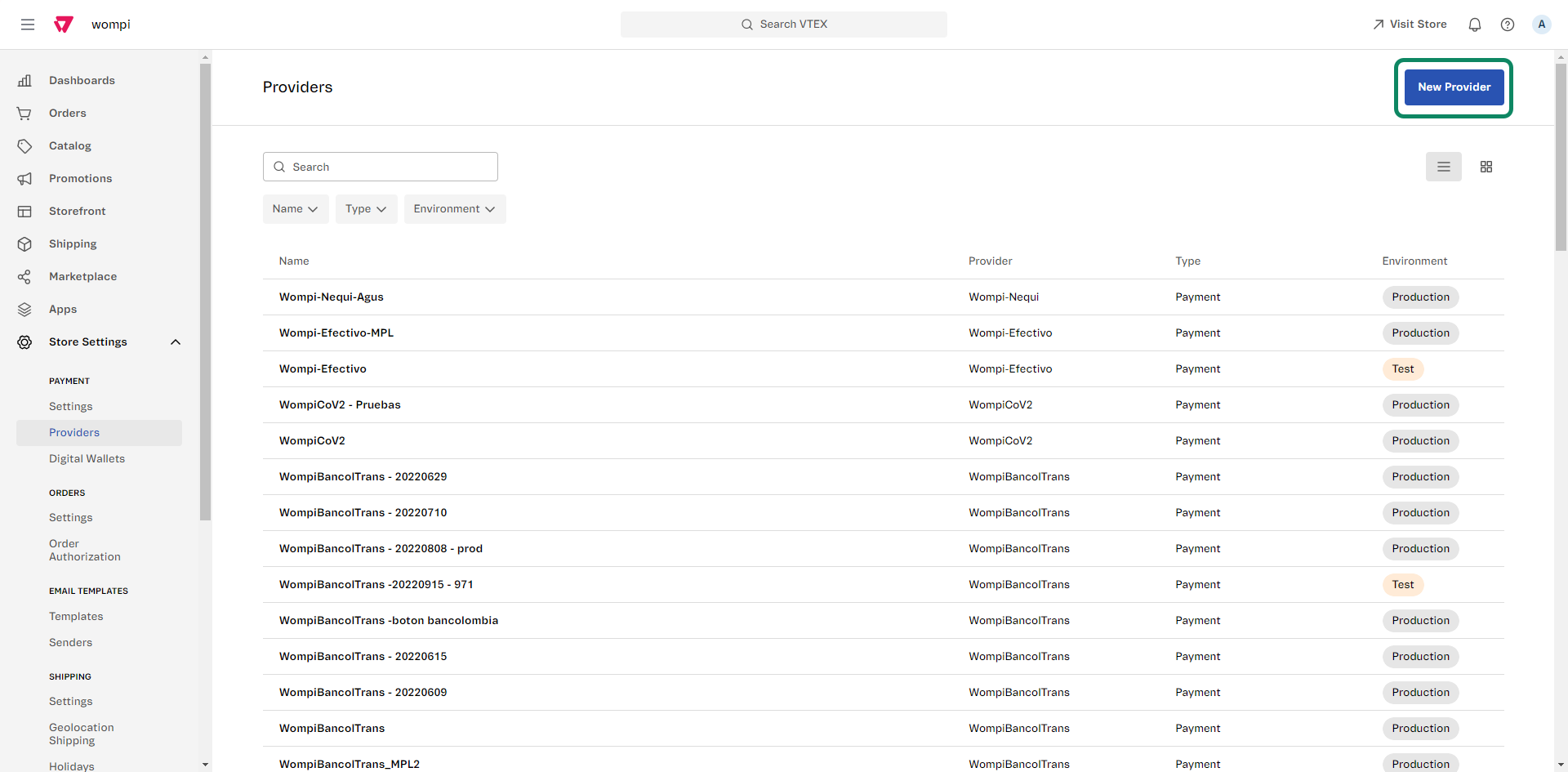
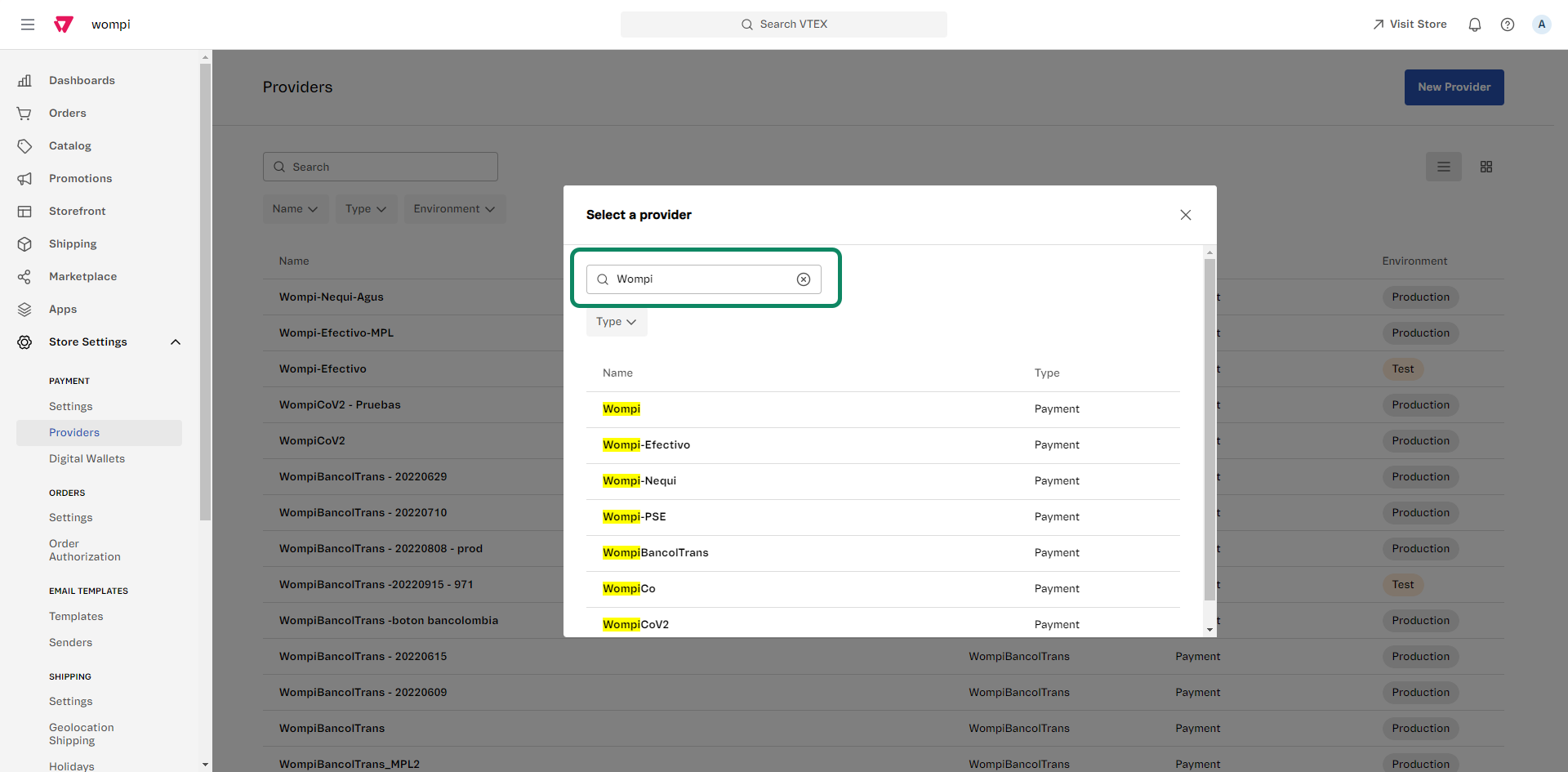
- Next, click on the New Provider button, search for Wompi in the list and click on the payment option you want to configure to continue the process.
- You will then see the following screen where the credentials required for the integration are requested. Remember that, to carry out the integration, you must have Wompi credentials.
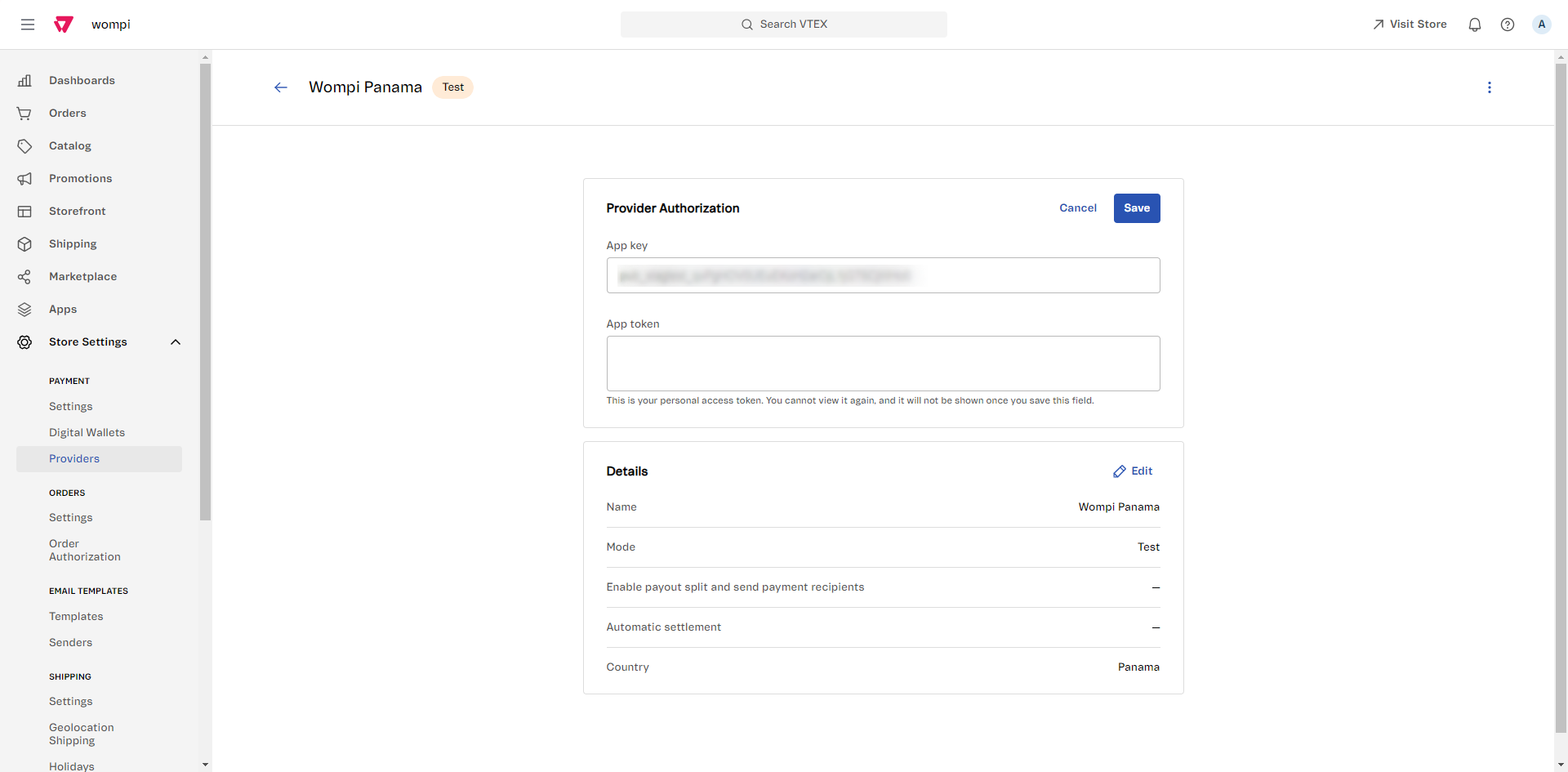
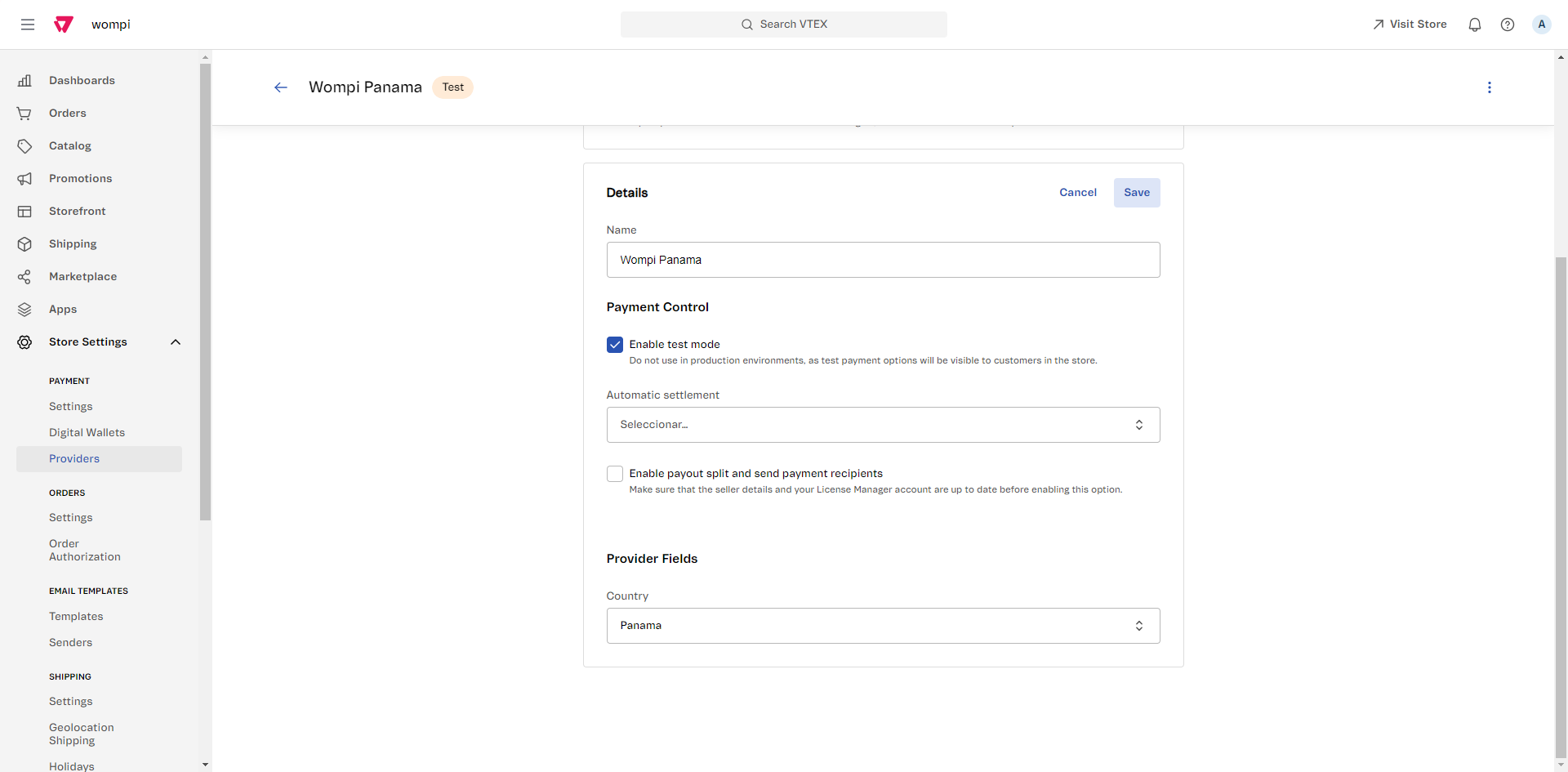
Here's how to find them: first, you'll need to log to Wompi Commerce Dashboard, then go to the Developers section in the left menu and grab the public and private keys for both the production and test environment
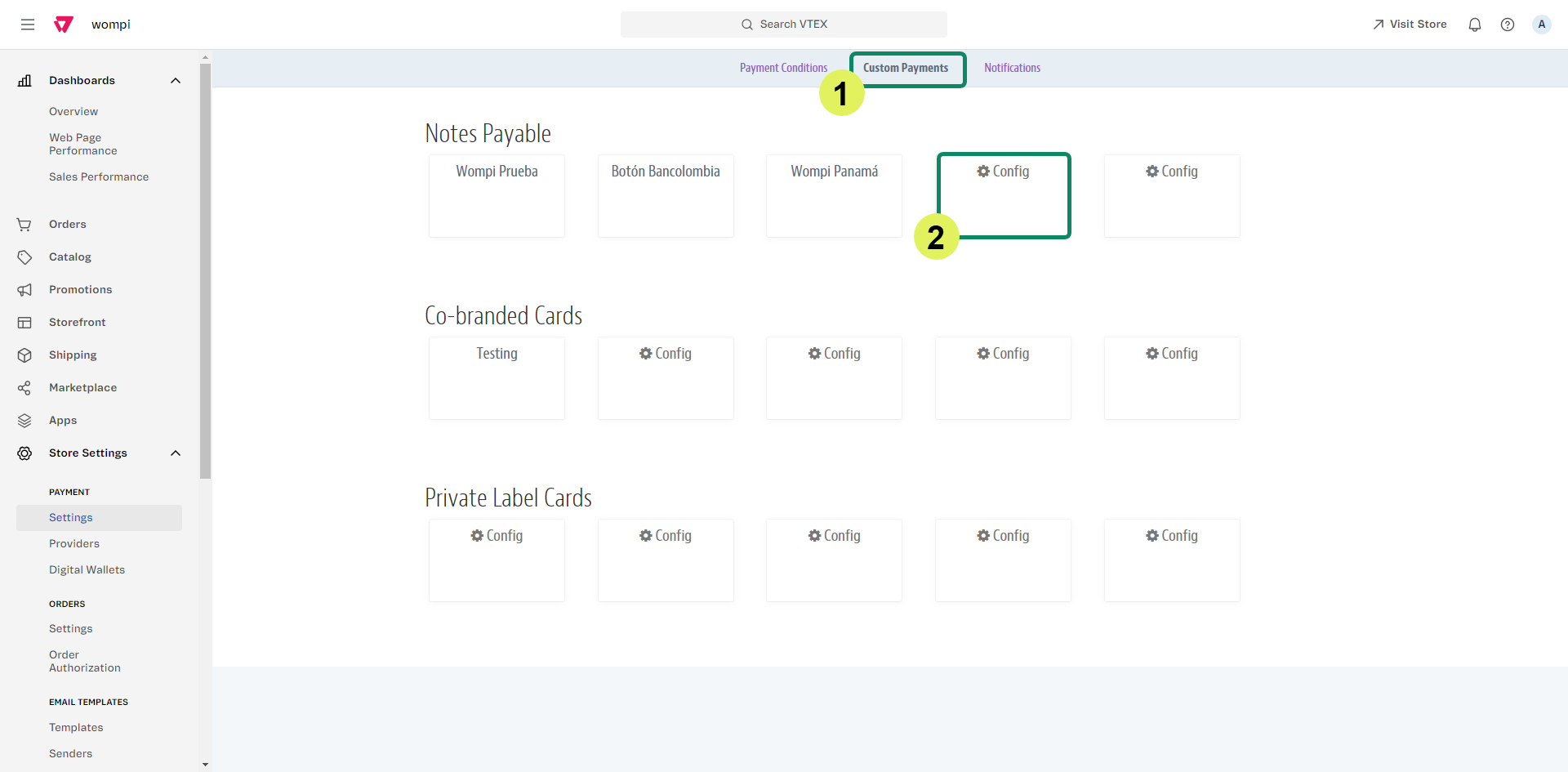
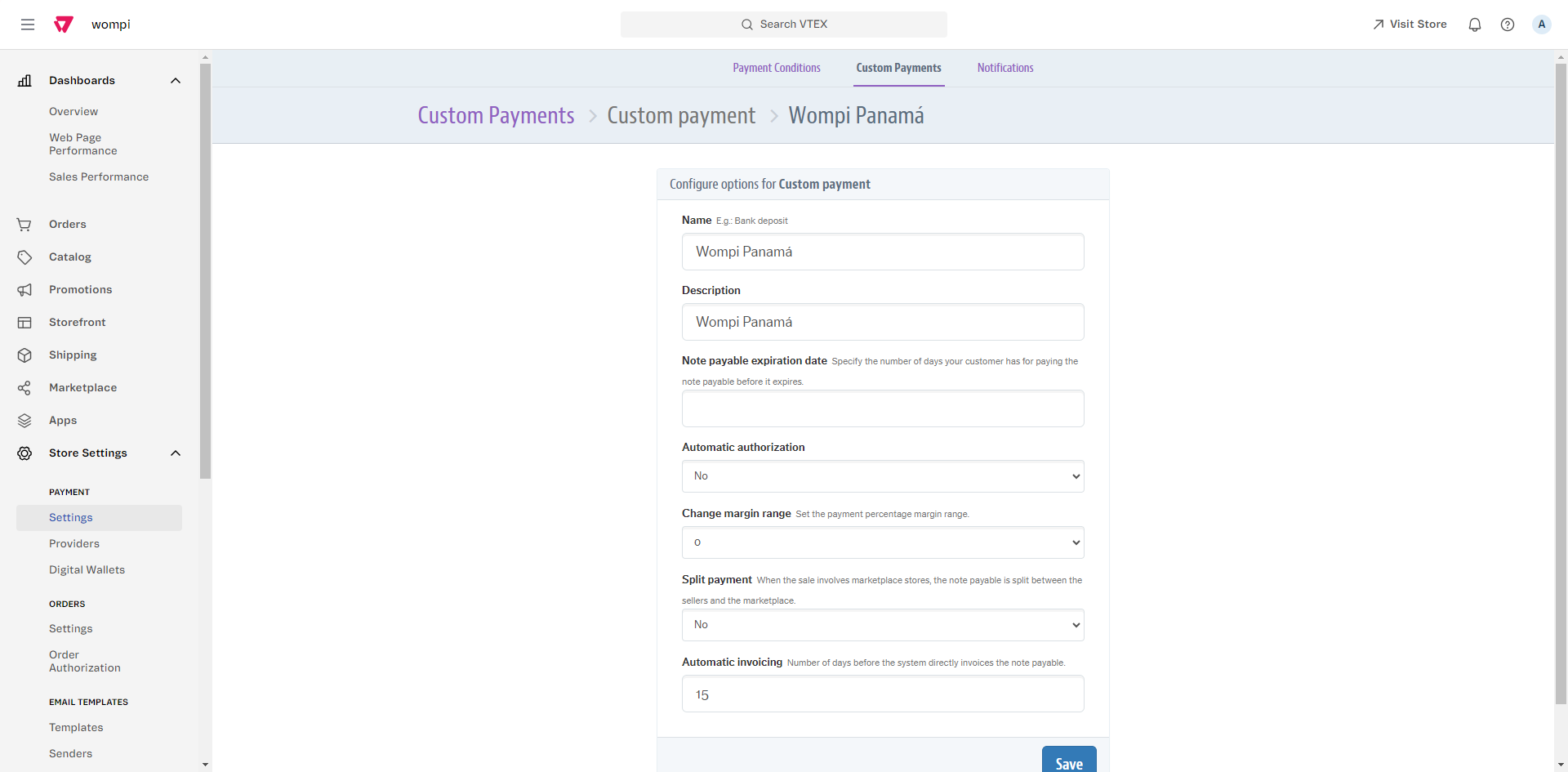
- Next, you'll need to go to the Custom Payments tab, click Configure, name it Wompi Panamá and then click the Save button.
Note: it's important to name your custom payment Wompi Panamá. Providing a different name would not guarantee efficient transaction management and the experience would be affected for both users and customers.
- Next, you will need to set up the payment condition for Wompi Panamá. Go to the Payment Conditions tab and press the + icon. Locate and click on the Wompi Panamá option that you created as a custom payment, select the Wompi connector that you set up in previous steps, activate the condition and click on the Save button to finish the configuration.
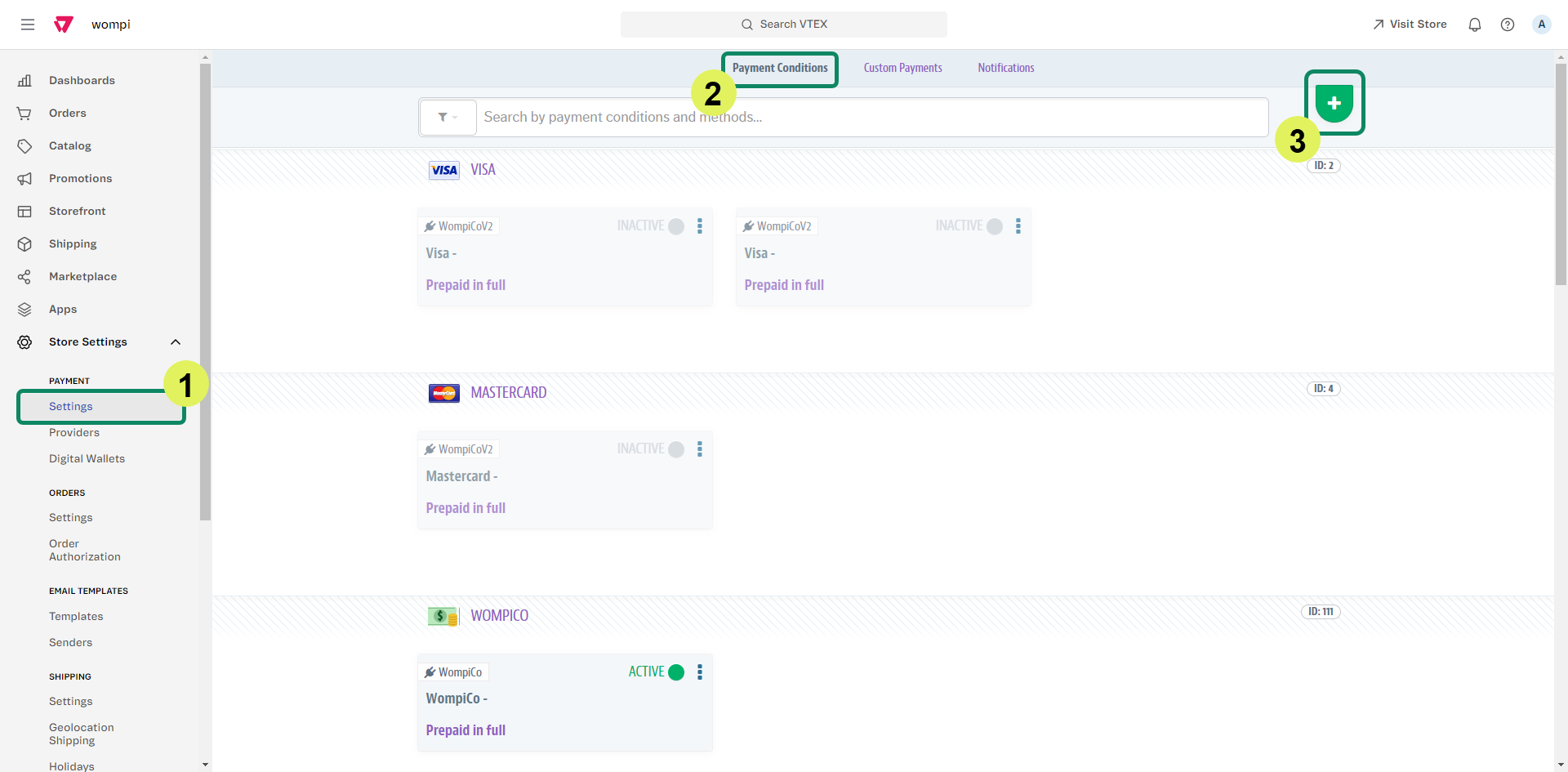
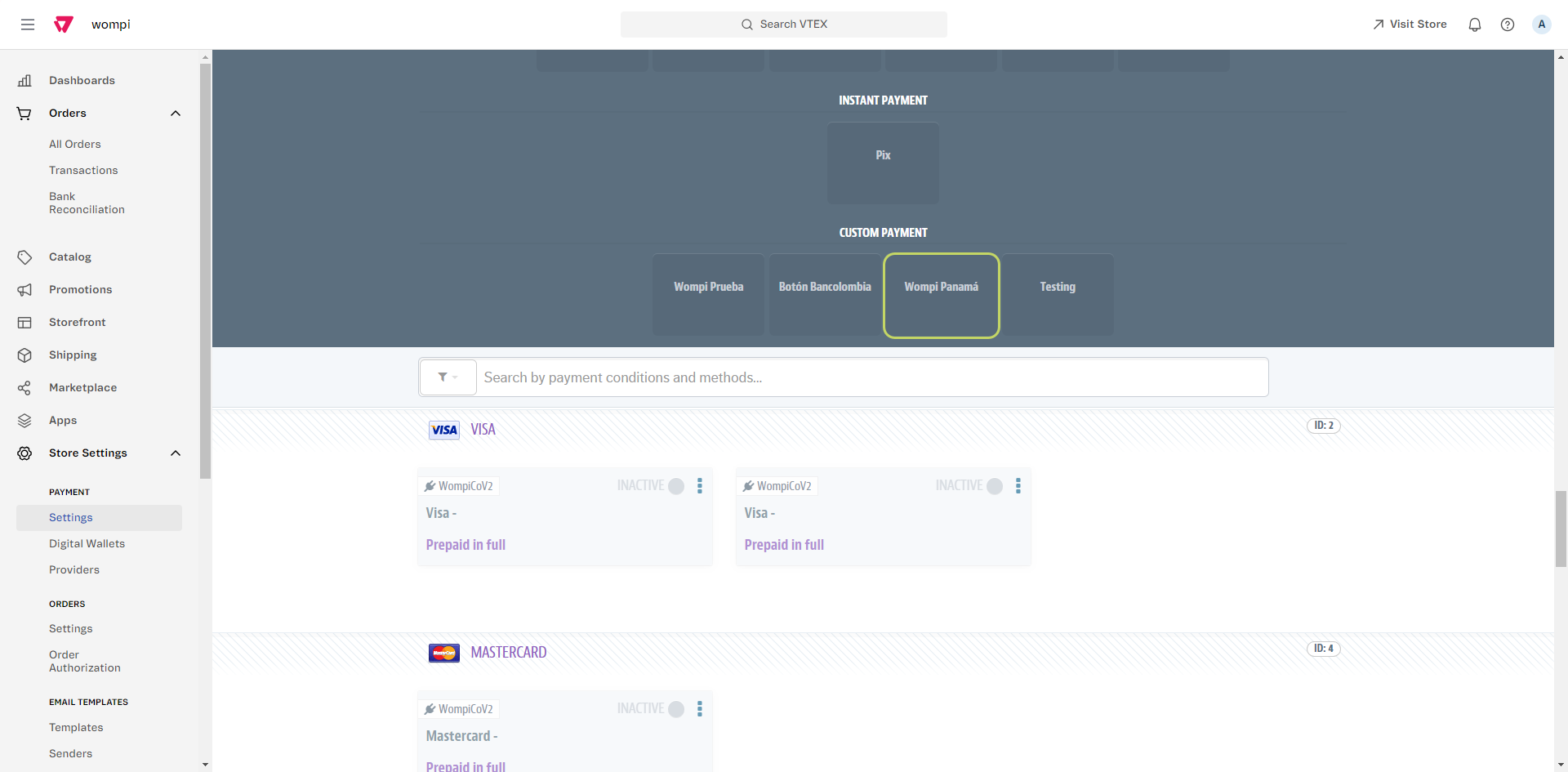
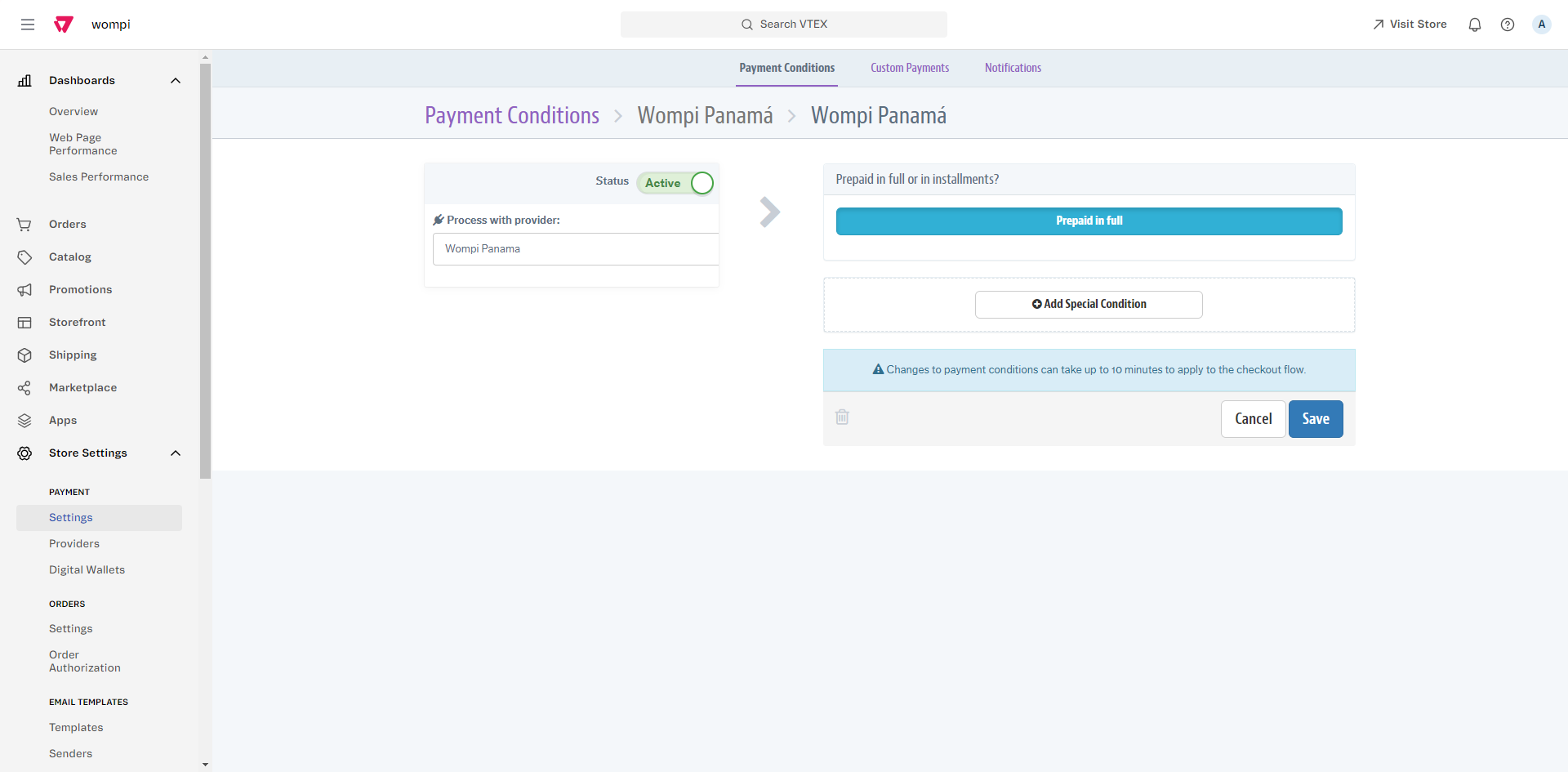
Note: changes to payments conditions may take up to 10 minutes to be applied at checkout in your VTEX store.
Configure the following URL
To configure the Events URL and receive status notifications correctly, we detail the following steps:
- Log in to Wompi with your credentials. Then, go to the Developers section and view the Transaction Tracking section.
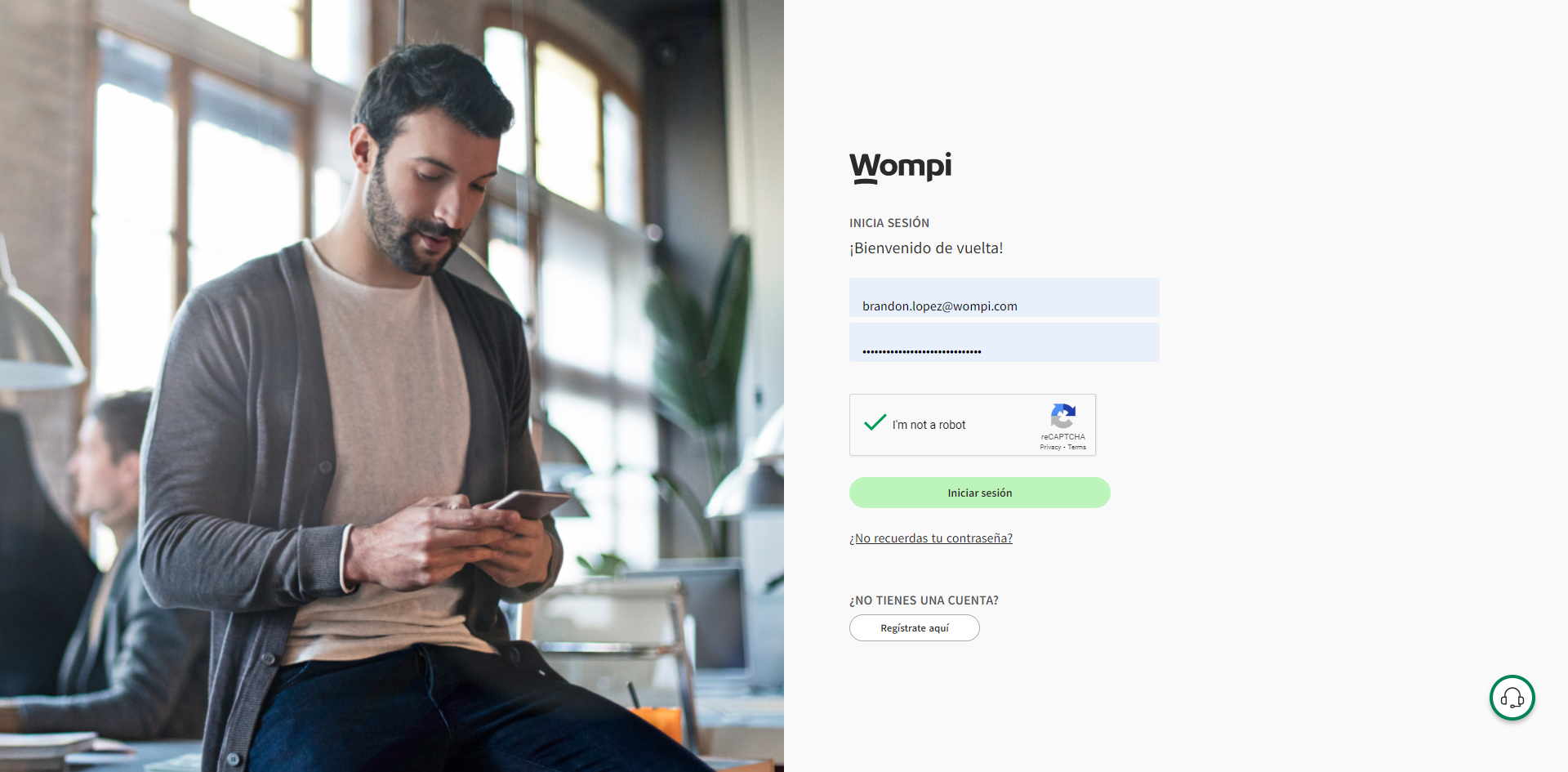
- Add the URL https://wompi-vtex-events.conexa.ai/ipn/event in the Events URL field and press the Save button.
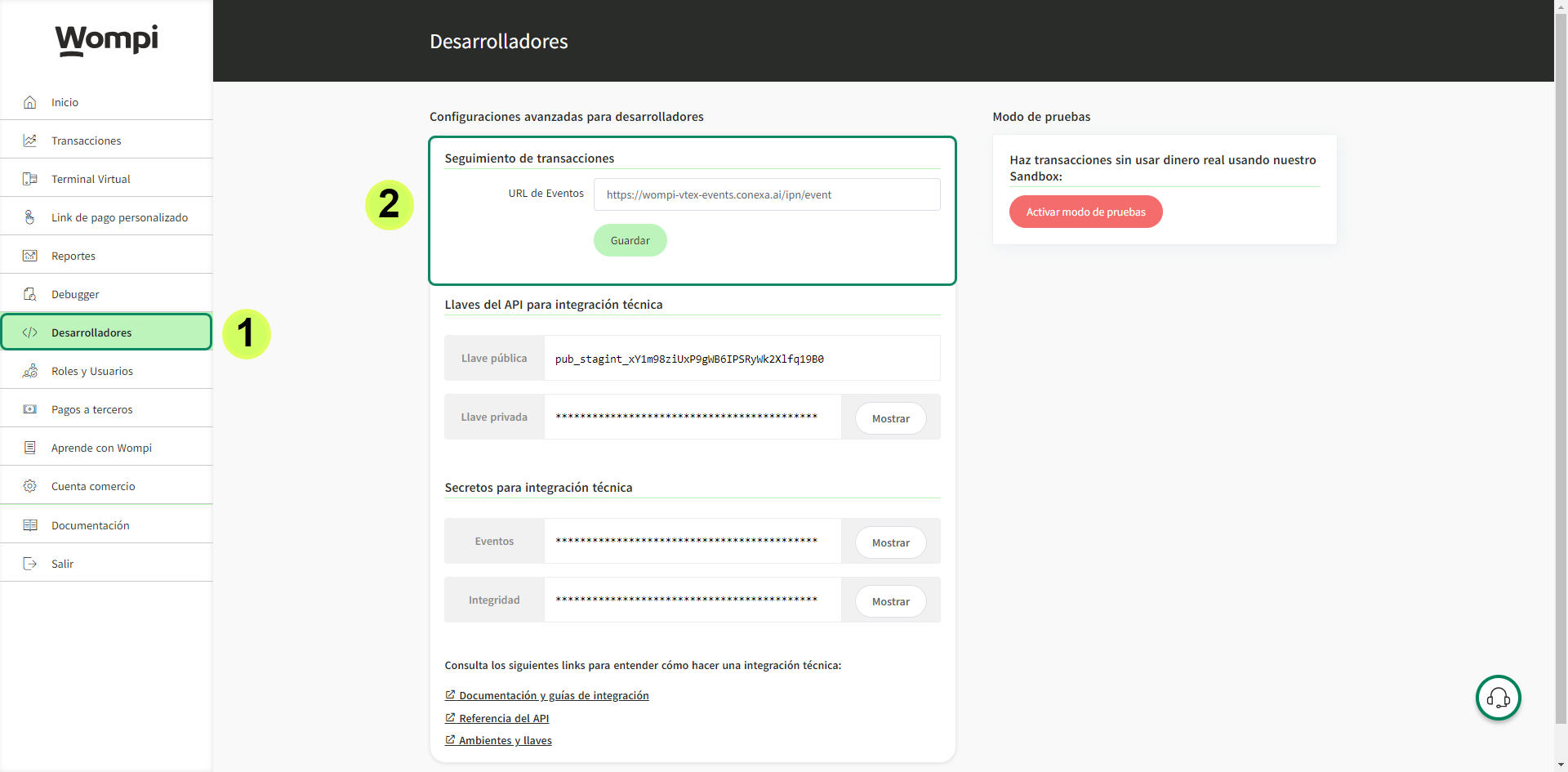
Note: If you activate the test mode, the URL you must configure is the following: https://wompi-vtex-events-stage.conexa.ai/ipn/event.
Done! The configuration process has finished successfully.
Test Mode
To activate Wompi's test mode in VTEX, we detail the following steps:
- Log in to Wompi with your credentials.
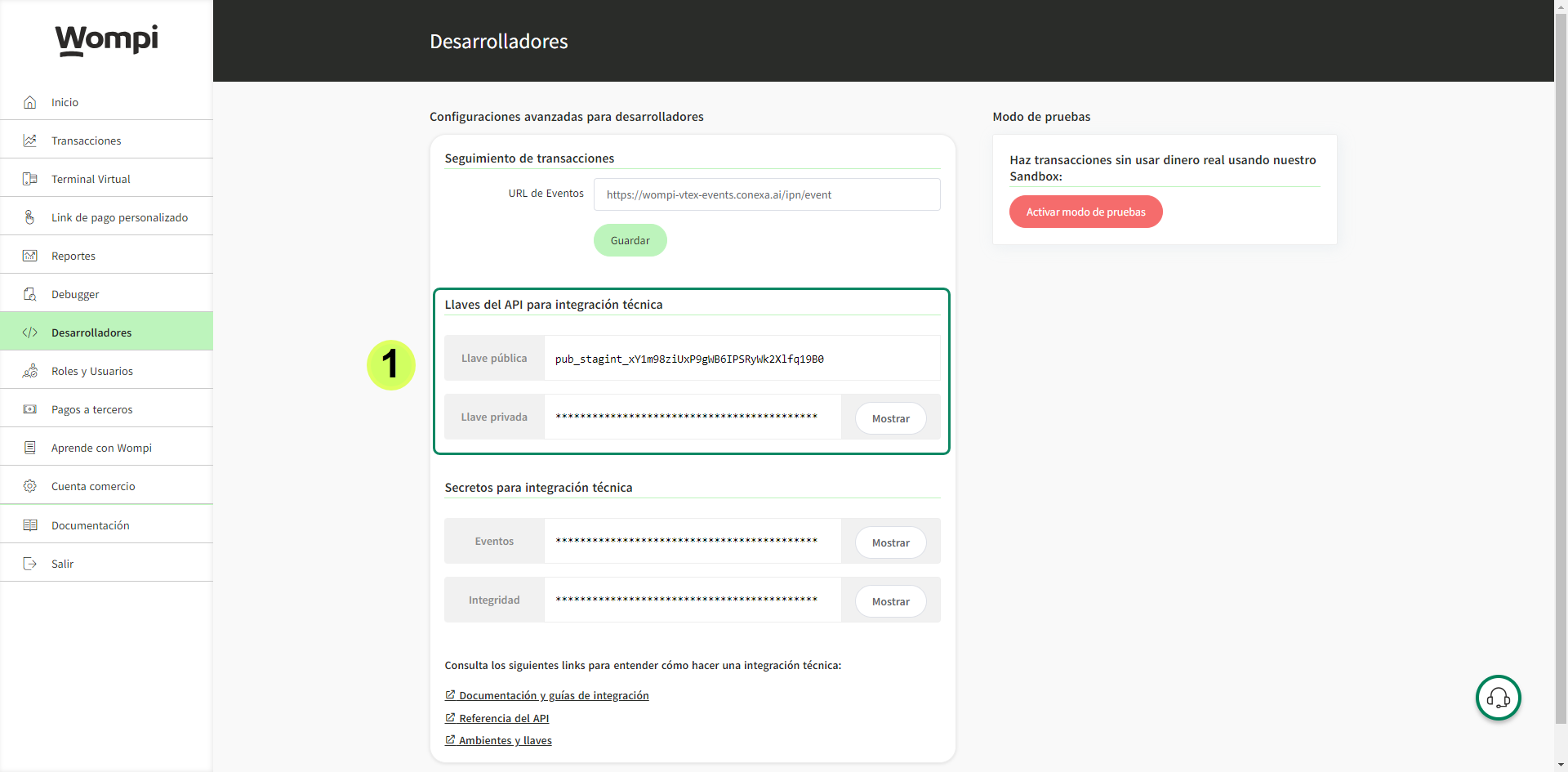
- Go to the Developers section and press the Enable Test Mode button.

- Use the credentials displayed in the API Keys section por technical integration in your integration.
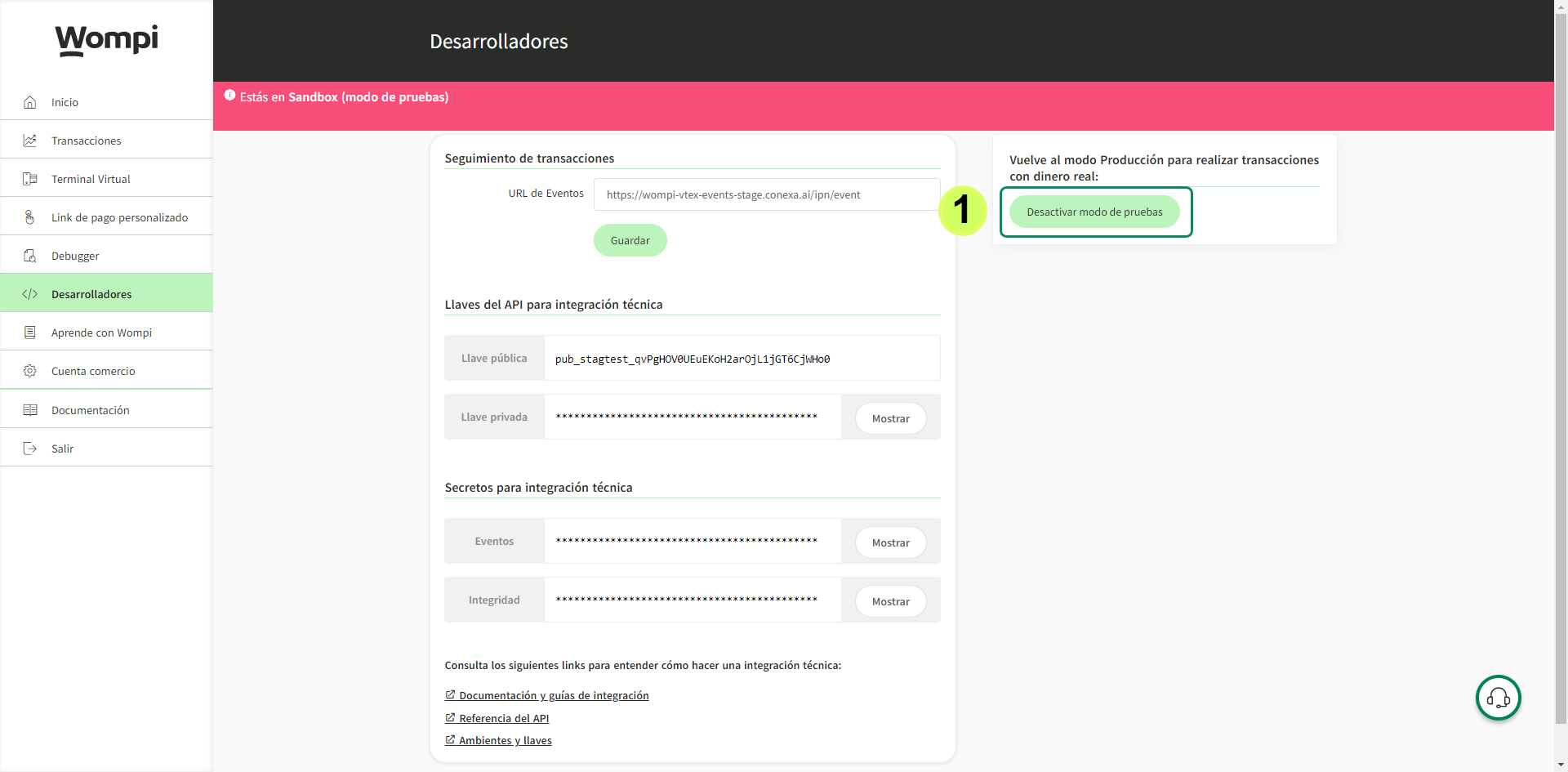
If you no longer with to use test mode, press the Disable Test Mode button and use the productive credentials in your integration.
Note: each environment has a related pair of keys, each of these keys has a prod or test prefix, which represent the production or sandbox environment respectively, so you can easily identify which environment it corresponds to.
Customer Flow
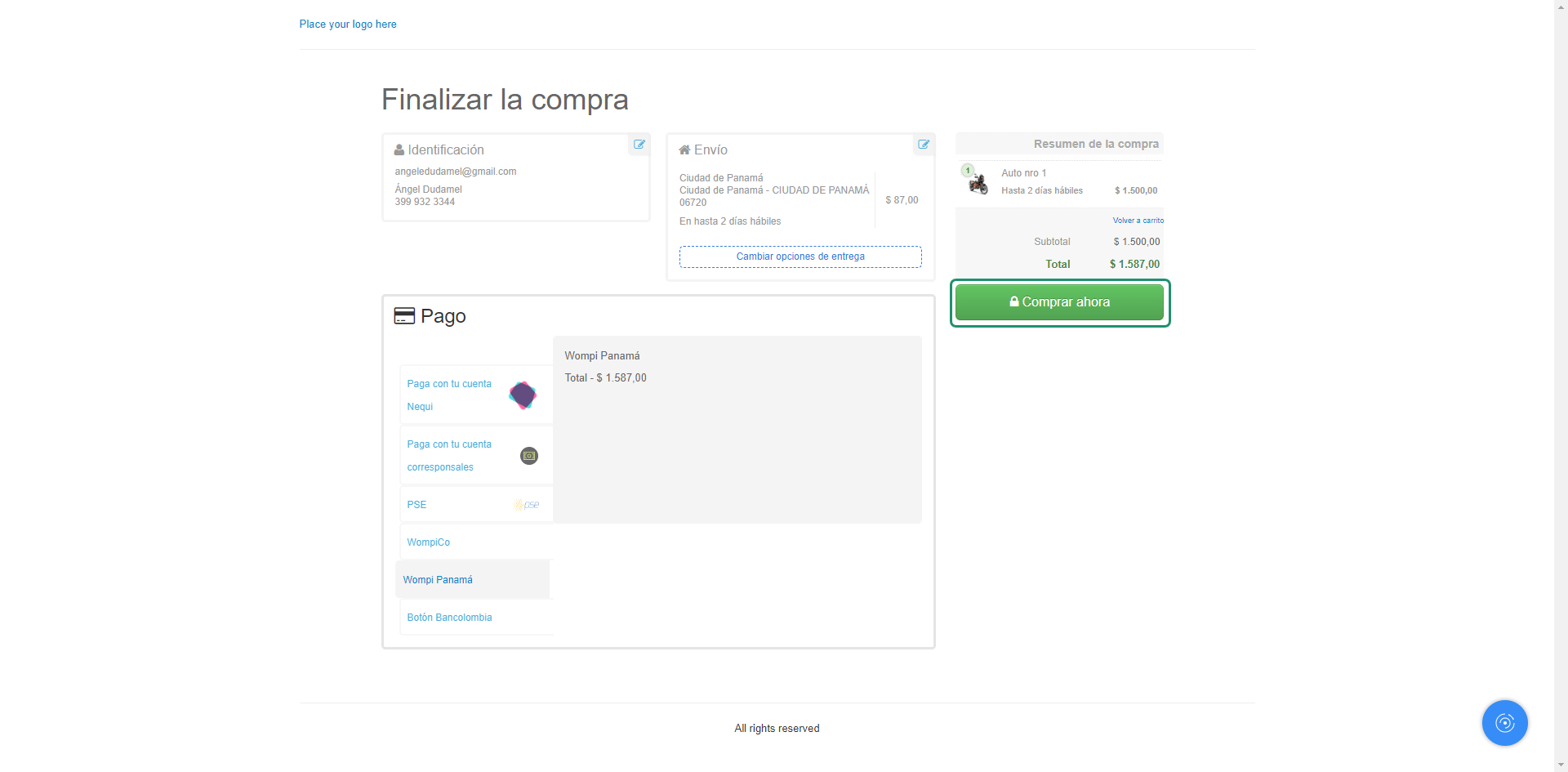
To make a payment, once the product has been chosen and added to the cart, your customers will see the Panama option as an available payment method.
The buyer selects the Wompi Panamá payment method at the checkout of your VTEX store.
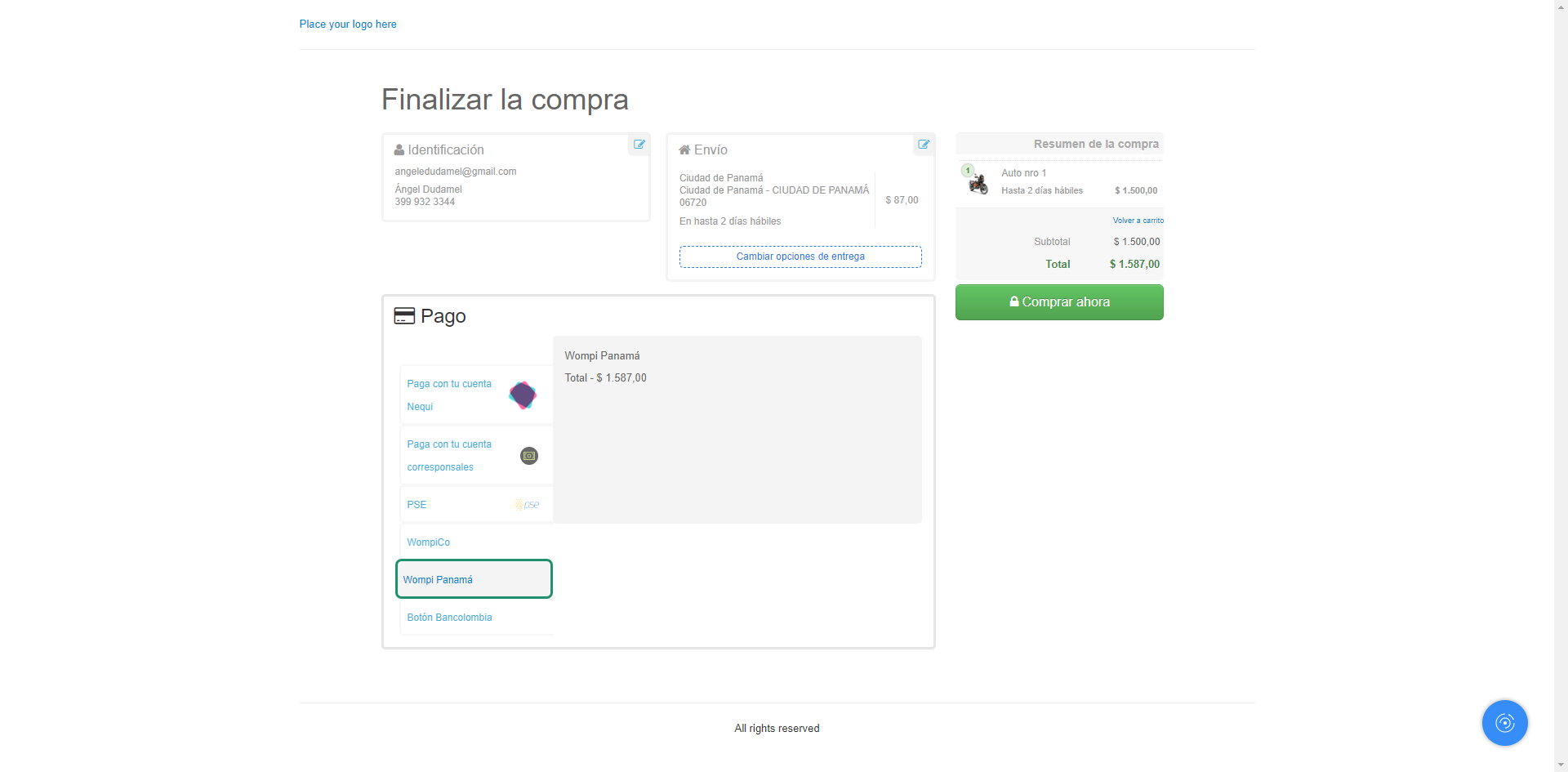
Press the Buy Now button and it will redirect you to Wompi's checkout experience to continue with the transaction.
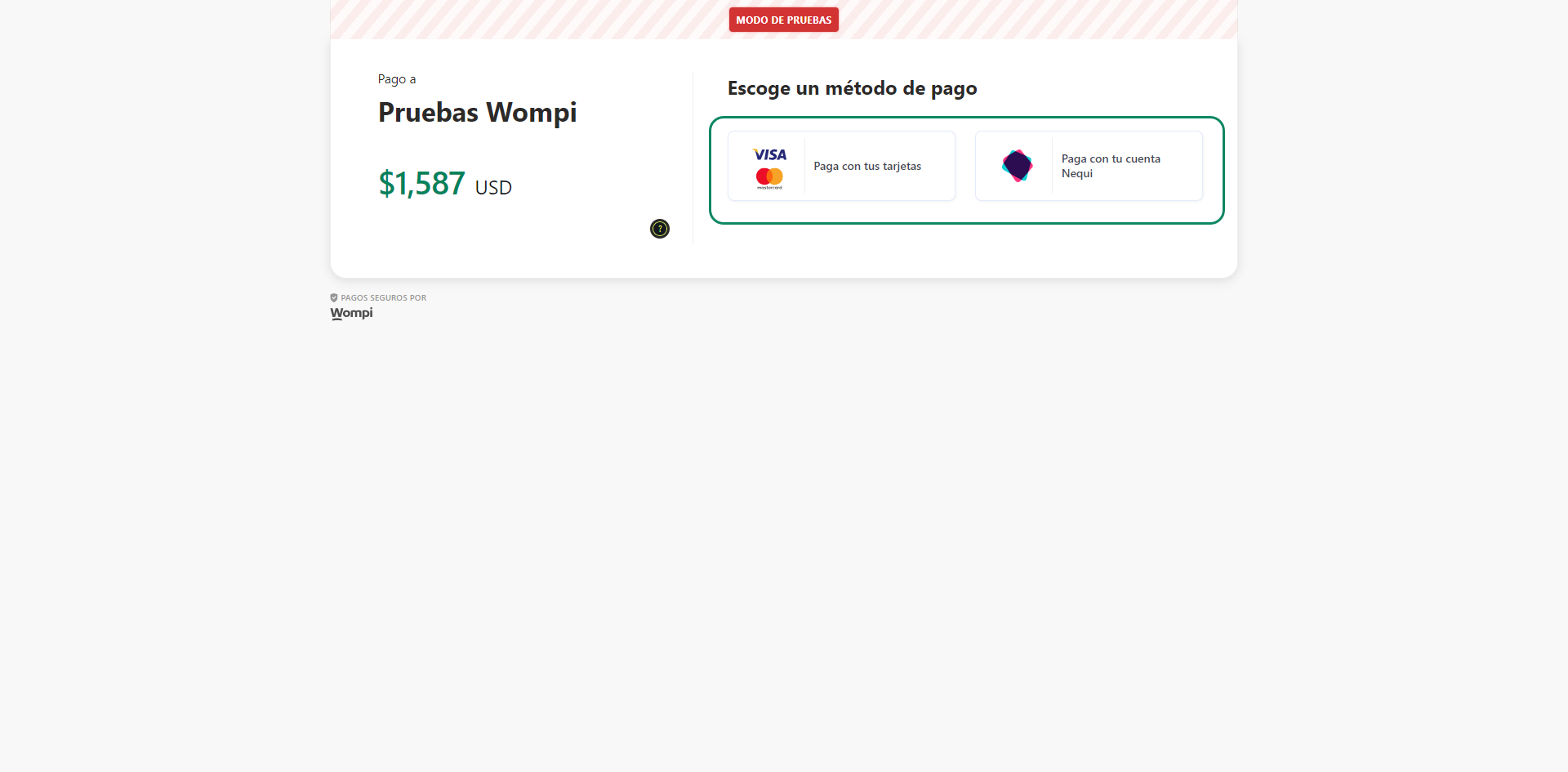
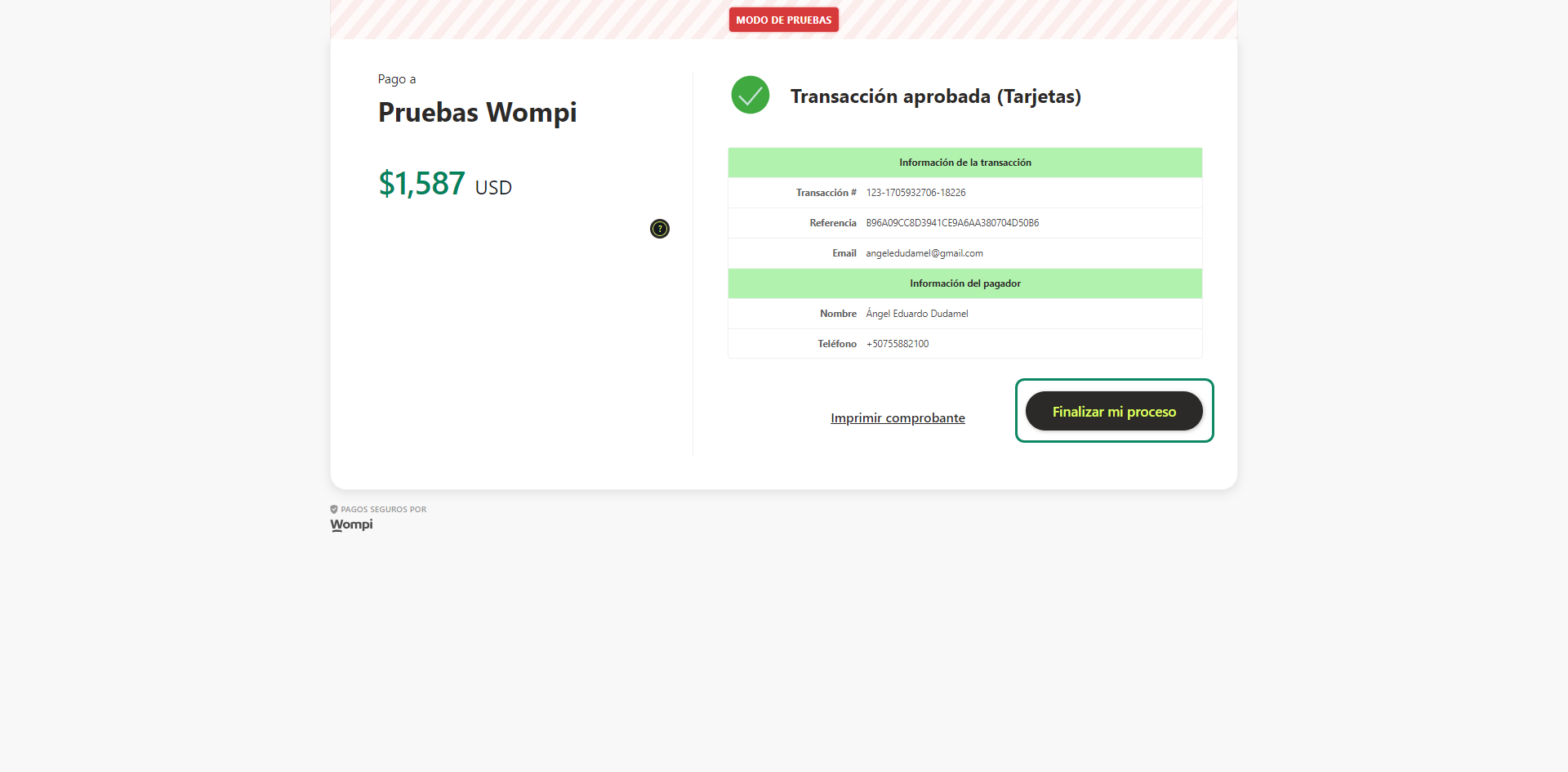
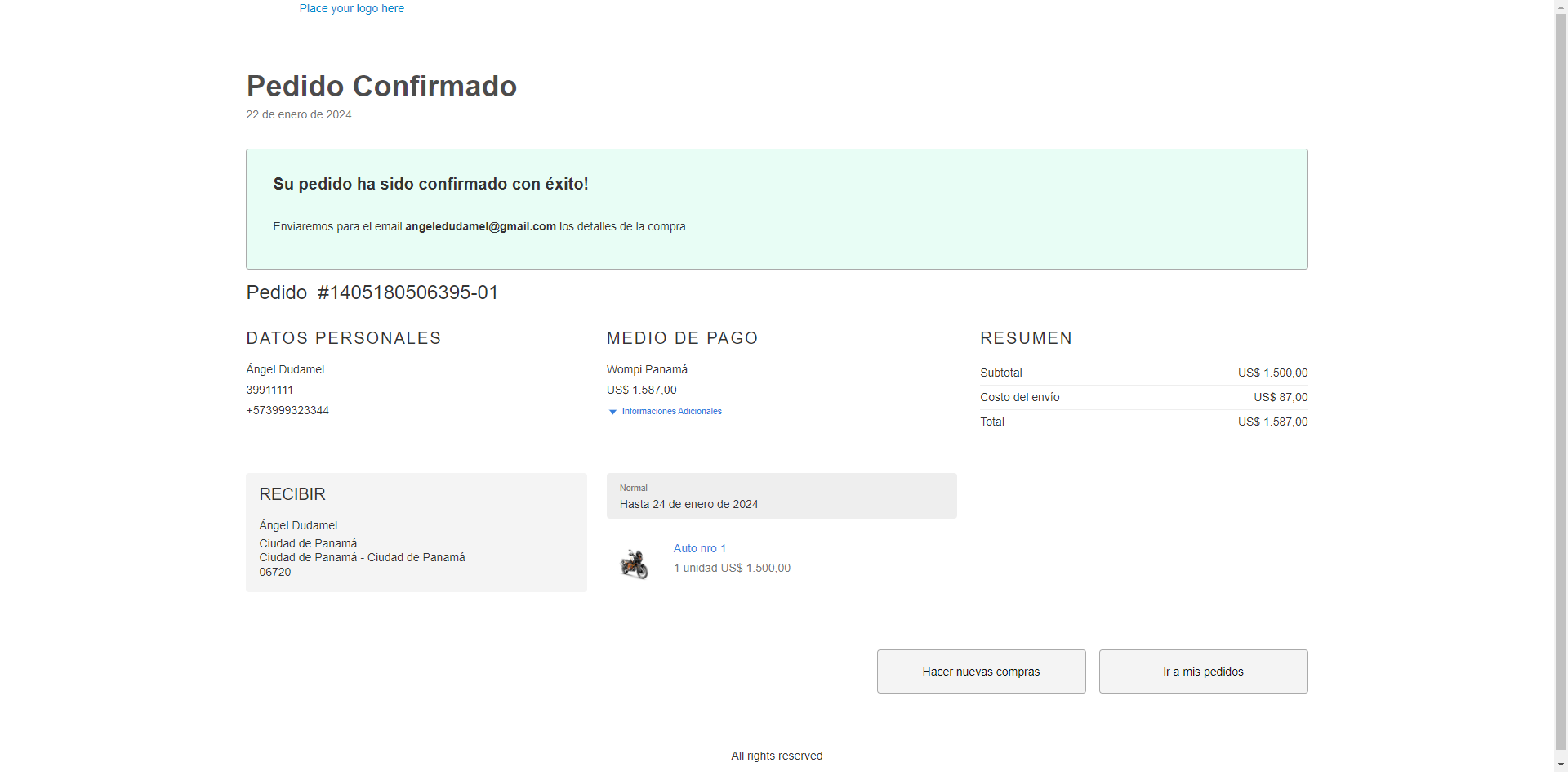
Once the operation is completed, you will return to the checkout of your VTEX store with the order confirmation.
Administrator Flow
As an administrator of your store, you will be able to view a list of your transactions with the payment method used.
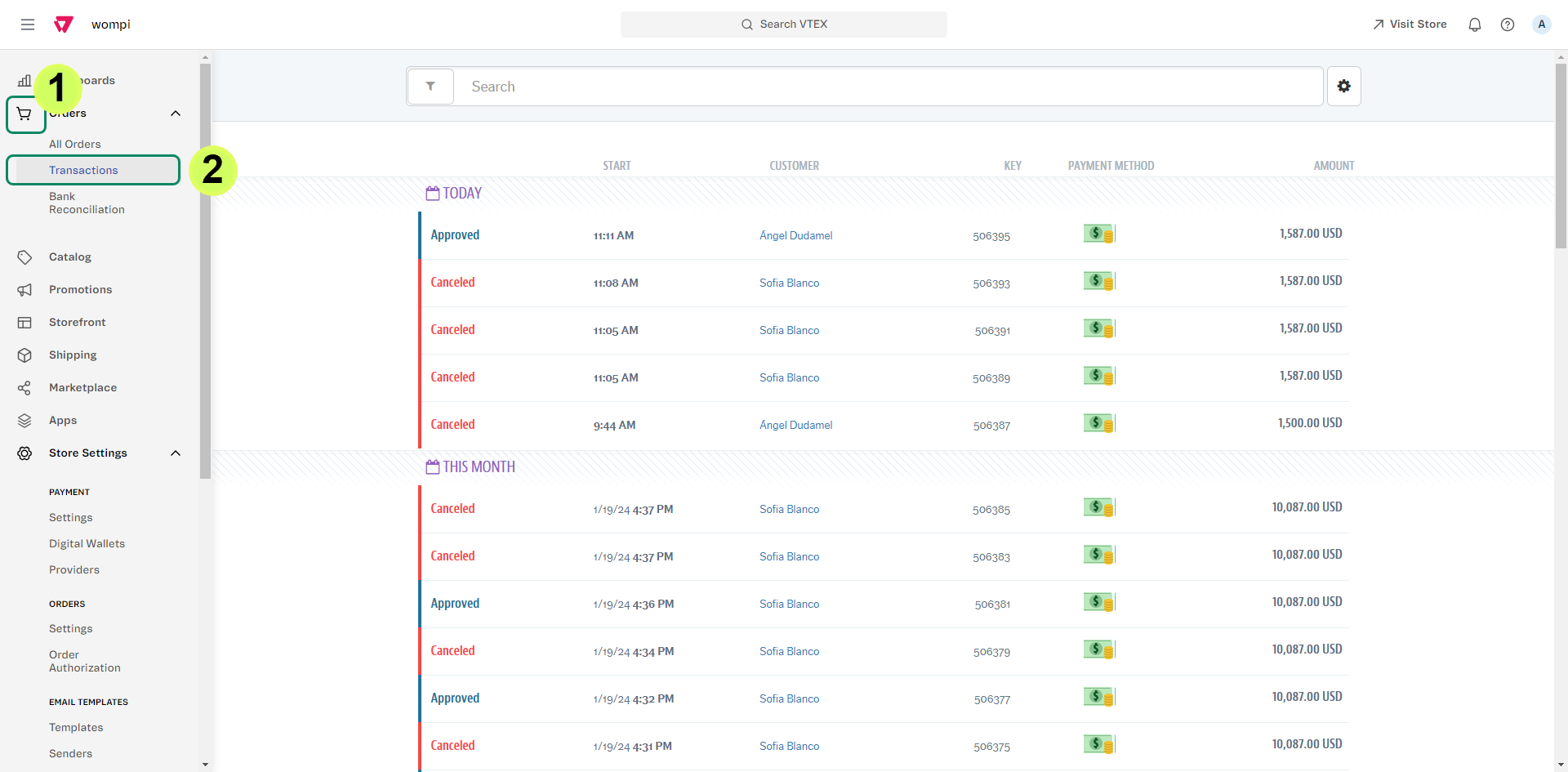
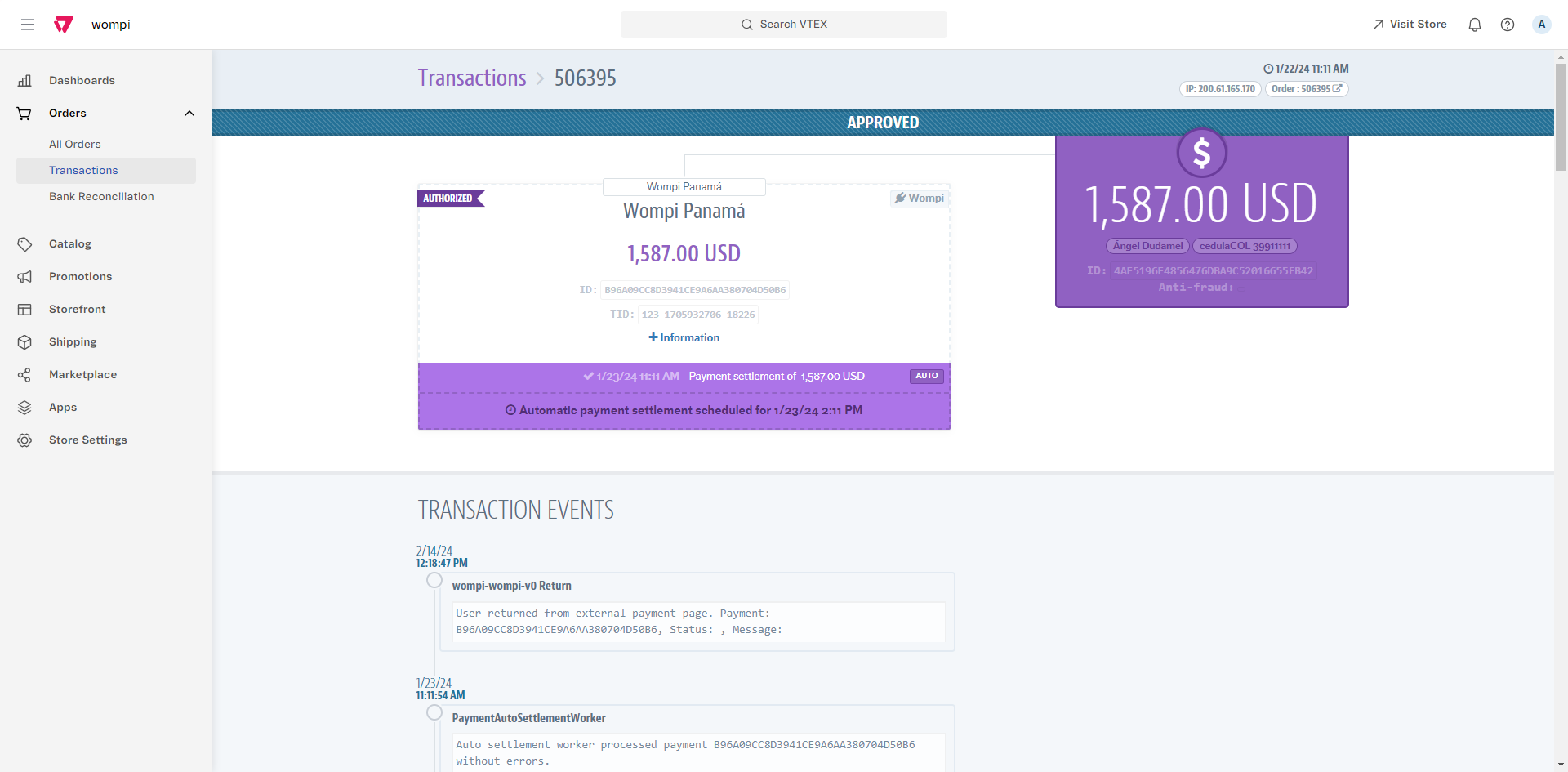
Likewise, from the order list you can check the details of the orders: you will see if the payment was made through Wompi and the corresponding transaction ID.
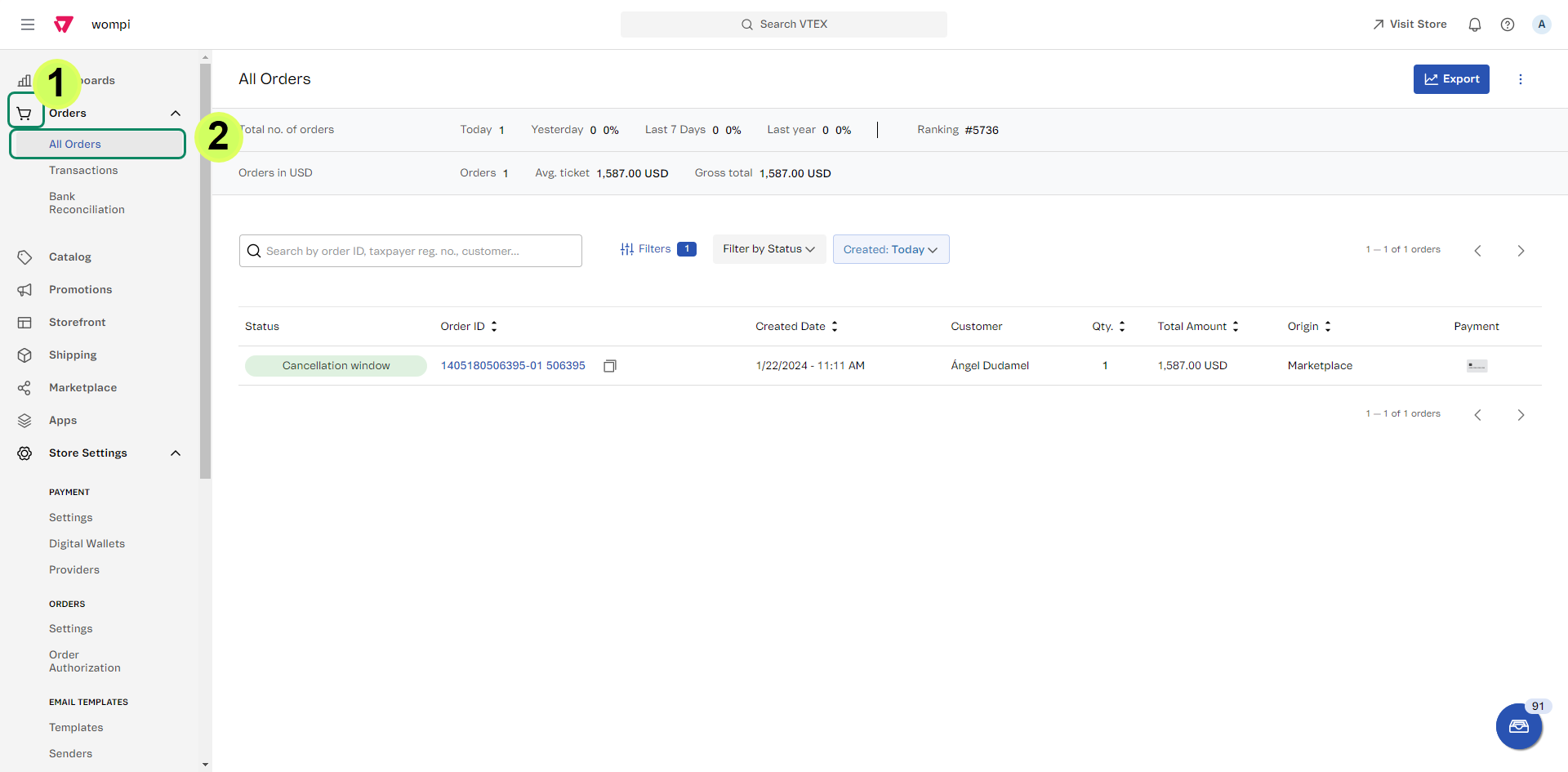
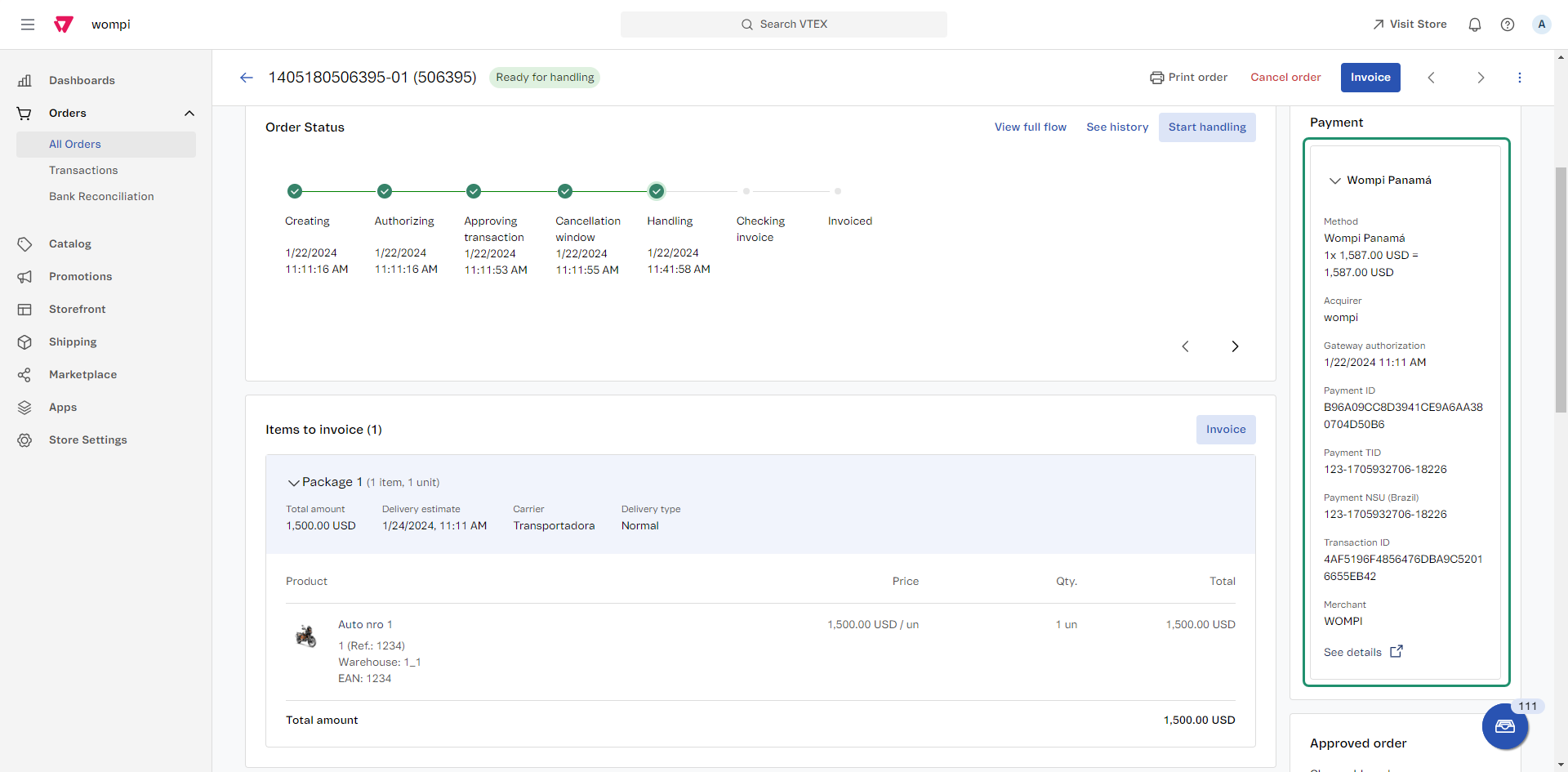
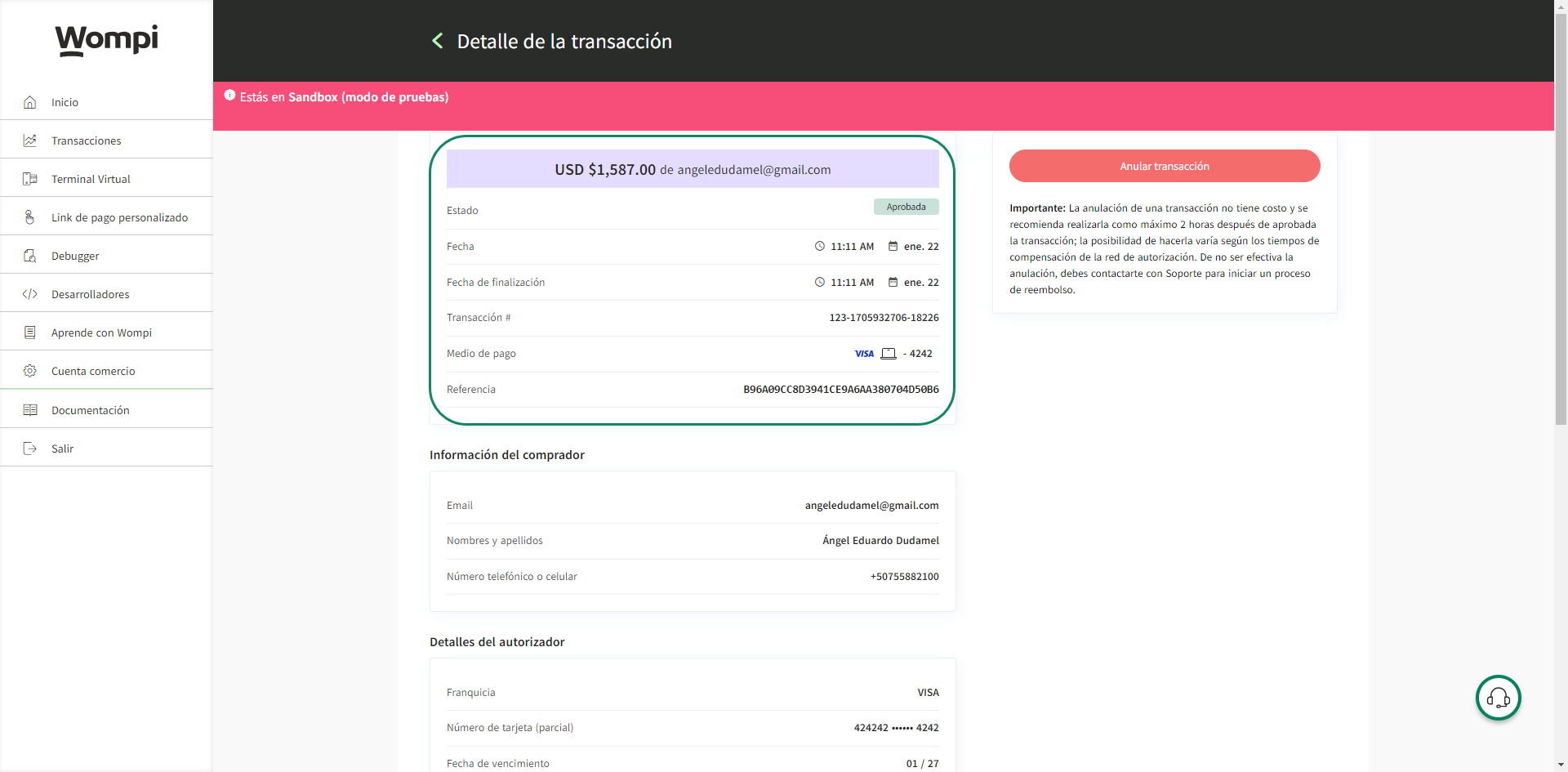
Also, as a business from the Wompi dashboard, you will be able to view the payment made.
FAQ
1. Why is the payment method not displayed in my store?
The credentials used in the configuration process are not correct. We recommend that you make sure that the credentials configured are correct and that all the steps mentioned in this documentation have been performed. If the problem persists, contact support.
2. How can I view more information about my transactions?
From your VTEX store and/or Wompi panel, you can obtain more details about your transactions.
3. Is the status of the payment made updated in my store?
Once the buyer pays for the order, you should see the approved payment in your store.
4. Where can I get more information about gateway membership registration?
Visit Register gateway affiliations from Tutorials and Solutions of the VTEX platform.
5. Where can I get more information to set up payment terms?
Visit Configure payment terms from Tutorials and Solutions of the VTEX platform.
6. Can I stop offering the payment method?
Yes, whenever you want you can disable the payment method, simply go to the TRANSACTIONS -> Payments -> Settings section, click on the Payment conditions tab and disable the payment condition for Wompi. Then, from the same screen you can enable the condition if you want to use it again in your VTEX store.
