Roles
Creating a role
You can create roles to assign to a user and determine the permissions and actions they will have to help you manage your Wompi account.
Permissions required
- Be the owner of the business account (by default you already have a 'SuperAdmin' role).
- Be a user who is assigned a role with 'Create and modify roles' permissions.

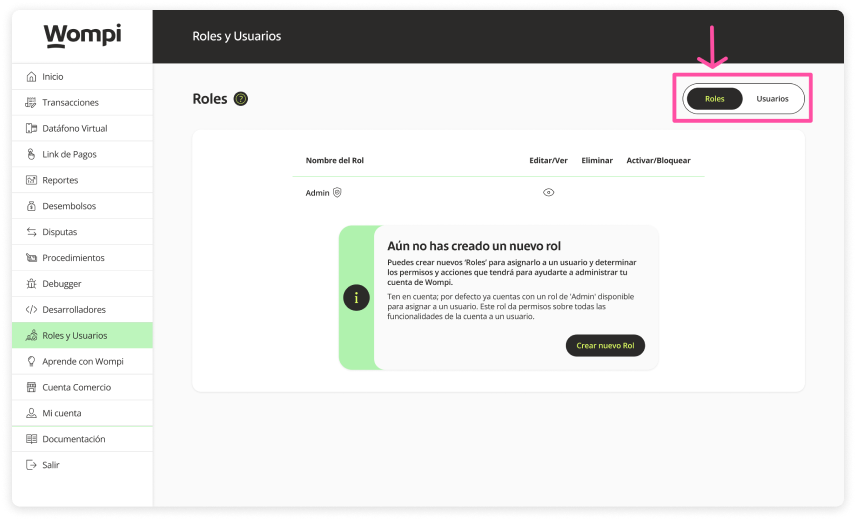
In the Roles and Users section, go to the Roles section.

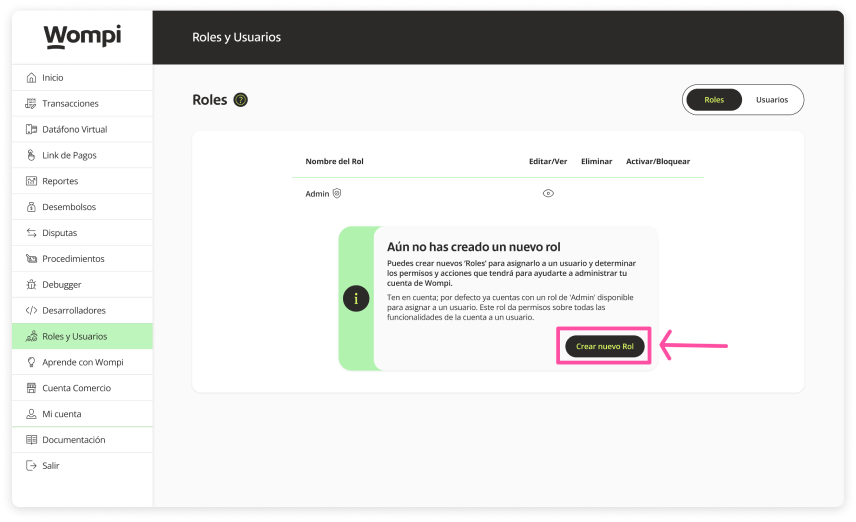
Click on the 'Create new Role' button.

Assign a name to the role you will create so that you can identify it.
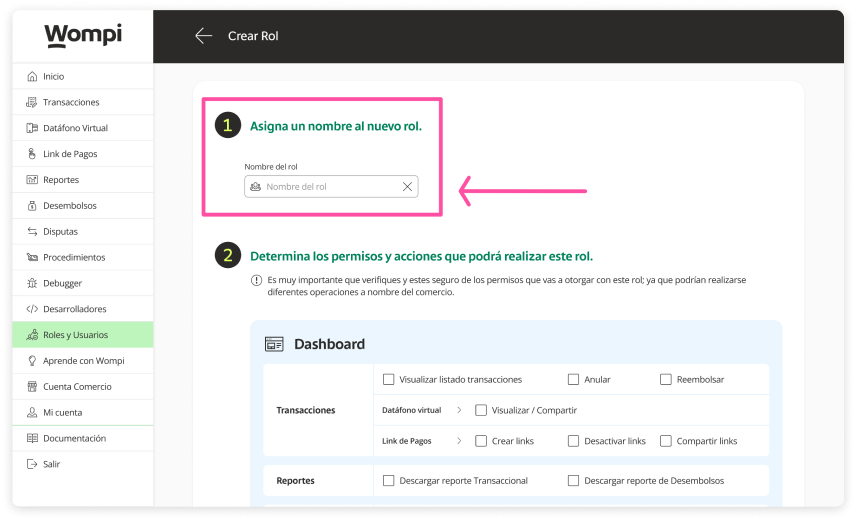

In the 'Determine the permissions and actions that this role can perform' section you will have available the different options of the dashboard and the app to select the permissions you want to assign.

Keep in mind: You will not be able to create a role with all the selected functionalities since an 'Admin' role already exists with all permissions.
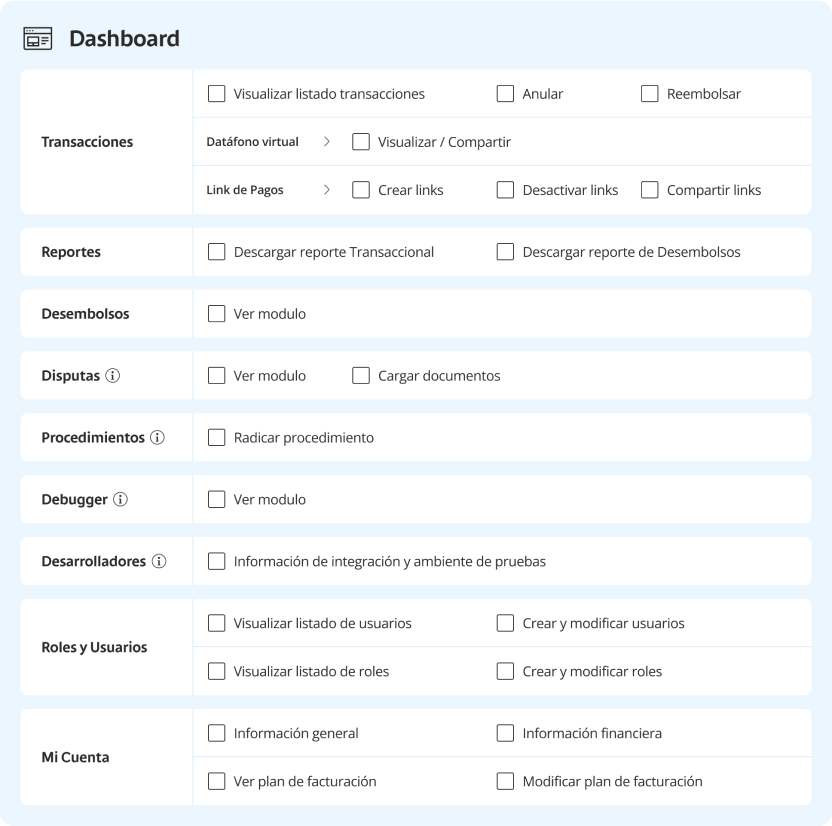
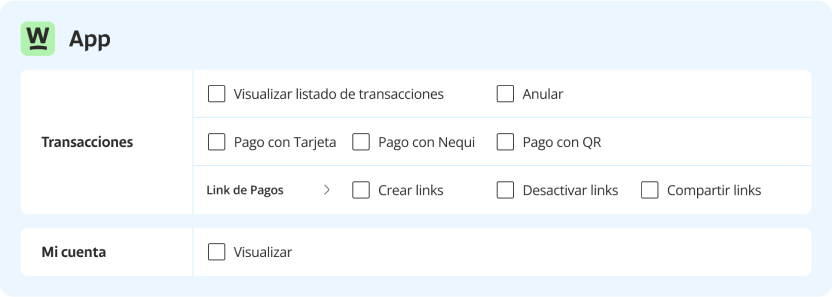

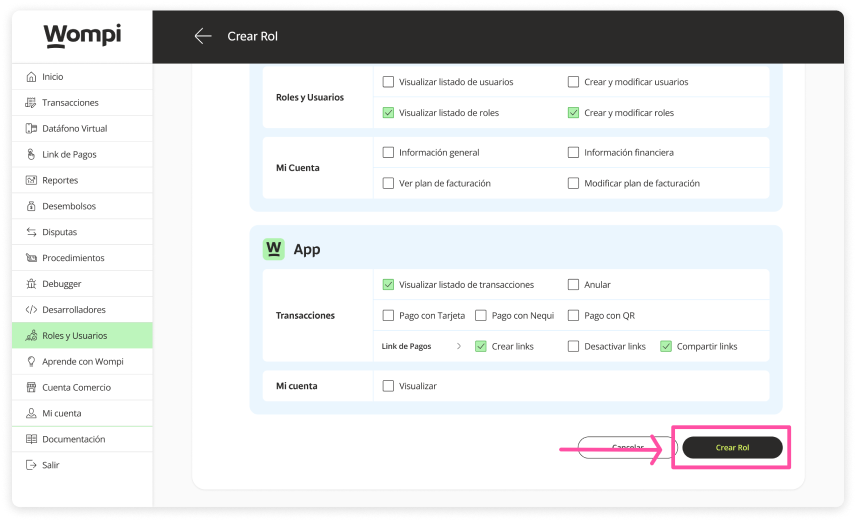
Once you have selected the permissions you want to grant, click the 'Create role' button.

After that, a message will appear confirming the creation of the role.
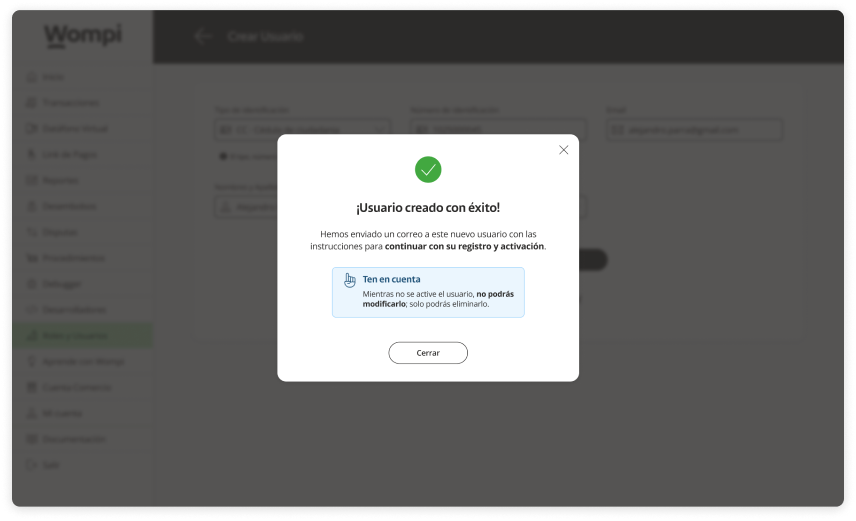

You will be able to see the created role in the list of the 'Roles' section and it will be available when you create a user to assign it, if you wish.
Deleting a role
Required permissions
- Be the owner of the business account (by default you already have a 'SuperAdmin' role).
- Be a user who is assigned a role with 'Create and modify roles' permissions.
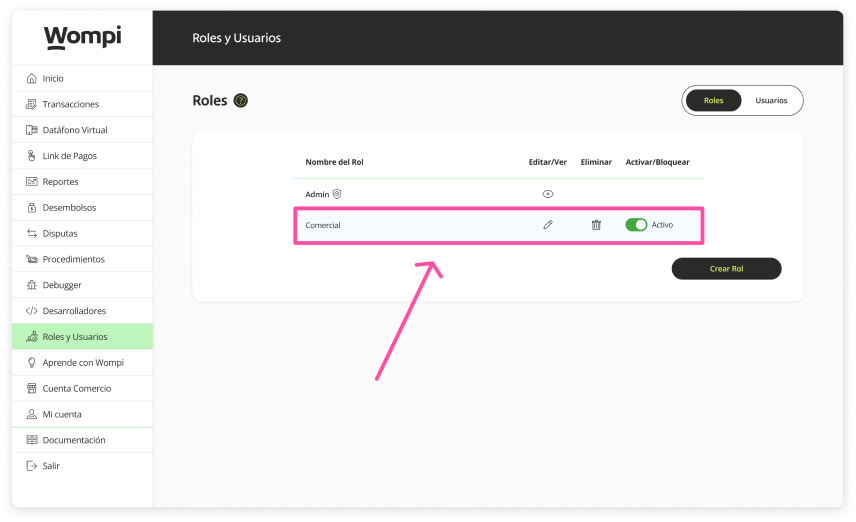
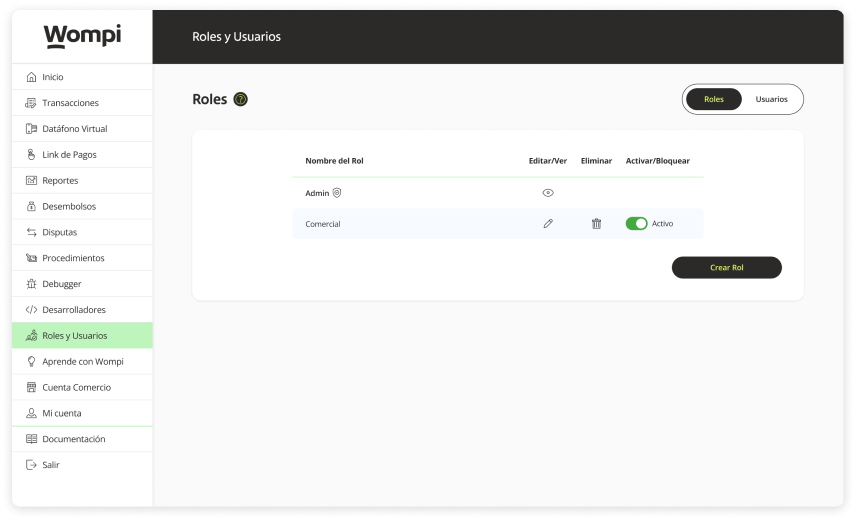
In the 'Roles' section, locate the role you want to delete in the list.
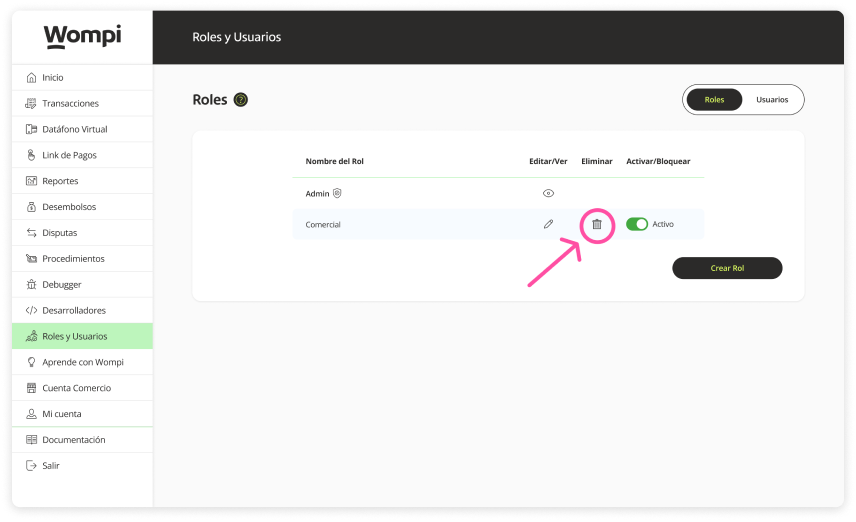
Click on the 'Trashcan' icon to delete
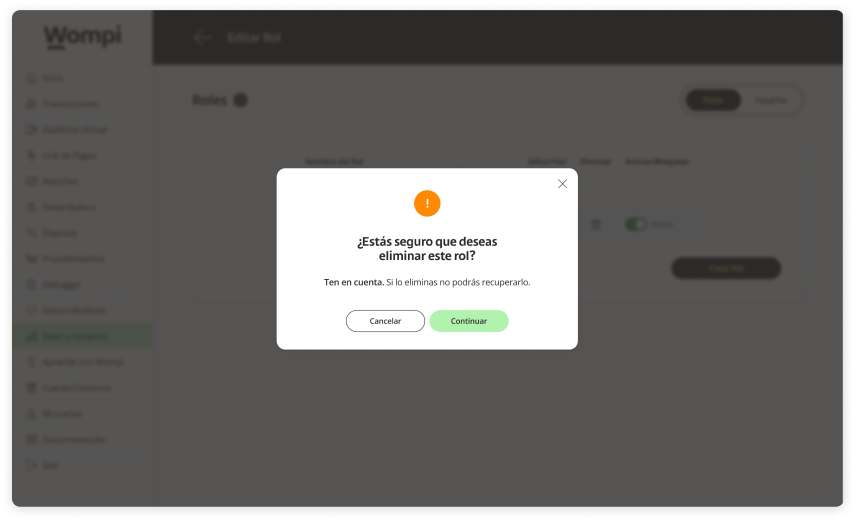
Two types of messages can be displayed.
a.) Message to confirm if you want to delete it.
Please note: If you delete it you will not be able to recover it.
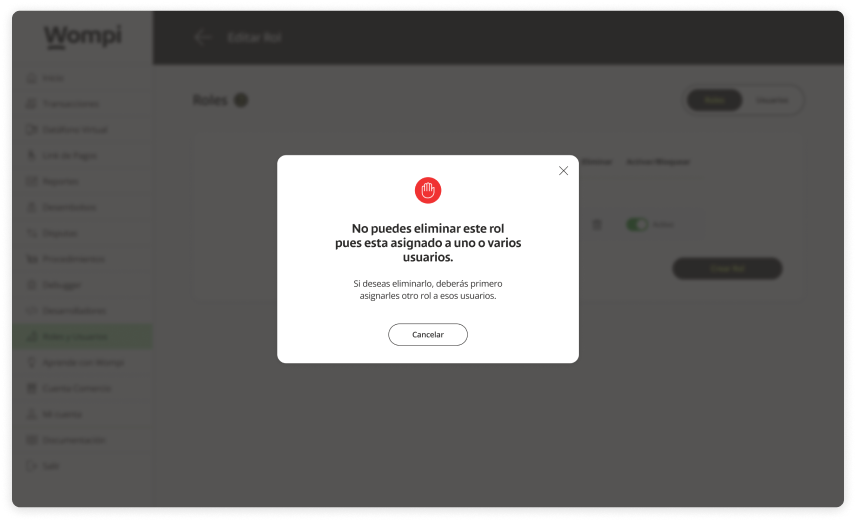
b.) Message that tells you that you cannot delete it if it is associated with one or more users.
Please note: If you want to delete it, you must first assign another role to that or those users that are associated to it.
Delete a user from editing a role.
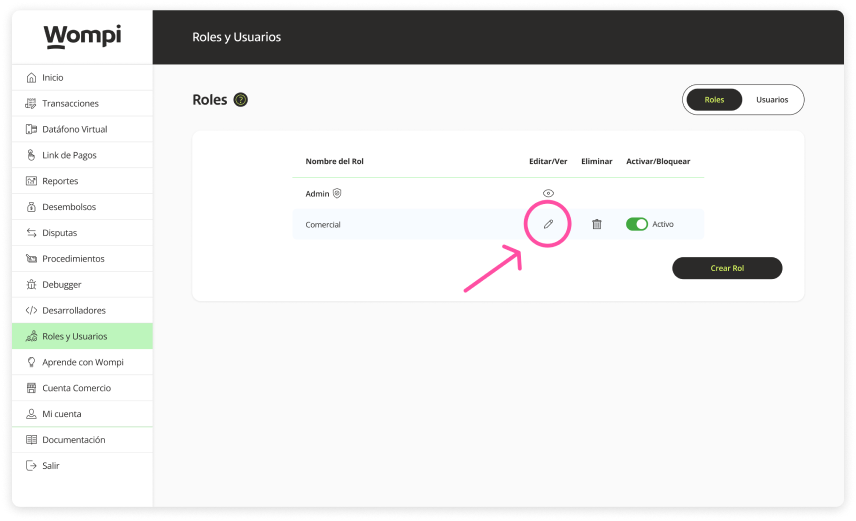
In the 'Roles' section, locate the role you want to delete in the list and click on the 'pencil' icon to 'edit'
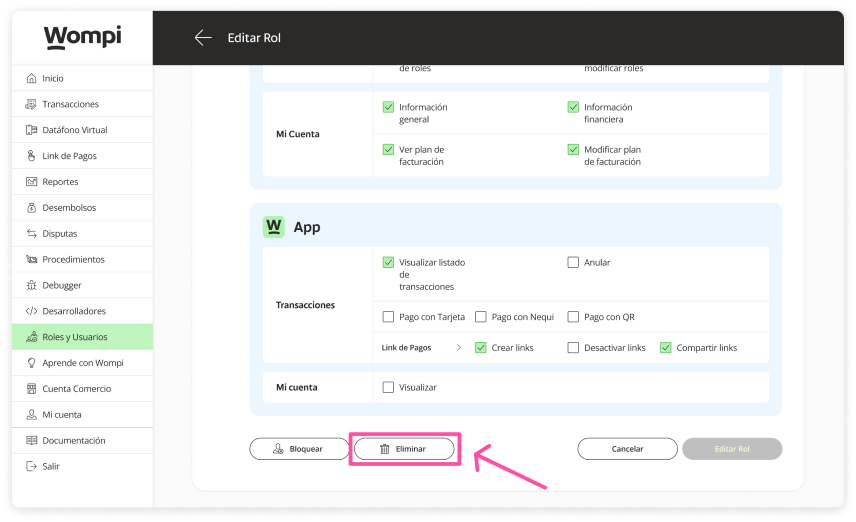
Once inside, locate the 'Delete' button at the bottom and click on it.
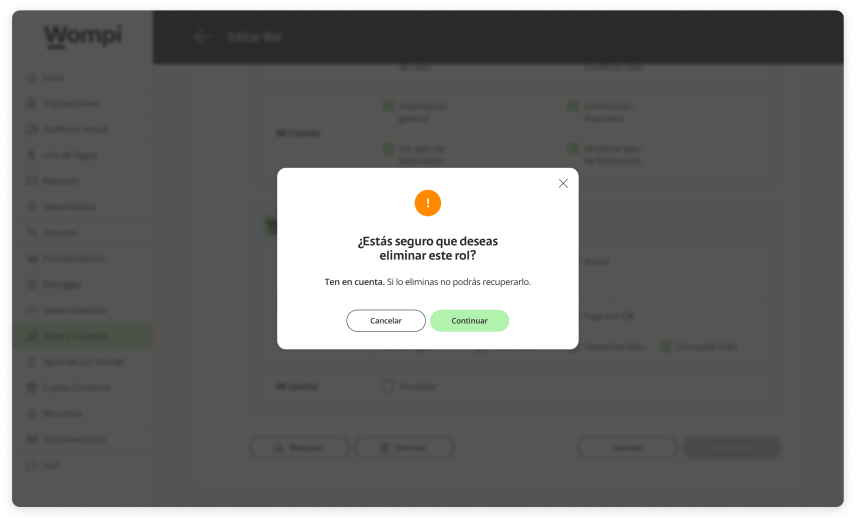
A message will appear asking you to confirm the elimination.
Please note: If you delete it, you will not be able to recover it.

The role will no longer be available in the user summary list.
Editing a role
Required permissions
- Be the owner of the business account (by default you already have a 'SuperAdmin' role).
- Be a user who is assigned a role with 'Create and modify roles' permissions.
In the 'Roles' section, locate the role you want to modify in the list.
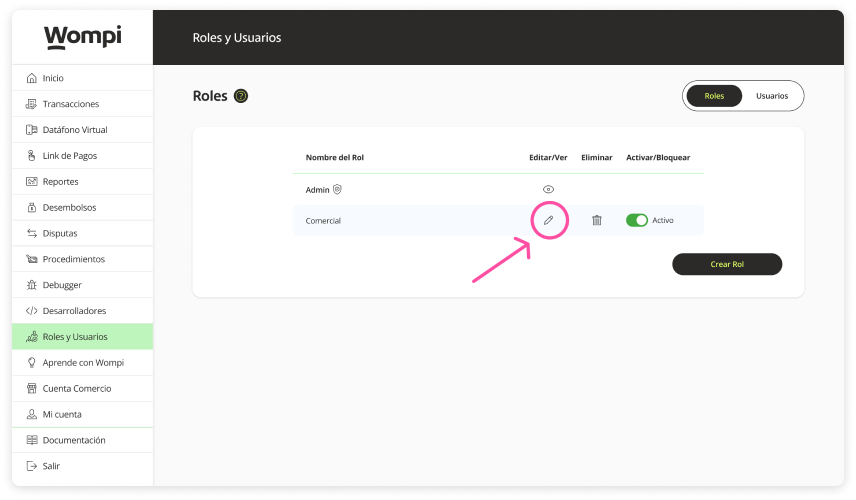
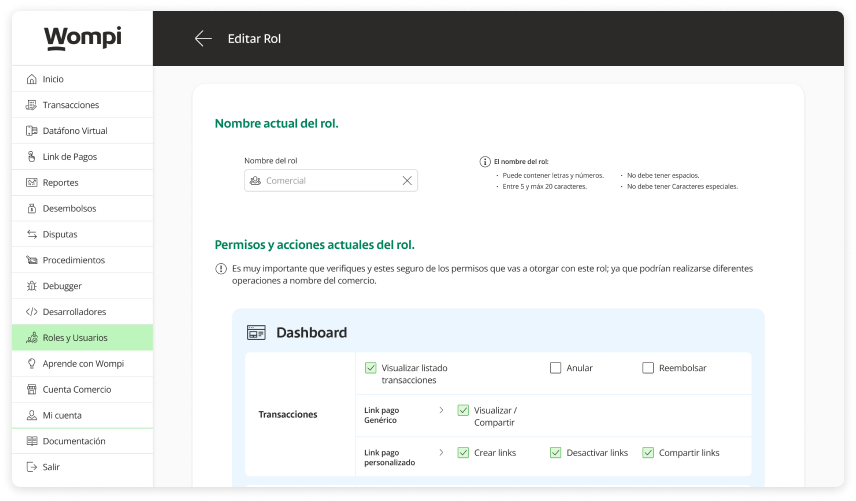
In the Edit role section, you will be able to see the current name of the role and its different assigned permissions. Which you can modify according to your needs.
Once you make any modification, you can continue by clicking the "Edit Role" button.
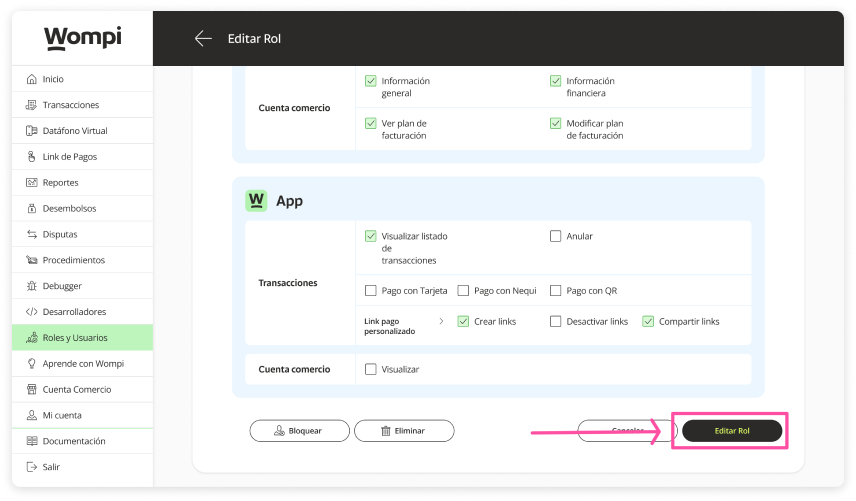
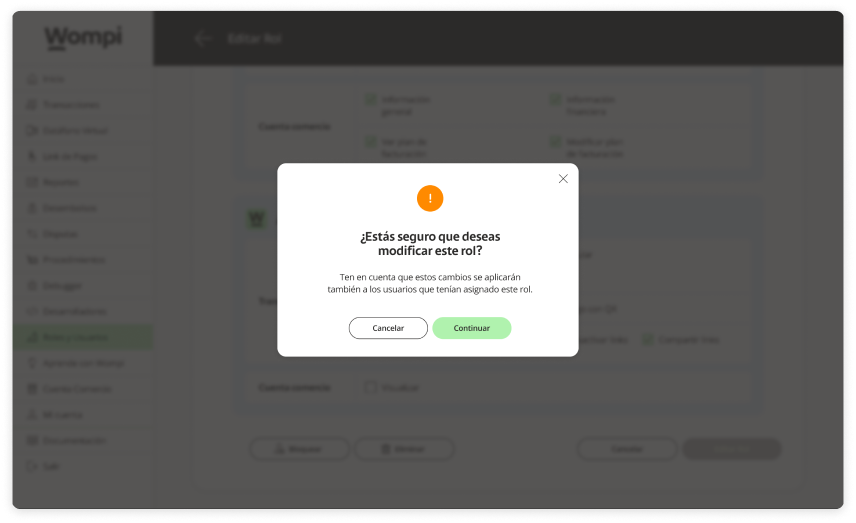
A message will appear asking you to confirm the edition.
Please note: These changes will also apply to users who were assigned this role.